
Recurring projects — month-end closing and other repeating task lists
A recurring project is a task list that repeats every period: month-end closing, a monthly stocktake, quarterly reporting. You describe the items once: what to do, who is responsible, by when and after what. From then on jeCheck creates a period project with tasks and dates every month on its own. The Summary screen shows which locations and departments are already done, who is late and how many tasks are waiting for them down the chain. It replaces the shared Excel sheet where departments tick boxes.
Where to find it
Work → Recurring projects. The menu item is visible to administrators and to employees with the “Recurring projects: setup” permission. You can also get there with the Recurring projects button in the Projects section.
Members and assignees open the period project from the Projects list or from their tasks. The first tab of a period project is Summary.
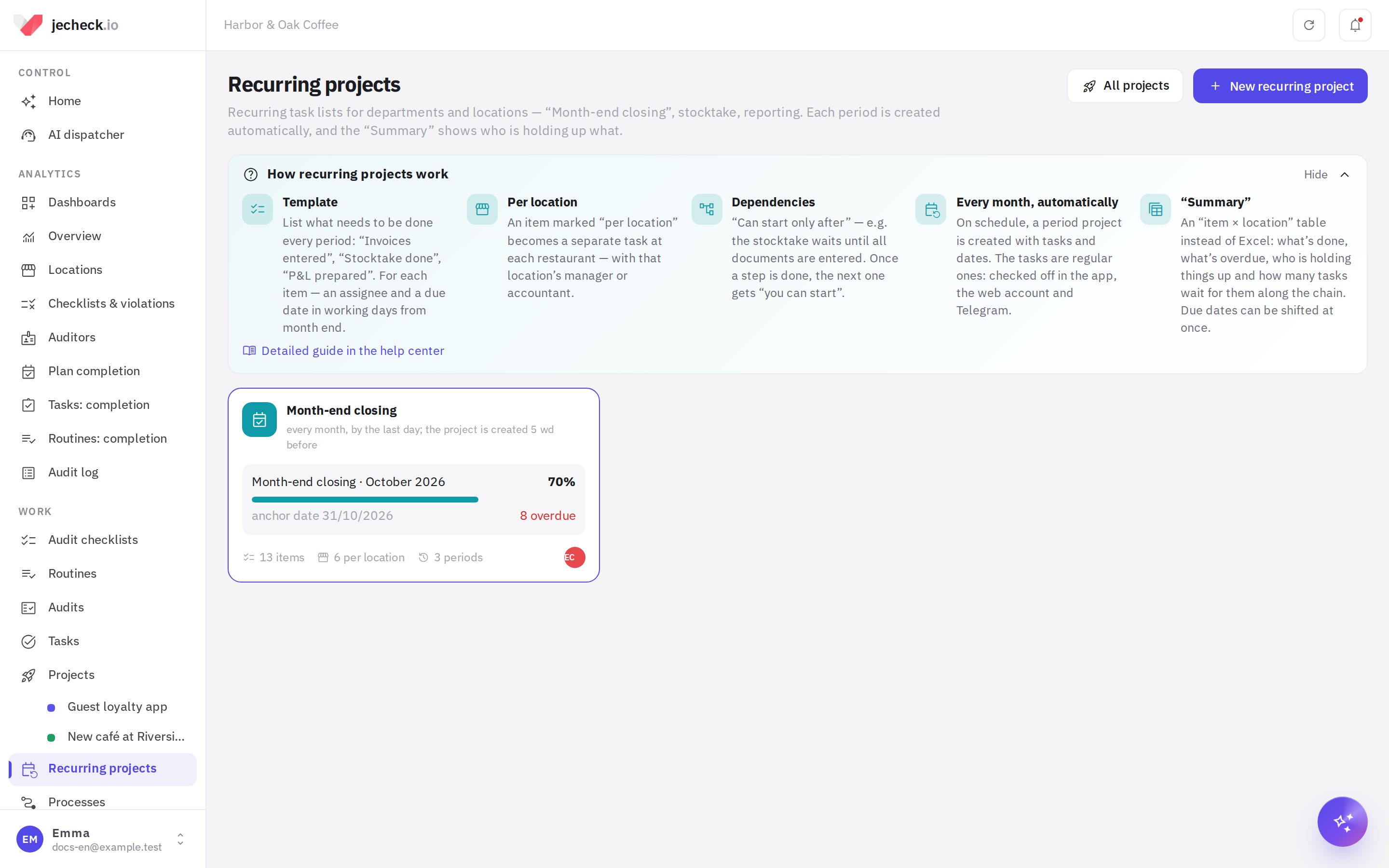
Recurring projects are available on the Network and Enterprise plans. Period tasks are checked off like any other task: in the app, in the web account, or in Telegram through the AI dispatcher.
How to create a recurring project
- Get started. Click New recurring project.
- Choose a starting point.
- Month-end closing: location documents, stocktake, reconciliations, cost of goods, P&L and the owner report, with dependencies already set.
- Monthly stocktake: preparation, counting by zone, entering the results, reviewing discrepancies.
- Quarter-end closing: reconciliation statements, tax returns, review, submission.
- Empty recurring project: you set all the items yourself.
- From a project: the tasks of an existing project become template items. Sections, assignees and dependencies are kept, and due dates are recalculated into working days from the project due date.
- Set the name, key prefix and frequency. The prefix is 2–5 Latin letters. The November project gets a key like CLS2611, and its tasks get numbers CLS2611-1, CLS2611-2 and so on. Frequency: Every month, Every quarter or Every week.
- Click “Create”. The Template tab opens. Check the items and assignees: each due date already shows the date in the next period.
Template: items, due dates, assignees
Every template item becomes a task in every period. Expand an item to set its parameters.
- Assignee:
- Specific people — the same employees every period;
- Department — the task goes to the department queue, where someone takes it or it is distributed;
- Position at the location — for example, all accountants of the location the task belongs to;
- Location manager — the manager of that location;
- Recurring project owner — the person responsible for the whole cycle;
- Don’t assign — you assign it manually in each period.
- A separate task at each location. An “Invoices entered” item with this option becomes a separate task for each restaurant, with its own assignee. Each location gets its own cell in the Summary.
- Due date — in working days from the anchor date. The anchor date is usually the last day of the month. −1 means one working day before month end, 0 means on the anchor day (if it is a day off, the last working day before it), 3 means three working days after. Saturdays, Sundays and company days off are skipped.
- Start — optional. For example, a stocktake from 0 to 1 starts on the last day of the month and ends on the first working day of the next one.
- Can start only after. Select the items that must be done first. Until they are done, the task is marked Waiting for another task in the Summary. When the last preceding step is done, the assignee gets a “you can start” message. For per-location items the link works within one location: the stocktake at a location waits for the documents of that same location. If a shared item (“Supplier reconciliation”) comes after a per-location item, it waits for all locations.
- Checklist inside the task (one line per item), Photo required, Acceptance required (the manager reviews), Priority, Description.
Items can be grouped into sections (“Location documents”, “Accounting”, “Reporting”), reordered, copied and deleted. Above the list there is a Due date map — item bars by working day relative to the anchor date. It marks the anchor date and the day the project is created.
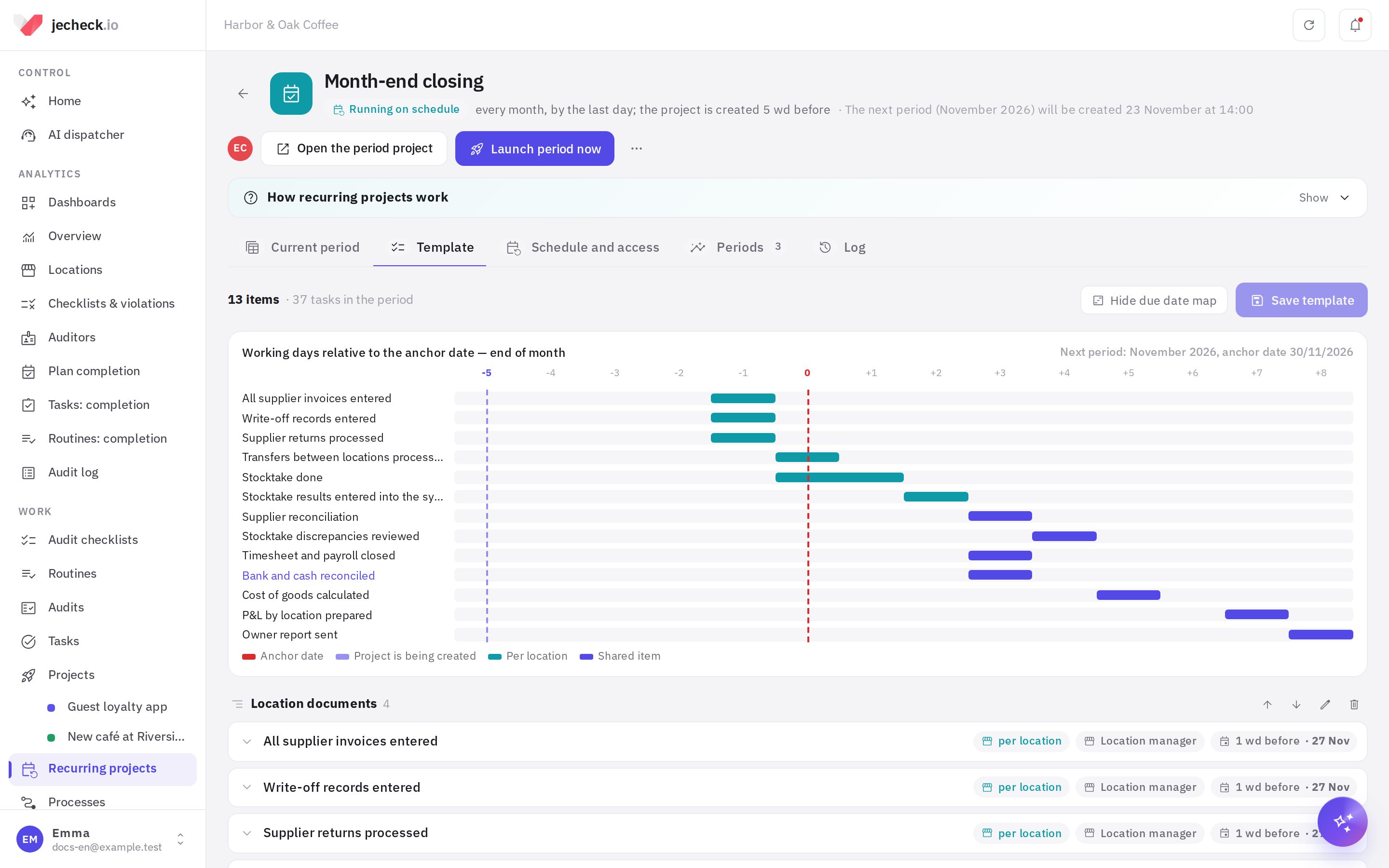
The light bulb icon is a hint. It appears if an item has no due date or assignee, if the due date is earlier than the project is created, or if a task starts before the previous step is due. You can save a template with hints. Click Save template: changes apply from the next period; projects already created do not change.
Schedule and access
The Schedule and access tab:
- Anchor date: End of month, Day 1 or Day of month (for example, the 25th). For a quarter — the end or start of the quarter, for a week — a day of the week.
- When to create the period project — in working days from the anchor date and at what hour. For example, −5 at 09:00 means five working days before month end. Below you immediately see when the next period will be created.
- Company days off — holidays that do not count as working days, in addition to Saturdays and Sundays.
- Locations — for per-location items: all company locations (new ones are added automatically) or selected ones.
- Owner — the administrator of period projects and the author of the tasks. Members with their roles are carried over into every new period project. The Configures role changes the template and schedule and launches periods; the other roles work as in a regular project.
- Who sees period projects — members only or the whole company. Assignees always see their tasks, even if they are not members.
- Notifications: when a period starts, each assignee gets one message — how many tasks they have and the nearest due date; when the previous step is done — “you can start”.
The Launch period now button creates the next period's project without waiting for the schedule. The ⋯ menu has Pause (no new periods are created), Make a copy, Period history in Excel and Delete. Period projects already created remain after deletion.
Summary: who is holding things up and on what
Summary is the first tab of a period project. It is also shown on the Current period tab of the recurring project.
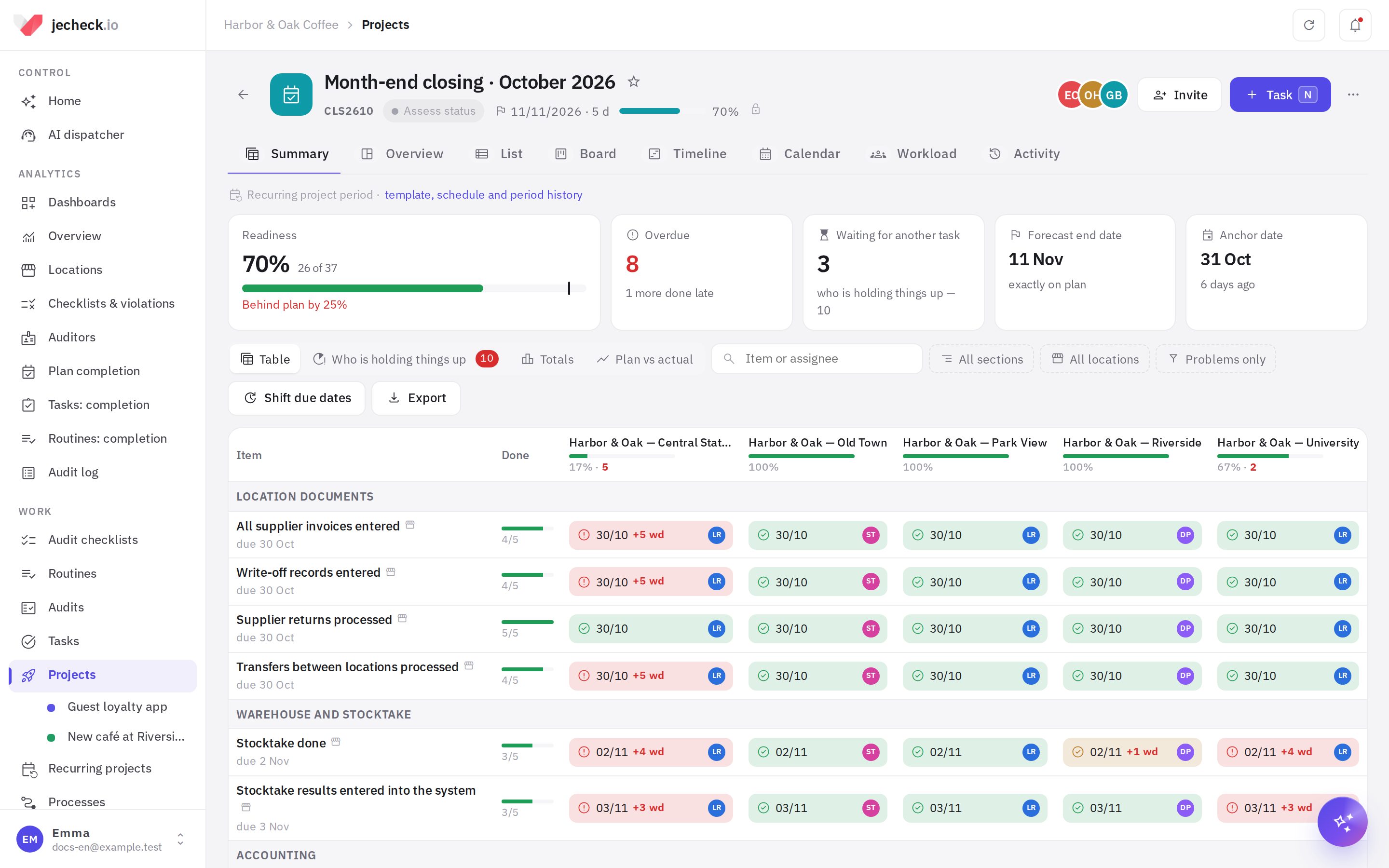
- Metrics at the top:
- Readiness against the plan — a black mark on the bar shows how many tasks should be done by today according to the due dates;
- Overdue and Waiting for another task;
- Forecast end date based on the pace of the last working days;
- Anchor date;
- No assignee.
- Table: rows are template items by section, columns are locations with their readiness percentage. A cell shows the state, due date, delay in working days (+2) and the assignee. Items not split by location span the whole row. Click a cell to open the task. Filters: section, locations, Problems only.
- Who is holding things up — overdue tasks and tasks that hold up others. The Blocking column shows how many open tasks are waiting for this task down the chain: the higher the number, the more it slows down the period close.
- Totals — readiness By location, By department, By assignee and By section.
- Plan vs actual — a chart: the dashed line shows how much should be done by a date, the solid line shows how much is actually done.
Cell states:
| State | What it means |
|---|---|
| Done | The task was closed on time |
| Done late | Closed after the due date |
| Overdue | The due date has passed and the task is open |
| Waiting for another task | The item it comes after is not done |
| In review / In progress / To do | As for a regular task |
| Not started yet | The start date has not come yet |
How to shift due dates
If a supplier delayed documents, you can shift due dates in one go, and the whole chain moves with them.
- In the Summary, click Shift due dates and select cells. A row name selects the whole row, a location name selects the whole column. You can click All open.
- Click Shift…, enter by how many working days (a negative number means earlier), and leave Together with the tasks that depend on them on.
- Enter the Reason. It is recorded in the history of each task. Click Shift.
Days off are skipped when shifting, and completed tasks do not move. Assignees get one message about the new due dates. In the Who is holding things up section each row has its own Shift button.
Periods, comparison and history
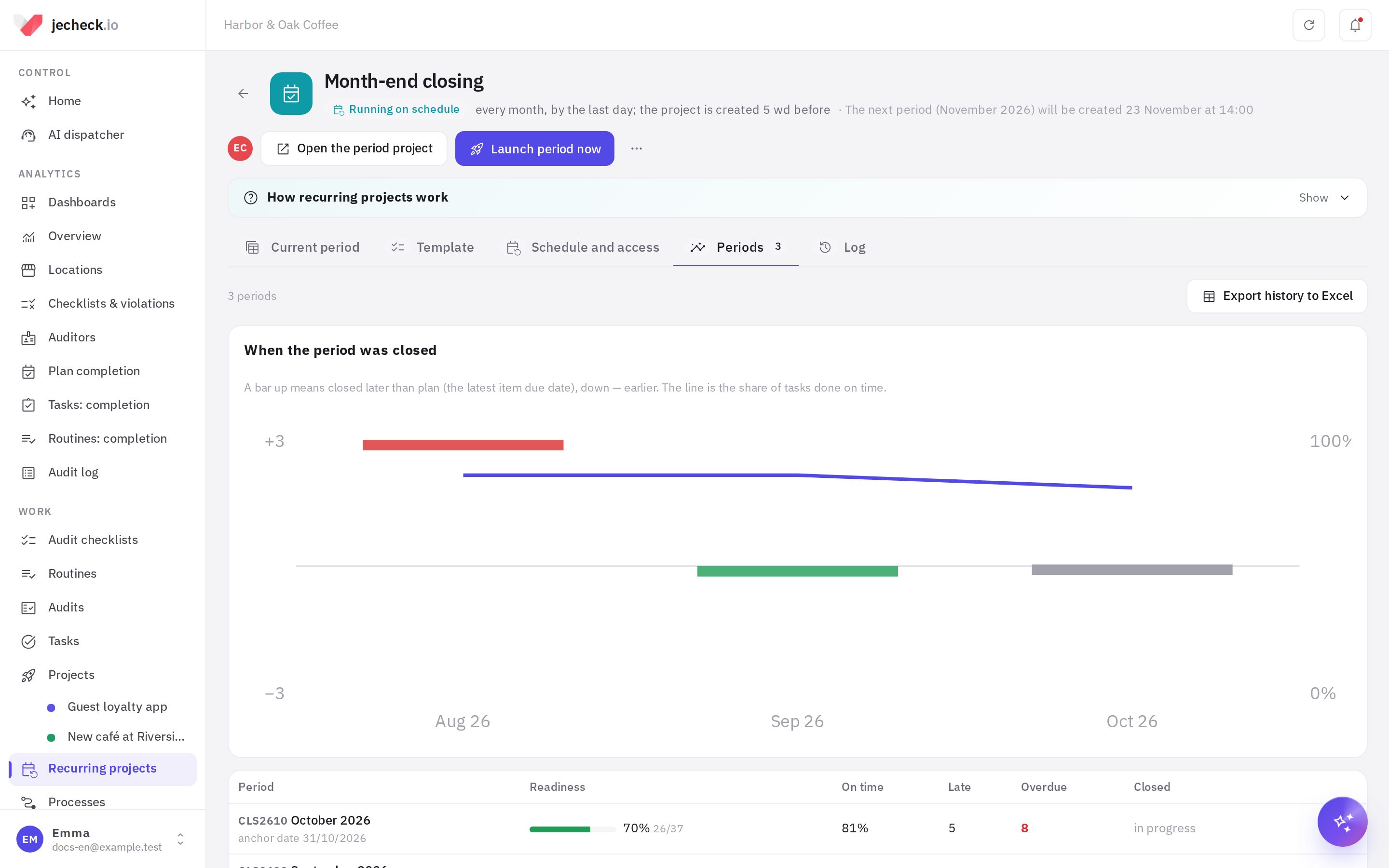
- Periods — all period projects: readiness, share of tasks on time, how many were done late, when the period was closed and how many working days later or earlier than planned (the latest item due date). On the When the period was closed chart the months are side by side. Below, the Who is late most often block ranks locations, departments, assignees and items over recent periods.
- Log — who changed the template and schedule, paused, launched periods and shifted due dates, and when. Changes to each task are in its history, as usual.
Exports
- Export → Excel: the summary with colored cells, all tasks with filters, a “Who is holding things up” sheet and totals by location, department and person.
- Export → PDF: the summary for printing and sharing.
- Export → CSV: for accounting and BI systems.
- Period history in Excel: periods and delay rankings.
Recurring project data is also available in the API and MCP: you can pull the Summary into BI or ask an AI assistant “who is holding up the November close”.
Permissions
- Recurring projects: setup — create recurring projects and configure any of them. The owner and a member with the Configures role manage their own recurring project even without this permission.
- Checking off tasks, shifting due dates and viewing the Summary depend on the role in the period project. Task assignees always see and complete their own task.
More in Roles and permissions.
Frequently asked questions
How is this different from a regular project or a routine?
I changed the template — will the current month change?
No. Changes apply from the next period. You can add a task to the current project manually: it appears in the Summary in the “Additional tasks” block.
How are working days counted?
Monday to Friday, excluding the company days off from the Schedule and access tab. If a due date falls on the anchor date and it is a day off, the task gets the last working day before it.
Forgot to launch, or need last month?
Click Launch period now. The next period that has not been created yet is created. The same period is never created twice.
What happens if a location has no manager?
The task for such an item is created without an assignee. In the Summary it is counted in the No assignee metric: assign a person in the task itself or choose another assignment method in the template.
Thank you! This helps us improve the help center.