
Task statuses, assignees and history
Click a task in the list, on the board or in the calendar — its card opens on the right. Everything in the card is edited in place and saved immediately: there's no separate “Save” button, except for the description.
Task statuses
| Status | When to use it |
|---|---|
| New | The task has been set, but work hasn't started |
| In progress | The assignee is working on the task |
| Pending approval | A process request is awaiting the approvers' decision — set only by the process route |
| In review | The work is done and awaiting acceptance |
| Done | The task is closed |
| Rejected | The task won't be done |
You can change the status in the card (the Status property), in a list row (the status icon), by dragging on the board, or for several tasks at once with bulk actions. “Done” and “Rejected” count as closed: such tasks are hidden from the list by default and move to the archive after 30 days.
For audit tasks that require an “after” photo or review, the status follows rules: the task can't be closed without a photo, and “Done” becomes “In review” after submission until the reviewer accepts the work. The assignee can only switch between “New” and “In progress” and submit the task. Only the reviewer — the location manager, auditor or administrator — can reject a task, move it out of “In review” or reopen a closed one. Unavailable statuses aren't shown in the dropdown. Learn more in Violation tasks from audits.
The status of a process request is set by its route: the assignee switches between “New” and “In progress” and marks it “Done”; everything else is decided with the buttons in the process block at the top of the card. Learn more in Processes — requests with approval.
Card properties
The task properties are on the right side of the card:
- Status and Priority (Urgent, High, Medium, Low);
- Assignees — new assignees get a push notification “You have been assigned a task” and an email; those removed from the task get a “You have been removed from a task” notification;
- Due date — highlighted if the task is overdue or due today;
- Location — the location the task relates to;
- Tags — pick an existing one or create a new one;
- Watchers — follow the task without doing it.
Below are reference fields: Author, Created, Updated, Done. Audit tasks also have Source (a link to the audit report) and To close (“after” photo, confirmation).
Name, description, subtasks and files
- Name — click and edit; it's saved when you leave the field or press Enter.
- Description — click the text, edit it and click Save (or Ctrl + Enter). Links in the description become clickable.
- Subtasks — add items in the Add subtask field, tick completed ones, drag to reorder. Progress is shown above the list, for example 2/5.
- Files — the Upload button or drag files into the card.
Comments
Use the Comments tab to discuss the task with colleagues. Type your text and click Send (or Ctrl + Enter). The author, assignees and watchers are notified about new comments (except the person who wrote it); status and due date changes trigger notifications too — see Task notifications. You can edit or delete your own comment.
Task history
The History tab is a log of all changes: who created the task and when, changed the status, priority, due date, assignees, location or tags, added or completed a subtask, attached or deleted a file. The latest events are at the top.
For audit tasks, the history also shows system actions: creation from the audit, reminders, escalations, submission for review, acceptance or return for rework, repeat violations and AI actions.
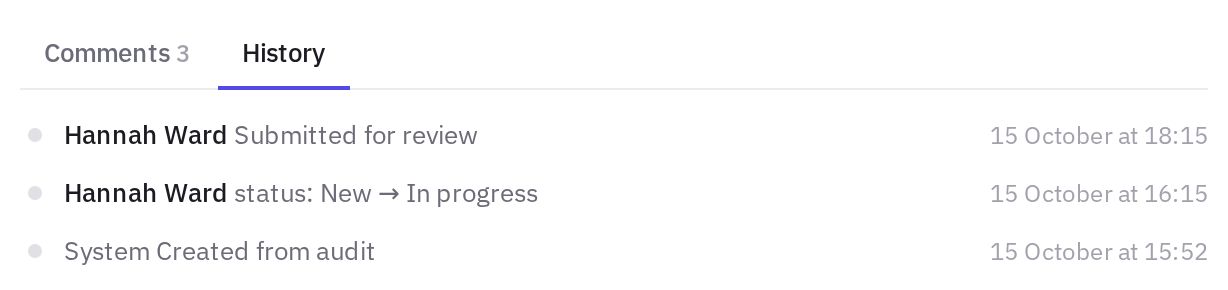
History helps sort out disputes: for example, who moved the due date and when, or who removed an assignee.
Other task actions
- Copy link (the link icon at the top of the card) — a direct link to the task.
- More → Duplicate — a copy of the task.
- More → Delete — for the task author, administrators and employees with the “Deleting other people's tasks” permission for the task's location.
- The ↑ and ↓ arrows at the top of the card (or on the keyboard) — go to the next or previous task in the list.
Frequently asked questions
Who can change a task?
An administrator sees and changes all company tasks. Other employees see tasks for locations where they have the “All location tasks” permission and tasks they take part in: as author, assignee, watcher, or the auditor of the audit the task was created from. They can open such a task, change its properties and comment on it. Other tasks aren't shown in the list and don't open via a link. The author can always delete their own task; someone else's task only with the “Deleting other people's tasks” permission. The status of audit tasks with review changes according to the rules described above. More about permissions: Roles and permissions.
Can I restore a deleted task?
There's no restore option in the interface — jeCheck asks for confirmation before deleting.
What's the difference between an assignee and a watcher?
The assignee is responsible for doing the task and sees it on the Assigned to me tab. A watcher only follows progress — the task appears on their Watching tab.
Thank you! This helps us improve the help center.