
Automation rules in a project
A rule handles project routine on its own: when something happens to a task and the conditions are met, jeCheck performs the actions you set — moves it to a column, assigns someone, sets a due date, adds subtasks, sends a notification or creates the next task. For example: “When a task is moved to “Code review” — notify project admins” or “When the due date is tomorrow — remind assignees”.
What you need
- the Administrator role in the project.
Rules work on all plans.
How to create a rule
- Open the rules. In the project, click More → Automation rules (or Project settings → Rules).
- Start. Click New rule or pick a preset in the Ready-made rules block — you can adjust it before saving.
- Choose “When”. The event that triggers the rule (see the list below). Some events have a refinement: which column, section, status, field and value, or how many days before the due date.
- Add “If” (optional). Conditions on priority, column, section, milestone, assignee, tag, name or a custom field. The rule runs only if all conditions are met.
- Add “Then”. One or more actions — they run in order.
- Save. Click Save rule. The rule starts working right away.
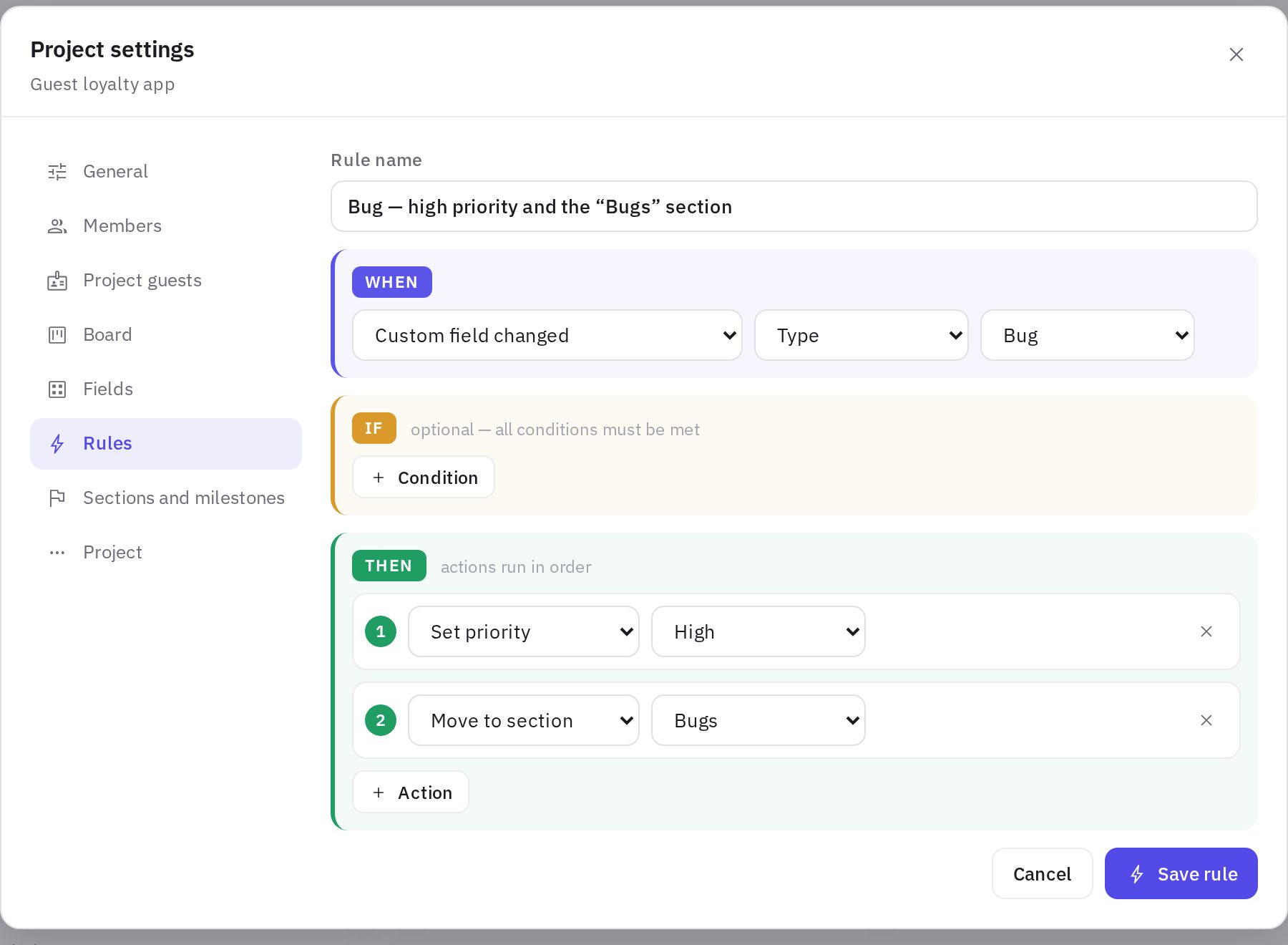
When a rule runs
| Event | When |
|---|---|
| Task added to project | A task was created in the project or moved into it from elsewhere |
| Task moved to column | The task landed in the selected column (or any) — from the board, the list, the task card or the app |
| Task status changed | The status became the selected one (or any) |
| Task moved to section | The task landed in the selected section |
| Assignee added | The task got a new assignee |
| Custom field changed | The field got a value (you can pick a specific one, e.g. “Type = Bug”) |
| New comment | Someone posted a comment; you can keep only comments from project guests |
| All subtasks completed | The last subtask was checked off |
| All tasks it was waiting on are closed | The last task blocking it was completed or rejected |
| Due soon | The set number of days is left before the due date (0 — on the due date) |
| Task overdue | The due date has passed and the task isn't closed |
“Due soon” and “Task overdue” rules are checked every 15 minutes and run once per task for each of its due dates: if the due date is moved, the rule runs again.
What a rule can do
| Action | What it does |
|---|---|
| Move to column | Sets the task's column and its status |
| Move to section, Link to milestone | Changes the section or milestone |
| Assign people | Adds assignees or replaces the current ones; you can choose “Task author” and “Project owner” |
| Remove assignees, Add watchers | — |
| Set priority | Urgent, high, medium, low |
| Set due date, Set start date | N days after the rule runs |
| Add tags, Set custom field | — |
| Add subtasks | For example, an acceptance checklist; identical subtasks aren't added twice |
| Add comment | A comment posted as “Automation” |
| Send notification | To assignees, the author, watchers, the project owner or admins, and selected employees |
| Create linked task | A new task in this project with its own name, section, assignees and due date; it's linked to the original |
Placeholders work in notification texts, comments and new task names: {title} — the task name, {code} — its number, {project} — the project name, {due} — the due date.
Tasks with an “after” photo and audit review, and process requests, change status by their own rules: a rule won't move such a task to a column with a different status.
How to tell a rule has run
- The task history shows a “rule “…” ran” entry, and the changes are signed “Automation”.
- The rule list shows the number of runs and the time of the last one. Click the number to open the log: which tasks and when.
- You can turn a rule off with the toggle without deleting it.
Ready-made rules and templates
The Ready-made rules block has common scenarios: “Done — notify the task author”, “All subtasks completed — move to review”, “Wait is over — move to In progress and notify assignees”, “Due tomorrow — remind assignees”, “Task overdue — notify the project owner”, “Urgent task — notify project admins”, “Guest comment — notify the project owner”, “In review — add an acceptance checklist”.
The Software development, New location opening and Renovation with a contractor templates create a project with suitable rules already in place. Rules are carried over to a project copy and to a company template.
Frequently asked questions
Can rules loop?
No. A rule can trigger another rule, but the chain is limited to three steps, and each rule runs only once per task in a chain.
How are project rules different from the Automation section?
The Automation section turns audit violations into tasks. Project rules work with tasks inside a single project.
How many rules can I create?
Up to 50 per project, each with up to 10 conditions and 12 actions.
Thank you! This helps us improve the help center.