
Violation tasks from audits
When an auditor answers “No” to a checklist question, jeCheck can create a task to fix the violation automatically — for the right employee, with a due date and requirements. Below is how to complete and accept such a task in the web dashboard. To set up the rules for creating these tasks, see Automation.
What an audit task looks like
In the list and on the board, these tasks have icons next to the name (hover to see a tooltip):
- From audit — the task was created from a violation;
- “After” photo required — the task can't be closed without a photo (the icon is shown in the list);
- Repeat violation — the same violation at this location was already fixed once, and it came back.
The header of an open task card shows a From audit label with the audit score in percent and, for repeats, a Repeat label.
The task name is the checklist section and question, for example "Kitchen: Fridge +2…+5 °C" (for a task that combines several violations — the section name and the number of violations). The description contains the audit and location, the section and question, what it should look like (the question hint) and the auditor's comment. If several violations are combined into one task, each one is a separate subtask. The auditor who ran the audit is added as a watcher.
To find all such tasks, use the filter Source → From audits.
The “Fixing the violation” block
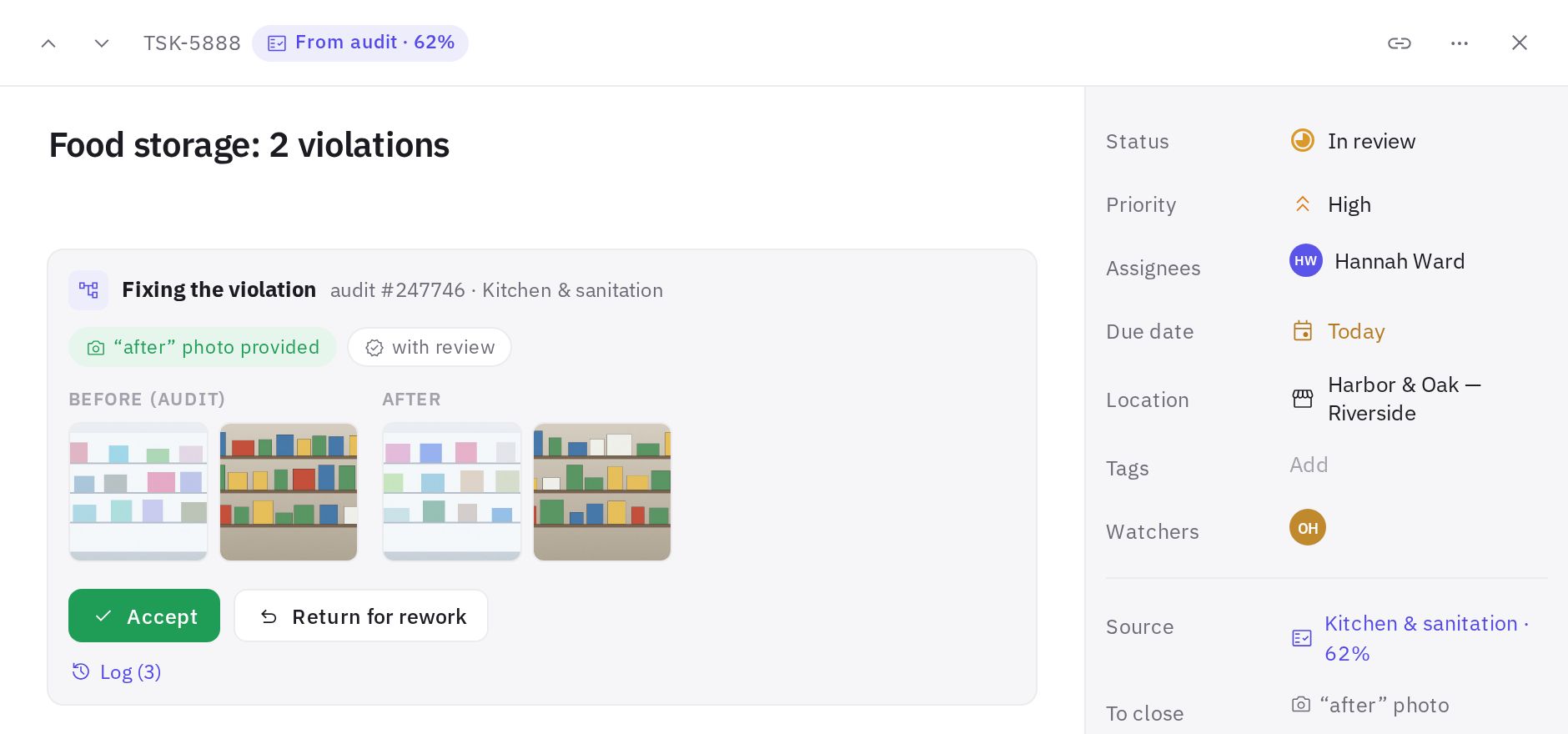
In an audit task card, above the description, there is a Fixing the violation block. It contains:
- the audit number and checklist name;
- requirements: “after” photo required (or “after” photo provided) and with review;
- warnings: repeat violation, marked again in audit: N, returned: N, role not assigned at location;
- Before (audit) photos — shots of the violation taken by the auditor — and After photos from the assignee;
- action buttons and Log — the task timeline.
How the assignee closes the task
- Open the task. From the push notification or in Work → Tasks, on the Assigned to me tab.
- Look at the “before” photos. They show exactly what the auditor found.
- Fix the violation and take a photo of the result. Click Add photo and choose an image (up to 15 MB).
- Submit the task. Click Submit for review if the task requires review, or Done if it doesn't.
Until an “after” photo is attached, the submit button is disabled and shows “Add an “after” photo first — it can't be submitted without one”. The photo can be attached by the assignee, the reviewer (location manager or auditor), the task author or an administrator. Photos from other employees don't count. After a task is returned for rework, only new photos taken after the return count.
How the reviewer accepts the work
Once submitted, a task with review gets the In review status, and the reviewer is notified.
- Open the task. Look for it in the In review status.
- Compare the photos. “Before (audit)” and “After” are shown side by side. If AI checking is turned on in the scenario, you'll also see a hint such as “AI: looks fixed” or “AI: uncertain”, with an explanation.
- Make a decision. Accept — the task becomes “Done”. Return for rework — write what still needs to be done and click Return: the task goes back to “In progress”, the assignee is notified, and the reason appears in the comments.
The AI hint is only an aid. A person always makes the decision to close the task.
Who can accept the work
A task can be accepted or returned by:
- location managers (or the auditor, if the scenario is set to “accepted by the auditor”);
- employees with the “Confirming task completion” permission for the task's location — by default the “Location manager” role has it, see Roles and permissions;
- the task author — for audit tasks, that's the auditor who ran the audit;
- company administrators.
If no manager is marked for the location, the review goes to the auditor, and if there is none — to administrators. Everyone else sees the note “Awaiting review by a manager or auditor”.
Who can change the status
Review can't be bypassed by changing the status — not in the card, not on the board, not with bulk actions. The assignee and other employees can:
- switch between New and In progress;
- submit the task for review (or mark it as done if there's no review) — with an “after” photo, if one is required.
Everything else — accept, return for rework, reject, move a task out of In review, reopen a closed task — can only be done by people who are allowed to accept the work (see above). Unavailable statuses aren't shown in the dropdown. If you drag a card on the board to a column you can't use, the status doesn't change and jeCheck shows the message “Only the reviewer (location manager, auditor or administrator) can set this status.” If a reviewer sets a task that is in review to New or In progress, this counts as returning it for rework.
Repeat violations
- The task is still open, and the violation is marked again in an audit. No new task is created: the open task gets a “marked again in audit” label, and the assignee is notified.
- The task was closed, but the violation came back. If the same question at the same location is failed again within 90 days of closing, the new task gets a Repeat label. It's a sign the violation was fixed only on paper.
Frequently asked questions
Can I close an audit task without a photo just by changing the status?
No. If the task requires an “after” photo, changing the status to “Done” won't work by any means without the photo. And if review is required, the task moves to “In review”. Only the reviewer can set “Rejected” or move a task out of “In review”.
The manager attached the “after” photo themselves. Does it count?
Yes. An “after” photo counts if it comes from the assignee, the reviewer, the task author or an administrator. If the task requires review, it still moves to “In review” after submission and has to be accepted.
Where can I see what happened to the task?
In the Fixing the violation block, click Log, or open the History tab at the bottom of the card. It shows creation from the audit, reminders, escalations, submission for review, acceptance, returns and AI actions.
Why does the task say “role not assigned at location”?
The scenario looked for an employee with the required role at this location and didn't find one, so the task went to the location managers (or administrators). Assign roles in Automation → Locations and teams — see How to set up automation.
Thank you! This helps us improve the help center.