
How to run a project — board, list, timeline and workload
In a project, the same tasks are shown in different views — pick the one that suits the moment: the board for daily work, the timeline for planning, workload for distributing people, the overview for a manager. The filters above the tasks (search, Mine, assignee, priority, milestone, due date, custom list fields, tags) work in all views and are remembered for the project.
Board: columns, WIP limits, swimlanes
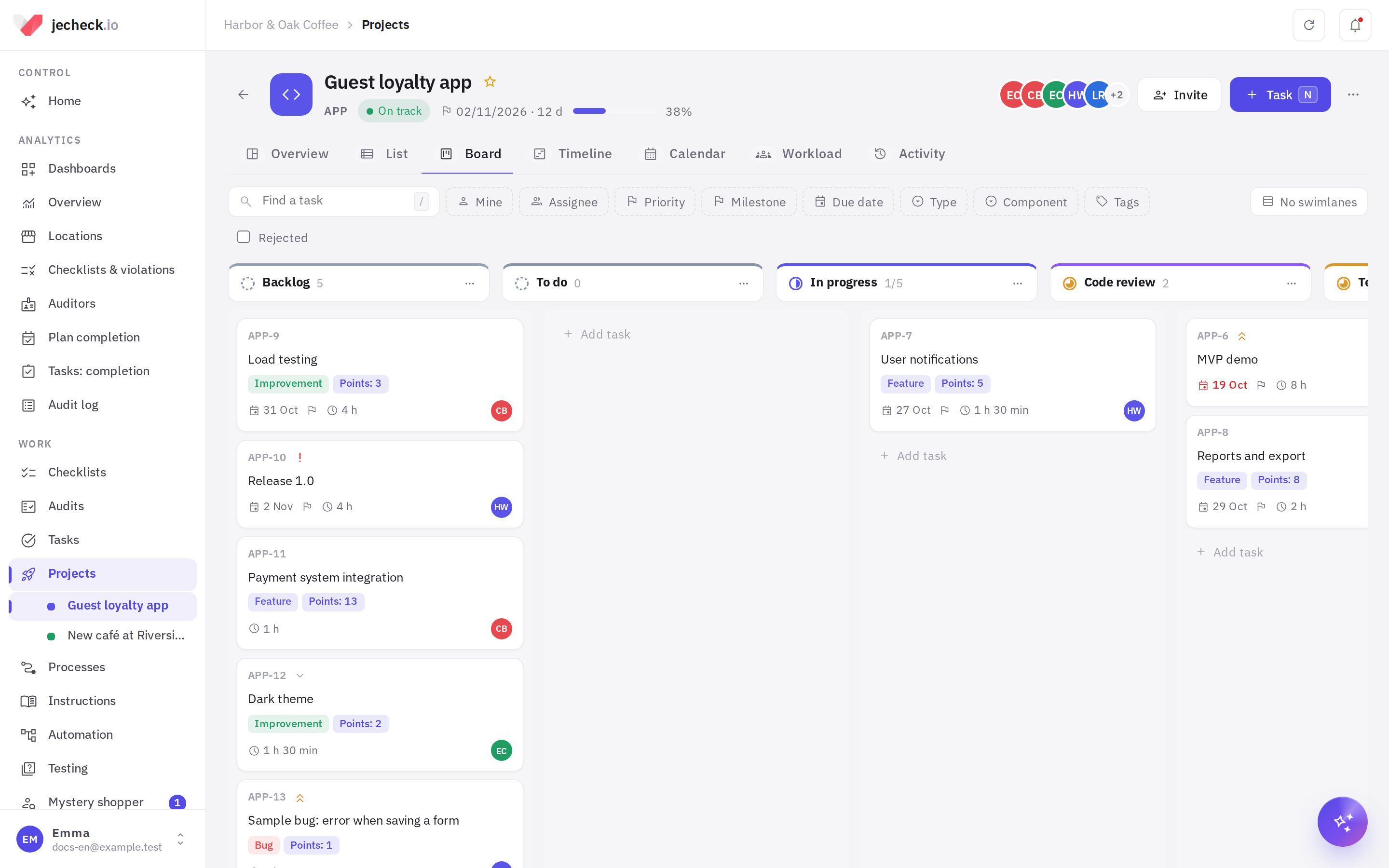
Columns are the work steps in the project. Each column has its own name and the status it sets on a task: for example, “Code review” and “Testing” both set In review. That way reports, notifications and the mobile app see the familiar statuses, while the team sees its own steps.
- Drag a card to another column or up and down within the same one — the order is saved.
- WIP limit — how many tasks can be in a column at the same time. If there are more, the column is highlighted in red, and moving a card shows a hint to clear the queue.
- Swimlanes — the No swimlanes button above the board: by assignee, section, milestone or priority. Moving a card to another swimlane also changes its assignee, section, milestone or priority.
- Add task at the bottom of a column — the task goes straight into that column.
- If a task's status is changed elsewhere (in the card, in the app), it moves to the first column with that status.
Columns are set up by the project administrator: More → Board columns — name, status, color, WIP limit, order (by dragging) and deletion (tasks move to another column). You can also add a new column right on the board with the Column button.
Tasks with an “after” photo and audit verification, and process requests, change status by their own rules. If a column can't be applied, the task stays where it is and you'll see a hint.
List: sections and inline editing
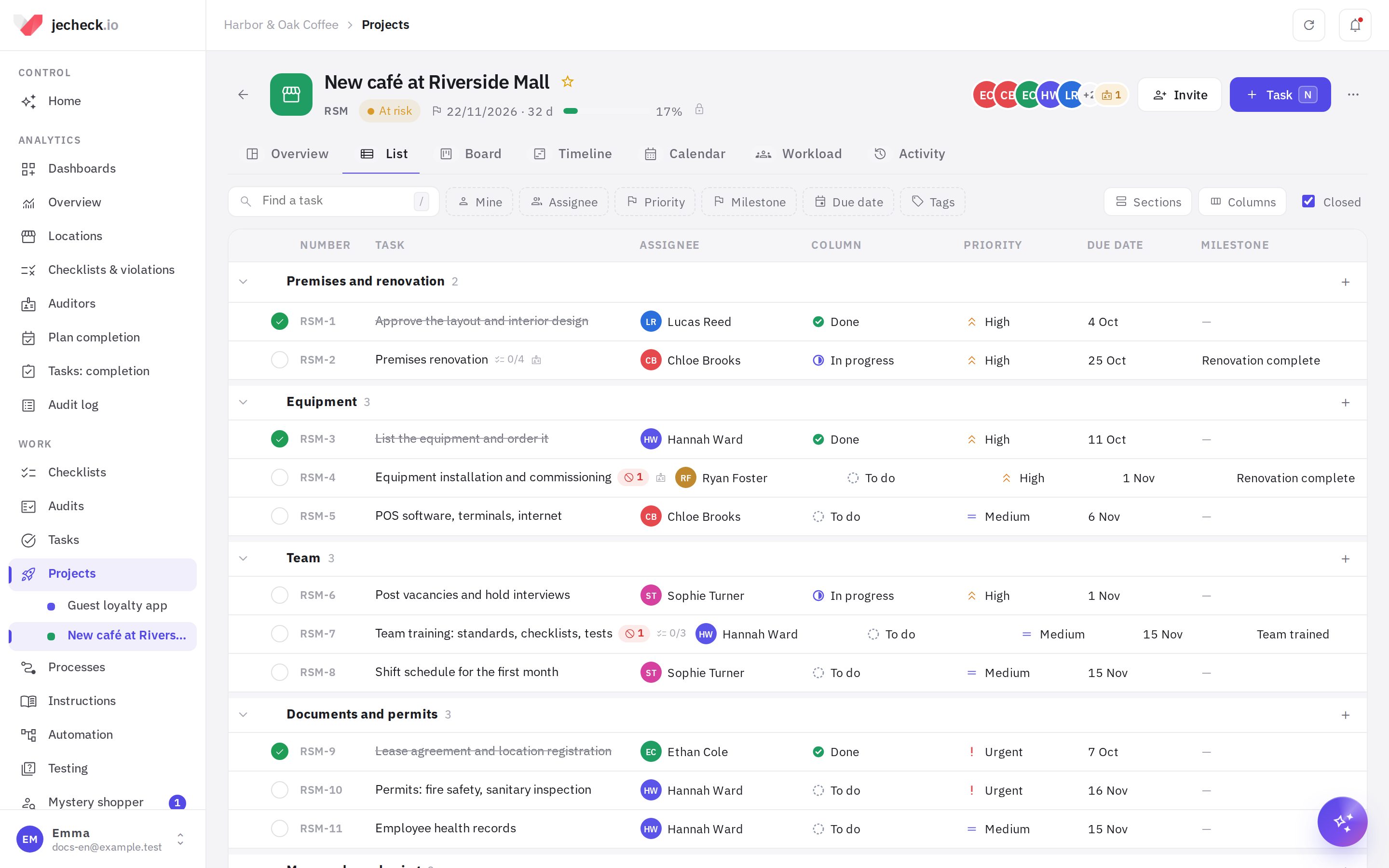
The list groups tasks by section — stages or work streams (“Premises and renovation”, “Sprint 1”). You can change the grouping to columns, milestones, assignees or priority.
- Drag rows between sections and within a section.
- + in a section row adds a task quickly; Add section at the bottom of the list; double-click a section name to rename it.
- Assignee, column, priority, start, due date, milestone and list fields are changed right in the row. The circle on the left marks a task as done.
- Columns — which fields to show, including the project's custom fields.
- Tick several tasks and a panel appears at the bottom: column, assignee, priority, section, milestone, due date, deletion.
Timeline and dependencies
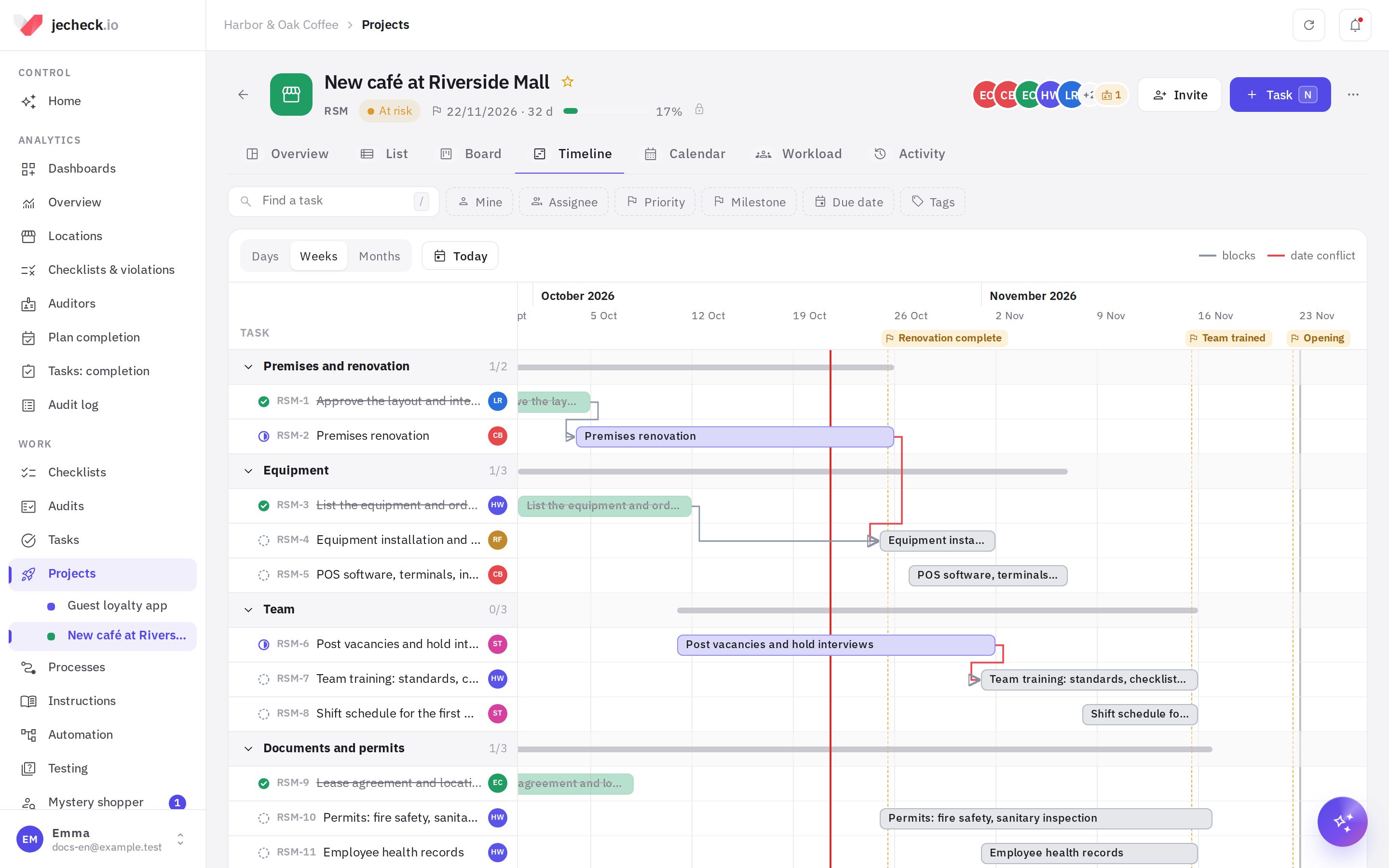
A Gantt chart: a task bar runs from the start to the due date, tasks are grouped by section, and each section has a summary bar.
- Drag a bar to move the whole task, or pull an edge to change the start or due date. To put a task without dates on the timeline, click its row.
- Zoom — Days, Weeks, Months; the Today button scrolls to the current date (red line).
- Milestones are shown as flags and dashed lines.
- Arrows are “blocks” dependencies. A red arrow is a date conflict: the task starts before the task it's waiting on finishes.
A dependency is added in the task card: the Links → Link block, type Blocks or Blocked by, then find the task by title or number (for example, DEV-12). There are also Relates to and Duplicates types. A loop (A waits on B, B waits on A) can't be created. A task waiting on open tasks shows a red badge with their count on the board and in the list.
Sections, milestones and custom fields
- Milestones are checkpoint dates (“Renovation complete”, “Release 1.0”). A task is linked to a milestone in the card or in the list; the overview shows how many of the milestone's tasks are closed. More → Sections and milestones — add, rename, set a date, mark as reached, reorder.
- Custom fields (More → Custom fields, project administrator): text, number, amount (in the company currency), list, multiple from list, date, checkbox, employee, link. For example, “Type: Feature / Bug / Tech debt” or “Budget”. The on card option shows the value on the board. List fields appear in the filters.
Project task card
The card is the same as in the Tasks section, with extra properties: Project, Column, Section, Milestone, Start, Time estimate (for example, 2h 30m), custom fields and Project guests.
The Time tracking block is for time tracking: Log time (how much, date, what was done). Next to it is time spent versus the estimate; if you go over the estimate, the bar turns red. Time tracking can be turned off in the project settings.
Team workload
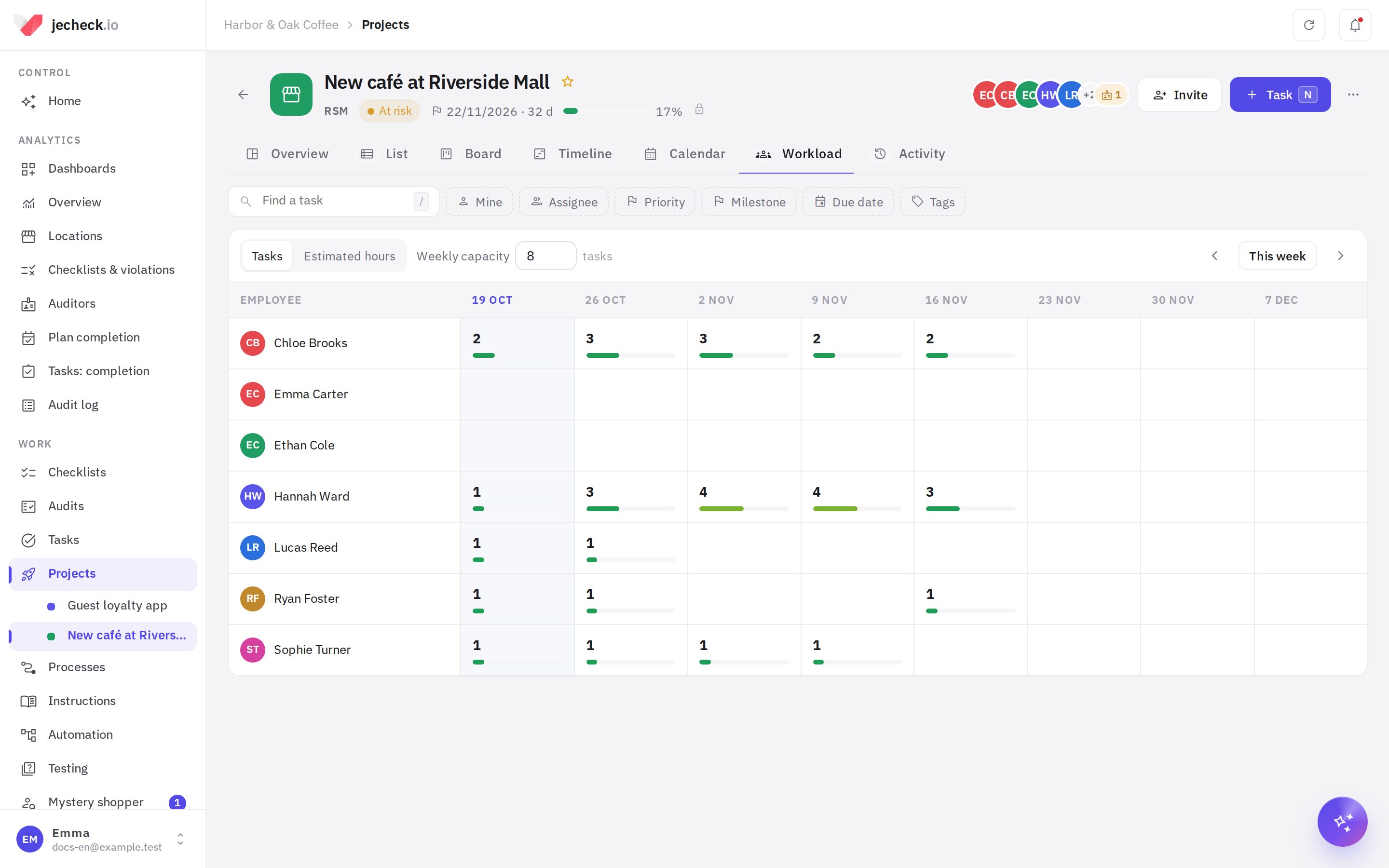
An “employee × week” table for 8 weeks ahead: how many open tasks a person has in progress that week (a task with a start and a due date counts in all its weeks, an overdue one in the current week) or how many estimated hours. Weekly capacity sets the threshold: above it, the cell turns red, meaning the tasks should be redistributed. Clicking a cell shows the tasks.
Overview and status updates
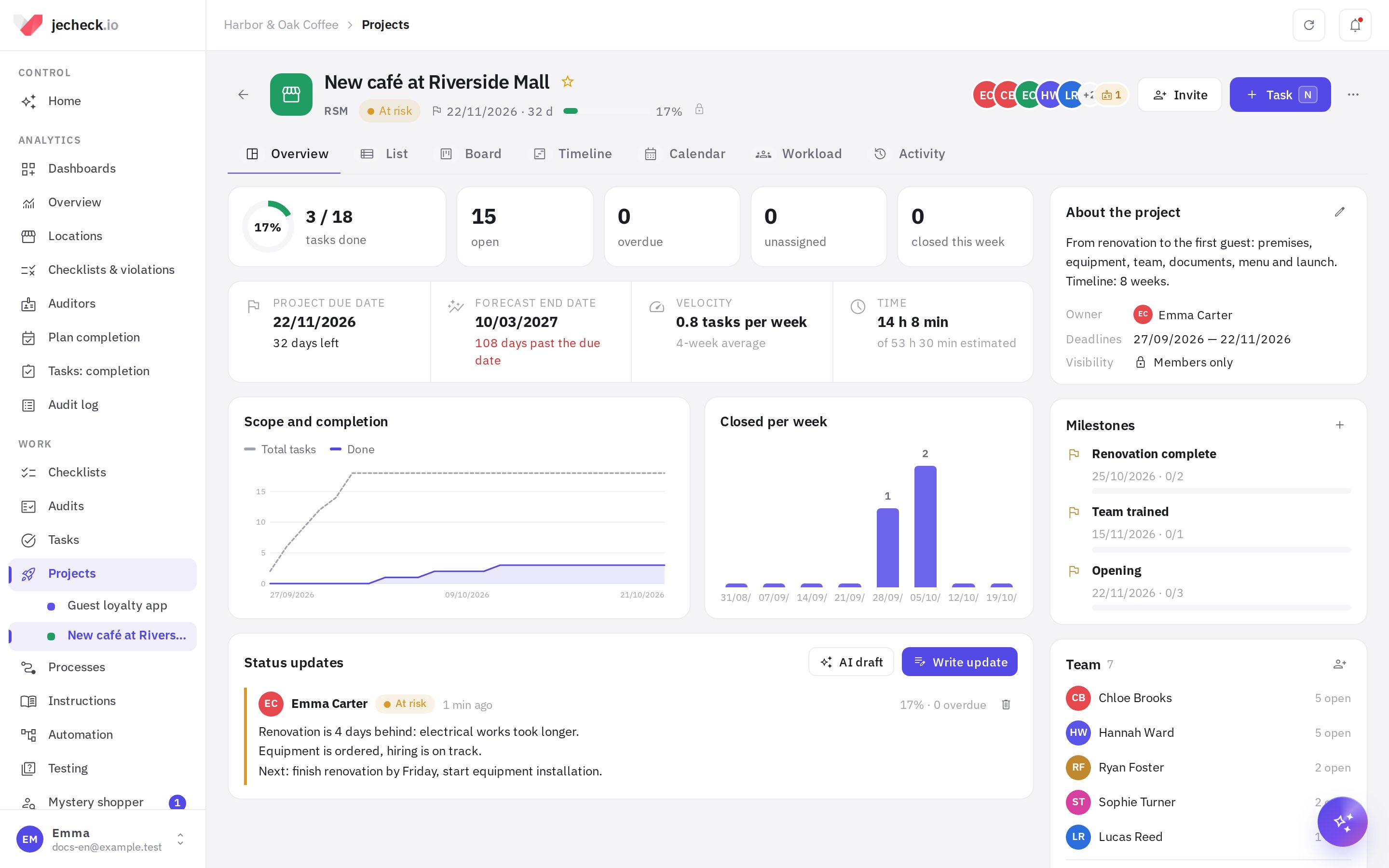
- Metrics: done, open, overdue, unassigned, closed this week. Clicking a metric opens the list with the matching filter.
- Forecast end date — when the open tasks will be closed at the average velocity of the last 4 weeks, and whether the project will make its due date.
- Scope and completion (burn-up) — how many tasks are in the project and how many are done by each date; Closed per week — the team's velocity.
- Status updates — once a week, write a short note on how the project is going: the rating On track, At risk or Off track and some text. Members are notified, and the rating is shown in the header and in the project list. AI draft builds the text from the project's facts: what's closed, what's overdue, what's next.
The Activity feed shows who did what in the project: creating and moving tasks, status changes, time, members, guests and updates.
Frequently asked questions
Can I have my own set of statuses, like in Jira?
Yes — with board columns. Name the columns after the steps of your process and choose a status for each. For example: “Backlog” and “To do” — New, “Code review” and “Testing” — In review.
How can I tell that the team is falling behind?
Check the Forecast end date on the overview and red cells in Workload. On the timeline, red arrows show tasks that start before the tasks they need are finished.
Are there sprints?
There's no separate sprint mode. Development teams create “Sprint 1”, “Sprint 2” sections and “Release” milestones — that's how the Software development template is set up.
Thank you! This helps us improve the help center.