
Processes — requests with approval
A process is a request type with its own form and route. For example, “Equipment purchase”: an employee fills in what is needed and how much it costs, the manager approves the request, an expensive one also goes to management, then the responsible person carries it out and the requester accepts the result. A request is an ordinary task in the Tasks section, but its status is set by the route: at every step you can see who has it, how long it has been there and who decided what.
Where to find it
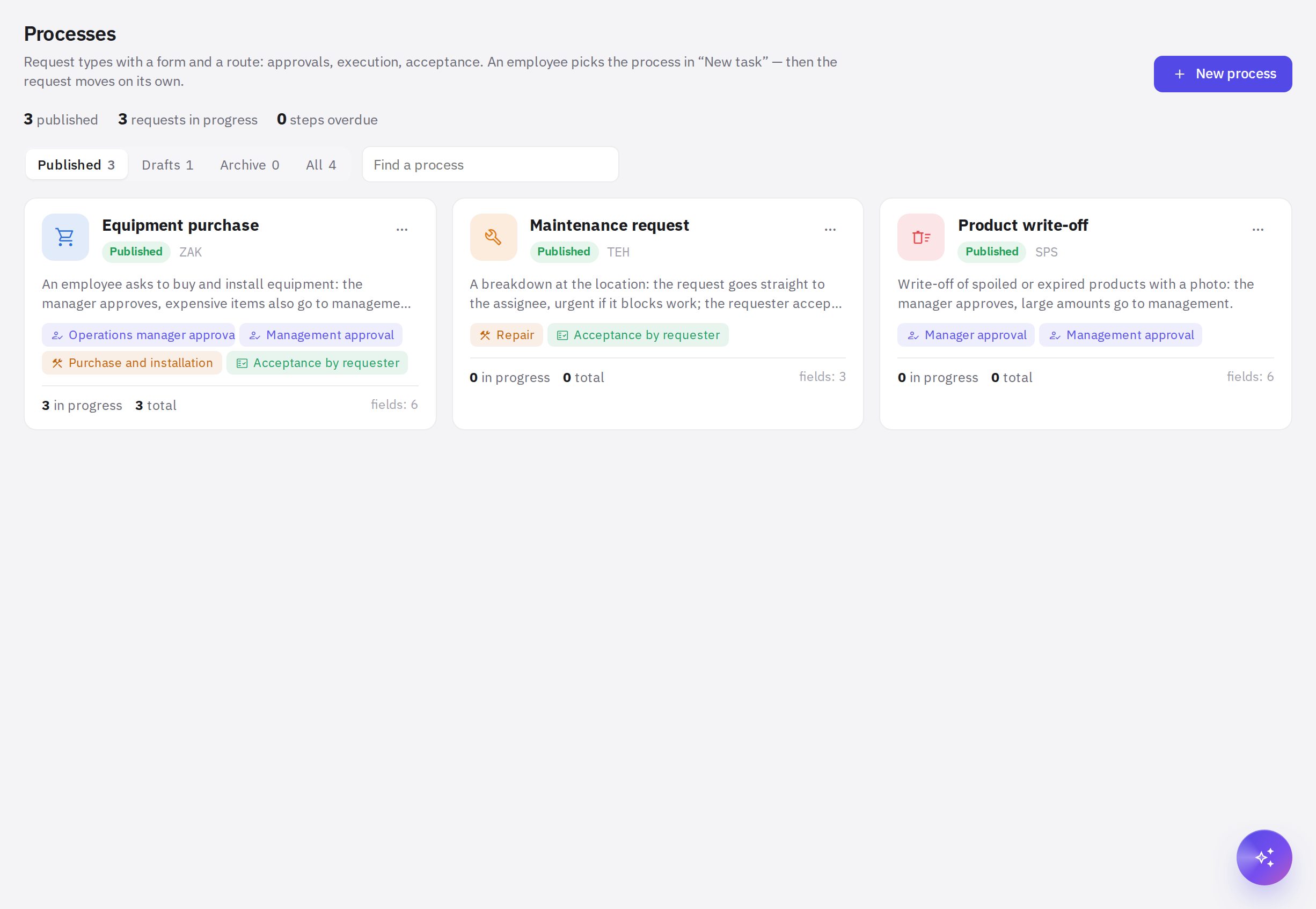
- Work → Processes — the process library: creating, editing, publishing, analytics. The section is visible to employees with the “Processes: setup” or “Processes: analytics” permission.
- Work → Tasks — submitting requests (the New request button), decisions on requests and the Awaiting my decision tab.
- Mobile app — the Tasks tab, Requests and Approvals sections: submitting requests, decisions, rework and withdrawal. See Requests and approvals in the app.
How to create a process
- Open the library. In Work → Processes, click New process.
- Choose a starting point. A ready-made template (equipment purchase, maintenance request, guest refund, product write-off, advance and expense report, access and pass, business trip), From scratch or Describe in words — AI builds the form and route from your description. The process opens in the editor as a draft.
- Set up the form, the route and the settings — the editor tabs are described below.
- Check the path. On the Route check tab, fill in a sample request and see where it goes and who exactly will get it.
- Publish. Click Publish. Until it's published, the process isn't visible to employees; if something isn't set up, Not ready to publish appears next to the tabs with a list of errors.
The draft is saved with the Save button (or Ctrl + S). Edits to a published process take effect after Publish changes: new requests follow the new version, while requests already submitted finish under the version they were submitted with.
Request form
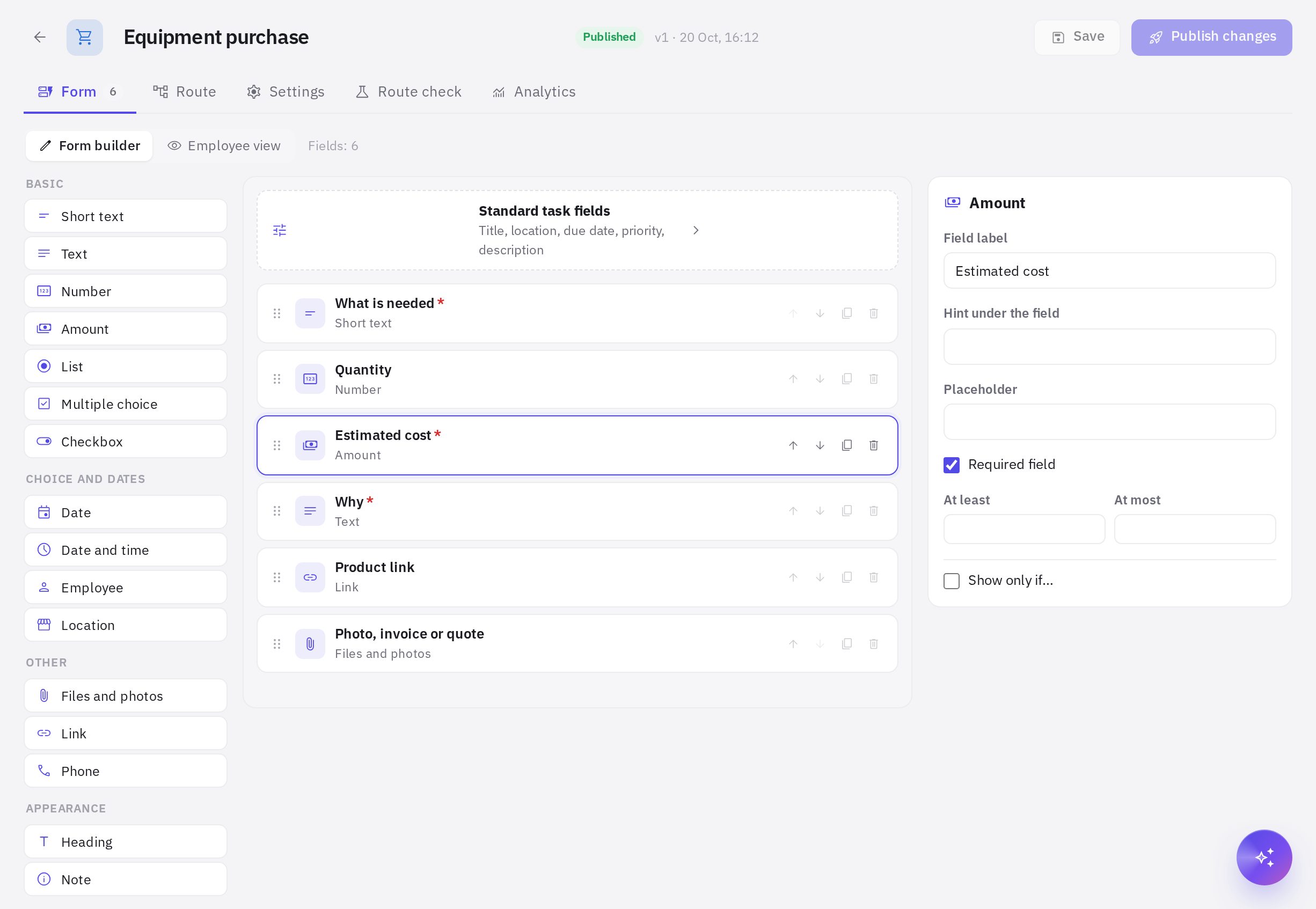
The Form tab is a builder: the field palette on the left, the form in the center, the selected field's settings on the right. Fields are dragged from the palette and can be reordered.
- Field types: short text, text, number, amount (in the company currency), date, date and time, list, multiple choice, checkbox, employee, location, files and photos, link, phone, plus a section heading and a note.
- A field has a label, a hint, a placeholder example, “Required field”, limits for numbers and options for lists (you can paste a list of lines at once).
- Show only if… — the field appears only when another field higher up in the form is filled in a certain way. For example, “Invoice number” — only if the “Has invoice” checkbox is ticked.
- Standard task fields — the title (entered by the employee or built from fields, for example “Purchase: {What is needed}”), location (not needed, optional, required), due date (none, set by the requester, fixed at N hours), priority (chosen by the requester or fixed) and the “Description” field.
The Employee view switch shows the live form with working conditions.
Route: steps and conditions
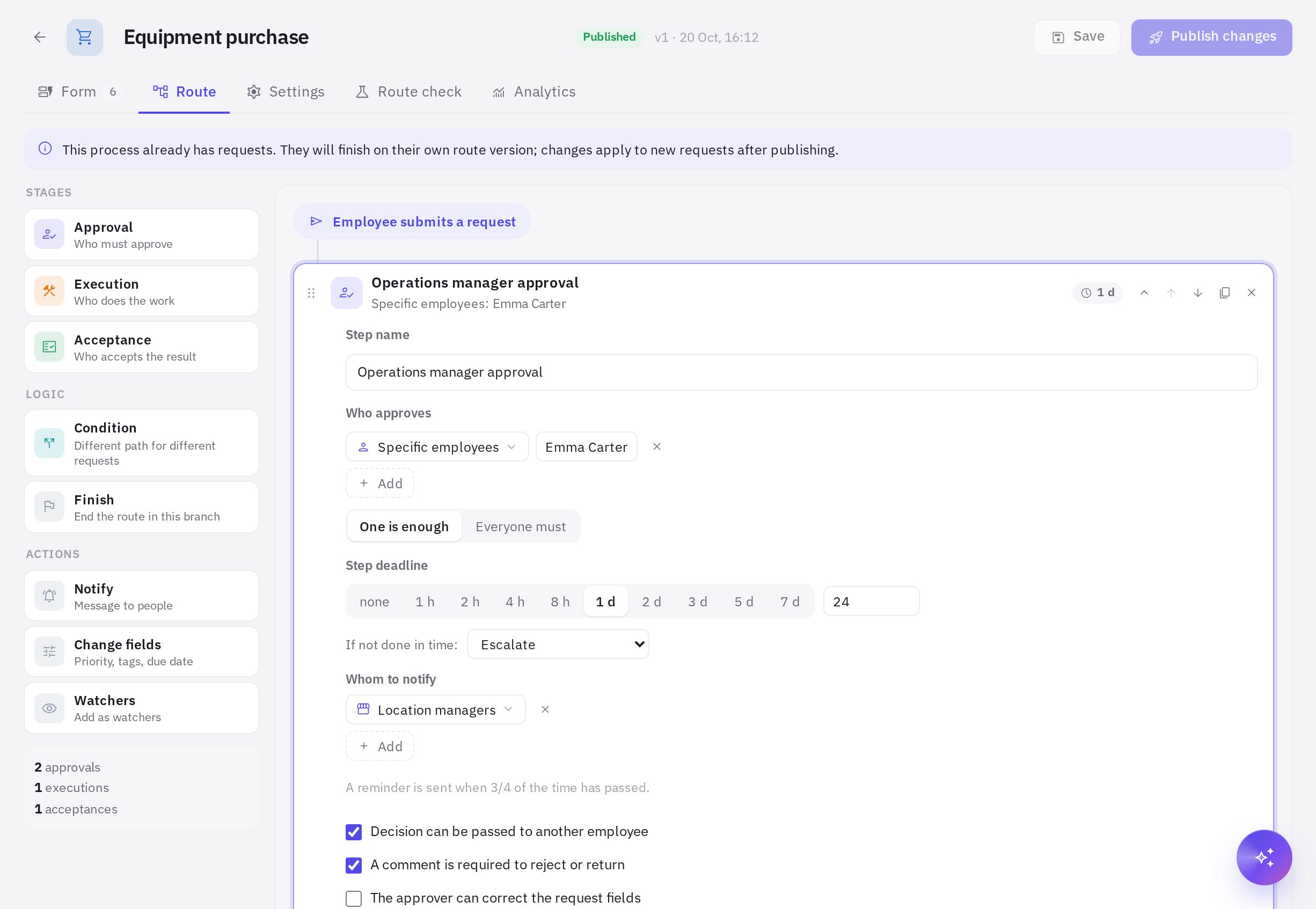
The Route tab is a ribbon of steps from “Employee submits a request” to “Request completed”. Blocks are dragged from the palette; clicking a block opens its settings.
| Block | What it does |
|---|---|
| Approval | The request waits for a decision: Approve, Send back for revision, Reject or Pass on. You can choose several approvers and the rule “One is enough” or “Everyone must” |
| Execution | The request becomes the assignee's task (or goes to a department queue). When the assignee marks it “Done”, the request moves on |
| Acceptance | The requester (or another chosen person) accepts the result or returns it to the assignee |
| Condition | “If” by a form field, location, priority, or the requester's position or department — “yes” and “no” branches with different steps |
| Notify | A message to chosen people with request fields filled in |
| Change fields | Change the priority, add tags, set a new due date |
| Watchers | Add people as watchers of the request |
| Finish | End the route in a branch: the request is completed or rejected |
Who can be a step participant: the managers of the request's location, the requester's manager (the managers of their primary location), a position at the location (whoever is on shift or on the location's staff), department heads, a department, specific employees, the requester, an employee from a form field, administrators. If no one is found for a step, the request goes to the location's managers, and if there are none — to administrators; this is noted in the card.
The requester doesn't approve their own request: if they turn out to be among the approvers, someone else makes the decision. You can change this behavior with the “If the requester is among the approvers” setting.
Deadlines and escalation
Approval, execution and acceptance steps have a Step deadline. When 3/4 of the time has passed, participants get a reminder. If the deadline passes, the action from the If not done in time field runs: remind again, escalate (to chosen people), approve or accept automatically, or reject. All such actions are recorded in the request history.
Process settings
The Settings tab: name, description for employees, icon, color, Number prefix (requests are numbered: ZAK-1, ZAK-2…), Who can submit a request (all employees or chosen positions, departments, employees), Where available (all locations or chosen ones), watchers of every request, and behavior: notify the requester about each decision, whether the requester can withdraw the request, whether to show them the steps when submitting.
How to submit a request
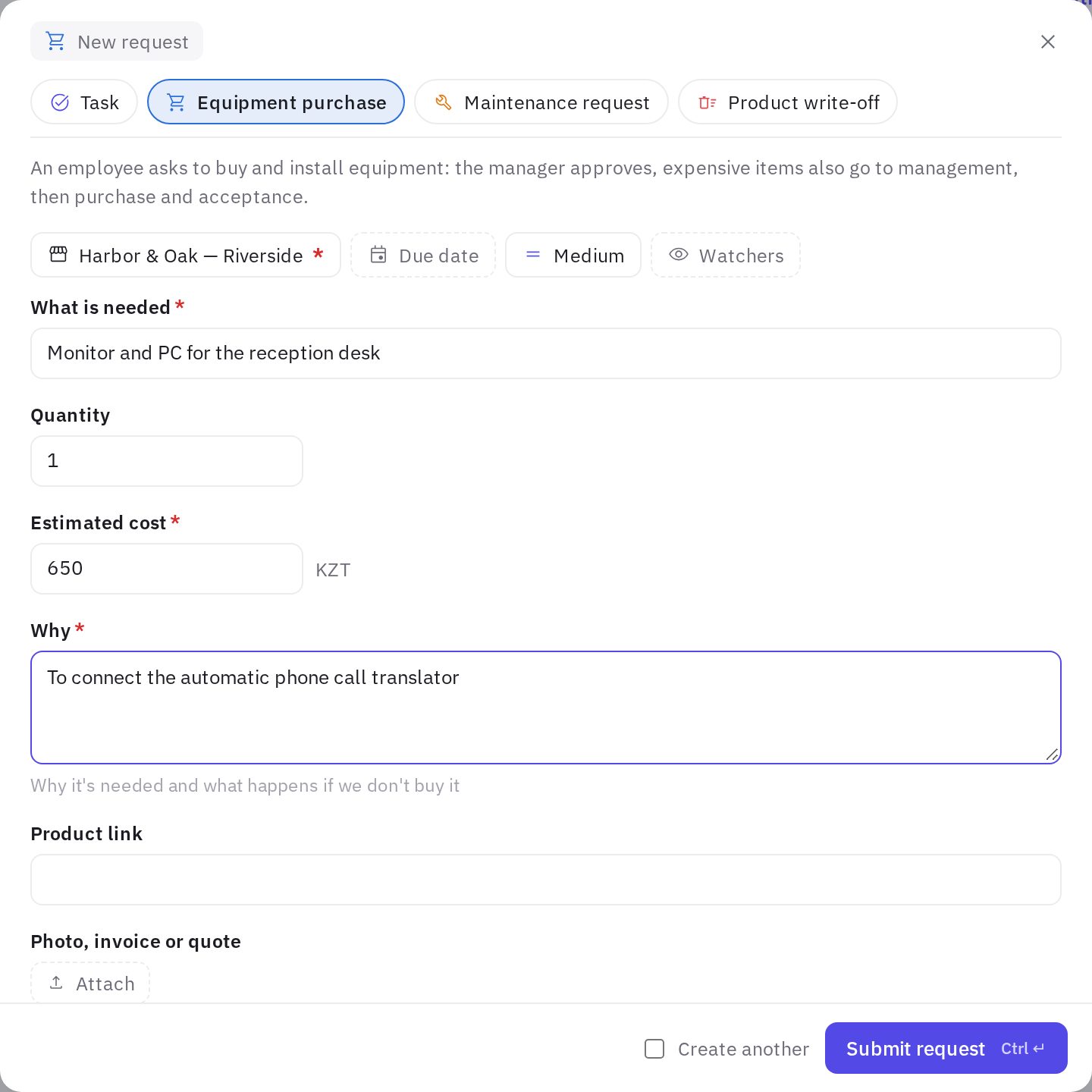
- Open the request window. In Work → Tasks, click New request and choose a process. Or click New task and choose a process at the top of the window.
- Fill in the form. The default location is your primary one, if the process is available there. Required fields are marked with an asterisk; at the bottom you can see which steps the request will go through.
- Click “Submit request”. The request gets a number, opens in a card and immediately goes to the first step.
How to make a decision on a request
Requests awaiting your decision are collected on the Awaiting my decision tab and marked waiting for you in the list row. The approver gets a push notification and an email.
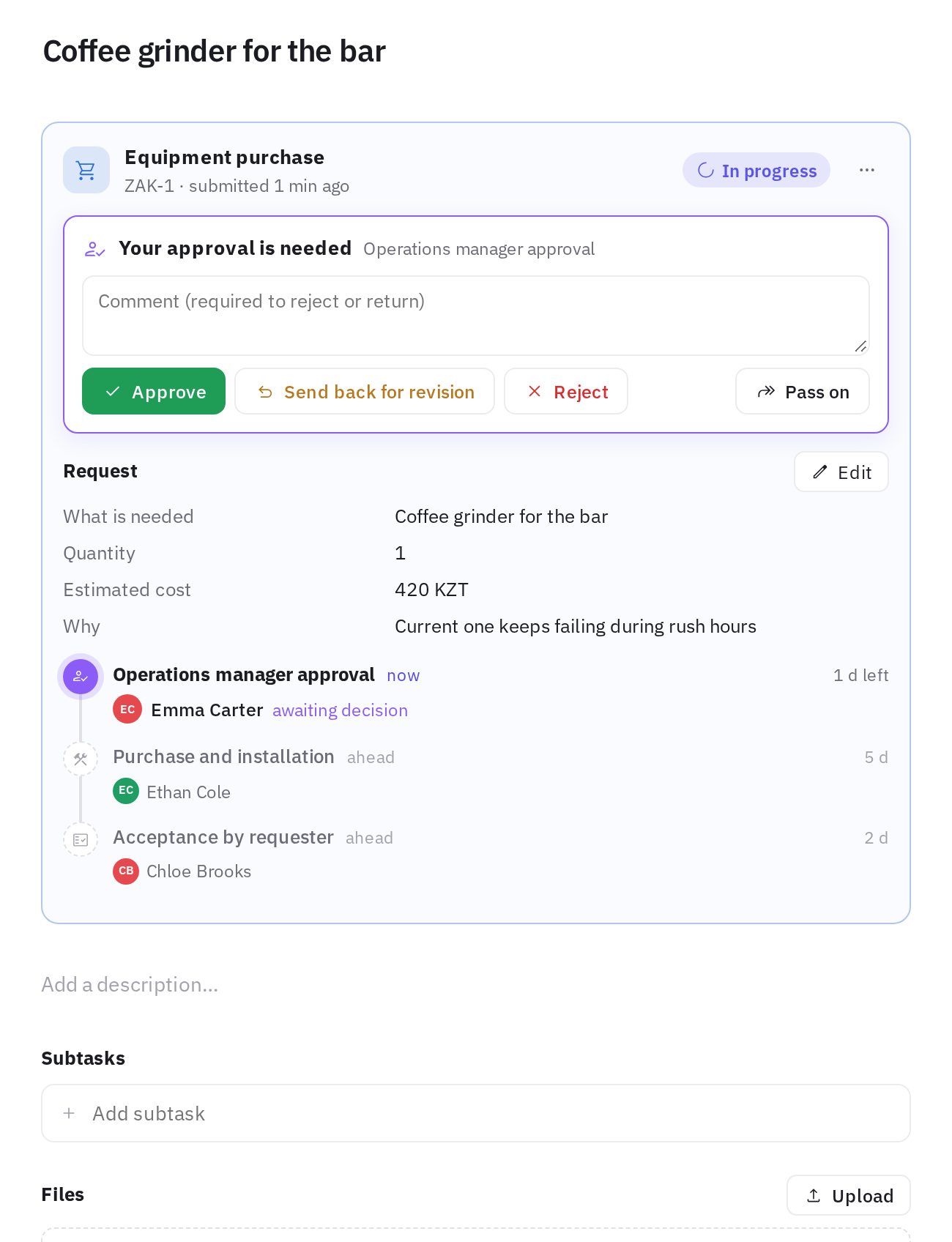
At the top of the request card is the process block:
- Approve (or Accept at acceptance) — the request moves on;
- Send back for revision — the request returns to the requester; the requester corrects the fields and clicks Resubmit, and the request comes back to the same step;
- Reject — the request is closed with the “Rejected” status;
- Pass on — the decision passes to another employee (if the step allows it).
A comment is required for rejecting and sending back if the step is set up that way. Below are the form answers and the step bar: completed steps with decisions and comments, the current one with its deadline, and the steps ahead with the people who will get them.
Request status
The request status is set by the route: during approval — “Pending approval”, during execution — “New” or “In progress”, at acceptance — “In review”, at the end — “Done” or “Rejected”. The assignee switches between “New” and “In progress” themselves and marks it “Done” (or clicks Step completed). Other statuses can't be set manually — decisions are made in the process block. The requester can withdraw the request from the block menu (Withdraw request) if the process allows it.
Intervening in a request
An employee with the “Processes: intervene in requests” permission can, from the process block menu: decide for a step participant, Skip step, Reassign step, Return to step (a completed one), Cancel request, and edit the form answers. All actions are visible in the request history.
Process analytics
The Analytics tab in the editor (or the Analytics item in the process card menu) is for employees with the “Processes: analytics” permission: how many requests there are and in what state, average and median time, how long each step takes and how many times it was overdue, who is holding requests right now, who takes longest to decide, requests by location and week, recent requests.
Plans
Processes, the form and a route of approvals, execution and acceptance are available on any plan. Route conditions, deadline actions (escalate, approve or reject automatically), process analytics and building a process with AI are on the Network plan. Learn more in Plans and billing.
Frequently asked questions
What happens to submitted requests if I change the process?
Nothing: each request follows the version of the process that was in effect when it was submitted. Changes apply to new requests after Publish changes.
Can I delete a process?
A process with no requests can be deleted. If it already has requests, archive it: new requests can't be submitted, and current ones will run to completion.
Who can see a request?
The same people who see an ordinary task (the requester, assignees, watchers, employees with the “All location tasks” permission), plus all step participants — approvers and acceptors, even without the “All location tasks” permission. Learn more in Roles and permissions.
Can I submit and approve requests in the mobile app?
Yes. In the jeCheck app, on the Tasks tab tap + → Process request, and make decisions in the Approvals section — the same buttons as in the process block on the website. More in Requests and approvals in the app.
Thank you! This helps us improve the help center.