
Projects — goals with deadlines, a team and a plan
A project is the tasks of one goal gathered together: opening a new location, launching a menu, a renovation, building an app. A project has its own board with columns, sections, milestones, due dates, a team from different departments and locations and, if needed, external participants — contractors and clients. Project tasks get numbers like DEV-42, which are handy for referencing in chat.
Where to find it
- Work → Projects — the project list (portfolio): cards or a table, progress, status, due dates and team. Favorite projects (star) appear in the menu under Projects.
- Work → Tasks — tasks from projects you're a member of are shown here too: the task number contains the project key, and the Project filter and Project grouping show the tasks of one project.
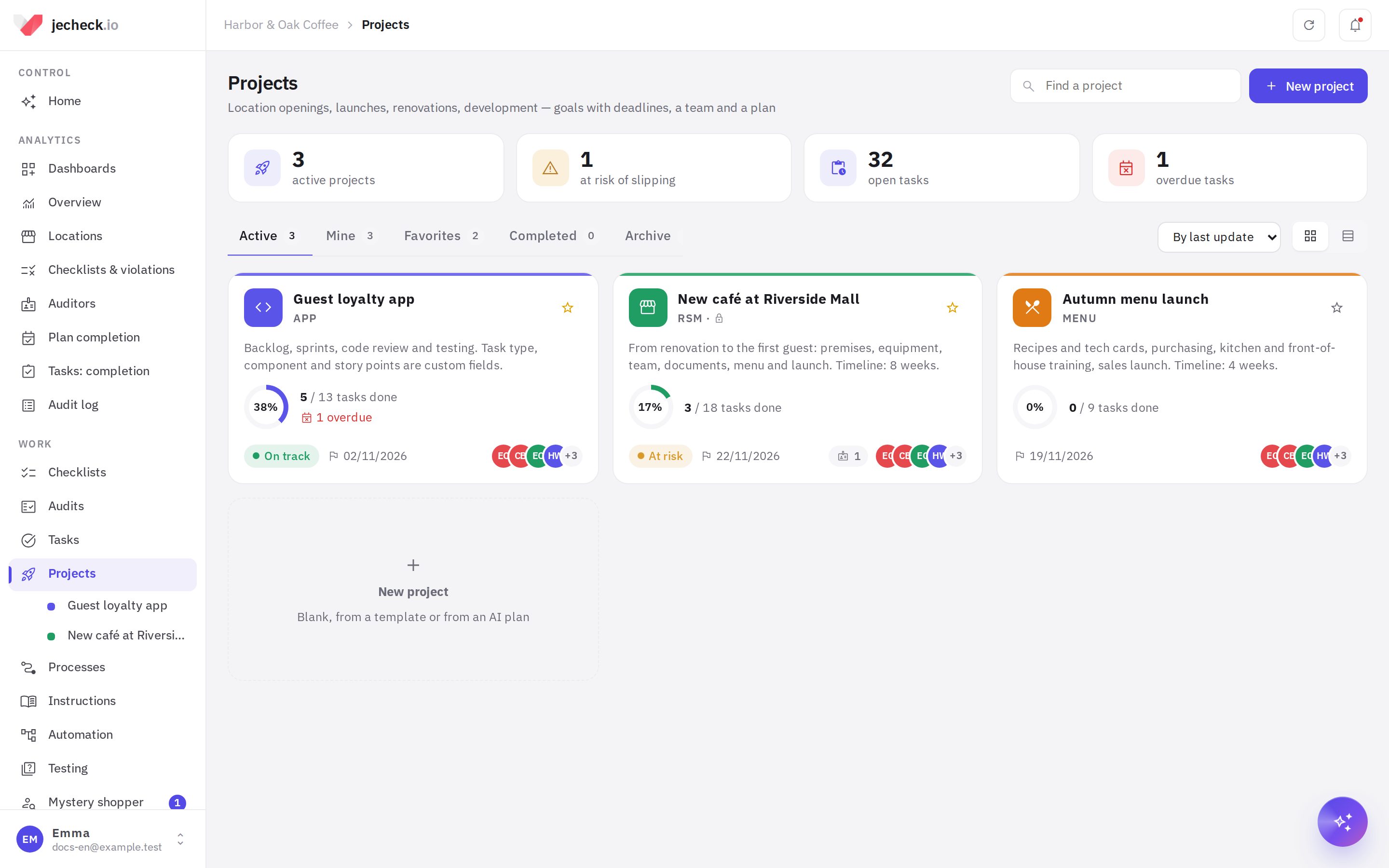
At the top of the list is a summary: how many projects are active, how many are at risk of slipping (rated “At risk” or “Off track”, or past the due date with open tasks), and how many tasks are open and overdue. The Active, Mine, Favorites, Completed and Archive tabs filter the projects.
How to create a project
- Start. In Projects, click New project.
- Choose a starting point.
- Blank project — a “To do → In progress → In review → Done” board and one section.
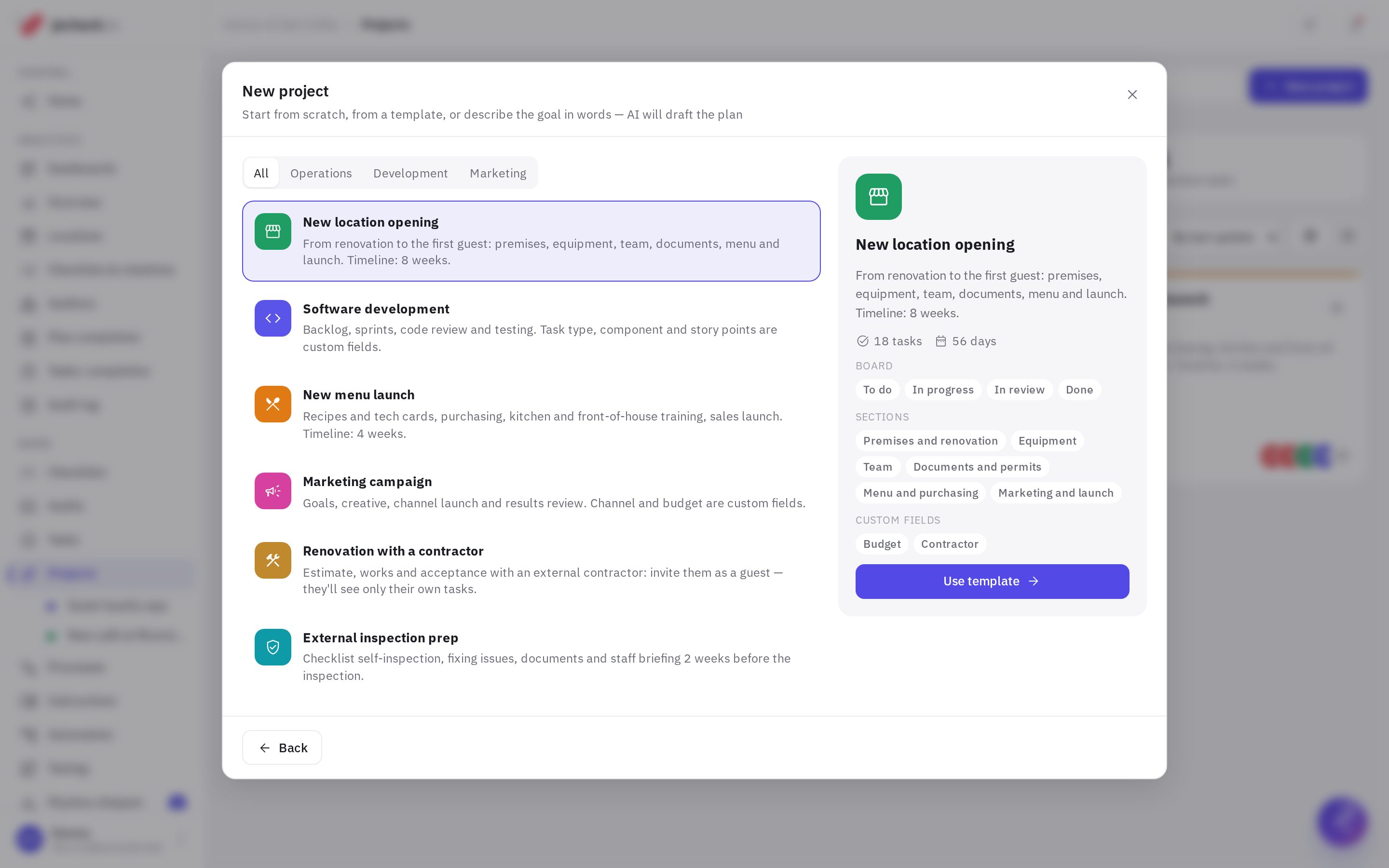
- From a template — ready-made templates with sections, milestones, custom fields and tasks with due dates: New location opening (8 weeks), Software development (backlog, sprints, code review, testing), New menu launch, Marketing campaign, Renovation with a contractor, External inspection prep. Your company's templates are here too. Click a template to see its columns, sections and fields, then click Use template.
- Draft with AI — describe the goal in words (“we're opening a second coffee shop in a mall in 2 months: renovation, hiring 8 baristas…”) and click Draft plan. AI suggests sections, milestones, tasks with due dates and dependencies. Remove unwanted tasks with the cross, then click Next.
- Fill in the details. Name, Key (2–10 Latin letters and digits, suggested from the name), description, Start date, who sees the project, members, color and icon.
- Click “Create project”. Due dates of template and plan tasks are counted from the start date: a task for “days 7–28” in a project starting on November 1 gets a start date of November 8 and a due date of November 29.
“Draft with AI” is available on a plan with AI features. All employees can create projects — this is the “Projects: creation” permission of the “All employees” role; it can be removed in Roles and permissions.
Who sees the project and member roles
Who sees the project is chosen at creation and in the settings:
- Members only — a private project. Neither it nor its tasks are visible even to employees with the “All location tasks” permission.
- Whole company — all employees see the project (view only) and can click Join to work in it.
Project roles (menu More → Project settings → Members, or the avatars button in the project header):
| Role | What they can do |
|---|---|
| Administrator | Everything: settings, columns, fields, members, guests, archiving and deletion |
| Participant | Creates and edits tasks, sections and milestones, writes status updates |
| Commenter | Sees tasks and comments |
| View only | Sees the project and tasks |
The project creator is its owner and an administrator. The author, assignee and watchers of a task can work with it even if their project role is “View only”. An employee with the “Projects: all company projects” permission sees any project and manages it as an administrator. New members are notified.
What's inside a project
The project header shows the key, status rating, due date, progress and team. Views are switched with tabs (or keys 1–7):
- Overview — progress, metrics, forecast end date, charts, milestones, team and status updates.
- List — tasks by section with inline editing.
- Board — drag-and-drop columns, WIP limits and swimlanes.
- Timeline — a Gantt chart with due dates, milestones and dependencies.
- Calendar — tasks by due date.
- Workload — how many tasks each person has per week.
- Activity — a feed of events in the project and its tasks.
For details, see How to run a project: board, list, timeline and workload.
Rules take care of project routine: “when a task is in “Done” — notify the author”, “when the due date is tomorrow — remind assignees”. See Automation rules in a project.
Copy, template, archive, deletion
Menu More → Copy, template, archive:
- Project copy — columns, sections, milestones, fields and (optionally) tasks with assignees; due dates shift from the new start date.
- Save as template — the company template appears when creating a project, on the Company templates tab.
- Task export — CSV for Excel: numbers, statuses, columns, sections, milestones, assignees, due dates, time and custom fields.
- Complete project, Archive / Restore from archive — an archived project is hidden from lists and menus, and guest links stop working.
- Delete project — deletes the project and all its tasks; you need to enter the project key.
Frequently asked questions
How is a project different from a department or a process?
A department is a permanent part of the org structure with its own task queue. A process is a request type with an approval route. A project is a temporary goal with a deadline: people from different departments and locations work in it, and once the goal is reached, the project is completed.
Can I move a regular task into a project?
Yes. In the task card, choose Project — the task gets a number from that project. You can also move a task from one project to another the same way: its number, section, milestone and custom fields will change.
Why don't I see project tasks in the Tasks section?
In the general list, project tasks are visible only to project members and to people who are the task's author, assignee or watcher. View the other tasks of an open project in the project itself.
Are projects available on all plans?
Yes, projects, guests, the board, the timeline and workload are available on all plans. The AI project plan and the AI draft of a status update require a plan with AI features.
Thank you! This helps us improve the help center.