
Tasks in jeCheck
The Tasks section is where all of your company's assignments come together: tasks created manually and violation tasks from audits. Here you set assignees and due dates, track statuses and check that a violation has really been fixed.
An administrator sees all company tasks. Other employees see tasks for locations where they have the “All location tasks” permission (by default — their own locations) and tasks where they are the author, assignee, watcher, or the auditor of the audit the task was created from. Without this permission, only their own tasks are visible. The “Tasks: completion” analytics section and the AI assistant count tasks the same way. Permissions are set up in Roles and permissions.
Where to find the section
The section is in Work → Tasks. The page header has a Find a task search, a New task button and, if your company has published processes, New request. To learn how to fill in a task, see How to create a task.
Where tasks come from
- Created manually — any dashboard user can create them: for themselves, colleagues or a location.
- Requests from processes — an employee picks a process (for example, “Equipment purchase”), fills in the form, and the request moves through the steps on its own: approvals, execution, acceptance. A request has a number like ZAK-12 and the process icon. Learn more in Processes — requests with approval.
- Project tasks — tasks for a location opening, a launch, a renovation or development, gathered into a project. They have a number like DEV-42 based on the project key; the general list shows tasks from projects you're a member of. Learn more in Projects — goals with deadlines, a team and a plan. In the list they have a badge with the project key; a lock means a private project.
- From audits — created automatically when an auditor answers “No” to a checklist question. The rules (who gets it, the due date, whether an “after” photo is needed) are set in Automation or in the older “Auto task” setting of a checklist question. These tasks have an icon with the tooltip From audit. Learn more in Violation tasks from audits.
To separate one from the other, use the Source filter: From audits or Created manually.
Three views: list, board, calendar
The view switcher is on the right above the tasks. Your chosen view, filters and grouping are remembered in your browser.
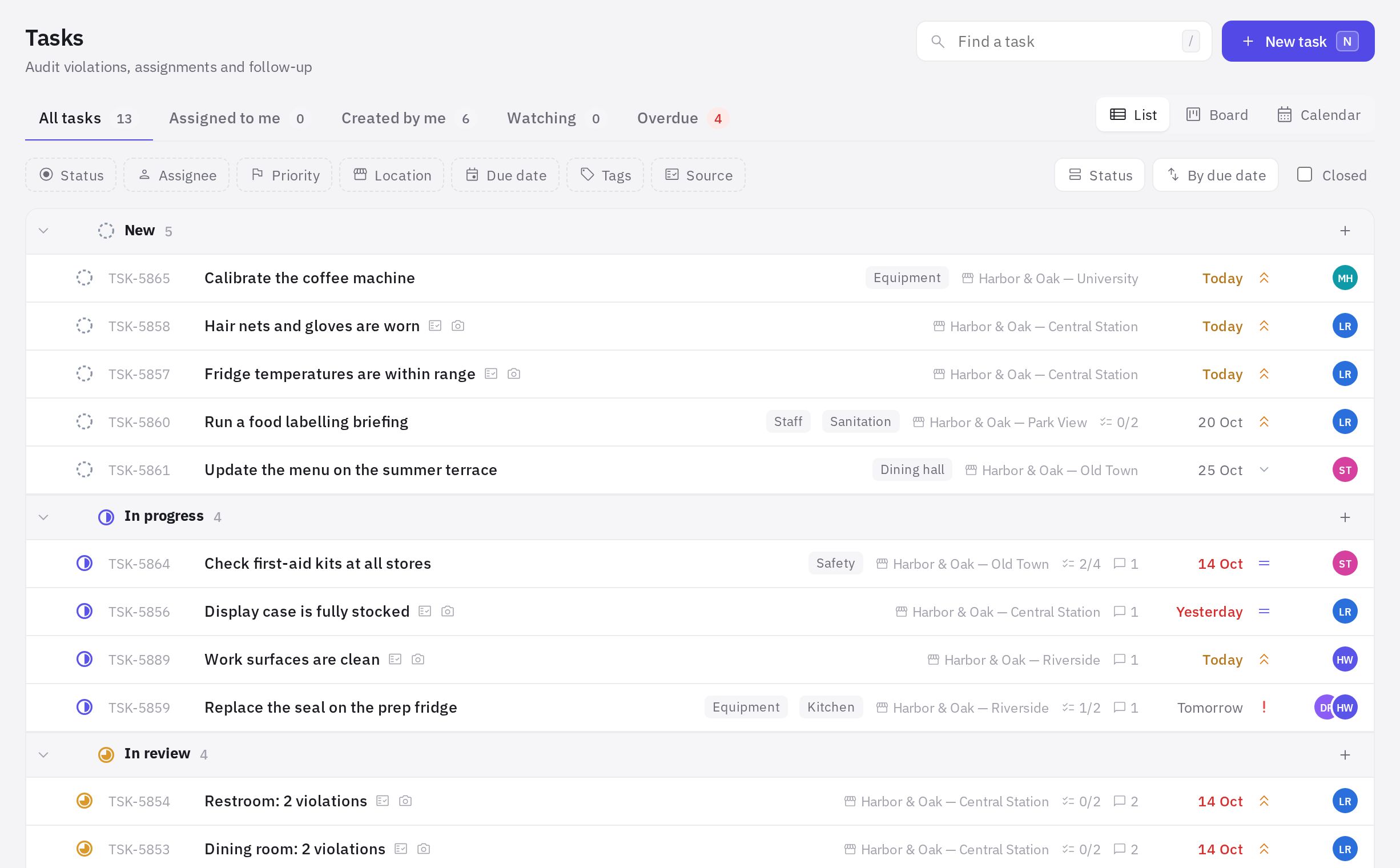
- List — tasks are grouped (by status by default). You can change the grouping: Status, Priority, Assignee, Department, Process, Project, Location, Due date or No grouping. The + button in a group header adds a task straight to that group.
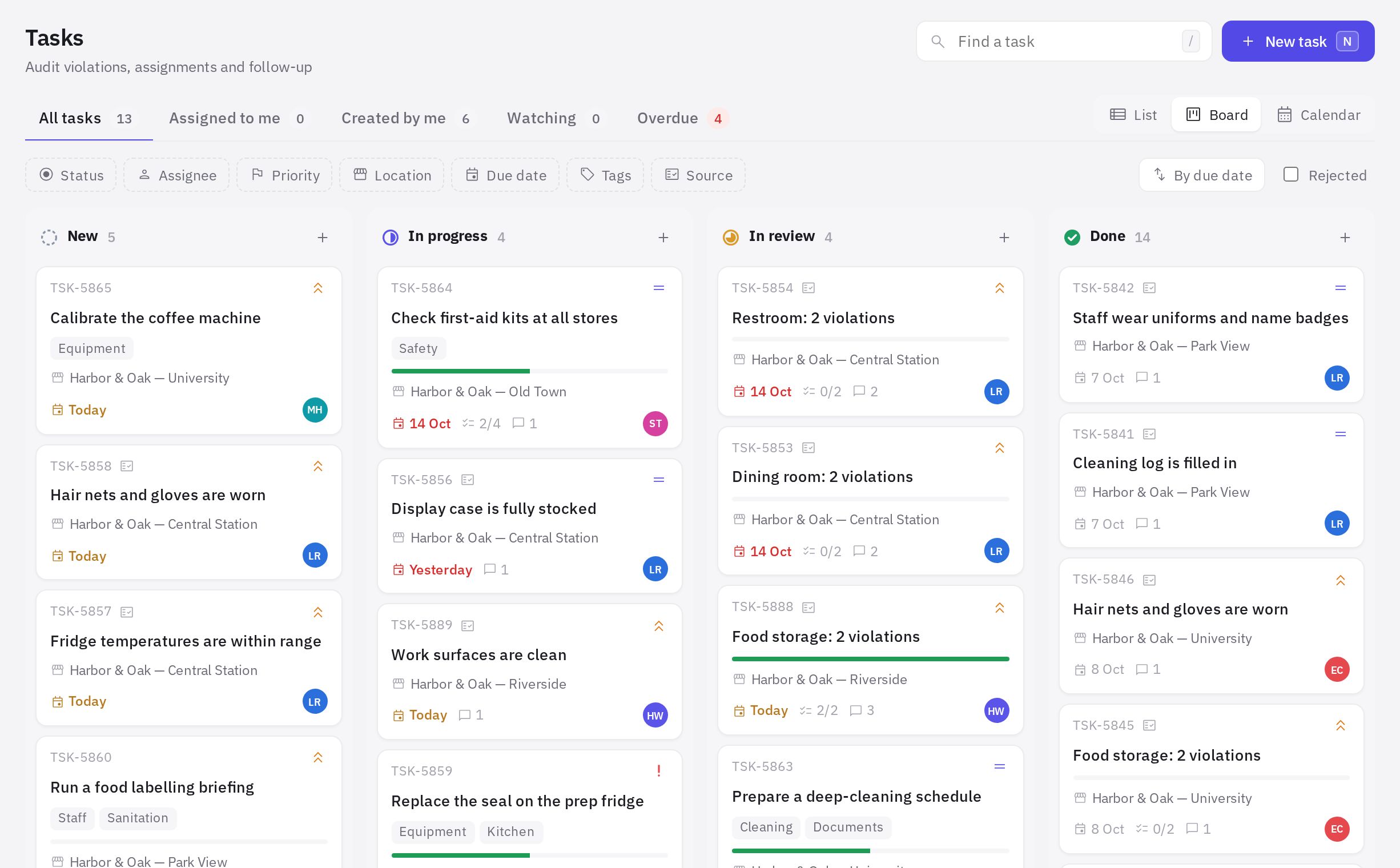
- Board — columns by status. Drag a card to another column to change its status. The “Pending approval” column appears when your company has processes: the route puts requests there, and you can't drag a task into it. Each column shows the first 100 tasks — narrow the filters to see the rest.
- Calendar — tasks on their due dates. Drag a task to another day to move its due date. Tasks without a due date are collected below the calendar.
Tabs and filters
The tabs above the tasks select tasks by your role in them; the number of open tasks is shown next to each:
- All tasks;
- Assigned to me — you are the assignee;
- Awaiting my decision — requests you need to approve or accept, and your own requests sent back for revision (shown when your company has processes);
- Created by me — you are the author;
- Watching — you are a watcher;
- Overdue — the due date has passed and the task isn't closed.
Filters: Status, Assignee, Priority, Location, Due date (overdue, today, next 7 days, no due date), Process, Project, Tags and Source. The Reset button clears all filters. You can sort by due date, priority, last update, creation date or name.
Closed tasks and archive
By default, the list shows only open tasks. The Closed checkbox adds closed tasks (done and rejected) from the last 30 days. On the board, the “Done” column is always shown, and the Rejected checkbox adds a column for rejected tasks. Older closed tasks are available via the Show archive link at the bottom of the page.
Bulk actions
Tick tasks (or a whole group with the checkbox in its header) — a panel appears at the bottom: Status, Assignee, Priority, Due date and Delete.
Some tasks may not change: for audit tasks with an “after” photo or review requirement, the status follows the automation rules, and someone else's task can be deleted only with the “Deleting other people's tasks” permission (the author can always delete their own). jeCheck lets you know if this happens.
Report for the team chat
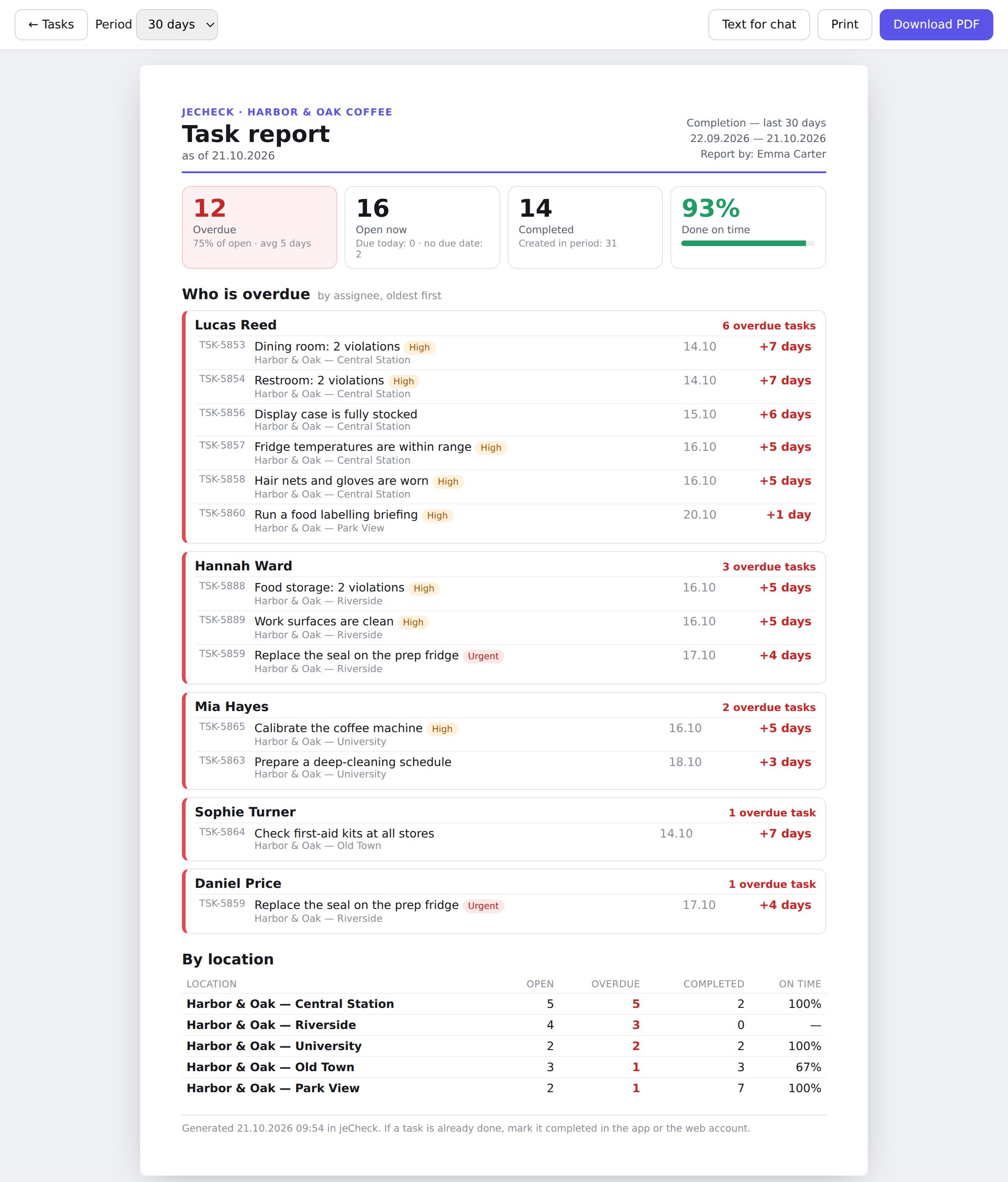
The Report button in the section header opens a summary that is easy to send to a work chat to remind colleagues about overdue tasks:
- metrics: how many tasks are overdue and open, how many were completed in the period and what share was on time;
- Who is overdue — each assignee's overdue tasks, oldest first, with the location and the number of days overdue;
- Due soon — tasks due today and in the next 3 days;
- By location — open, overdue and completed tasks for each location.
The period for completion metrics is 7, 30 or 90 days. If locations are selected in the Location filter, the report covers only them. Download PDF saves the report as a file, and Text for chat opens a ready-made message listing overdue tasks by assignee — click Copy and paste it into WhatsApp or Telegram.
The report includes only tasks you can see in the section, and only at locations where you have the “Task report” permission. By default administrators and location managers have it — for their locations.
Keyboard shortcuts
- N — new task;
- / — go to search;
- ↑ and ↓ in an open card — the next or previous task;
- Esc — close the card or clear the selection.
Frequently asked questions
Where can I see task completion statistics?
In Analytics → Tasks: completion. Learn more in Analytics.
Why can't I see an old completed task?
The list shows closed tasks only from the last 30 days. Click Show archive at the bottom of the page.
Thank you! This helps us improve the help center.