
How to invite a contractor or client to a project
A project guest is someone outside your company: a renovation contractor, an equipment supplier, a client, a designer. They get an email with a personal link and work in the project without an account or the app: they see tasks, change their status, tick off subtasks, upload photos and certificates, and message the team. Other jeCheck sections and other projects are not visible to the guest.
What you need
- the Administrator role in the project;
- the Projects: external participants permission — by default only company administrators have it; others are granted it in Roles and permissions.
How to invite a guest
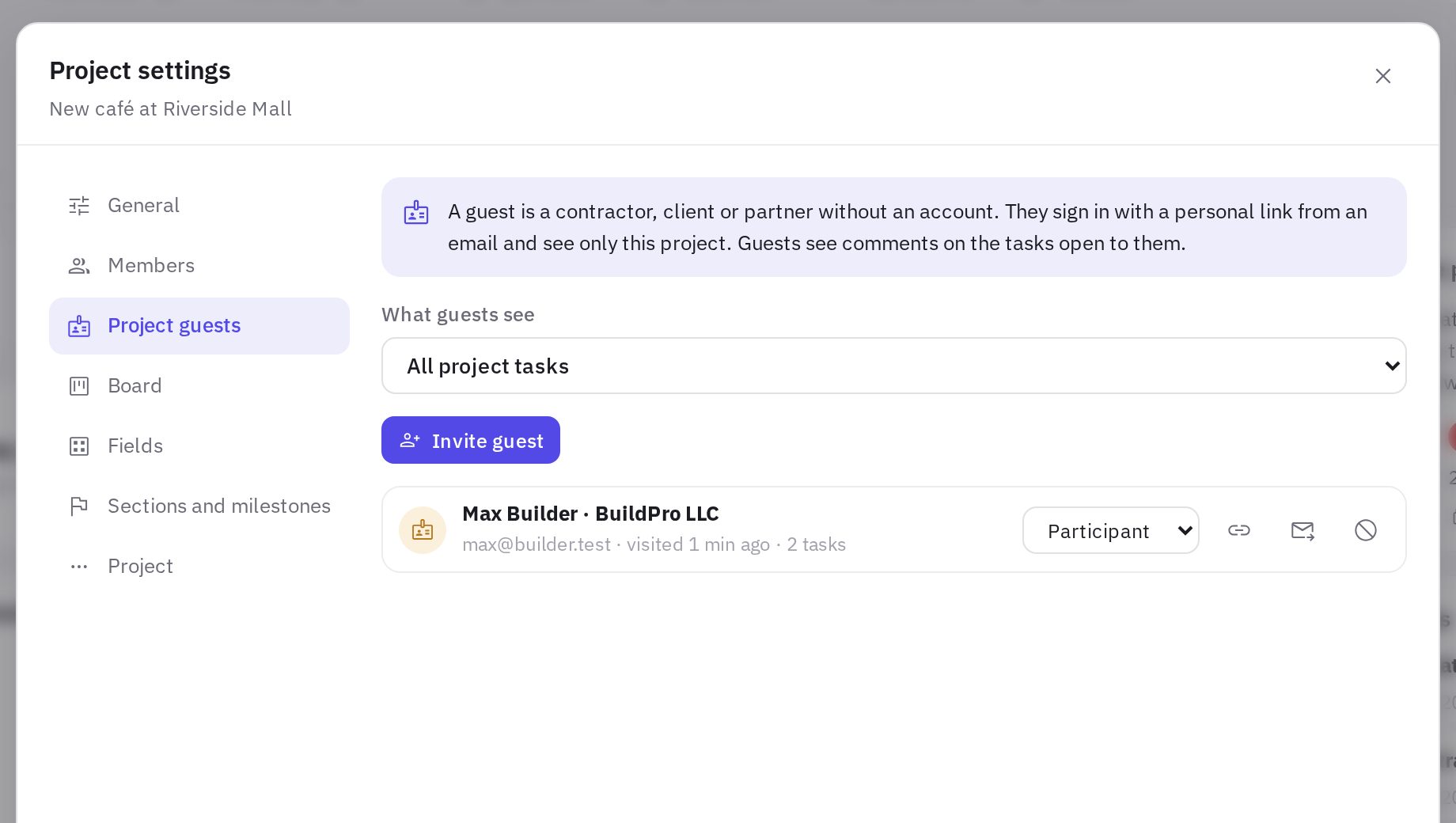
- Open the project. Click Invite in the project header — Project settings → Project guests opens.
- Choose what guests see. All project tasks or Only tasks assigned to the guest — the second suits a contractor who doesn't need to see your internal work. The Renovation with a contractor template turns on the second option right away.
- Fill in the invitation. Click Invite guest: name, email, company, role, email language and, if needed, a message.
- Send it. Send invitation — the guest receives an email with the link.
- Assign tasks. In the task card, choose the guest in the Project guests property — they get an email about the new task, and a guest icon appears in the task list.
Guest roles:
| Role | What the guest can do |
|---|---|
| Participant | Changes task status (New, In progress, In review, Done), ticks off subtasks, uploads files, logs time, suggests new tasks, writes comments |
| Commenter | Sees tasks and writes comments |
| View only | Sees tasks |
What the guest sees
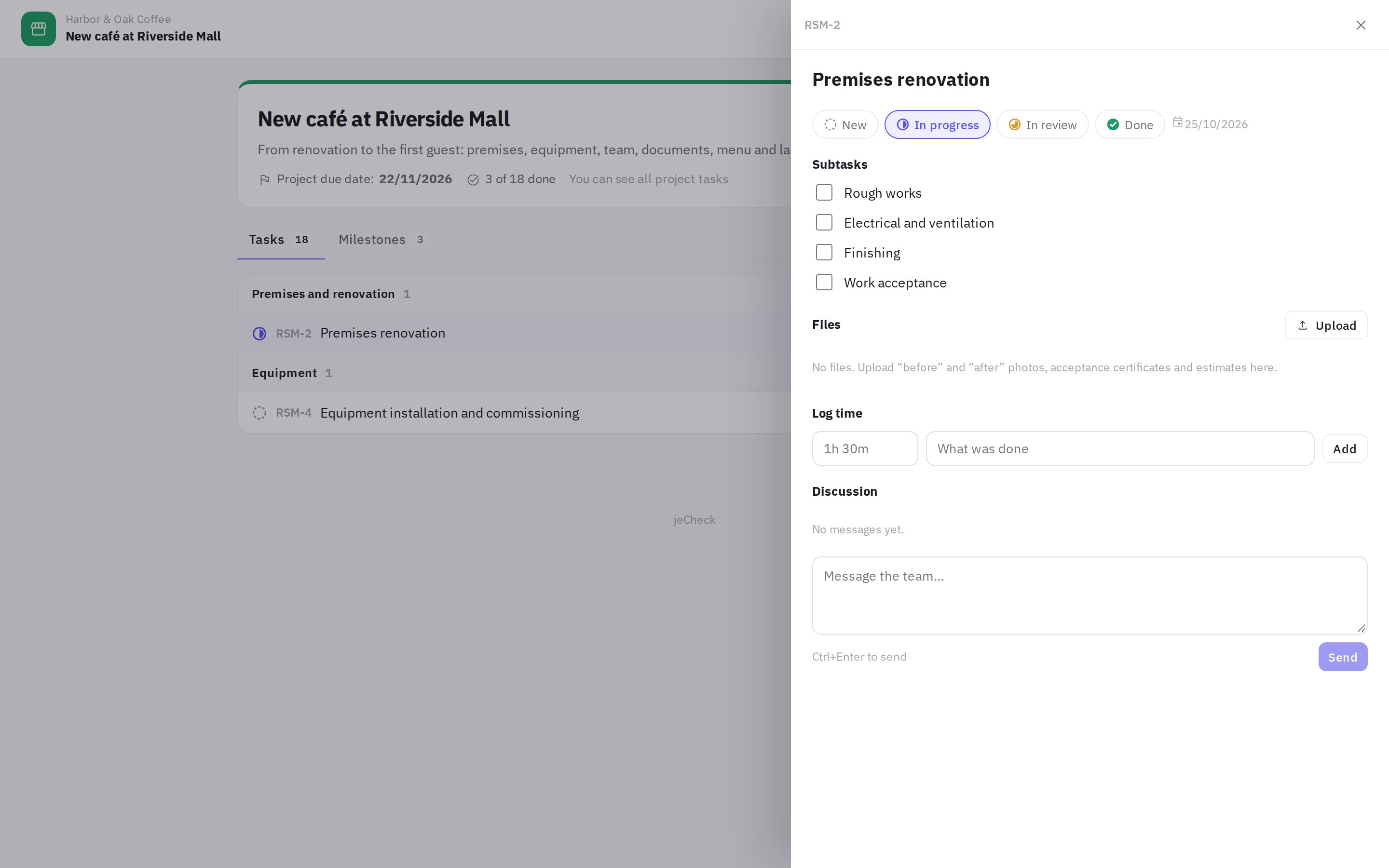
The link opens the project page: name, description, due date, how many tasks are done, the task list by section and milestones. Clicking a task opens its card: status, description, subtasks, files, time and discussion. The guest can choose the page language.
The Suggest a task button (for the “Participant” role) adds a task to the project: it's assigned to that guest right away, and the project owner is notified.
The guest's actions are visible to the team: comments and files are marked “guest”, and the guest's name appears in the task history and in the Activity feed. The task's author, assignees and watchers are notified about the guest's comments and files.
Guests see all comments on the tasks open to them. If the project is set to “Only tasks assigned to the guest”, discuss internal questions in tasks not assigned to the guest.
How to manage guests
In Project settings → Project guests, each guest has:
- a role — changes take effect immediately;
- Copy link — to send it some other way;
- Resend email;
- Revoke access — the link stops working and the guest is removed from all tasks.
You can also see when the guest last visited and how many tasks are assigned to them. In an archived project, guest links don't open; when a project is deleted, they are revoked.
Frequently asked questions
Does the guest need to sign up or install the app?
No. The link from the email opens in any browser, including on a phone.
Can the guest open other projects or sections?
No. The link leads to one project only; the guest sees the tasks allowed by the “What guests see” setting.
How many guests can I invite?
Up to 50 guests per project.
The link reached the wrong person — what should I do?
Revoke the guest's access and invite them again — the new link will be different.
Thank you! This helps us improve the help center.