
Automation: closing the loop on violations
The Automation section closes the “audit → fix → verify” loop. You set the rules once, and from then on every violation found in an audit automatically becomes a task for the right employee — with a clear due date, reminders, an “after” photo and sign-off on the work.
How the loop works
- The auditor records a violation. A violation is a “No” answer to a checklist question.
- The scenario decides what to do. For each violation, the checklist's scenario decides who gets the task, what due date to set and what to require — or sends the violation to the morning digest without a task.
- The task goes to the assignee. The assignee gets a push notification, and the task includes the violation photo from the audit.
- Due dates are tracked. The assignee is reminded before the due date and when it's overdue; managers or administrators are escalated to once the due date has passed.
- Confirmation. The assignee attaches an “after” photo, and the manager accepts the work or returns it for rework. AI can suggest from the photo whether the violation has been fixed.
- Repeats are visible. If a violation comes back after its task was closed, the new task is labeled “Repeat”.
How the assignee and reviewer work with such a task is described in Violation tasks from audits.
Where to find the section and who can use it
The section is in Work → Automation. Administrators and employees with the “Automation” permission can work with it — see Roles and permissions. The How it works button in the header opens a visual walkthrough with an example.
The page has two tabs:
- Scenarios — a library of rules: ready-made templates, a visual editor, linking to checklists and testing on a real audit. Learn more in How to set up a scenario.
- Locations and teams — roles (positions), the team at each location, each employee's role and the managers. The Management → Locations menu item leads here too. Learn more in How to set up automation.
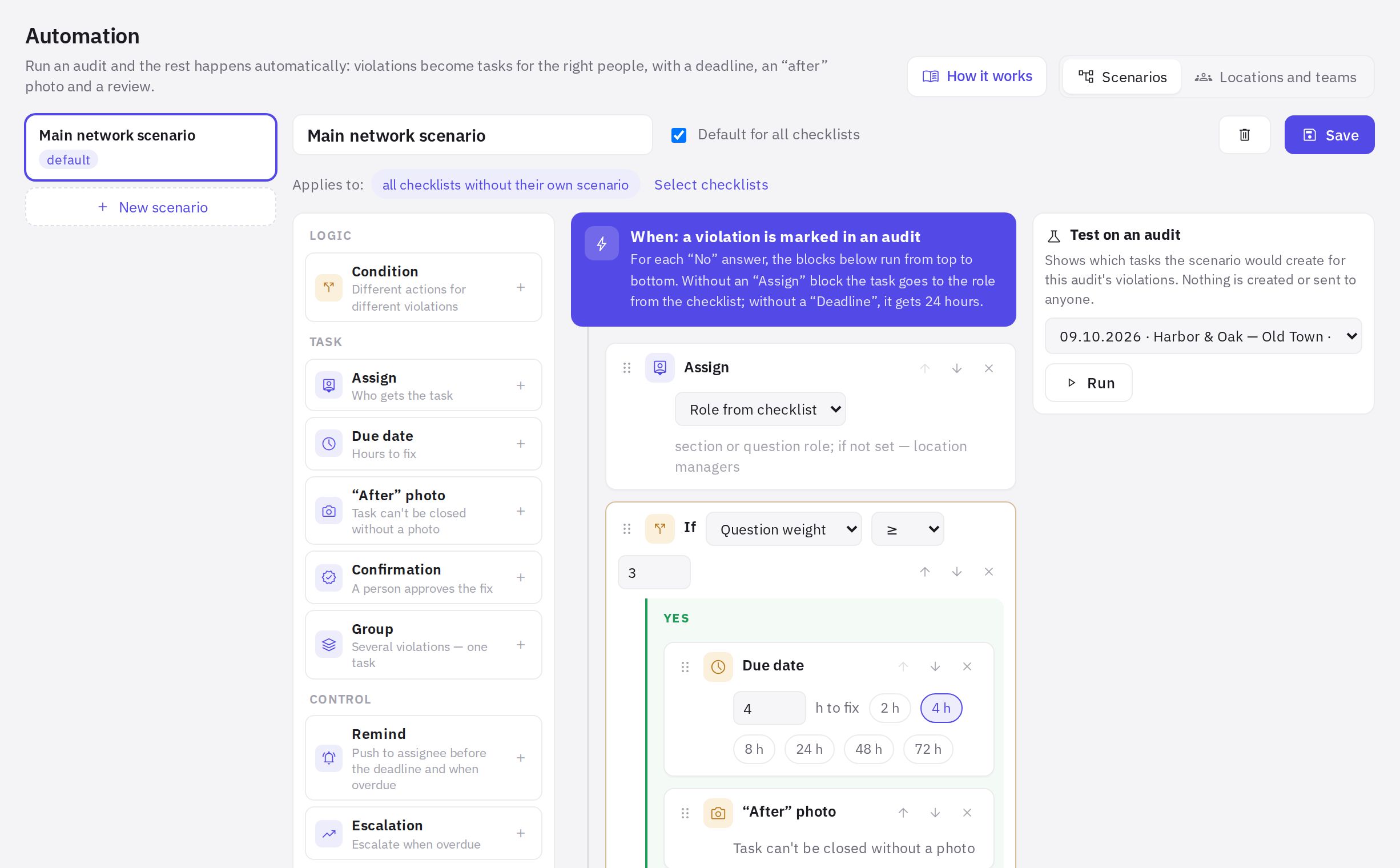
Until setup is complete, a Setup: N of 5 checklist is shown under the tabs.
Plan
Automation scenarios, locations, roles and managers are available on any plan, including the free Start plan. The AI blocks of a scenario (task text, “after” photo checks) are AI features — they are included in the Network and Enterprise plans.
What happens to the old “Auto tasks” in questions
Nothing is lost. As long as a checklist has no scenario — neither its own nor the company default — the Auto task setting of the question works (the due time in hours and which answers create a task). The task goes to whoever is set in Who fixes the violation for the question or section: a position, a department, an employee or the location manager. Old auto tasks assigned to a specific employee have been moved there as “Employee”. As soon as a scenario applies, the scenario takes over, and the “Auto task” block in the question settings is hidden.
Frequently asked questions
Can AI close a task by itself?
No. AI writes the task text, groups similar violations and compares the “before” and “after” photos, but it only gives the reviewer a hint. A person always closes the task. If AI isn't available, the scenario works by its rules without the AI blocks.
If I change a scenario, what happens to tasks already created?
Nothing. Each task keeps its own rules (due date, reminders, escalations) from the moment it was created. The changed scenario applies to future audits.
Do audits done in the mobile app trigger automation too?
Yes. The scenario runs when a completed audit arrives in jeCheck — including audits from the app. The task's due date counts from the moment the audit is processed, so for an offline audit sent later, the due date won't expire early.
Who gets the task if the responsible is a position?
An employee with this position at the audited location. jeCheck looks in this order: who is on shift at this location right now; the location's staff (primary and additional locations); those who can work at the location without being assigned to it — employees who work at all locations and members of departments that serve this location. For example, a cleaning supervisor who isn't assigned to any club but belongs to an all-locations Cleaning department gets the task. If nobody is found, the task goes to the location manager, marked as having no assigned role.
Thank you! This helps us improve the help center.