
“After” photo, confirmation and AI check
A violation task is closed only when the violation has really been fixed. For this, scenarios have control blocks: “After” photo, Confirmation, Remind, Escalation and the AI blocks. You add them to a scenario in Work → Automation → Scenarios.
“After” photo
The “After” photo block prevents the task from being closed without a photo of the result.
- The assignee attaches a photo in the task card with the Add photo button. Until there is a photo, the Done / Submit for review button is disabled.
- Photos count if they were attached after the task was created by the assignee, the reviewer (location manager or auditor), the task author or an administrator. Photos from other employees don't count. If the task was returned for rework, new photos are needed — taken after the return.
- The card shows the Before (audit) photos — the auditor's shots — and the After photos side by side.
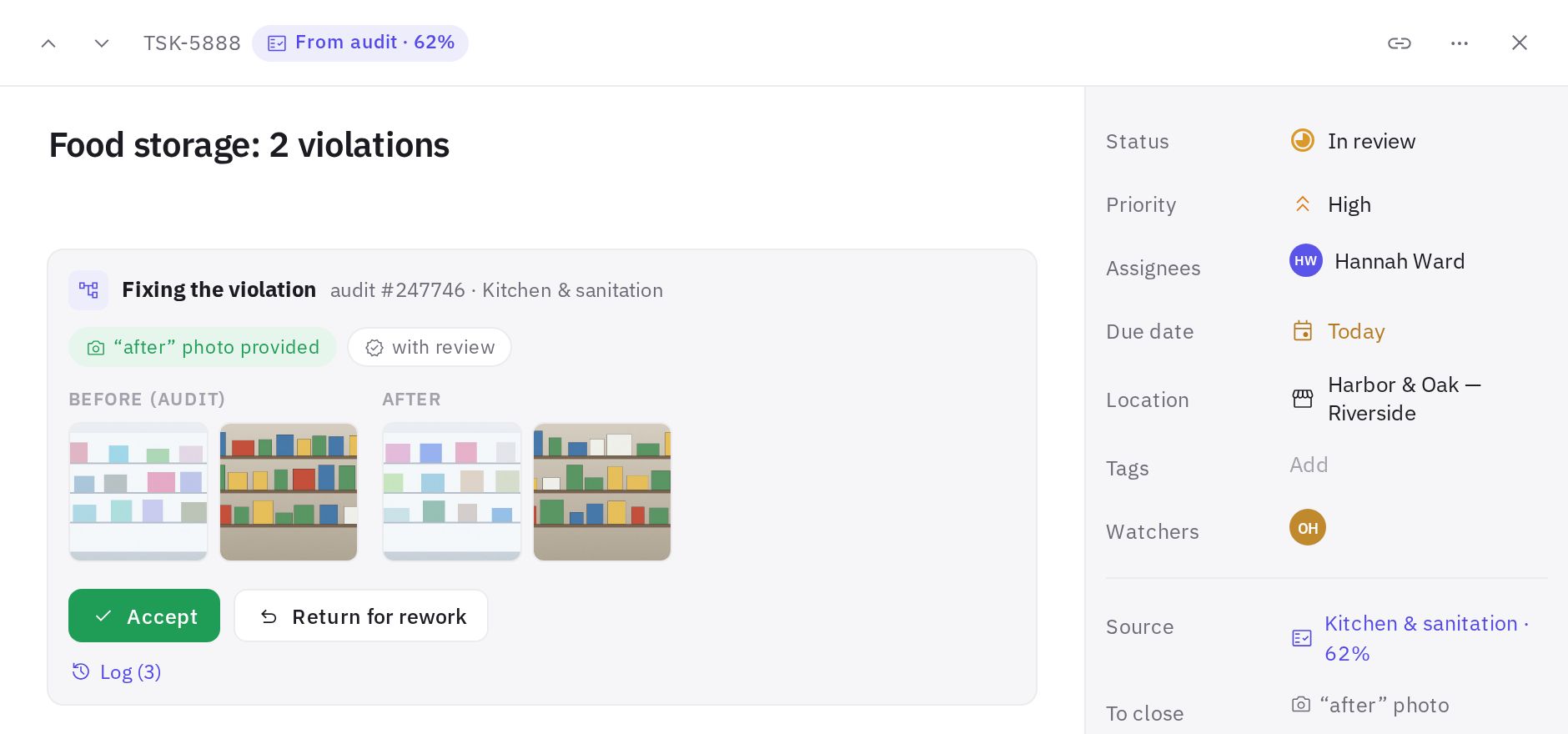
Require an “after” photo at least for critical violations: food safety, cash, legal requirements. These are not things to take on trust.
Completion confirmation
The Confirmation block adds sign-off on the work by a person. When the assignee clicks Submit for review, the task gets the In review status, and the reviewer gets a notification to check the work.
In the block, you choose who accepts:
- location manager — the managers of the location where the audit took place; if there are none — the auditor, and if there is none either — administrators;
- auditor — the person who ran the audit.
Besides them, company administrators, the task author (the auditor) and employees with the “Confirming task completion” permission for the task's location can always accept or return the task. The reviewer clicks Accept or Return for rework with a reason. What this looks like is described in Violation tasks from audits.
AI photo check
The AI: photo check block turns on comparison of the “before” and “after” photos. When the assignee submits the task for review, AI looks at the photos and leaves a hint for the reviewer:
- AI: looks fixed;
- AI: uncertain;
- AI: violation visible in photo;
- AI: can't tell from photo.
Each hint comes with a short explanation and the note “You make the decision”. AI can't close or return a task — a person always does that. AI checks the photos at the moment the task is submitted for review, so the block needs “After” photo and Confirmation. If they aren't in the scenario, the block turns them on itself: the “after” photo becomes required, and the location manager accepts the work. In the editor, the block shows a hint about exactly what it will turn on. If the scenario does have Confirmation, the reviewer chosen there stays. The AI hint is visible while the task is in review.
Other AI blocks
- AI: task text — AI rewrites the task in plain language: what to do and what to photograph.
- Group → by meaning (AI) — AI combines similar violations for one assignee into tasks with subtasks.
AI blocks are part of the plan's AI features. If AI isn't connected, the block in the editor shows the note “AI is not connected — this block will be skipped”, and grouping by meaning is replaced with grouping by section. The other rules of the scenario work as usual.
Reminders and escalations
- Remind — a push to the assignee the specified number of hours before the due date and, if and when overdue is ticked, at the moment the task becomes overdue. If the task was returned for rework, the overdue reminder is sent again.
- Escalation — N hours after the due date, jeCheck notifies higher up: location managers, a role at the location, a specific employee or administrators. The recipients are added as watchers of the task. A scenario can have several escalations, for example to managers after 4 hours and to administrators after 24 hours.
Reminders and escalations work while the task is in the “New” or “In progress” status. Tasks in review and closed tasks don't get them. All events are visible in the task log.
Frequently asked questions
Can I turn on confirmation without requiring a photo?
Yes. The blocks are independent: with Confirmation alone, the assignee can submit the task for review without a photo, and the reviewer decides.
What happens if violations with different rules are grouped into one task?
The strictest option applies: the shortest due date, and a photo and confirmation are required if they're needed for at least one violation in the group.
AI got it wrong. What should I do?
Nothing special — the hint doesn't affect anything. The reviewer looks at the photos and clicks Accept or Return for rework.
Thank you! This helps us improve the help center.