
Audit log: search, reports and export
The audit log is a table of all completed audits with filters, reports and exports. You'll find it under Analytics → Audit log. It shows the locations where you have the “Audit log and reports” permission: by default your own locations; an administrator sees all. More in Roles and permissions.
What's in the table
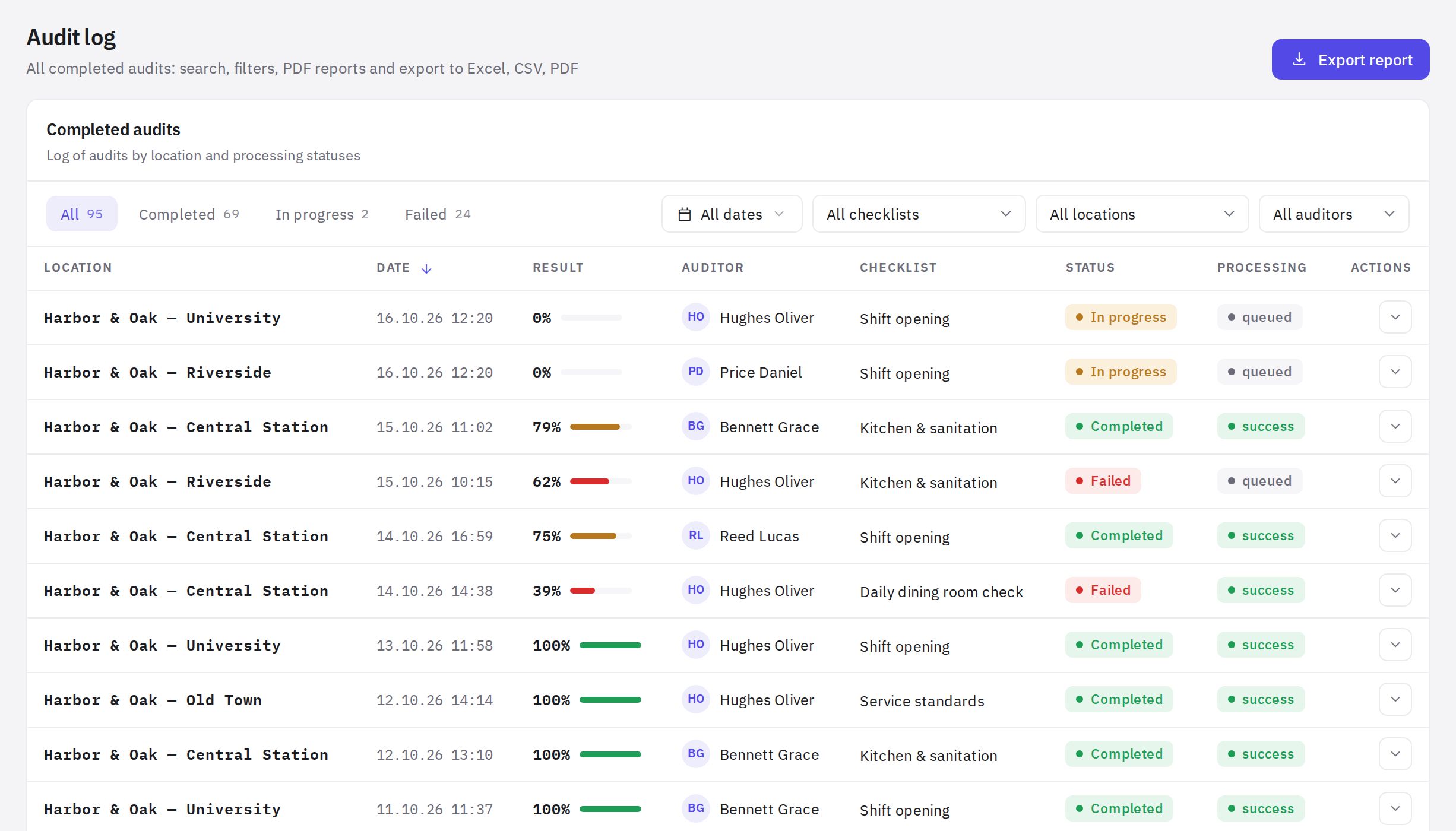
Columns: Location, Date, Result, Auditor, Checklist, Status, Processing. You can sort by location, date and result by clicking the column header.
Status:
- Completed — the audit is finished and scored 70% or higher;
- Failed — the audit is finished and scored below 70%;
- In progress — the audit isn't finished.
Processing shows whether the report is ready: “queued”, “success” or “error”.
The 70% threshold is the same for all checklists, the log, analytics and the audit report: “Failed” in the log means “Audit failed” in the report. A target set in a mailing list only refines the status of a passed audit in the report — see How the audit result is calculated.
How to find an audit
- Pick a status tab. All, Completed, In progress or Failed — each shows the number of audits next to it.
- Set the dates. Click the period button (“All dates”), enter From and To, and click Apply.
- Filter. Choose a checklist, location or auditor in the drop-down lists.
- Use search. The search field in the top bar searches by location name, checklist name and auditor name.
Audit actions
The arrow button at the end of a row opens a menu:
- Open audit — the web version of the audit report in a new tab;
- Download PDF — the report as a PDF file; if the PDF isn't ready yet or you don't have the “Audit export (Excel, PDF)” permission, the web version opens instead;
- Download Excel — this audit's row in Excel;
- Create task — opens a pre-filled new task window in Tasks: the title “Violations: checklist — location”, the audit's location, and a description with the date, result and a link to the report. You only need to choose an assignee and a due date;
- Delete audit — for administrators and employees with the “Deleting audits” permission at the audit's location, after confirmation. See the question below.
Exporting a report
-
Click “Export report”. The button in the page header opens the Audit export window. It's shown to those with the “Audit export (Excel, PDF)” permission; the export includes only the locations where this permission applies, and the export itself is recorded in the access log.
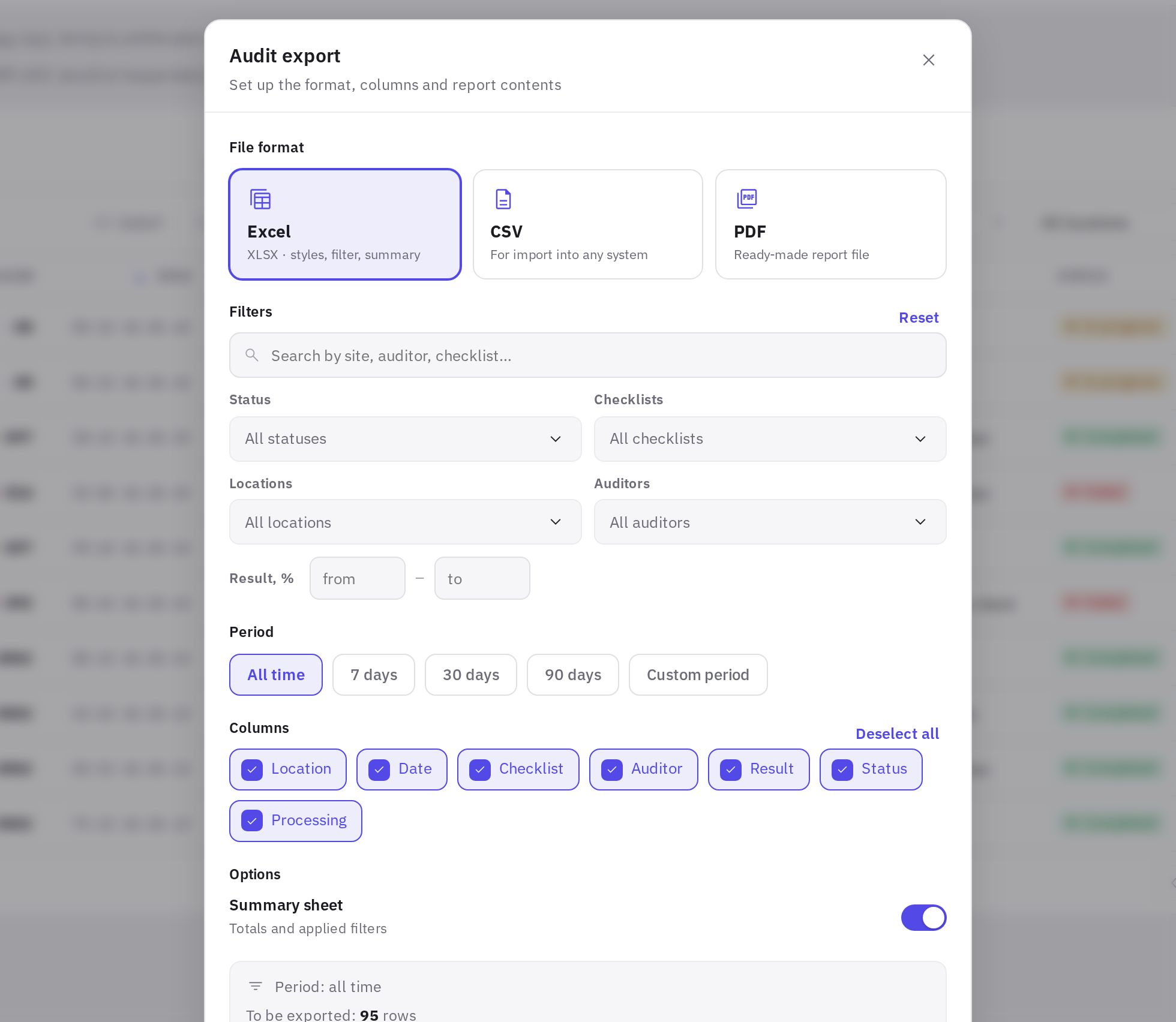
The Audit export window: format, filters, period and columns -
Choose a format. Excel (styling, filters, summary), CSV (for importing into other systems) or PDF (a ready-to-use file).
-
Select columns. At least one is required.
-
Set the options. Summary sheet adds totals and the filters applied. For PDF, choose the PDF orientation — Portrait or Landscape.
-
Check the filters. Period, statuses, checklists, departments and auditors. With no filters, all audits are exported.
-
Download. Click the export button.
Only the first 500 rows go into the PDF. For a full export, choose Excel or CSV.
Summary by location: “Work → Audits”
If you need totals by location rather than every individual audit, open Work → Audits — the Completed audits by location page. For each “location + checklist” pair it shows the number of audits and the average result for the selected dates. By default, the last three days are shown. Filters: checklist, location, auditor and search; the Export to Excel button downloads the table.
Frequently asked questions
Why isn't an audit in the log?
Check the status tab, the dates and the filters. The log only shows the locations where you have the “Audit log and reports” permission (an administrator sees all).
Why does “Download PDF” open a page instead of a file?
The PDF is still being generated — the Processing column says “queued”. In the meantime you can use the web version, which also has a Download PDF button.
Can I delete an audit from the log?
Yes, if you're an administrator or have the “Deleting audits” permission at this audit's location: Actions → Delete audit, then confirm. The audit is deleted along with its answers and photos and is no longer counted in the log or analytics. Tasks created from this audit remain, just without the link to the audit. Deletion can't be undone.
You delete an audit created from a mystery shopper visit the same way if the questionnaire was accepted by mistake.
Are the log filters linked to the analytics filters?
No. The log has its own filters and period, and the filters in the other analytics sections don't affect it.
Thank you! This helps us improve the help center.