
Dashboard cards: the library and the card builder
There are three ways to add cards: ready-made ones from the library, your own in the card builder, or by describing them in words with AI (see AI in dashboards). Anyone who can edit the dashboard can add and configure cards.
Card library
- Click “Add card”. The Card library opens on the right — 62 ready-made cards.
- Find the one you need. Use Find a card… or the groups: Audits, Violations, Plan, Tasks, HACCP, Testing, Mystery shopper, Instructions, Team.
- Click the card — it's added to the end of the dashboard. Or drag it straight onto the dashboard: while you drag, the library hides and the grid shows where the card will go. The label already on the dashboard tells you it's there already.
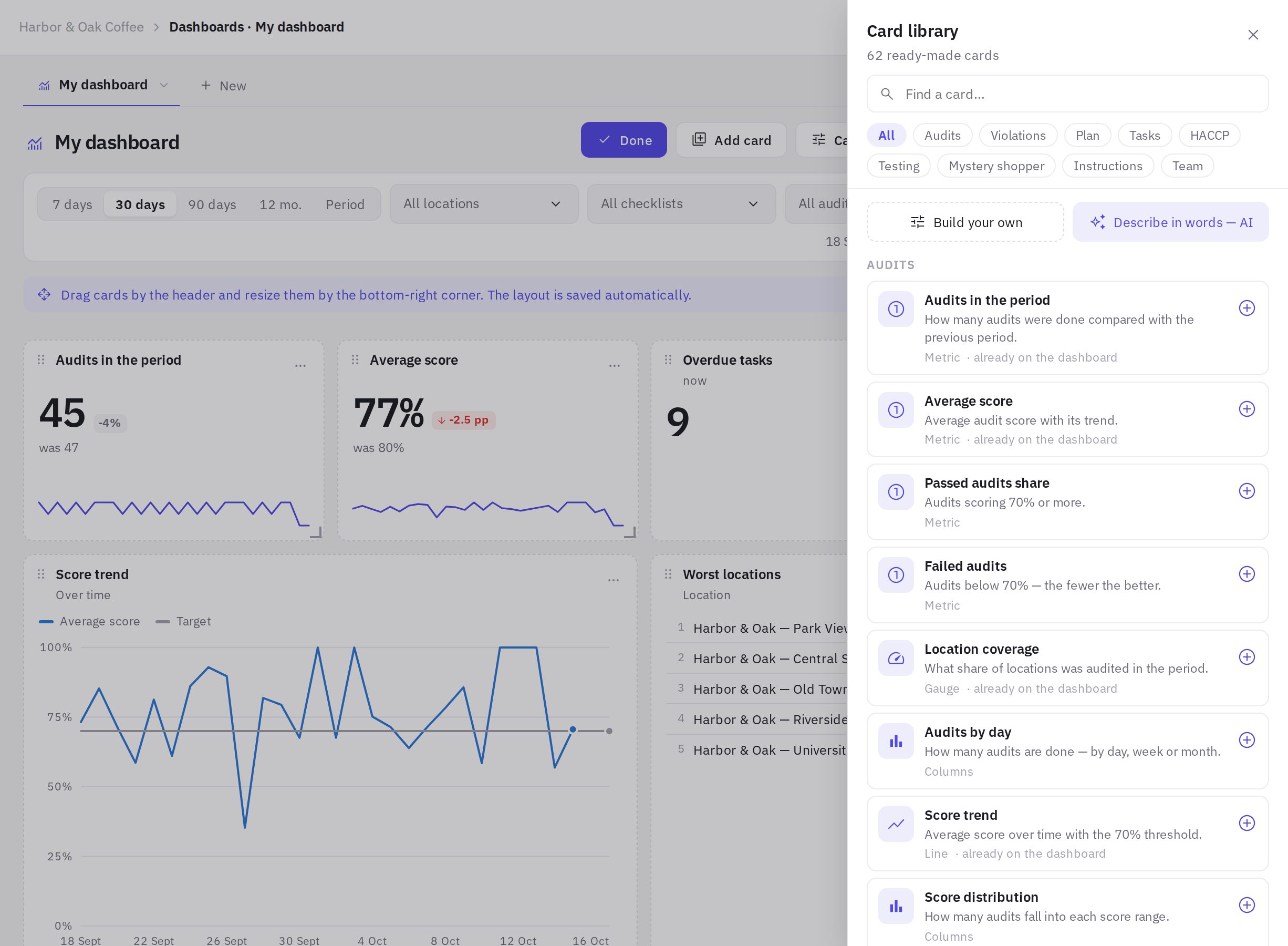
Cards for sections you don't have access to (because of your permissions or your plan) are marked and can't be added.
Card builder
The Card builder (the button above the dashboard, or Build your own in the library) builds a card step by step, and on the right you immediately see a Preview with your data.
- What to show. The Metric tab — pick a metric from the grouped list (search with Find a metric…); below the list there's an explanation of how it's calculated. Record list — a table of records: overdue tasks, recent and failed audits, locations with no audits, missed scheduled audits, open HACCP deviations, overdue tests and more. Note — your own text (Markdown is supported: bold, lists, links).
- How to show. Views: Metric (a number, the change vs the previous period and a mini chart), Gauge, Line, Area, Columns, Ranking, Donut, Table, Heatmap. Only the views that suit the chosen metric are available.
- Breakdown. What to split the data by: Over time, Location, Checklist, Auditor, Day of week, Hour of day, Question, Assignee, Priority and others — the options depend on the metric. A heatmap has two axes, for example day of week × hour.
- Period and filters. The card's period (Same as dashboard or its own: 7 days … Year to date), its own locations, checklists and auditors, Compare with the previous period, the number of rows and the order (Largest first / Smallest first).
- Look and target. Target — a line on the chart, the scale of a gauge, highlighting in a table or ranking. There's also Heading, Subtitle, Colour and More metrics on the same card (up to 4 for lines, columns and tables).
- Click “Add to dashboard”.
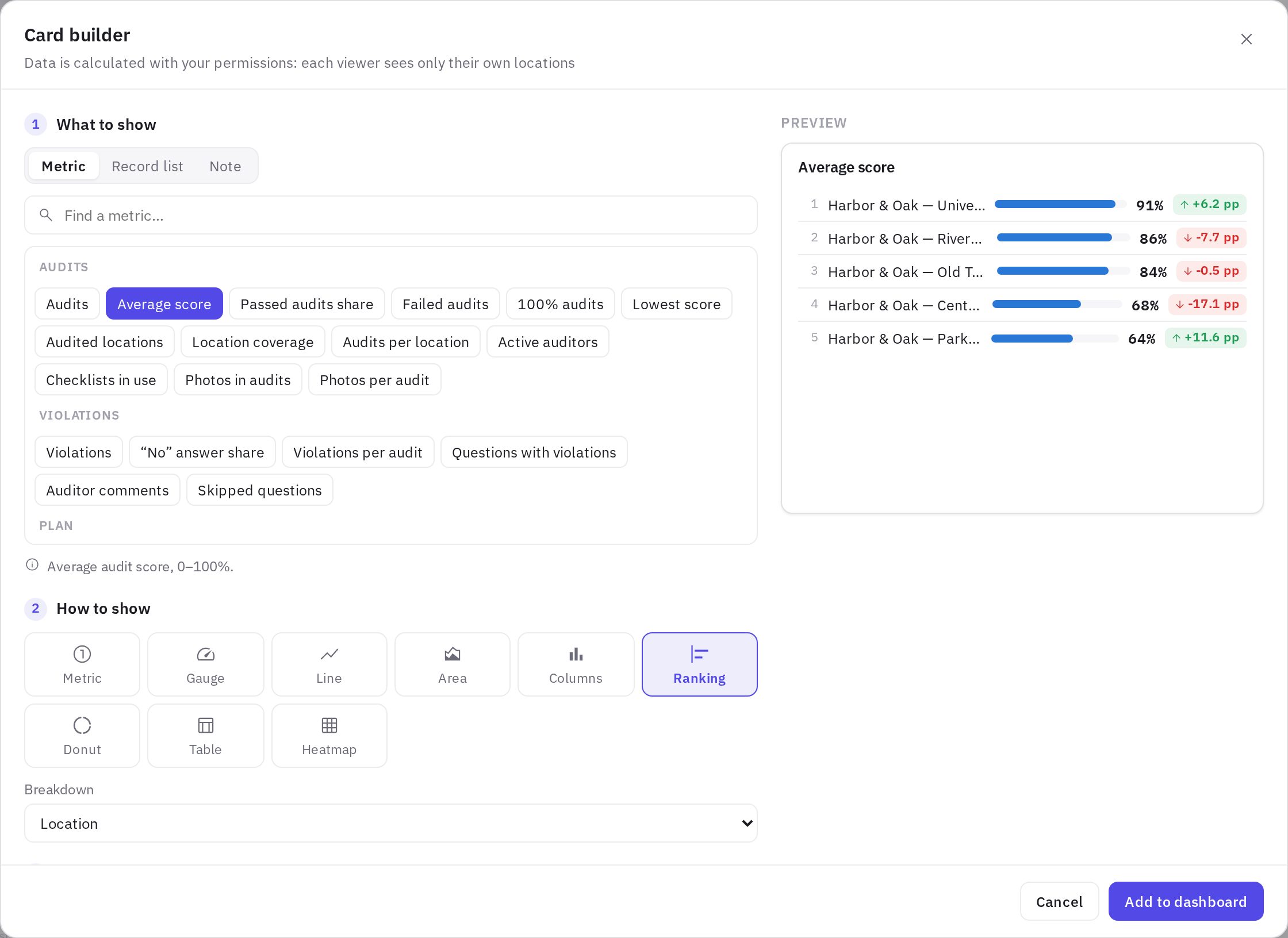
If a combination doesn't work (for example, a donut over time), the builder tells you what to fix.
Card menu
When you hover over a card, the Explain the data (AI), Expand and ⋯ buttons appear in its corner — ⋯ opens the card menu:
- Configure in builder — change the card;
- Refine with AI and Explain the data (AI) — see AI in dashboards;
- Expand — show the card full screen;
- Download CSV — the card's data with the current filters;
- Duplicate — a copy on the same dashboard;
- Copy to another dashboard — to any dashboard you can edit;
- Delete card — right after deleting, Undo appears so you can bring it back.
Editing options are visible only to people who can edit the dashboard. Everyone can view, expand and download CSV.
Frequently asked questions
Why does a card say “No data for the period”?
There are no records for the selected period with the selected filters. Widen the period or clear the location, checklist and auditor filters.
Why does my colleague see different numbers on the same card?
The data is calculated with the viewer's permissions: everyone sees their own locations. See Dashboards.
I clicked a row in a ranking — where does it go?
Rows with locations, checklists and records are links to the relevant section (location analytics, the audit, the task and so on).
Thank you! This helps us improve the help center.