
Checklists and audits: how it works
A checklist is an audit template: sections, questions and scoring rules. An audit is one run of a checklist at a specific location by a specific employee. The administrator creates checklists in the web dashboard, auditors carry out audits in the mobile app, and the results are collected into reports and analytics.
What a checklist is made of
- Sections — groups of questions, for example "Dining room", "Kitchen", "Storage". The report calculates a separate score for each section.
- Questions — audit items. The answer type is Yes / No, custom options with scores, a rating scale, a number with norm, a date or a barcode (scored), text, photo, signature or employee (data collection, not scored), or an instruction with no answer. A question can zero the audit score or appear on a condition. See Answer types.
- Question weight — how many points an item is worth. Used if the checklist's scoring method is In points.
- Access and settings — who can use the checklist (everyone, or only selected positions, locations, departments and employees), when it can be completed, scoring method, folder, signature, geolocation and AI review.
How to fill all this in is explained in How to create a checklist.
The audit path: from template to report
- Create a checklist. In the Work → Audit checklists menu, click Create checklist and fill in the builder.
- Decide who audits and when. Limit access to the checklist to specific positions, locations or employees (the Access button in the builder), or schedule regular audits in the Planner.
- The auditor carries out the audit in the app. They choose a location and a checklist, answer the questions, attach photos and submit the audit.
- jeCheck calculates the score and builds the report. The audit report opens by link and can be downloaded as a PDF.
- The report is sent by email. The auditor and employees on this checklist's mailing lists receive it.
- Violations become tasks. If an automation scenario is set up, "No" answers create tasks — see Automation.
- Results flow into analytics. See trends by location, question and auditor in Analytics.
Audit checklist or routine
An audit checklist is an inspection tool: the checker assesses whether the standard is met and gets a result in percent. If you need to describe what to do and when for an employee on shift (opening, scheduled cleaning, closing), use routines: they have no scores, but they have a schedule, chains and a mark for every step in the app. A checklist that people actually work through rather than inspect with can be turned into a routine: the ⋯ menu of the checklist → Turn into routine.
Where audits are carried out
Regular audits are carried out only in the jeCheck mobile app — you can't complete a checklist in the web dashboard. Step-by-step instructions for auditors are in How to carry out an audit in the mobile app.
What the auditor sees in the app:
- checklists available to them (the Who can use the checklist panel: All company employees or Selected only);
- locations they are assigned to; if they aren't assigned to any location, all of the company's locations;
- audits scheduled for today from the Planner.
The exception is mystery shopper audits: the shopper fills in the form via a link in the browser, without the app. Learn more in Mystery shopper.
Where to find things in the dashboard
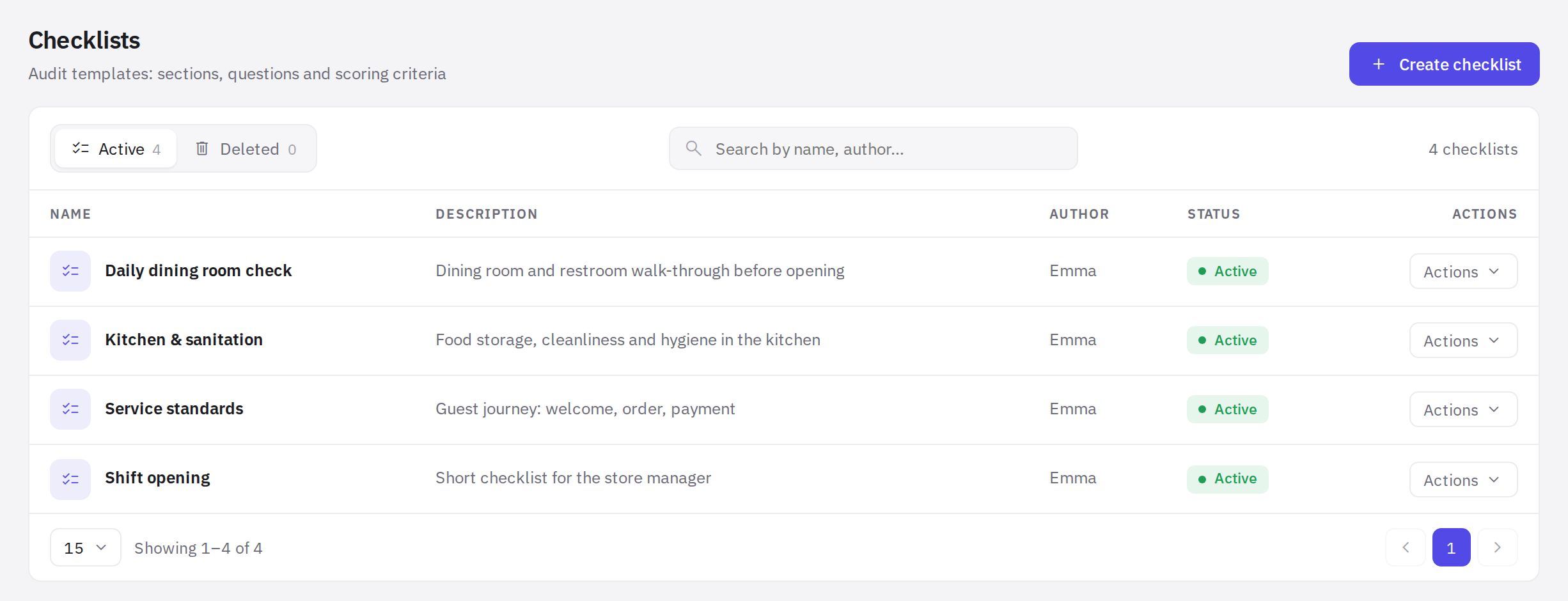
- Work → Audit checklists — the checklist list with folders, and the builder. The section is visible with the “Checklists in the web dashboard” permission; creating and editing checklists requires “Creating and editing checklists”, deleting them — “Deleting checklists” (an administrator has all of them). How to sort checklists into folders — see Folders and the checklist list.
- Work → Audits — a summary of completed audits by location and checklist for selected dates, with Excel export.
- Analytics → Audit log — every audit individually: reports, PDFs, exports. See Audit log.
- Management → Mailing lists — who receives reports by email.
- Work → Planner — the schedule of planned audits.
Frequently asked questions
Can I carry out an audit from a computer?
No. A regular audit is carried out in the mobile app. The only thing filled in from a computer is the mystery shopper form — it opens by link.
What happens if I delete a checklist?
It moves to Deleted (the left panel of the Work → Audit checklists page) and disappears from the app and the Planner. Checklists deleted in the last 90 days can be brought back: … in the checklist's row → Restore.
Who can create and edit checklists?
Administrators and employees with the “Creating and editing checklists” permission. With “Checklists in the web dashboard” an employee sees only the checklists available to them and opens them read-only. Permissions are set up in Roles and permissions.
How does an audit result become a percentage?
It's the share of "Yes" answers among items answered "Yes" or "No" — or the share of points earned if the checklist is scored in points. Details are in How the audit score is calculated.
Thank you! This helps us improve the help center.