
Audit report and AI review
Once an audit is submitted, jeCheck builds an audit report: the overall score, violations, photos and a comparison with previous audits. The report opens by link as a web page and can be downloaded as a PDF. Optionally, it includes an AI review with an action plan.
Where to find the report
- In the email. The auditor and the employees on the checklist's mailing lists get a link to the report — see Report mailing lists.
- In the audit log. Analytics → Audit log → Actions on the row → Open audit (web version) or Download PDF.
- In the location card. Analytics → Locations → click the location's row → in the Recent audits block, click the audit you need.
The report is built in the background shortly after the audit is submitted. While it is being prepared, the Processing column in the log shows "queued", and "success" once it's done. If the PDF isn't ready yet, Download PDF opens the web version of the report.
What's in the report
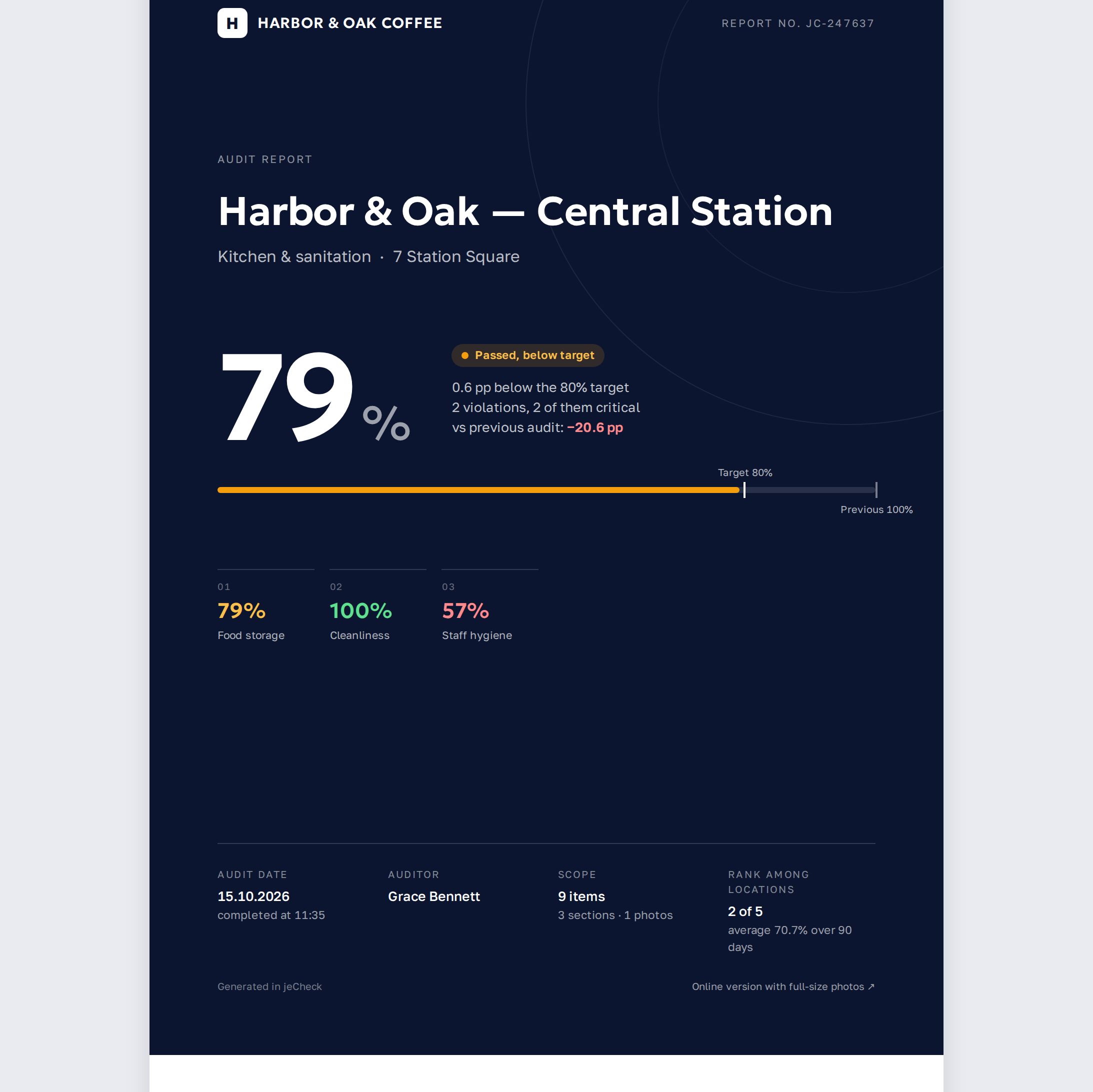
- Header — report number (JC-…), date and time, location, checklist, auditor.
- Score and status — the overall percentage and how it compares with the target. How they are calculated is explained in How the audit score is calculated. If an item with Zeroes the audit score is violated, the score is 0%, and the report says which item zeroed it.
- vs previous audit — the change compared with the previous audit of this location on this checklist.
- Rank among locations — a comparison with other locations based on each one's latest audit in the last 90 days. Shown when there are at least three such locations, including this one.
- Score trend — a chart of up to 10 recent audits of the location and the network average.
- Score by section — the percentage for each section.
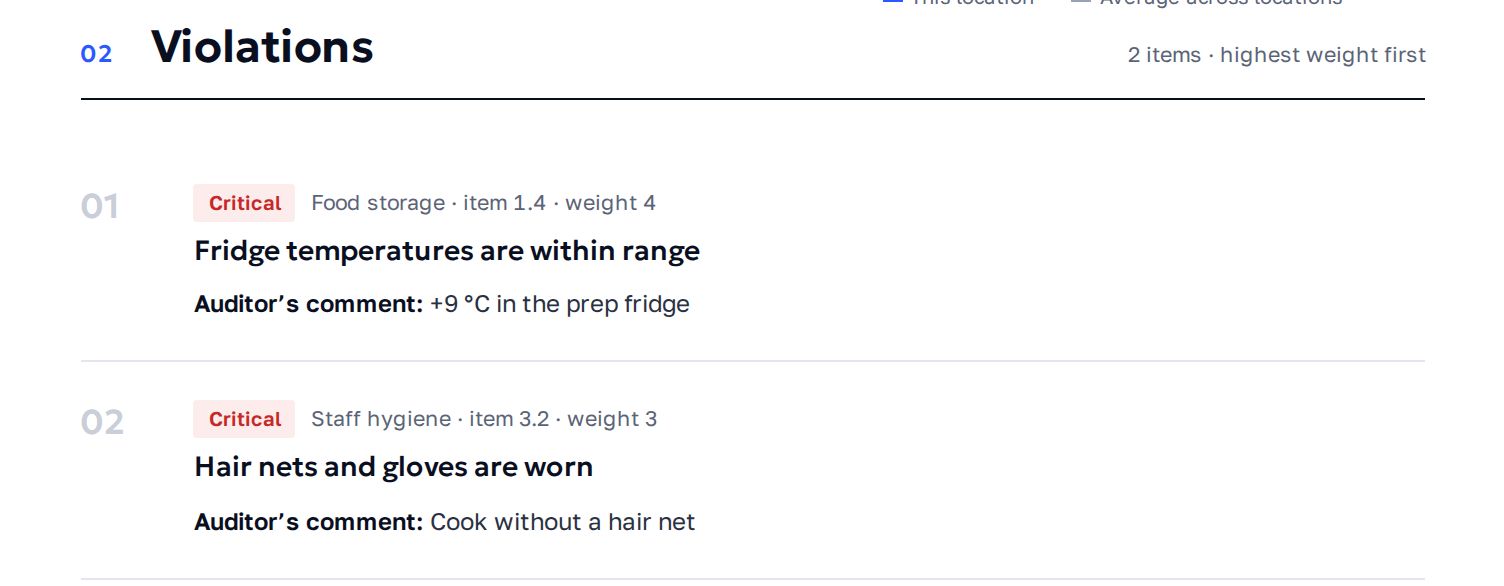
- Violations — the heaviest first, marked "critical" or "important", with comments and photos. If a violation was also found in previous audits, the report shows how many audits in a row it has repeated.
- All checklist items — full results with answers, comments and attachments. For questions with options, a scale, a number, a date or a barcode, the answer itself is shown — for example, "7.3 °C" or "Needs cleaning".
- Audit confirmation — the auditor's signature (if Signature is turned on in the checklist) and the audit location with a map link (if Location is turned on and coordinates were sent).
For mystery shopper visits, the report shows "Mystery shopper" instead of the auditor's name and adds blocks about the visit — see Mystery shopper.
Online version and PDF
The web version of the report shows photos in original quality and works well on a phone. It has a Download PDF button. The PDF includes a QR code linking to the online version.
The report opens by link without signing in to jeCheck. Share the link only with people who need to see the audit results.
How to turn on the AI review
- Open the checklist. Work → Audit checklists → the checklist you need.
- Turn on "AI plan". In the builder, click Settings and in the Features block turn on the AI plan toggle. The change is saved right away.
- Run audits as usual. The review will appear in the reports of all subsequent audits on this checklist.
For a detailed walkthrough with an example, follow the How AI audit works link under the toggle.
What the AI review adds
AI blocks in the report are labelled "AI":
- AI summary and verdict — overall level, main risk and trend;
- findings — the main risk, a systemic issue and a strength;
- Root causes — what the violations have in common;
- AI recommendation — under each violation;
- Action plan — tasks with priority, owner and due date;
- Recommended follow-up audit — a date to make sure the violations have been fixed.
The AI relies on the auditor's answers and comments, item weights, repeats and the location's audit history. The AI does not analyze photos. The review is written in the company's report language.
The action plan in the report is a recommendation; tasks are not created from it automatically. To turn violations into tasks, set up a scenario in Automation. AI features are included in the Network and Enterprise plans.
Frequently asked questions
Why are there no AI blocks in the report?
The AI plan toggle is off, the audit was carried out before it was turned on, or the AI didn't respond in time. In the last case, the report is built and sent without the AI blocks.
Can I get an AI review for past audits?
No. The review is generated when the audit is processed — turn on AI plan and it will appear in future audits.
Why is there no "Rank among locations" block?
In the last 90 days this checklist was used at fewer than three locations, so there is nothing to compare with.
Why does the "Processing" column say "error"?
The report could not be built. Contact support via Help → Support and include the report number, or the date and location of the audit.
Thank you! This helps us improve the help center.