
AI in dashboards: cards and dashboards from a description
AI builds a card from jeCheck metrics based on your description — just as if you'd set it up in the card builder. AI doesn't make up numbers: the server calculates the data with your permissions, and AI only decides what to show and how.
Create a card from a description
- Click “Create with AI”. The Card from a description window opens.
- Describe what you want to see. For example: “average score by location for the month, worst first”, or pick a ready-made option under Examples.
- Click “Build card”. AI shows what it chose (type, metrics, breakdown, target) and why, and on the right there's a Preview with your data.
- Refine it if needed. Write what to change (“kitchen only, by week, as columns”) and click Refine. Or click Open in builder and fine-tune it by hand.
- Click “Add to dashboard”.
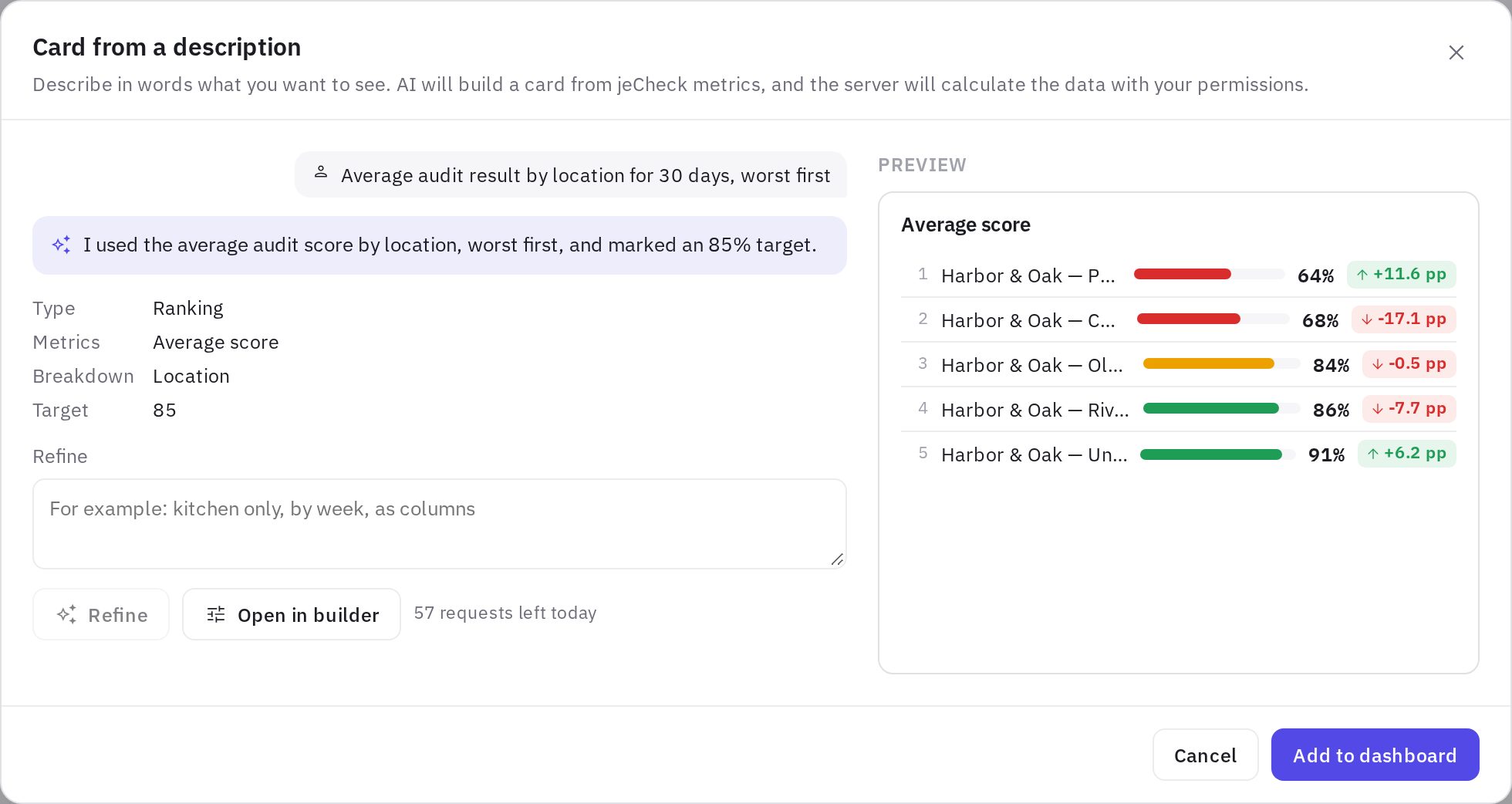
Under the buttons you can see how many AI requests you have left today.
Refine an existing card
In the card menu, choose ⋯ → Refine with AI, describe the change in words, check the preview and click Save.
Create a whole dashboard
- Click “+ New” (or ⋮ → New dashboard) and choose From a description — AI.
- Describe who the dashboard is for and what it should show. For example: “for a location manager — audits, tasks and HACCP logs for the week”.
- Click “Suggest cards”. Look through the list of cards; if it's not right, click Suggest again.
- Enter a name and click “Create dashboard”.
Explain the data
⋯ → Explain the data (AI) — AI briefly explains what the card shows: what went up or down, which location stands out. It only uses the numbers on the card; if it can't explain them with confidence, it says so. Explain again regenerates the explanation.
From the AI assistant chat
You can also ask for a card in the Ask AI chat — for example, in the middle of a conversation about violations: “Add this to the dashboard as a card”. The assistant shows a draft with a preview and an Add to dashboard button; the card goes to the open dashboard or the one you opened last. Learn more: How to create with the AI assistant.
Plan, limit and privacy
- AI in dashboards is part of jeCheck's AI features, which are included in the Network and Enterprise plans. If AI isn't available to your company, the window shows AI features are not available for your company; everything else in dashboards works without AI.
- The limit is 60 AI requests per user per day (building and refining cards — including from the assistant chat, dashboard drafts and explanations combined).
- AI has no access to the database: it only sees the catalog of metrics and, for explanations, the numbers on the card calculated with your permissions. It can't see other locations' data or other companies' data.
Frequently asked questions
AI built the wrong thing — what should I do?
Clarify your request with Refine, or open the card in the builder. The more specific the description (metric, breakdown, period, target), the better the result.
Why is the AI button there, but the window says “AI is not connected”?
AI is temporarily not set up on the server. It has nothing to do with your permissions — contact support.
Thank you! This helps us improve the help center.