
How to review and accept a mystery shopper form
A submitted form gets the “In review” status and waits for your decision. Once accepted, the visit becomes a regular audit: with a PDF report, checklist mailings, tasks for violations and a place in analytics.
When a form arrives
When a shopper submits a form, the person who created the visit gets a notification and an email with a link to the review. If the form has red flags, the text says “Suspected fraud — check the flags”. The number of forms in review is shown on the Mystery shopper menu item and in the Awaiting review figure.
If Coordinator review is turned off for the visit and there are no red flags, the form is accepted automatically, without your involvement.
What to look at on the visit card
Open the visit from the list or click Start review. The card shows:
- the form's score and the number of “yes” and “no” answers — calculated the same way as for an audit on this checklist;
- AI review of the form and Automatic checks with flags — see Fraud flags and AI review;
- Through the shopper's eyes — overall impression, who served them, whether the shopper would come back;
- Recordings and location photos — audio with a transcript, video, photos;
- Answers by section with photos and comments; the Only violations and comments checkbox leaves only what matters;
- Timing, Geotag, Receipt and reimbursement, Shoppers at this location (past scores), Shopper's assignment and Visit history.
If several forms are in review, the top of the page shows “Review queue: N of M” and a Next button.
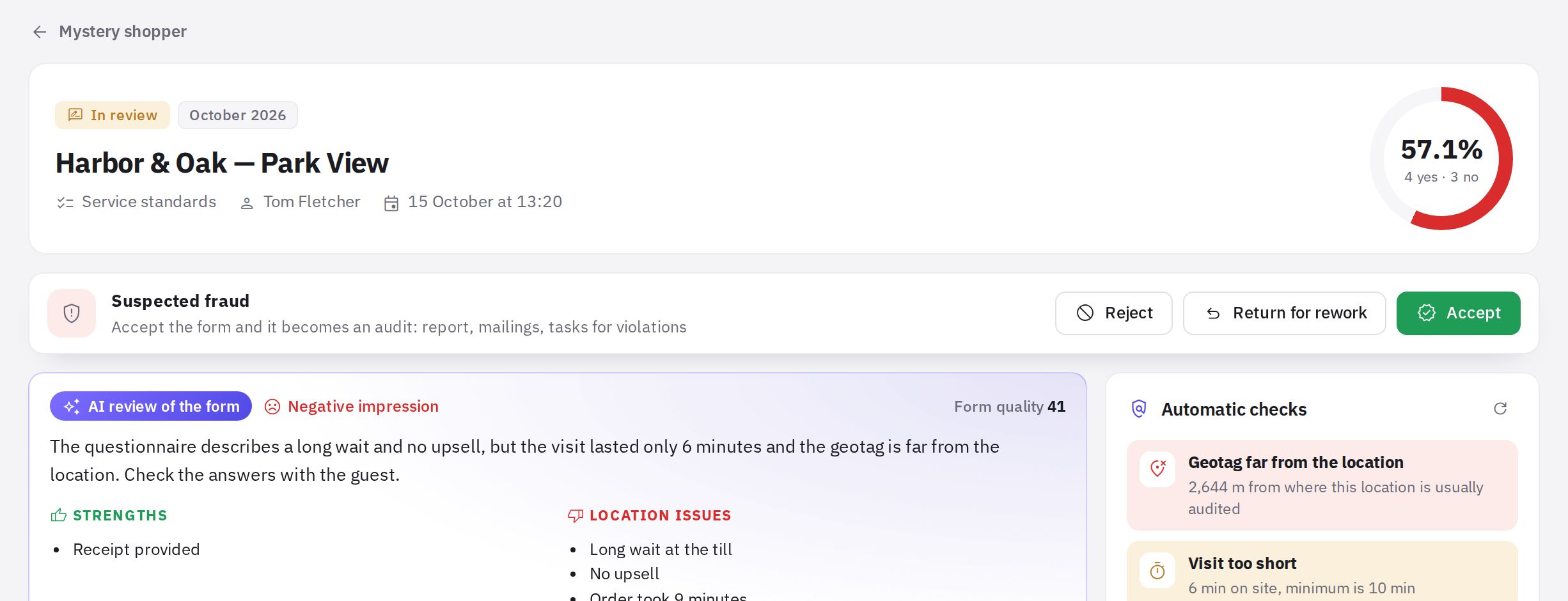
Step by step: deciding on a form
- Accept. Click Accept, optionally leave a comment, and click Accept and create audit. An Audit report button appears.
- Return for revision. Click Return for rework, write what needs fixing and click Return. AI suggestions can be added to the comment with one click. The shopper sees the comment at the same link; if the shopper is in your list and has an email address, they also get an email.
- Reject. Click Reject, give a reason and confirm. The form won't be included in audits or analytics, and no reimbursement is due.
A comment is required to return or reject a form. It's optional when accepting.
What happens after acceptance
- An audit is created on the visit's checklist: the shopper's answers, comments and photos are carried over into it.
- The audit date is the shopper's arrival time and the auditor is “Mystery shopper”. Neither the coordinator nor the shopper's name is disclosed in the report.
- The PDF report gets a “Mystery shopper visit” section: timing, impression, employee, receipt, location photos. For audio and video, the report shows only that a recording exists and its length — the recordings themselves are available in the Mystery shopper section to those with the “Mystery shopper questionnaires” permission.
- From there it's the same as a regular audit: checklist mailings, tasks for violations according to automation scenarios, and analytics. These audits are not included in the Auditors ranking.
Receipt reimbursement
The Receipt and reimbursement block shows the receipt photo and amount. The reimbursement status can be switched between Not needed, To pay and Paid. When a visit with a receipt amount is accepted, the status automatically becomes “To pay”. The total of pending reimbursements is shown on the section's main page. jeCheck doesn't make payments — it only keeps track of them. The reimbursement status and its switch are visible only with the “Shopper payouts and their contacts” permission.
Reminders and deadlines
- A shopper from your list who has an email address gets a reminder email one day before the window ends if the form hasn't been submitted yet.
- If the window has passed and the form hasn't been submitted (allowing for the 24 hours to finish a form that was already started), the visit gets the “Expired” status.
Cancelling, reopening and deleting
- Edit — for a visit in progress (not yet submitted, or returned for revision): you can change the cover story, scenario, visit window and shopper. The shopper can be changed only until they start the visit. The link stays the same — the shopper sees the new assignment at the same link.
- Cancel — for a visit in progress: the link stops working.
- Reopen — for a cancelled or expired visit. In the window, set how long the shopper has to complete the visit: one week from today is suggested by default. The link works again until that deadline.
- Delete — for a rejected, cancelled or expired visit. An accepted visit can't be deleted: it has already become an audit, so delete the audit in the audit log instead.
Frequently asked questions
Can I change the decision after accepting?
No, an accepted visit stays an audit. If a form was accepted by mistake, delete the resulting audit in the audit log.
Can I review forms on my phone in the app?
No, mystery shopper forms can be reviewed only in the web account.
How many times can I return a form?
There's no limit. The number of returns is shown in the visit header (“Revisions: N”) and on the shopper's card.
Thank you! This helps us improve the help center.