
Test results, PDF and retakes
All results for a test are on one page: the summary, all attempts, assignments and question analysis. From here you also grade open answers, download reports and let employees retake the test.
Where to find results
In Work → Testing, click Results next to the test (or in the test's menu). In the builder of a published test, results open from the menu next to the Assign button. The Excel button in the page header exports all attempts to a single spreadsheet. Results open with the “Testing results” permission and show only employees of the locations where it applies. The Excel button is visible with the “Exporting test results” permission, and every export is recorded in the access log — see Roles and permissions.
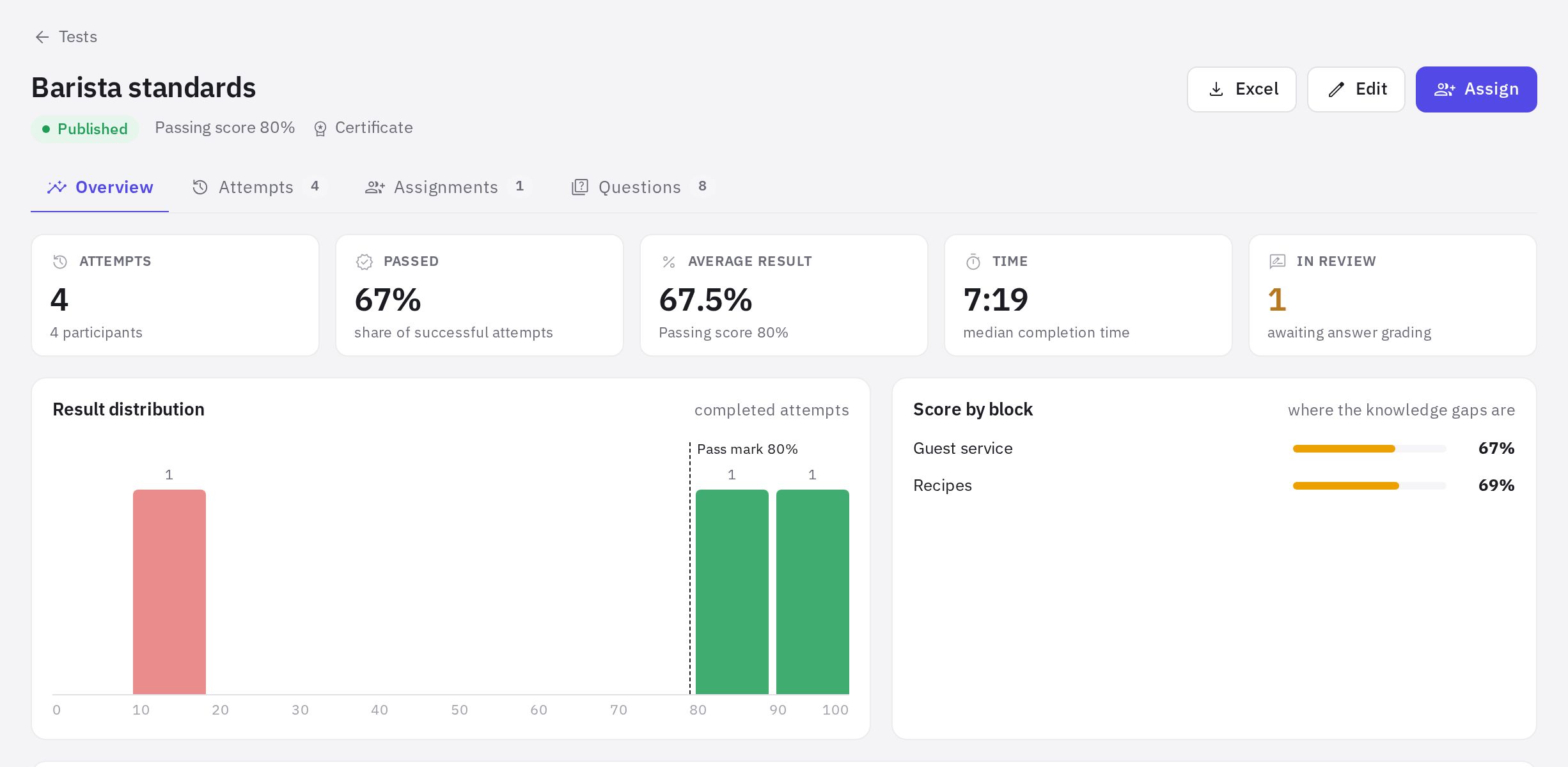
The page has four tabs:
- Overview — number of attempts, pass rate, average score, median time, how many attempts await review and how many have low trust; score distribution, results by block and by location.
- Attempts — all attempts with filters; click one to open its breakdown.
- Assignments — who hasn't started, who's in progress, who passed and who's overdue; actions for the assignment and for each employee.
- Questions — which questions are most often answered incorrectly, common wrong answers and the Discrimination index; the Need attention filter leaves only problem questions. The figures become reliable from about 5 answers.
How to grade open answers
If a test has Open answer questions, the attempt has the In review status until you grade them. In that case, the Testing page shows an “N attempts await review” banner.
-
Open the attempt. Attempts tab → the attempt you need.
-
Filter the questions. The Manual grading toggle leaves only questions that need grading. Next to each answer you see the Grading criteria you set in the builder.
-
Assign points. Up to the question's maximum; optionally add a Comment for the employee. Click Save grade.
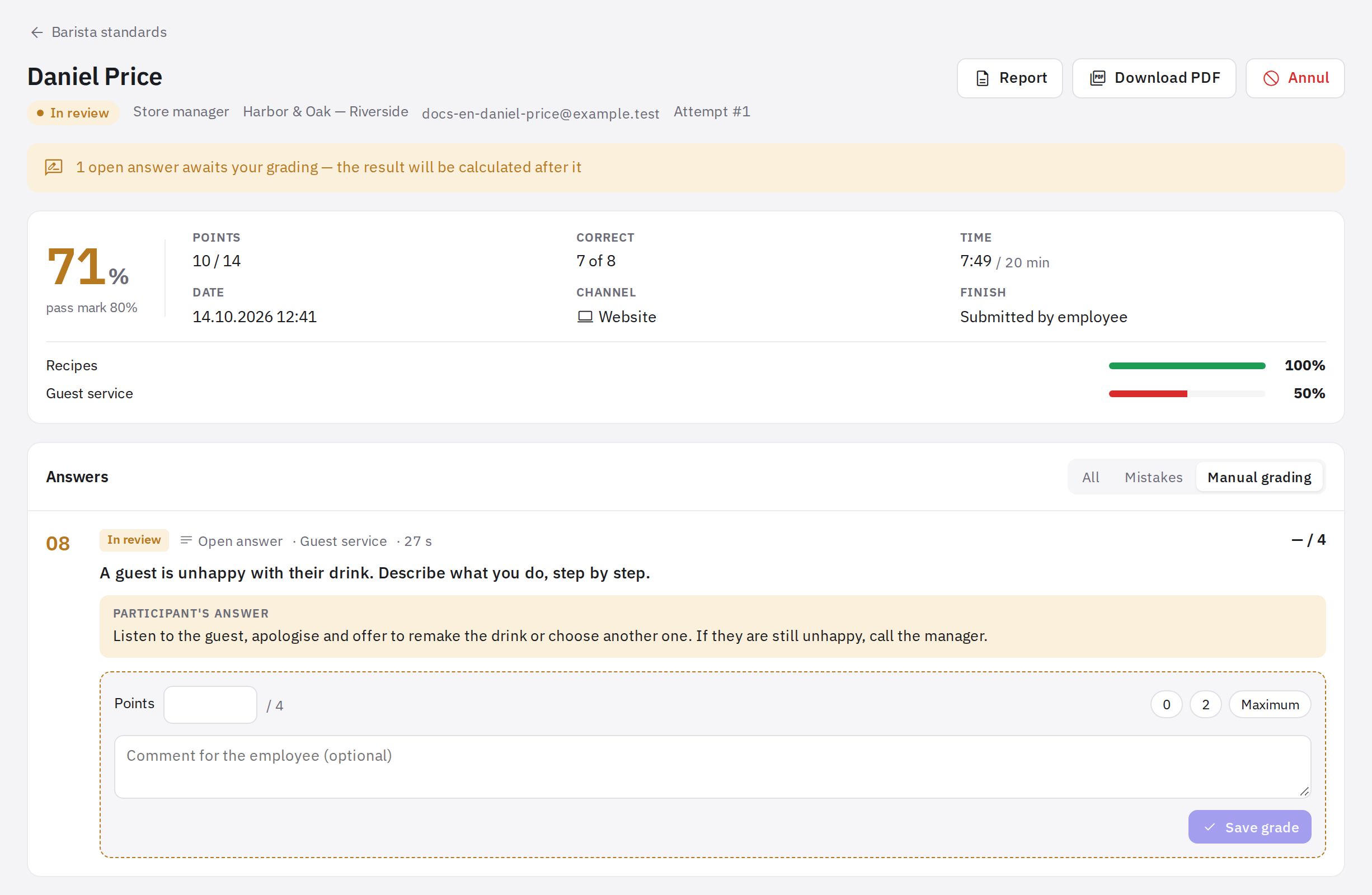
An attempt with an open answer awaiting grading
Any automatically graded answer can also be regraded with the Regrade button.
PDF report and certificate
The attempt breakdown has Report (open in the browser) and Download PDF buttons. An employee can download their own PDF from the result page if the test settings use any option other than Show nothing; the report's level of detail for them follows that setting. Grading open answers, annulling an attempt, and the report and PDF with strict-mode snapshots require the “Reviewing attempts and proctoring recordings” permission; every view of the report is recorded in the access log.
To issue certificates, turn on Issue a certificate on passing in the test settings — the certificate number appears in the PDF. If you turn on Limited validity and enter a number of days, the test is automatically reassigned to the employee when it expires (recertification). If the assignment has its own Recertification, the validity period comes from the assignment — see How to assign a test.
Retakes
How many times a test can be retaken is set in the test settings: Limit attempts and Pause between attempts. Without limits, an employee can retake it until they pass.
When the attempts have run out or the test has been passed, but it needs to be taken again:
- Open the “Assignments” tab. Find the employee in the assignment list.
- Click “Give a new attempt”. A new cycle starts: the attempt limit resets and past results stay in the history. The employee gets a notification.
If an attempt shouldn't count at all (a technical failure, someone else in the frame), open it and click Annul — it won't count toward the limit, and the employee can take the test again.
For regular recertification, you don't need to give attempts manually: turn on Recertification when assigning — see How to assign a test.
Public link for candidates
In the test settings, turn on Take via a shared link. The link starts working once the test is published. The participant enters their first and last name (email and phone are optional) and takes the test without an account. Their attempts appear in the shared list on the Attempts tab, marked “Guest”. The Change button issues a new link — the old one stops working.
Frequently asked questions
Why did an employee score above the passing score but still fail?
They made a mistake in a question marked as Critical. The attempt breakdown states this separately: “Mistake in a critical question — the test is not passed regardless of the score”.
An employee can't see their mistakes after the test. Why?
The test settings use Show nothing or Score only. To show mistakes, choose Score and mistakes or Full review. The setting applies to new attempts.
Can I export results to a spreadsheet?
Yes, the Excel button on the test results page exports all attempts of employees at the locations where you have the “Exporting test results” permission.
Thank you! This helps us improve the help center.