
Dashboard access: share with colleagues and the whole company
Only you can see a new dashboard. You can share it with specific colleagues or — if you're an administrator or have the “Company-wide dashboards” permission — open it to the whole company. Whatever is on the dashboard, everyone sees data only within their own permissions: their locations and allowed sections.
How to share
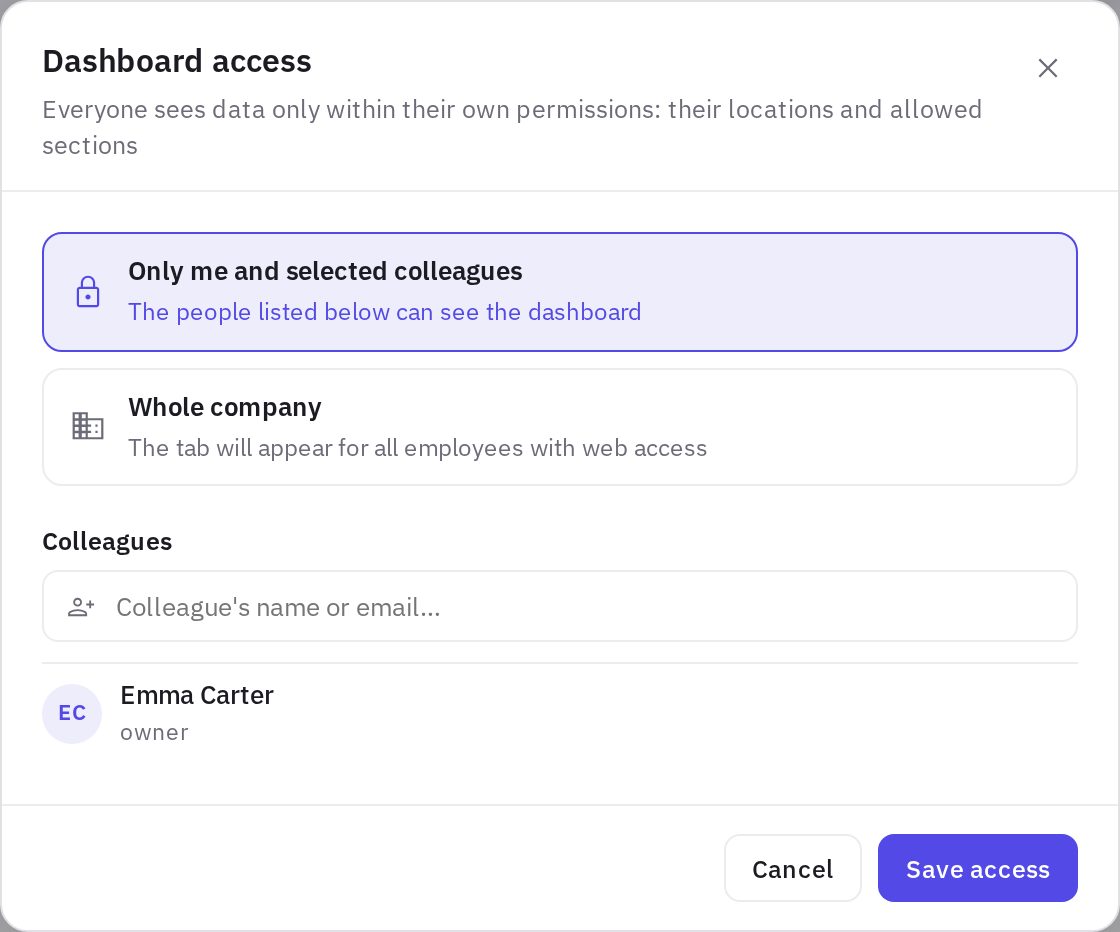
- Click “Share”. The Dashboard access window opens.
- Choose who can see it. Only me and selected colleagues — the people in the list can see the dashboard. Whole company — the tab appears for all employees with web access (available to administrators and employees with the “Company-wide dashboards” permission, see Roles and permissions).
- Add colleagues. Start typing a name or email in Colleague's name or email… and pick the person.
- Set permissions. For each person choose View or Edit; Remove takes away access. For a company-wide dashboard, the Everyone can edit cards and layout checkbox lets everyone edit it.
- Click “Save access”.
Next to the name of someone else's dashboard you'll see who it's from (“from Anna”); a company dashboard is marked Whole company.
Who can do what
| Action | Who |
|---|---|
| View | the owner, colleagues in the list; for “Whole company” — all employees with web access |
| Edit cards, layout, name and default filters | the owner; colleagues with Edit; for “Whole company” — administrators and employees with the “Company-wide dashboards” permission, and everyone if Everyone can edit cards and layout is on |
| Change access and delete | the owner; for a company-wide dashboard — also administrators and employees with the “Company-wide dashboards” permission |
| Make a dashboard company-wide | administrators and employees with the “Company-wide dashboards” permission |
| Duplicate for myself | everyone who can see the dashboard |
Duplicate for myself
If you can only view a dashboard, there's a Duplicate for myself button above it: it creates your own personal copy with all the cards, which you can change however you like. People who can edit get the same option in ⋮ → Duplicate dashboard.
Deleting
⋮ → Delete dashboard. The dashboard disappears for everyone it was shared with; data in other sections (audits, tasks and so on) isn't affected.
Frequently asked questions
I opened the director's dashboard and only see my own location — is that a bug?
No. Card data is calculated with the viewer's permissions: an employee sees only the locations they're assigned to. The director sees the whole network on the same dashboard.
Thank you! This helps us improve the help center.