
How to create a routine
Routines are created in the web dashboard on the Routines and chains tab (Work → Routines). You need the “Create and edit routines” permission — an administrator has it. A new routine is always created turned off: employees don't see it until you check the steps, set the schedule and turn it on.
Four ways to start
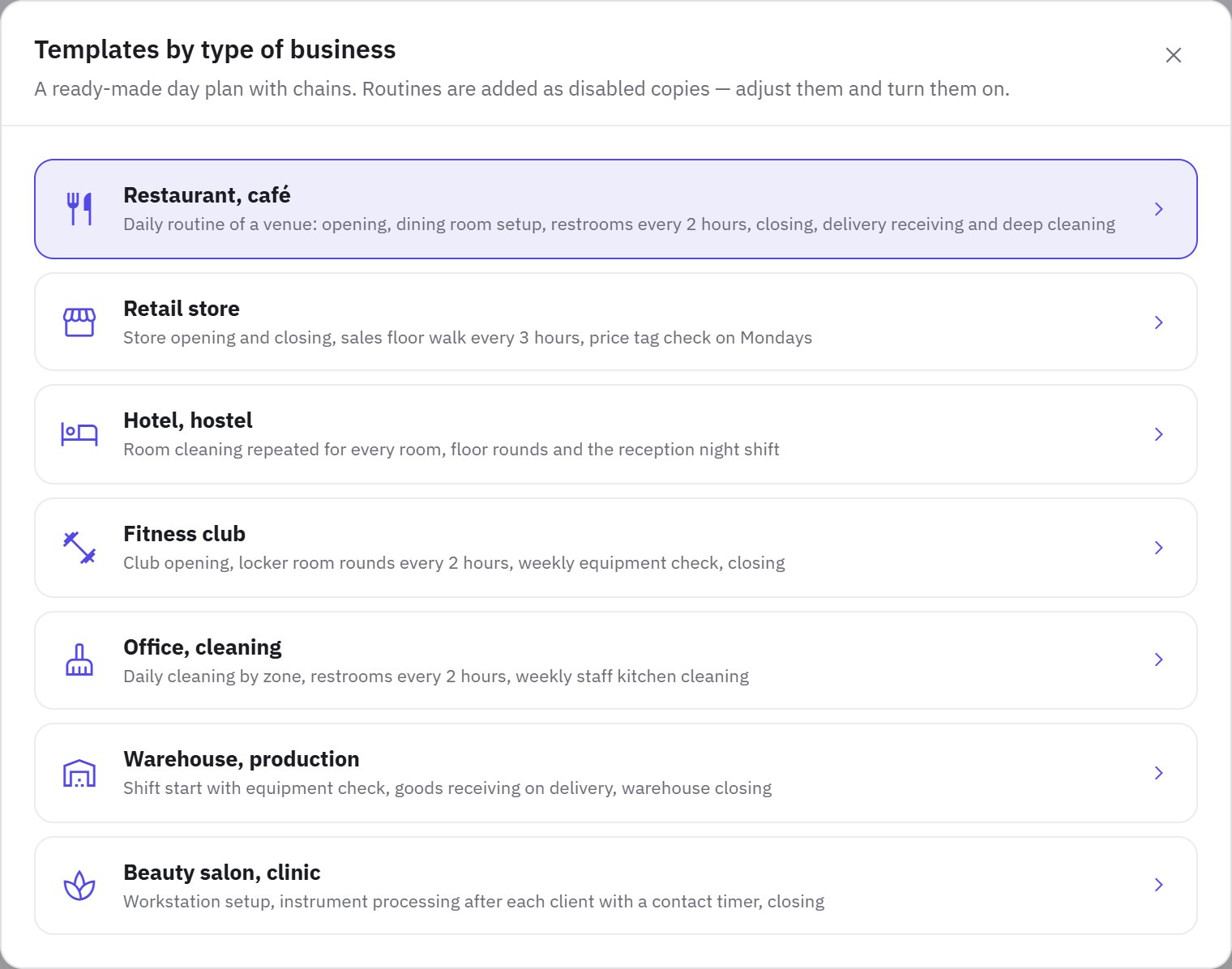
- Templates — a ready-made day plan for your business: restaurant or café, retail store, hotel or hostel, fitness club, office or cleaning, warehouse or production, beauty salon or clinic. In the Templates by type of business window, click Add next to the routine you need or Add the whole set. A routine from a chain is added together with the one it runs after.
- Create with AI — describe the work in your own words in the What to do field, for example “dining room cleaning after closing — 3 zones, trash, floors, tables; a photo of each zone; every day from 22:00 to 23:00”. Optionally, pick an article in Base it on instructions (optional). Click Generate — AI splits the work into sections and checkable steps with photos and norms, and the draft opens in the builder. Available on the Network plan, up to 20 requests a day.
- New routine — an empty routine: enter a Name, choose a Type of work and click Create.
- From an audit checklist — in Work → Audit checklists, open the ⋯ menu of a checklist and choose Turn into routine. More on this below.
Sections and steps
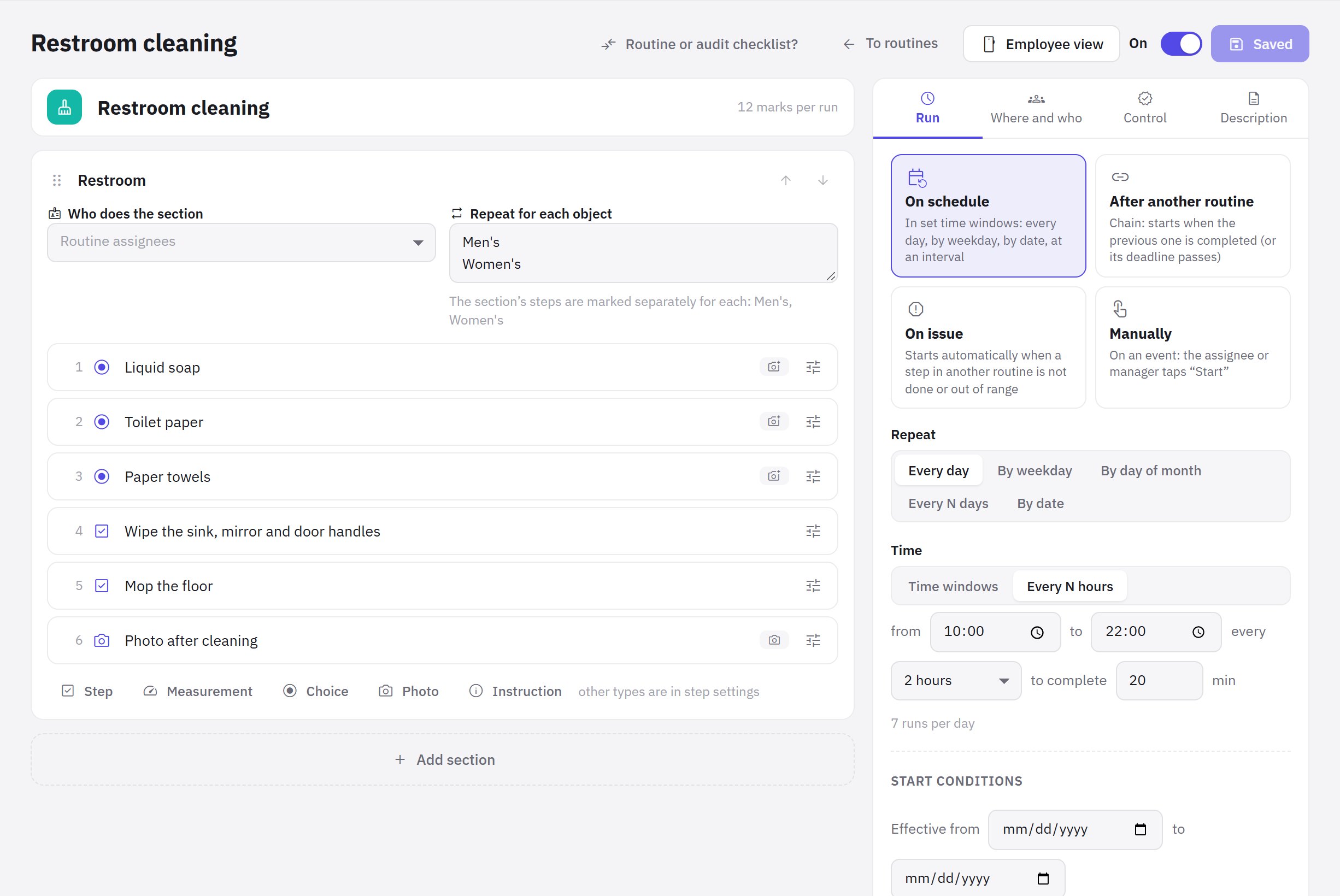
The builder opens after you create a routine, and later from the library: the ⋮ menu → Edit, or a click on the routine. On the left are sections and steps; on the right is the settings panel with the Run, Where and who, Control and Description tabs.
- Section — a zone, room or stage: “Kitchen”, “Dining room”, “Till”. A section name is optional.
- Step — one specific action: “Refill the soap dispenser”, “Turn on the extractor hood”. Write a step as an action, not as a question.
Add a step with the buttons under the section: Step, Measurement, Choice, Photo, Instruction. Other types are chosen in the step settings. Steps and sections are reordered with the Move up and Move down arrows.
Step types
| Type | What the employee does | When it's an issue |
|---|---|---|
| Checkbox | does it and marks “Done” | only if the employee marks “Can’t do it” |
| Measurement | enters a number, for example a temperature | the number is out of range (Norm from — Norm up to) |
| Choice | picks an option | an option marked This is an issue is picked |
| Text | enters a number, comment or data | — |
| Photo | takes a photo of the result (Minimum number of photos) | — |
| Signature | signs on the screen | — |
| Scan | scans a QR code on site | the code doesn't match the Expected code (empty — any code will do) |
| Timer | waits out a time: exposure, airing | the timer is stopped early |
| Instruction | reads the text, no answer needed | — |
The employee can mark any step Can’t do it with a reason — that's an issue too. What happens on an issue is set on the Control tab: see Deadlines, sign-off and issues.
Step settings
Open a step to set:
- How to do it (hint for the employee) — for example, “read the thermometer inside the cold room, not the display”;
- Photo — No photo, Optional, Required or On issue;
- Required — the routine can't be completed without it; an optional step can be skipped;
- Critical — on an issue, the manager immediately gets a push notification and a task is created;
- Show on condition — the step appears only if a step above gets the right answer: an issue, done, an option picked, a number less or greater than a given value. A condition can only refer to a step above in the same section;
- Step instructions — an article from the “Instructions” section; the employee opens it from the step.
For example: a “Coffee machine condition” step with the options “Working” and “Broken” (This is an issue), and a “What's broken” step on the condition “option „Broken“ picked”.
Repeating for objects
If the same steps have to be done for several objects, fill in the section's Repeat for each object field — one object per line: “Restroom 1”, “Restroom 2” or room numbers 101–105. The employee marks the section's steps separately for each object.
Who does it
On the Where and who tab:
- At which locations — At all locations (new company locations get the routine automatically) or At selected;
- Assignees (positions) — All location staff by default. If you choose positions, only they will see the routine and get notifications, starting with those on shift according to the schedule.
A section can have its own position in the Who does the section field: the kitchen for cooks, the dining room for waiters. This way several employees do one routine, each their own part.
Description and how it looks in the app
The Description tab has the Description for the employee, Type of work, Color in the day plan and Routine instructions. The Employee view button shows the routine screen in the mobile app with the current settings, even unsaved ones.
When everything is ready, click Save and switch the routine to On.
A routine from an audit checklist
If you already have a checklist that people actually work through rather than inspect with, you can turn it into a routine. In Work → Audit checklists, open the ⋯ menu of the checklist, choose Turn into routine and click Create routine. You need the “Create and edit routines” permission.
- A new routine is created turned off; the audit checklist stays as it is.
- Sections become sections, questions become steps, the question description becomes the hint.
- Points and weights aren't carried over. An answer that counts as a violation becomes an issue in the step, a question that zeroes the audit becomes a critical step, a required photo stays a required photo.
- Yes/No becomes a checkbox, a number becomes a measurement with the same norm, a scale becomes a measurement with the passing score as its lower norm, a choice stays a choice.
- A multiple choice becomes a single choice; date and employee become text. Display conditions are carried over if they refer to a question in the same section. jeCheck lists what changed in a message after the routine is created.
Checklist questions usually sound like checks (“Are the tables clean?”). Rephrase the steps as actions (“Wipe the tables”).
Frequently asked questions
What happens to completed runs if I change or delete a step?
History is kept. A deleted step that has marks is archived and stays in the cards of past runs. Future runs that haven't started yet are recreated with the new settings.
Can I delete a routine?
Yes: in the library, open the ⋮ menu of the routine and choose Delete. Future runs are cancelled; the completion history stays in reports and analytics. A routine that other routines run after can't be deleted — first change the trigger of the dependent ones.
How do I copy a routine for another location?
In the library, open the ⋮ menu of the routine and choose Make a copy. The copy is created turned off — change its locations and times.
Thank you! This helps us improve the help center.