
Schedule, chains and start conditions
How a routine starts is set in the builder on the Run tab. Schedules and chains make up the location's day plan: opening in the morning, then dining room setup, restroom cleaning every two hours during the day, closing in the evening. All times are the location's local time.
Four ways to start
- On schedule — in set time windows: every day, on weekdays, on days of the month, on dates or every N days.
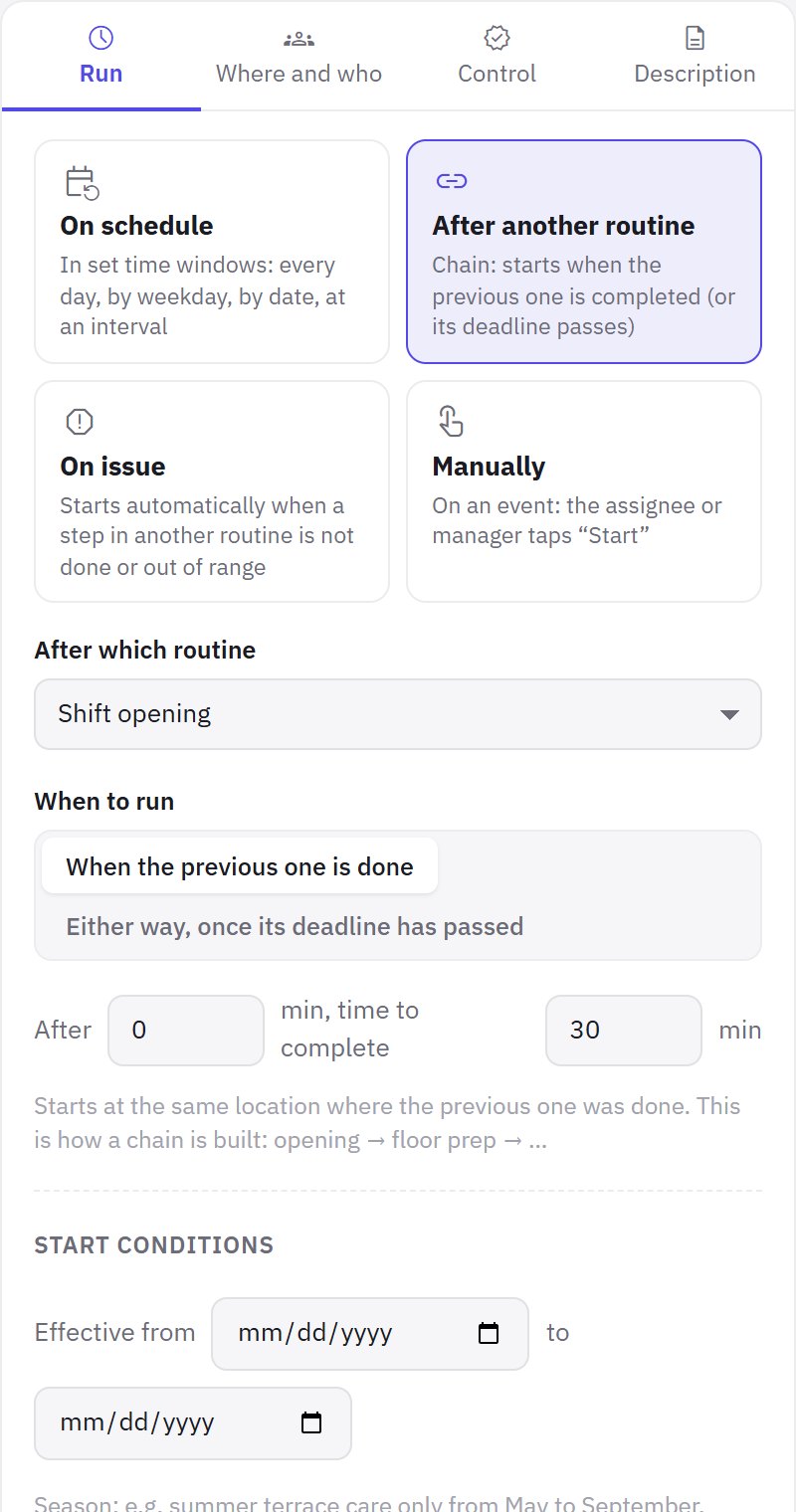
- After another routine — a chain: starts when the previous one is completed (or its deadline has passed).
- On issue — starts automatically when a step in another routine is not done or out of range.
- Manually — on an event: an assignee in the app or a manager in the dashboard clicks Run.
On schedule
- Choose how to repeat. Every day, By weekday, By day of month (days of the month, comma-separated; 31 is the last day of any month), Every N days (and the date to count from) or By date.
- Set the time. Two options:
- Time windows — “from … to” intervals when the routine has to be done. There can be several windows: for example, morning 8:00–9:00 and evening 21:00–22:00. A window has a Label — “morning”, “lunchtime”, “evening”. A window can end on the next day (past midnight) — for night shifts.
- Every N hours — from what time to what time, how often (from 30 minutes to 4 hours) and how many minutes to complete it. This is how you set up restroom cleaning every two hours from 10:00 to 22:00.
A window is the time when the routine has to be done. It can be started 30 minutes before the window opens; after the window ends, a grace period and late completion apply (the Control tab, see Deadlines, sign-off and issues).
jeCheck lays out runs for today and tomorrow. Windows that have already passed today aren't created for a new or changed routine — turning a routine on in the afternoon won't produce “misses” for the morning.
Chains: after another routine
Choose After which routine and When to run:
- When the previous one is done — the next routine starts only after the previous one is completed (or signed off);
- Either way, once its deadline has passed — the next one starts even if the previous one failed.
Then set the delay (After … min) and how many minutes are given to complete it. The routine starts at the same location where the previous one was done.
An example of a restaurant chain: Shift opening → after 0 minutes Dining room setup → Restroom cleaning on schedule all day → Shift closing. In the library, routines are grouped by chain, and at the bottom of the builder you can see what this routine triggers next.
A routine can't start itself, and a chain can't loop back into a circle — jeCheck won't let you save that.
On issue
Choose a routine in On an issue in a routine and, if needed, a specific step in In which step (or In any step). For example: during restroom cleaning someone marks “nothing to refill the soap with” — the “Supplies restock” routine starts automatically at that location. The run card shows which issue it was started by.
Manually
For work that happens on an event: receiving a delivery, a spill, a guest has left. Set how many minutes are given to complete it after the start. It can be started:
- in the app — by an assignee with the “Routine execution” permission;
- in the dashboard — with the Run button in the Day plan: choose the routine and the location, and assignees get a notification. A manager with the “Routine control” permission can start any routine off schedule this way, except those started on issue.
Start conditions
At the bottom of the Run tab:
- Effective from … to — a season: for example, summer terrace care only from May to September. Empty — All year.
- Only if there is a shift at the location — if nobody is on the shift schedule for that day, the run is cancelled automatically: a day off, the location is closed. Works if the company keeps a work schedule.
- Can also be started manually — a scheduled routine can also be started off schedule: for example, extra cleaning after a banquet.
Frequently asked questions
How do I set up morning, afternoon and evening routines?
Create three routines — for example, “Opening”, “Dining room cleaning” and “Closing” — and give each its own window. Or link them into a chain so that the next one starts when the previous one is completed.
I need one routine twice a day. Should I make a copy?
No. Add a second window with the Add window button — for example, 9:00–10:00 “morning” and 18:00–19:00 “evening”.
What if my locations have different opening hours?
Window times are set in each location's local time. If locations have different hours, make a copy of the routine for some of them and change the time in it.
Thank you! This helps us improve the help center.