
Day plan: how to track completion
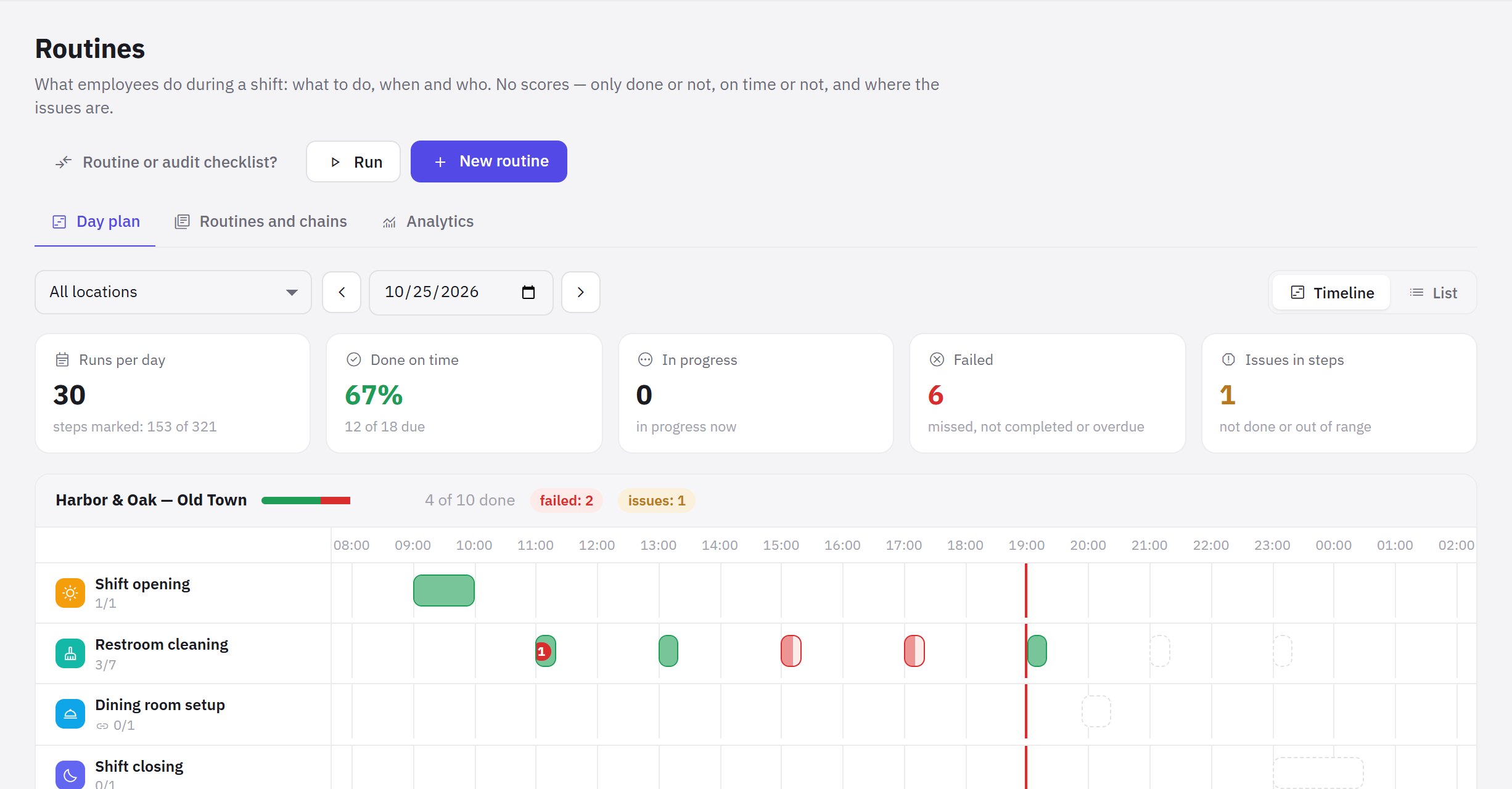
The Day plan is the first tab of Work → Routines. It shows what needs to be done at each location today, what's already done, what has failed and where issues came up. The page is visible with the “Routines: progress” permission — only for the locations it applies to.
What's on the page
- Filters — location (All locations or one) and day: the Previous day / Next day arrows and the Today button.
- Day totals:
- Runs per day and how many steps are marked;
- Done on time — out of runs that are already due, with late ones shown separately;
- In progress — running now and awaiting sign-off;
- Failed — missed, not completed or overdue;
- Issues in steps — not done or out of range.
- Timeline — for each location, a row per routine with blocks by window time. The block color is the status: Completed, In progress, Awaiting sign-off, Failed or overdue, Pending. Labels show that a run appeared by chain, due to an issue or manually.
- List — the same runs as rows with time, step progress and assignee.
Run card
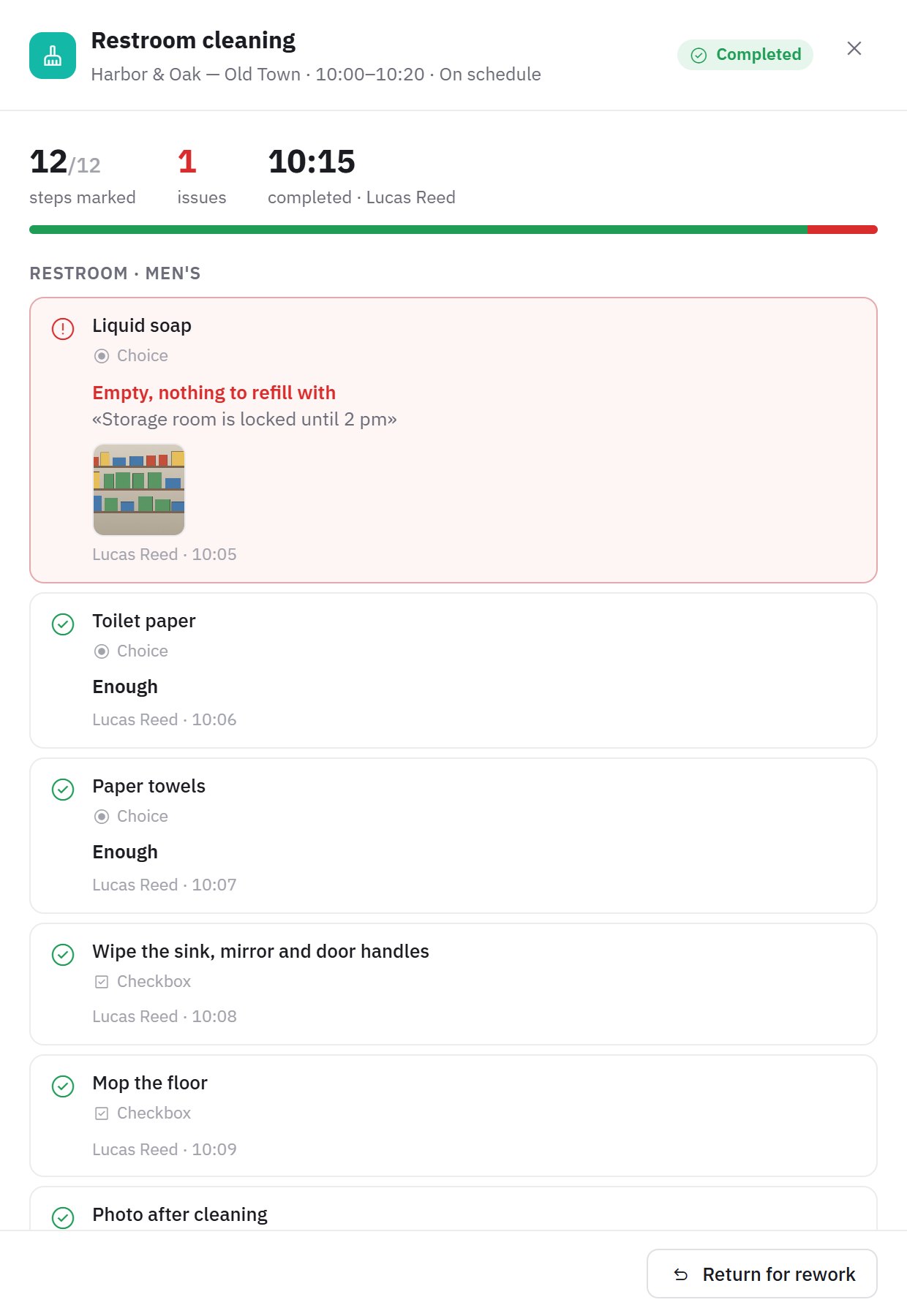
Click a block or a row — the card opens on the right:
- window, status, step progress and the number of issues;
- all steps by section with their marks: who marked them and when, the measured value, the chosen option, photos, reason and comment;
- the Critical, Optional, Conditional and Not applicable labels;
- a Task link next to a step that a task was created for;
- for a run from a chain — a link to the routine that started it, and to the routines it started itself.
Steps aren't marked in the dashboard — assignees mark them in the mobile app.
Accept, return, cancel
With the “Routine control” permission for the location, the bottom of the card has:
- Accept — for a run with the Awaiting sign-off status;
- Return for rework — with a comment on what to fix; the assignee gets a notification;
- Cancel run — with a reason (“sanitation day, location closed”). A cancelled run counts as neither done nor missed.
Starting off schedule
The Run button opens the Start routine window: choose the routine and the location. This is how you start unscheduled cleaning, delivery receiving or event-driven work — assignees get a notification. The list shows routines that can be started manually, and with the “Routine control” permission — any routine except those started on issue.
Frequently asked questions
Why isn't a routine on the timeline?
Check that it's On, assigned to this location and has a window on that day. Windows that had already passed on the day the routine was turned on aren't created. A chained run appears only when the previous routine is completed.
How do I see a photo an employee sent?
Open the run card: photos are shown next to the step; click a thumbnail to open it full size.
Thank you! This helps us improve the help center.