
How to create a test for employees
A test is built in the test builder: blocks and questions on the left, the editor for the selected question on the right. Everything is saved automatically. You can assign a test to employees only after publishing it.
What you need
- the “Creating and editing tests” permission (administrators always have it) — granted in Roles and permissions;
- the material you're testing knowledge of: a standard, procedure or recipe card.
Step by step
-
Create a test. In the menu, go to Work → Testing and click Create test. Enter a Name, optionally a Description (employees see it before they start) and a Category. Click Create and open — the builder opens. If you want the whole test at once, click Create with AI and describe the topic — the assistant prepares a draft with all the questions (see How to create with the AI assistant). To build a test from your own procedures and instructions, click Test from documents — see How to create a test with AI from your documents.
-
Add questions. Click Question and choose a type. If AI is enabled, there's also an AI button — see the section below.
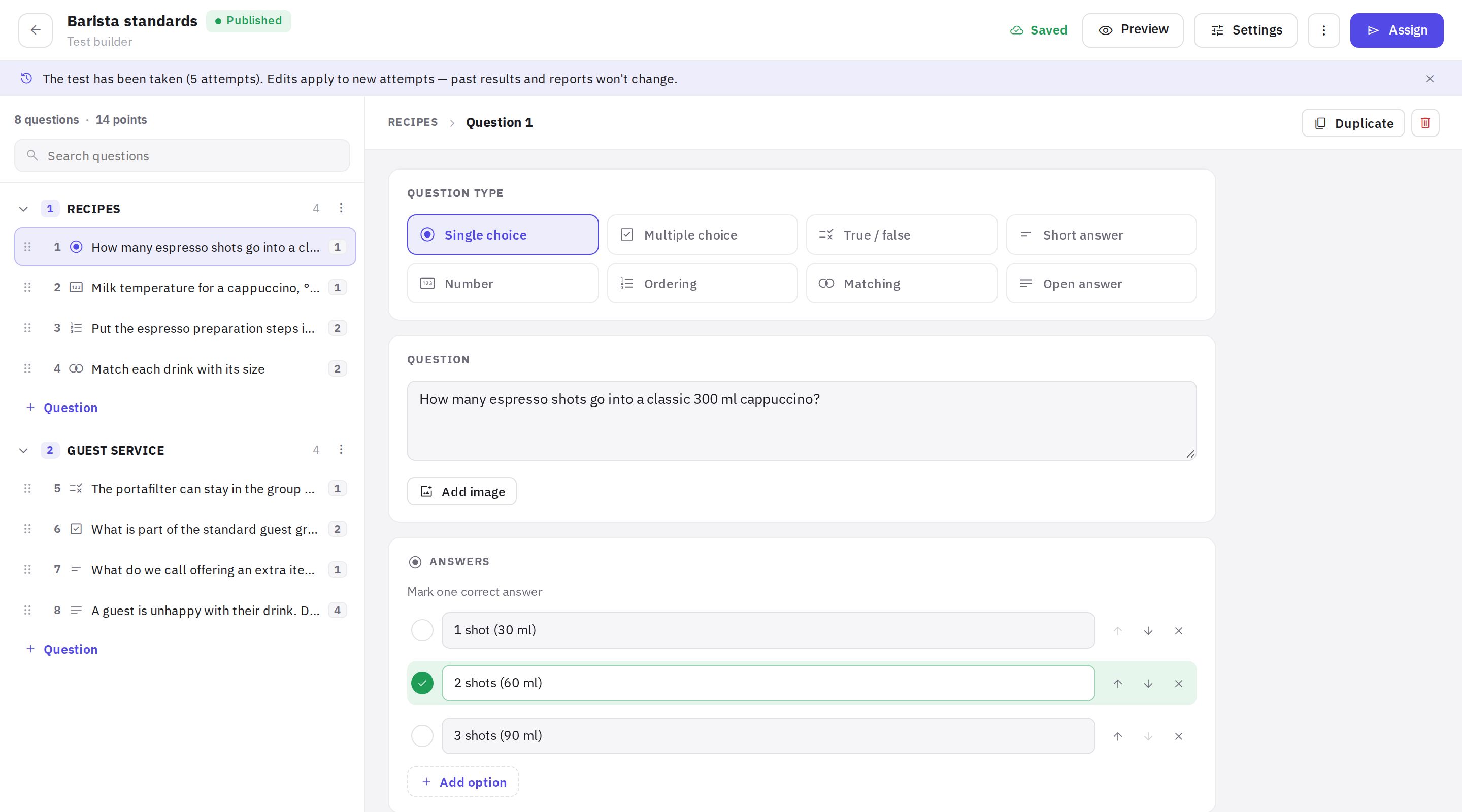
The test builder: blocks and questions on the left, question settings on the right -
Split into blocks. Blocks divide a test into topics. The block menu has Name and random selection. Drag questions with the mouse, including from one block to another.
-
Configure the test. The Settings button in the builder header covers time, passing score, attempts, what the employee sees and where the test is taken.
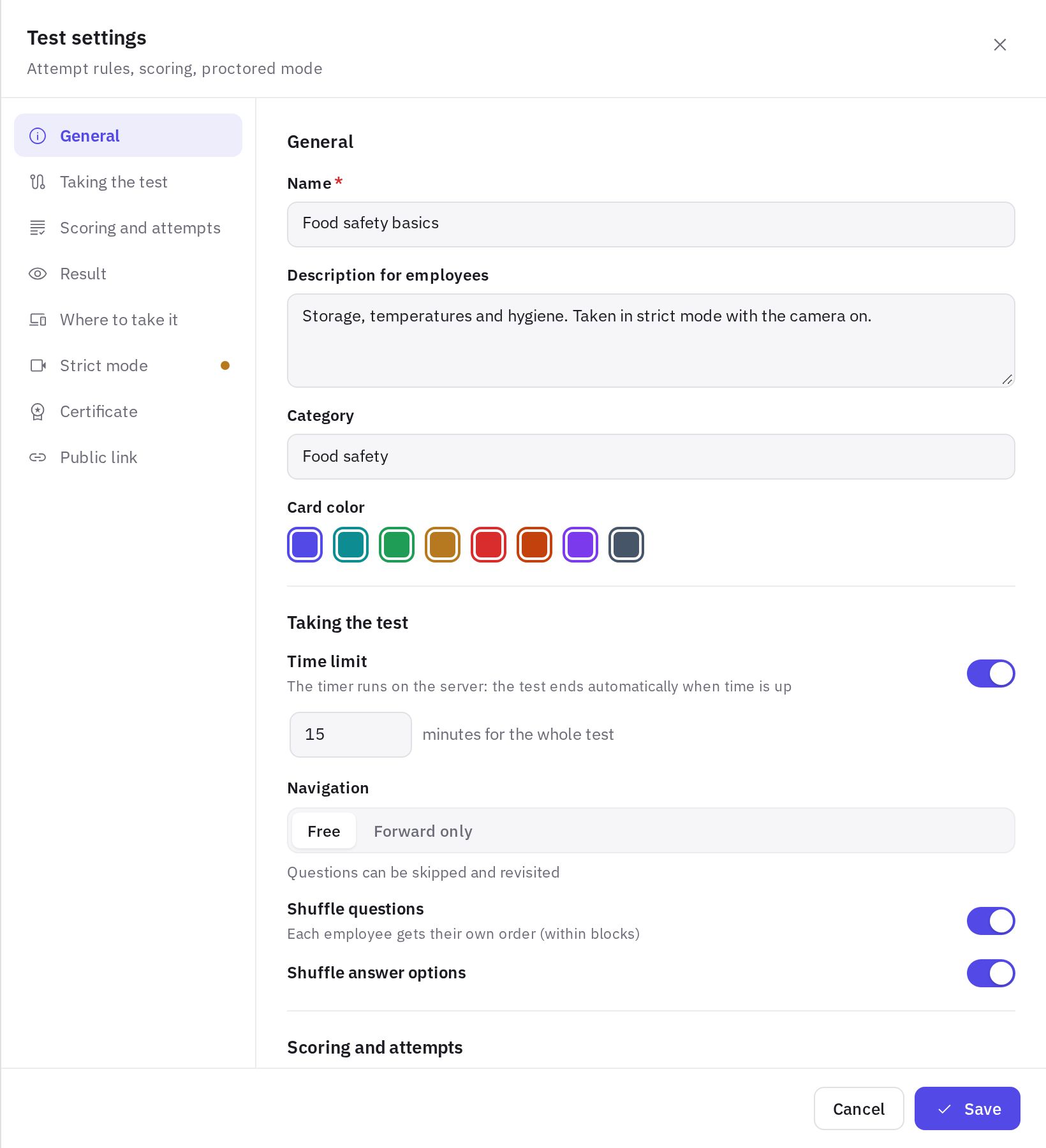
The “Test settings” window -
Check it. Preview shows the test as an employee sees it; answers in preview aren't saved.
-
Publish. Click Publish. If a question isn't ready (no correct answer, an empty option), you'll see a list of issues and a Go to first question with an error button. After publishing, an Assign button appears in the header.
Question types
- Single choice — pick one correct answer.
- Multiple choice — select all correct answers.
- True / false — a statement to mark as true or false.
- Short answer — the employee types a word or phrase. You can list several accepted spellings; extra spaces, a trailing period and “ё/е” don't matter, and case matters only if Case sensitive is checked.
- Number — with a ± tolerance (0 means the exact value only).
- Ordering — put steps in order; the employee sees them shuffled.
- Matching — match pairs; the right column is shuffled.
- Open answer — free text, graded manually by a reviewer. You can set Minimum words and Grading criteria for the reviewer.
Every question has Points for question, an image, an Explanation after answer (shown in the full review) and a Critical question checkbox. For multiple choice, ordering and matching you can turn on Partial credit — otherwise it's all or nothing.
Critical question: a mistake here means the test is failed, even if the passing score is reached. Use it for sanitation and safety.
Random selection from a block
In the block settings, turn on Random selection from block and set how many questions to Serve from the block. Each employee gets their own subset — handy for a question bank when a whole shift takes the test on the same day.
Questions with AI
The AI button (or Generate with AI) opens the Questions with AI window:
- Paste the material. In the Topic or material text field, enter a topic or the full text of a standard. The From the knowledge base and From a file buttons insert the text of an instruction or a document (PDF, Word, Excel, photos and more). If you paste text, questions are based only on it.
- Set the parameters. Count — up to 30 at a time, Difficulty (Easy, Medium, Hard) and Question types: single and multiple choice, true/false, short answer, ordering, matching.
- Pick the questions. Click Generate, select the ones you want and add them to the block. Only selected questions go into the test.
AI doesn't create number or open-answer questions — add those manually. If there's no AI button, AI generation isn't enabled for your company.
Review AI questions before publishing: they're a draft, and correct answers should be checked against your procedure.
Main test settings
- Time limit — minutes for the whole test; the timer runs on the server, and the test ends automatically when time is up.
- Navigation — Free (you can skip and come back) or Forward only.
- Shuffle questions and Shuffle answer options.
- Passing score as a percentage.
- Limit attempts and Pause between attempts (in hours).
- What the employee sees after the test — Show nothing, Score only, Score and mistakes or Full review.
- Where to take it — In the mobile app and/or On the website via link.
- Strict mode — see Strict mode with a camera.
- Certificate and Public link — see Results, PDF and retakes.
By default, a new test has a 70% passing score, no time or attempt limits, shuffled questions and options, and shows Score and mistakes after the test.
Frequently asked questions
Can I edit a test that people have already taken?
Yes. Edits apply to new attempts — past results and reports don't change.
How do I remove a test without deleting the results?
In the builder of a published test, open the menu next to the Assign button and choose Unpublish or Archive. You can also archive a test from the test list. Results of past attempts are kept.
Can I base a test on an existing one?
Yes: in the test list, open the action menu → Duplicate.
Thank you! This helps us improve the help center.