
How to schedule audits
An audit plan is a schedule of audits on one checklist at one or more locations for one auditor. The wizard creates audits for every date according to the repeat rule you choose. You can later edit or delete the plan as a whole. Plans can be created and edited by company administrators or employees with the “Audit planning” permission at the selected locations.
What you need
- administrator rights or the “Audit planning” permission at the locations you need — see Roles and permissions;
- a checklist — see How to create a checklist;
- locations and an employee who will carry out the audits.
Step by step
-
Open the wizard. In Work → Planner, click Schedule audit.
-
Checklist. Choose the checklist to audit against. Each one shows its number of items, and there's a search.
-
Locations. Tick the locations — an audit will be created for each. Select all ticks all locations at once.
-
Auditor. Choose one employee. Next to each name you can see how many active planned audits they already have. The list shows only employees who can use the selected checklist — see Who can use the checklist.
-
Schedule. Set Start, End, Time, Duration, min and Tolerance, days, then choose Repeat. At the bottom you can see how many audits will be created.
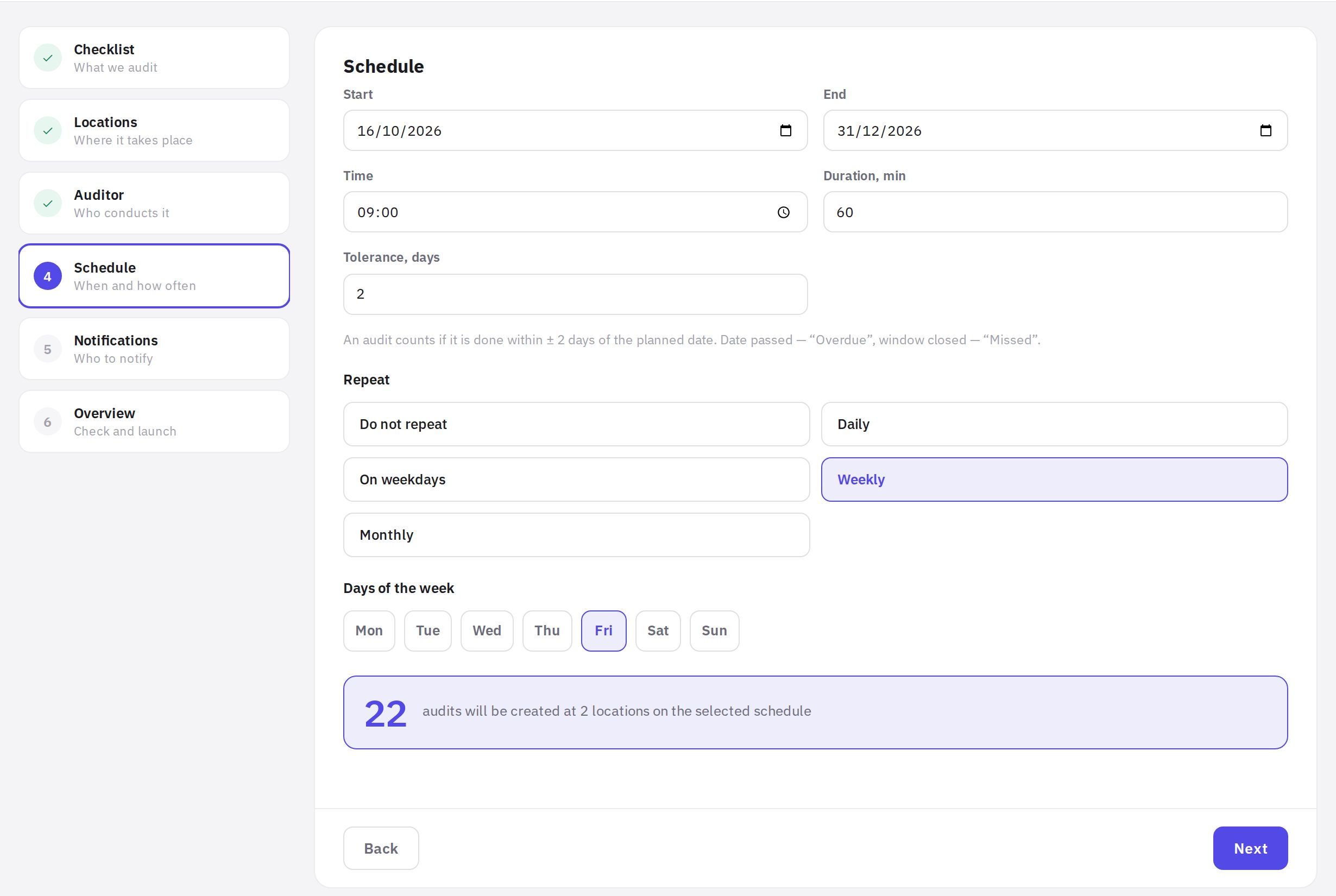
The Schedule step: dates, time, tolerance and repeat -
Notifications. Turn on the alerts you need — see "Notifications" below.
-
Overview. Check the checklist, number of locations, auditor, repeat rule, time, period, tolerance, notifications and number of audits. Optionally set a Plan name — by default it's "Plan: checklist name".
-
Launch. Click Schedule. The audits will appear in the calendar.
Repeat options
- Do not repeat — a single audit on the start date. The End field is disabled. In the calendar such an audit is marked One-off.
- Daily — every day.
- On weekdays — Monday to Friday.
- Weekly — on the ticked days of the week; you can pick several.
- Monthly — on the ticked days of the month; you can pick several. If you choose the 31st, there will be no audit in months without a 31st.
If End isn't set, audits are created until 31 December of the year the plan starts. To continue audits into the next year, edit the plan and set a new End.
Tolerance: when an audit counts
Tolerance, days — how many days before and after the planned date a completed audit still counts toward the planned one. For example, with a tolerance of 2, a Monday audit counts if it was carried out between Saturday and Wednesday.
Tolerance is pre-filled based on frequency, and you can change it (from 0 to 14 days):
- Daily and On weekdays — 0, only on the planned day;
- Weekly — 2 days (1 with two days a week, 0 with three or more);
- Monthly — 3 days (2 with two or more dates);
- Do not repeat — 2 days.
While the window is open, an overdue audit will still count. Once the window closes, the status becomes Missed — see Planned audit statuses.
Notifications
The toggles on the Notifications step are saved in the plan:
- Email the auditor — an email with the schedule (checklist, locations, rule, time, period, how many audits are upcoming) when the plan is created and when it's changed.
- Reminder 1 day before — a push to the auditor's mobile app one day before the audit starts.
- Reminder 1 hour before — a push to the auditor one hour before the audit starts.
- Escalate when overdue — a push and an email to the plan author and the location managers if the planned date has passed and there's no audit. If the location has no managers and the author is the auditor themselves, the company administrators are notified.
Audit times use the time zone of the company's country. There are no reminders for audits that have already been counted or marked as completed. Each reminder and escalation is sent once per audit; if the audit is rescheduled, reminders are sent again for the new date.
What gets created
- Each selected location gets its own series with a shared repeat rule. All series from one wizard run make up one plan: it's edited and deleted as a whole.
- Each series contains a separate audit for every date. It can be rescheduled, reassigned, cancelled or marked as completed — see Planned audit statuses.
- Time and duration are used for the calendar, conflict detection and reminders. In the app, the auditor sees today's audits without a specific time.
How to edit a plan
- Open any audit in the plan. Click it in the calendar.
- Click "Edit plan". The wizard opens with the plan's settings, straight on the Schedule step.
- Change what you need. You can switch the checklist, add or remove locations, change the auditor, schedule, tolerance and notifications.
- Save. On the Overview step, click Save changes.
Past and completed audits stay as they were. The plan's future audits (from today onward) are recreated with the new settings — manual reschedules, reassignments and cancellations in them are reset. If you remove a location, its future audits are deleted.
How to delete a plan
Open any audit in the plan, click Delete plan and confirm. Future audits are deleted at all of the plan's locations. Completed audits stay in the calendar as history, but the plan can no longer be edited.
Need to remove one date rather than the whole plan? In the audit card, click Cancel this audit.
Series templates
If you often create similar plans, save the settings as a template:
- Go to the "Overview" step. In the Save as a series template block, enter a Template name.
- Click "Save template". The checklist, locations, auditor, schedule, tolerance and notifications are saved — without dates. No plan is created, and the wizard stays open.
- Create a plan from the template. In the section header, click Series templates → Create plan. The wizard opens with the template's settings and a start date of "today".
To delete a template, use the trash button in the Series templates list. Plans created from the template are not affected.
Tips
Need different people to audit the same locations? Create a separate plan for each auditor — a plan has only one auditor.
An audit counts no matter who carried it out, as long as the checklist and location match and the date falls within the window. But in the app, a planned audit is shown only to the assigned auditor and only on the planned day — schedule audits for the person who will actually visit the location.
Frequently asked questions
Can I assign two auditors to a plan?
No, a plan has one auditor. For a second one, create a separate plan or reassign individual audits in their cards.
Why is the "Next" button disabled?
The current step is missing data: no checklist, location or auditor selected, no start date, the end is before the start, or no day is ticked for "Weekly" / "Monthly".
How do I schedule a one-day audit with no repeats?
Choose Do not repeat and set the date in the Start field. In the calendar the audit will be marked One-off.
I edited the plan and a manually rescheduled audit went back to its old date. Why?
When a plan is edited, future audits are recreated on the new schedule and manual reschedules are reset. Reschedule the audit again in its card.
The auditor didn't get a reminder. Why?
Check that Reminder 1 day before or 1 hour before is turned on in the plan (Edit plan → Notifications step) and that the auditor has signed in to the mobile app and allowed notifications. Reminders aren't sent for audits that have already been counted.
Why isn't the employee I need in the auditor list?
The selected checklist isn't available to them: the checklist has Who can use the checklist → Selected only, and the employee doesn't match any position, location or department in the list. Add them to the checklist's access (the Access button in the builder) or choose another auditor. If someone still tries to assign such an employee, jeCheck replies: “This checklist isn’t available to the employee — change “Who can use the checklist” or pick another auditor”.
Thank you! This helps us improve the help center.