
How to set up a “violation → task” scenario
A scenario is the set of rules that turns audit violations into tasks. It reads top to bottom, like an instruction: “assign roles from the checklist; if the question is critical — 4 hours, photo and review; otherwise — 24 hours”. Scenarios are set up in Work → Automation, on the Scenarios tab.
Step by step
-
Create a scenario. Click New scenario and choose a template or From scratch. Or click Create with AI and describe the rules in words (“critical — 4 hours and a photo, the rest — one day”) — the assistant builds the scenario from blocks (see How to create with the AI assistant).
-
Name the scenario. The name goes in the field at the top of the editor.
-
Set up the blocks. Drag blocks from the palette on the left into the flow, or click + on a block to add it to the end. Use the arrows on a block to change the order; the cross deletes the block.
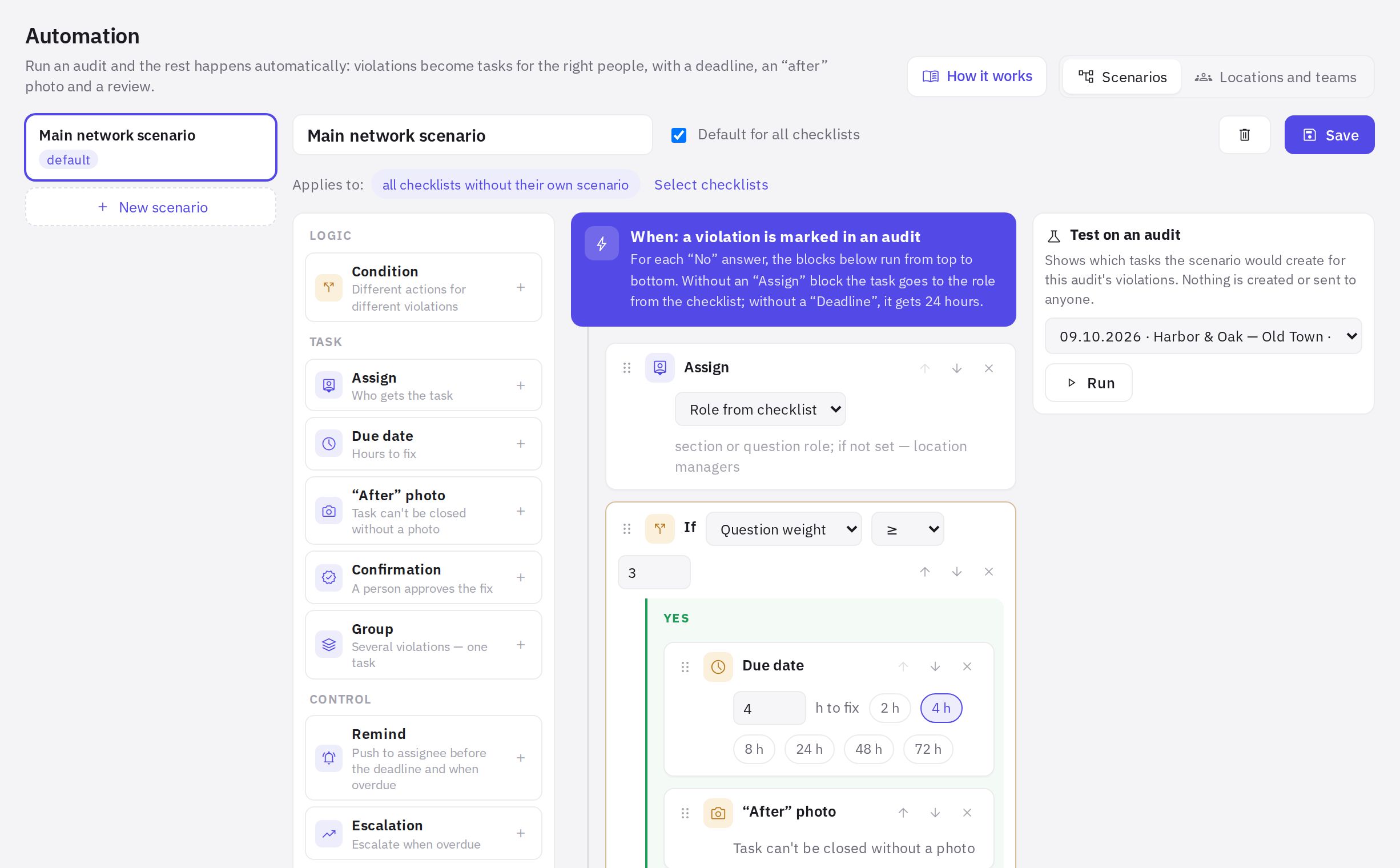
Scenario editor: block palette on the left, the flow in the middle, test on an audit on the right -
Choose where it applies. Turn on Default for all checklists or click Select checklists in the Applies to row.
-
Test it on an audit. On the right, in the Test on an audit block, pick a recent audit with violations and click Run.
-
Save. Click Save. The scenario takes effect from the next audit.
Ready-made templates
| Template | What it does |
|---|---|
| Standard | Critical violations (question weight 3 or higher) — 4 hours, photo and manager confirmation, reminder and escalation. Others — 24 hours and a photo. Repeat violations — with confirmation and escalation to managers right after the due date. Violations from one section — in a single task |
| Strict control | Every violation is an 8-hour task with a photo and auditor confirmation, AI checks the “after” photo, escalation to managers and then to administrators |
| Lenient | Tasks only for critical violations; everything else goes to the manager's morning digest |
A template is a starting point: once chosen, all blocks can be changed.
Scenario blocks
Blocks run top to bottom for each “No” answer. If the flow has two blocks of the same type, the lower one applies — except escalations, which you can have several of.
| Block | What it does |
|---|---|
| Condition | Splits the flow into “yes” and “no” branches. Checks: Question weight, Checklist section, Repeat violation, Audit score, % or Location |
| Assign | Who gets the task: Responsible from checklist (whoever is set in “Who fixes the violation” for the section or question), Role at location, Location managers, Auditor, Employee or Department |
| Due date | How many hours to fix it (from the moment the audit is processed) |
| “After” photo | The task can't be closed without a photo |
| Confirmation | A person accepts the work: the location manager or the auditor |
| Group | Several violations for one assignee become one task with subtasks: by checklist section or by meaning (AI). The deadline, reminders and escalation of such a task are the strictest among its violations |
| Remind | A push to the assignee N hours before the due date and, if ticked, when it's overdue |
| Escalation | N hours after the due date, notify location managers, a role, an employee or administrators — they become watchers of the task |
| AI: task text | AI writes the task: what to do and what to photograph |
| AI: photo check | AI compares the “before” and “after” photos and gives the reviewer a hint |
| To digest | Don't create a task — the violation goes to the location managers' morning digest (at 9:00 in the company's country time) |
| Skip | Do nothing with this violation |
If the scenario has no Assign block, the task goes to the person responsible from the checklist. If there is no Due date block, 24 hours are given. For more on photos, review and AI, see “After” photo, confirmation and AI check.
Question weight is set in the checklist builder. In the templates, “weight 3 or higher” counts as critical — give this weight to questions about food safety, cash and legal requirements.
The default scenario and a checklist's own scenario
- Default for all checklists — the scenario applies to all checklists that don't have their own. A company can have only one default scenario.
- A checklist's own scenario is chosen here, in the Applies to row, or in the checklist builder: Settings → Violation tasks. A dot next to a checklist in the list means it currently uses a different scenario.
When a scenario is deleted, its checklists switch to the default scenario; tasks already created don't change.
Testing on a real audit
The Test on an audit block shows what the scenario would do with the violations of the selected audit: how many tasks, for whom, with what due date and requirements, and what would go to the digest or be skipped. Nothing is created or sent to anyone. The label “role vacant — to managers” shows where roles are missing at a location.
Frequently asked questions
Why didn't a violation produce a task?
Check that: the answer was actually “No”; the checklist has a scenario (its own or the default); the scenario didn't send the violation to the digest or to “Skip”; there isn't already an open task for this violation at the location — in that case no new task is created, and the assignee is notified that the violation was recorded again. The quickest way to check is the Test on an audit block.
Can I set different rules for the kitchen and the dining room?
Yes. Add a Condition block with the Checklist section field, select the sections and put the blocks you need into the “yes” and “no” branches. Or give the sections different roles in the checklist builder — in each section card.
What is the morning digest?
A single push notification to the location managers listing the minor violations for which the scenario didn't create tasks (the To digest block). If there are no managers, the digest goes to administrators.
Thank you! This helps us improve the help center.