
AI dispatcher: getting work done through Telegram and Slack
The AI dispatcher follows work through to the end where your employees already are — in Telegram. It makes sure tasks don't hang and audit findings don't go unread: it asks the assignee a short question, takes the answer and records it in jeCheck itself. It writes only when an answer is needed, and the answer takes one button or a few words. Managers get only what couldn't be resolved without them.
Where to find it
In the side menu, in the Control group, open AI dispatcher. The item is visible to administrators and employees with dispatcher permissions (see "Permissions" below). Employees who only answer the dispatcher don't need to open this section — connecting Telegram is enough.
How to connect Telegram
Each employee connects their Telegram once. Ways to do it:
- From the profile. Click your name at the bottom of the side menu → Profile → the Telegram card → Connect Telegram. The jeCheck bot opens — press "Start" in it. Done: the bot confirms that Telegram is linked.
- With a QR code at the location. A manager prints the QR code with the QR code for locations button on the dispatcher page and puts it up at the location. The employee scans the code, opens the bot and taps Share phone number. The bot finds the employee by the phone number in their jeCheck profile, so the phone must be filled in. If the number exists in several companies, the bot asks which company to connect messages for.
- With an invitation from a manager. On the Employees tab, select people and click Get links (links appear next to the names — copy and send them) or Send invitation (arrives as a push notification in the jeCheck app). The Only those without Telegram filter shows who hasn't connected yet. The no phone in profile label means the employee can't connect with Share phone number.
To disconnect Telegram, send /stop to the bot, click Unlink in the profile, or a manager can click Unlink on the Employees tab.
Employees who haven't connected Telegram get the dispatcher's messages as push notifications in the app. A push can't be answered with a button — they'll need to open the item in jeCheck.
What the dispatcher does
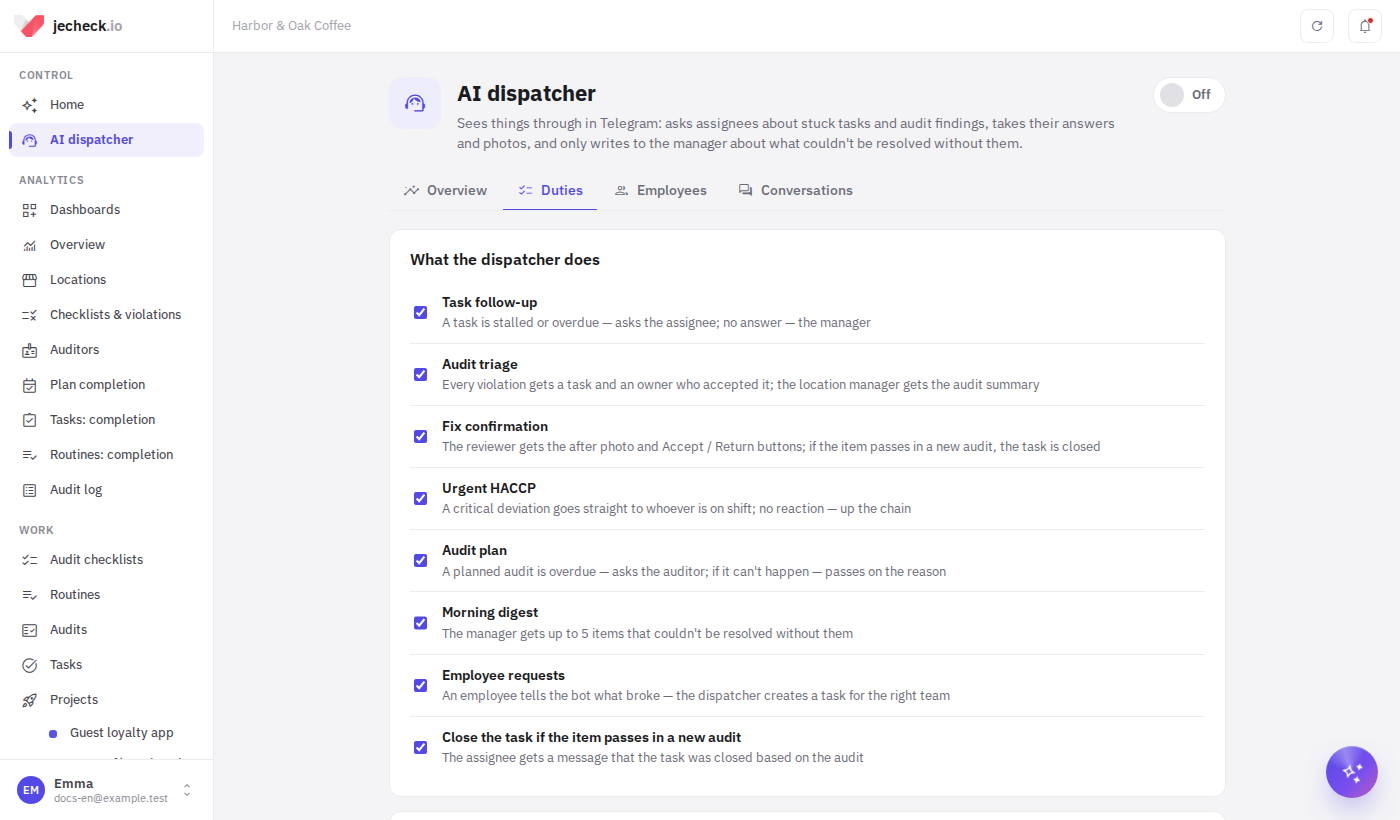
The dispatcher has seven duties. The administrator turns on the ones needed on the Duties tab.
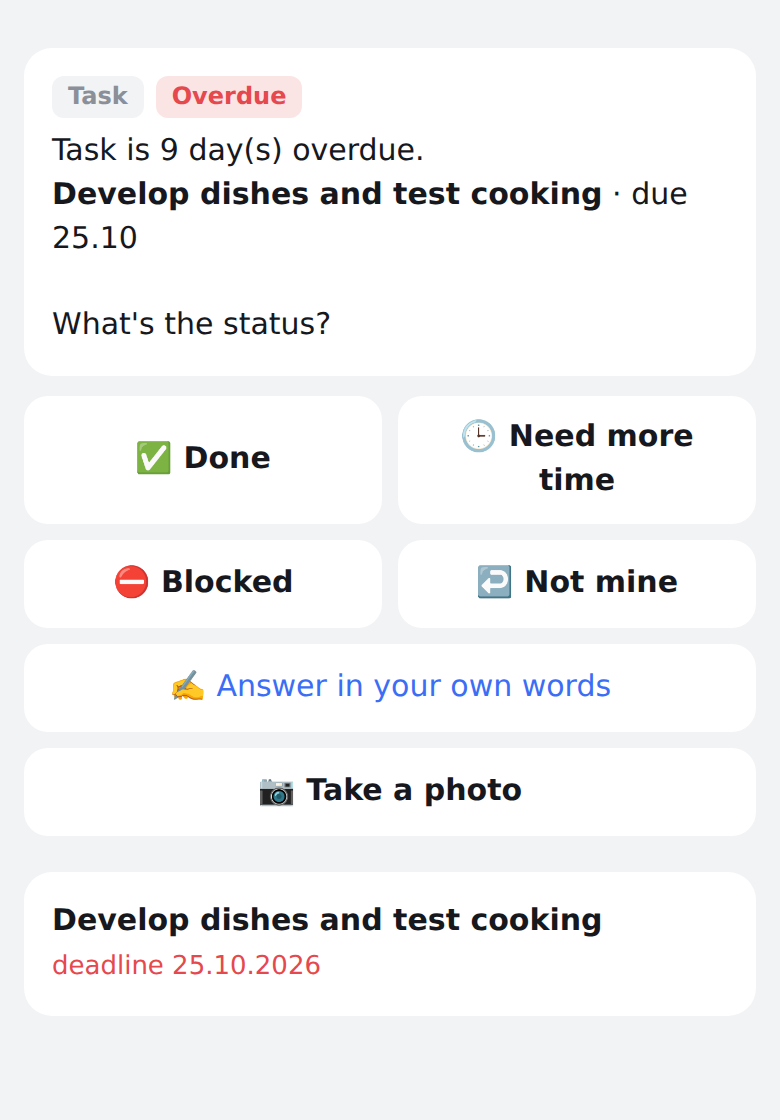
- Task follow-up. A task has had no progress for a while or is overdue — the assignee gets the question "What's the status of the task?" with the buttons Done, Need more time, Blocked, Not mine.
- Done — the task is marked as completed. If the task needs an "after" photo, the bot asks for it; tasks that require confirmation go to review.
- Need more time — choose Tomorrow, In 3 days, In a week or type a date. Within the limits the dispatcher moves the due date itself; beyond them it asks the manager, who answers with one button: Approve or Decline.
- Blocked — briefly write the reason: it goes into a task comment and into the manager's morning digest, and the dispatcher asks again later.
- Not mine — write who you think should get the task. The manager decides.
- No answer after several questions — the dispatcher writes to the assignee's manager with the buttons Remind again, Extend by 3 days, I'll handle it myself, and then to the location managers.
- Audit triage. After an audit with violations, each responsible person gets one message with their findings and the buttons On it, Not mine, Already fixed (the bot asks for an "after" photo). The responsible person is set by the Who fixes the violation field in the checklist. For violations without a task, the dispatcher creates tasks itself. The location manager gets one summary per audit: how many violations and tasks, and who is responsible. If nobody taps On it in time, the dispatcher writes to the manager.
- Fix confirmation. When the assignee sends an "after" photo, the reviewer gets it with the buttons Accept and Return. With Return, the bot asks what needs to be redone and passes it on to the assignee. If Close the task if the item passes in a new audit is on, the task closes by itself when that item passes in the next audit.
- Urgent HACCP. A critical HACCP deviation goes immediately to whoever is on shift at the location — at any time, even at night. Tap I'm on it and record the correction in the deviation — when the deviation is closed, the conversation closes by itself. If nobody taps I'm on it within the set time, the location managers get the message, and after the same time again, the administrators. More about deviations: HACCP deviations and corrective actions.
- Audit plan. A planned audit is overdue — the auditor gets a question with the buttons Today, By … (the last day it can still be carried out) and Can't make it. After Can't make it, the bot asks for the reason and passes it to whoever runs the plan.
- Morning digest. Administrators and managers with Telegram connected get up to 5 items that need their decision at the digest hour: open problems from the AI Control briefing, stalled items and escalations.
- Employee requests. An employee writes to the bot what's broken or where help is needed ("the tap in the dining room is leaking"), optionally with a photo. The dispatcher drafts a request and asks "File a request?" — tap Create. The task goes to the right department's queue or to the location manager. The author is told who took the request and, later, that it's done.
You can also answer in your own words: "I'll do it on Friday", "no key to the storeroom". The dispatcher understands the answer, and if it isn't sure, it asks again with buttons. All actions are performed on behalf of the person who answered and are visible in the task history.
jeCheck mini app in Telegram
It is easier to answer in the mini app: it opens right inside Telegram, with no need to sign in to jeCheck.
- How to open. The jeCheck button to the left of the message field in the chat with the bot, Review under a summary of questions, or Open task under a question.
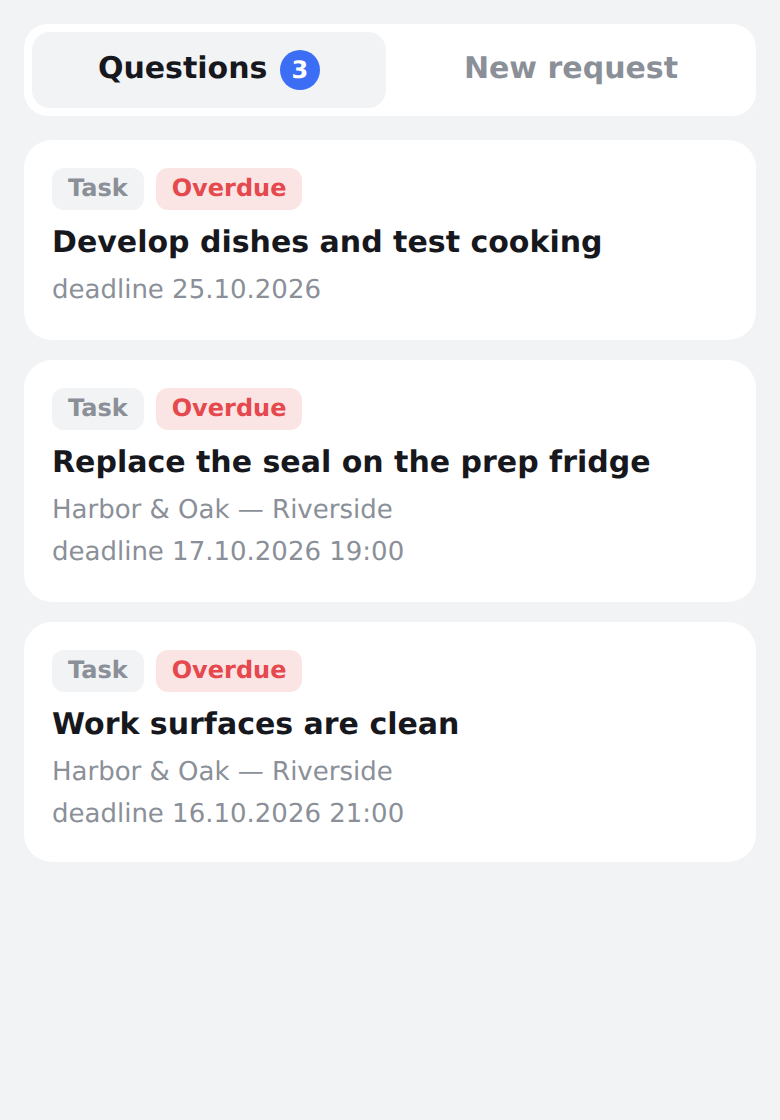
- Questions. All dispatcher questions waiting for your answer; urgent HACCP and work to accept are at the top. Tap a question to see the answer buttons and the task itself: description, photos, recent comments and the audit it came from.
- Answer. The same buttons as in the chat. After Need more time, pick a suggested date or choose one in the calendar: Another date → Move. Answer in your own words — write a text; Take a photo — take the “after” photo with the phone camera.
- New request. Describe what broke or what is needed, tap Attach a photo if you like, then Send. The dispatcher offers to file a request — tap Create.
Once you answer in the mini app, the buttons under that question in the chat disappear, so it cannot be answered twice.
Slack
If your team works in Slack, the dispatcher can write there instead of Telegram.
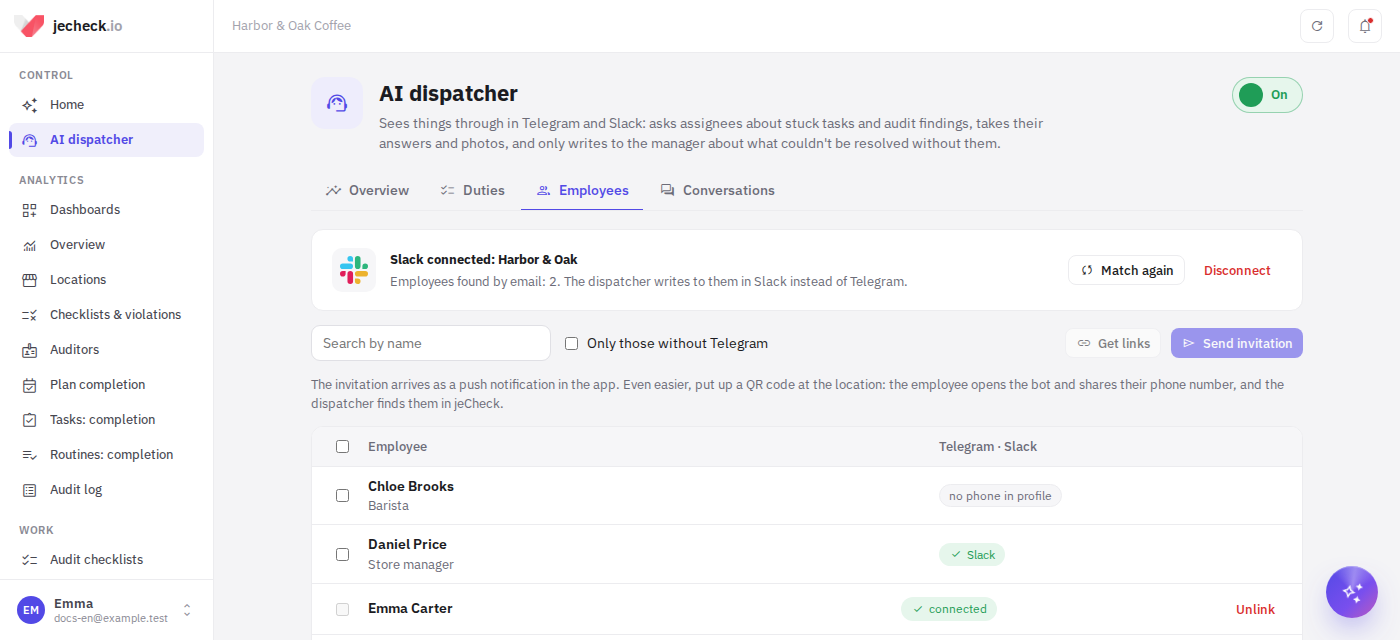
- Connect Slack. On the dispatcher page, open the Employees tab and click Connect Slack. Sign in to Slack and allow the jeCheck app in your company workspace.
- Employees are found automatically. The dispatcher matches people by email: the email in the jeCheck profile must match the email in Slack. Matched employees are marked Slack in the list. If people were added or emails changed, click Match again. An employee who wasn't matched can simply write to the jeCheck app in Slack — the dispatcher finds them by email.
- Answers. Questions arrive as direct messages from the jeCheck app with the same buttons as in Telegram. Several questions at once arrive as one message, each with its own buttons. You can also answer with text and attach the “after” photo to a message.
Employees found in Slack get dispatcher messages only in Slack, even if they also connected Telegram. Everyone else gets them in Telegram or as push notifications. To turn Slack off, click Disconnect in the Slack block. Slack is connected and disconnected by an employee with the "AI dispatcher: settings" permission.
When the dispatcher writes
- To employees on the work schedule — only during their shift. To everyone else — during the working hours set in the limits. See Staff work schedule.
- Urgent HACCP — always, at any time.
- No more than a few non-urgent messages per hour to one person; the rest are postponed.
- If an employee has many old overdue tasks when the dispatcher is turned on, it asks about them gradually — no more than 3 new questions per person per day.
- One item — one conversation: a repeat question comes only after a while, not every minute.
- If several questions pile up at once (for example, in the morning after non-working hours), they arrive as one message with a list and the buttons Review (opens the mini app) and Show them here one by one. A single question arrives as usual, with buttons.
How to turn it on and set it up
The dispatcher is turned on and set up by the administrator or an employee with the "AI dispatcher: settings" permission.
- Turn the dispatcher on. The switch at the top of the page: On / Off.
- Choose duties. On the Duties tab, in the What the dispatcher does block, tick the ones you need. The Close the task if the item passes in a new audit checkbox is here too.
- Set the limits. Below are the numeric settings:
- Ask about a stalled task after, days (3 by default);
- Escalate to the manager after unanswered questions (2);
- Time to tap “On it” for audit findings, working hours (2);
- Move due dates without approval by no more than, days (7) and …and no more than this many times per task (2);
- HACCP: wait for a response before the next level, minutes (30);
- Morning digest hour (8);
- Working hours for people not on the schedule: from … to … (9–20).
- Click "Save".
- Connect employees — on the Employees tab or with a QR code at the location (see above).
Metrics and conversations
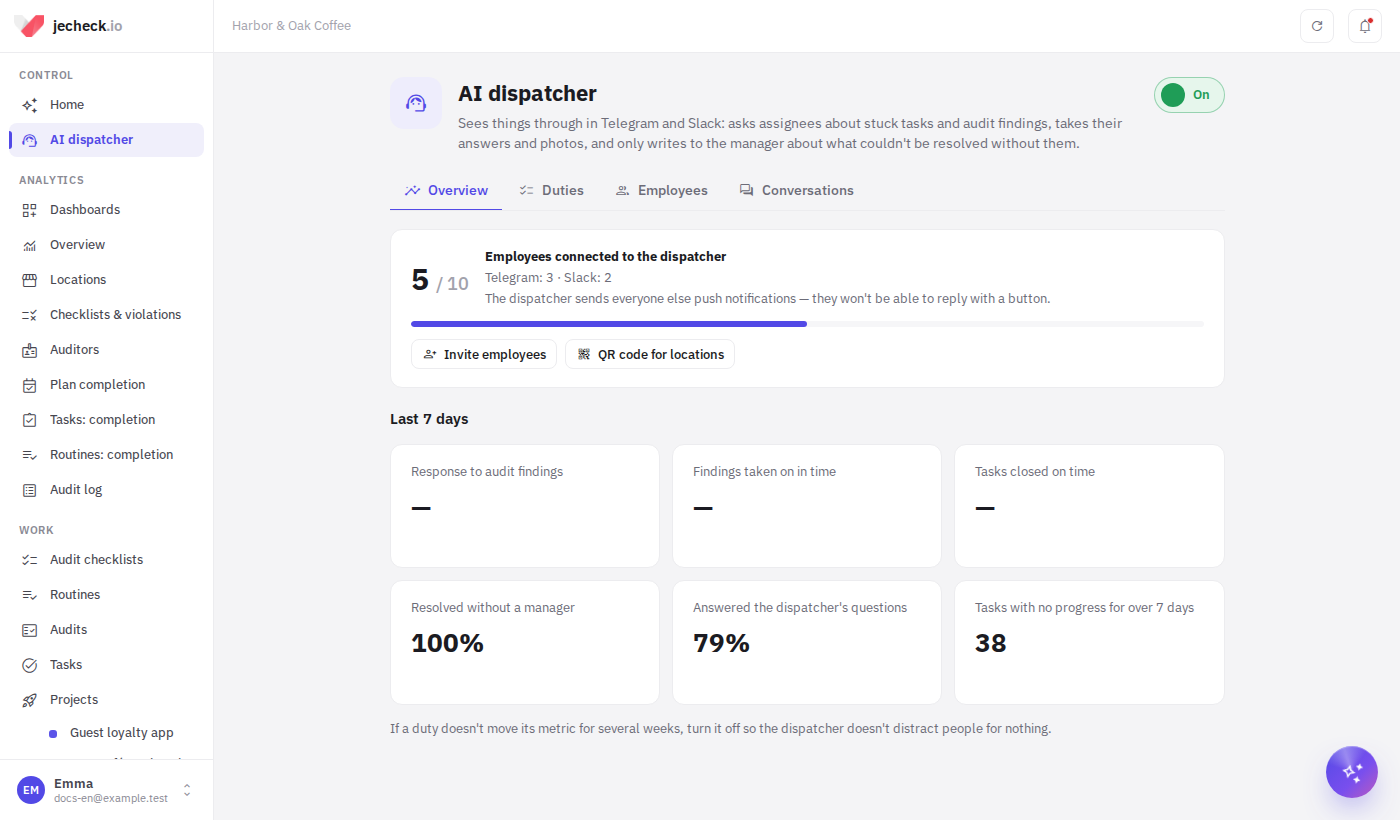
The Overview tab shows how many employees have connected Telegram and the metrics for the Last 7 days compared with the week before:
- Response to audit findings — how quickly the responsible person taps On it;
- Findings taken on in time;
- Tasks closed on time;
- Resolved without a manager;
- Answered the dispatcher's questions;
- Tasks with no progress for over 7 days — right now.
If a duty hasn't moved its metric for several weeks, turn it off so the dispatcher doesn't distract people for nothing.
The Conversations tab lists everything the dispatcher is handling: what it's about, with whom, and the state — Awaiting reply, Waiting, With the manager, Resolved, Closed. Filter by duty with All duties. Click a row to open the conversation.
Permissions
| Permission | What it gives |
|---|---|
| AI dispatcher: metrics | Metrics, who connected Telegram, what the dispatcher is handling |
| AI dispatcher: settings | Turn on, choose duties and limits, invite employees |
| AI dispatcher: conversation texts | Read employees' messages to the dispatcher |
Conversation texts are sensitive data: without the "AI dispatcher: conversation texts" permission you only see what a conversation was about and how it ended, and every view of the texts is recorded in the access log. Any employee can connect their own Telegram — no permission is needed for that.
Answers in Telegram are applied with the employee's own permissions: for example, a reviewer without the right to confirm a task can't accept it with the Accept button — the bot will say so. More: Roles and permissions — who can access what in the web dashboard.
Plan
The AI dispatcher is currently available to all companies on any plan. Later it will stay on the "Network" plan and above — we will let you know in advance. See Plans and billing.
Frequently asked questions
How is the dispatcher different from the AI Control briefing?
The briefing on the home page finds problems and suggests actions to the manager. The dispatcher doesn't look for anything new: it follows existing items — tasks, audit findings, HACCP deviations, planned audits — through to the end by messaging the people doing the work. See Home: the AI Control morning briefing.
Does the dispatcher write at night?
No — only during a shift or working hours. The exception is Urgent HACCP: a critical deviation can't wait until morning.
Can I turn off certain messages?
Yes, the administrator turns off unneeded duties on the Duties tab. An employee can disconnect Telegram completely with /stop — the dispatcher will then send push notifications.
Can I answer without the mini app?
Yes. The buttons under questions in the chat work as before, and under a summary tap Show them here one by one — the questions arrive as separate messages.
Thank you! This helps us improve the help center.