
Web dashboard menu
On the left of the web dashboard is the side menu, split into groups. Below is what each group contains and where to find everything else: your profile, settings, sign-out and the AI assistant.
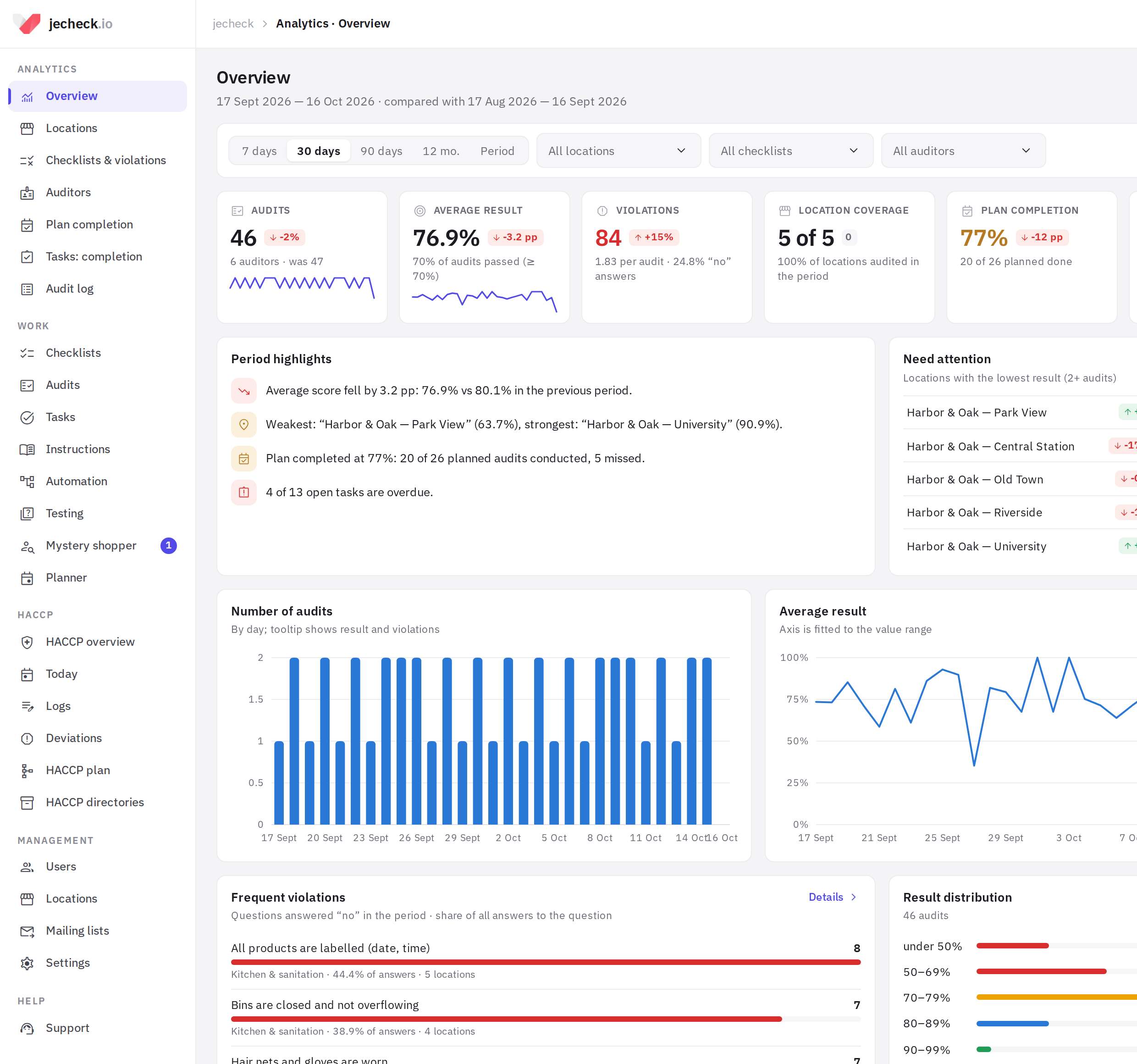
The menu shows only the sections available to you. The administrator sees everything; others see the sections they have permissions for: these are given through roles in Management → Roles and permissions (see Roles and permissions).
Control
Home — the AI Control morning briefing: what's urgent, what needs attention and what to do, with ready-made actions. This screen opens after you sign in. More in Home: the AI Control morning briefing.
Analytics
Audit results for the selected period:
- Dashboards — your own summary pages built from cards: metrics, charts and lists that you can drag, configure and build with AI. See Dashboards.
- Overview — the key figures for the period: average score, top locations and locations that need attention, frequent violations.
- Locations — location comparison.
- Checklists & violations — results by checklist and frequent violations.
- Auditors — who audits and how much.
- Plan completion — how many scheduled audits have been carried out.
- Tasks: completion — how tasks are being closed.
- Audit log — a table of all audits with export and PDF reports.
Administrators see all locations; others see the locations where their “Analytics” permission applies (by default, their own locations). The Auditors item is visible with the “Auditor ranking” permission, Audit log — with the “Audit log and reports” permission. See Analytics and reports.
Work
Day-to-day audit work:
- Checklists — the checklist builder.
- Audits — a summary of completed audits by location and checklist.
- Tasks — violation tasks and assignments: list, board and calendar.
- Instructions — your company knowledge base.
- Automation — scenarios that turn violations into tasks.
- Testing — tests for employees.
- Mystery shopper — mystery shopper visits via a link (Mystery shopper). The number next to the item shows how many forms are waiting for review.
- Planner — the audit schedule.
HACCP
The food safety module: HACCP overview, Today, Logs, Deviations, HACCP plan and HACCP directories. The HACCP plan item is visible with the “HACCP plan” permission. See HACCP.
Staff
Employees and their work: Employees (the employee list and positions), Shift schedule and the related Attendance, Timesheet, Payroll, KPI, Requests, My schedule, plus Hiring and dismissal and Vacations and sick leave. Each item is visible with its own permission; My schedule — to everyone.
Management
Company setup:
- Departments — company departments and their tasks.
- Locations and regions — locations, their staff, managers and regions.
- Roles and permissions — roles, employee permissions and the access log.
- Mailing lists — report mailings.
- Settings — company details, logo, report language, plan and invoices.
Help
Support — your requests to jeCheck support. The number next to the item shows how many new replies you haven't read yet.
Profile, settings and sign-out
At the bottom of the menu are your name and email. Click them to open a menu:
- Profile — photo, name, phone, password and interface language;
- Settings — company settings;
- Log out.
Top bar and hints
- The Refresh button in the top bar reloads the page data.
- The Notifications bell opens a list of recent notifications — the same ones that arrive as push notifications in the app: assigned tasks, comments, audits and more. A red dot on the bell means you have unread notifications. Unread ones are highlighted. Click a notification to open the related page. The checkmark button marks a notification as read; Mark all as read marks them all at once.
- Several sections (for example, Automation and Planner) have a How it works button — a short animated guide to the section.
- If the AI assistant is enabled for your company, there is an Ask AI button in the corner of the screen (keyboard shortcut Ctrl+J, or ⌘+J on a Mac). See AI assistant.
Frequently asked questions
Thank you! This helps us improve the help center.