
Personal profile
In the profile, every employee manages their own details: photo, name, phone, password, interface language, task notifications and jeCheck emails. To open your profile, click your name at the bottom of the side menu and choose Profile.
Personal details and photo
The Personal details card:
- Photo. Click Change photo and choose a JPG or PNG image up to 5 MB. Colleagues see your photo in tasks and audits.
- First name, last name, phone. The first name is required; last name and phone are optional.
- Click “Save”. The button is active only if you've changed something.
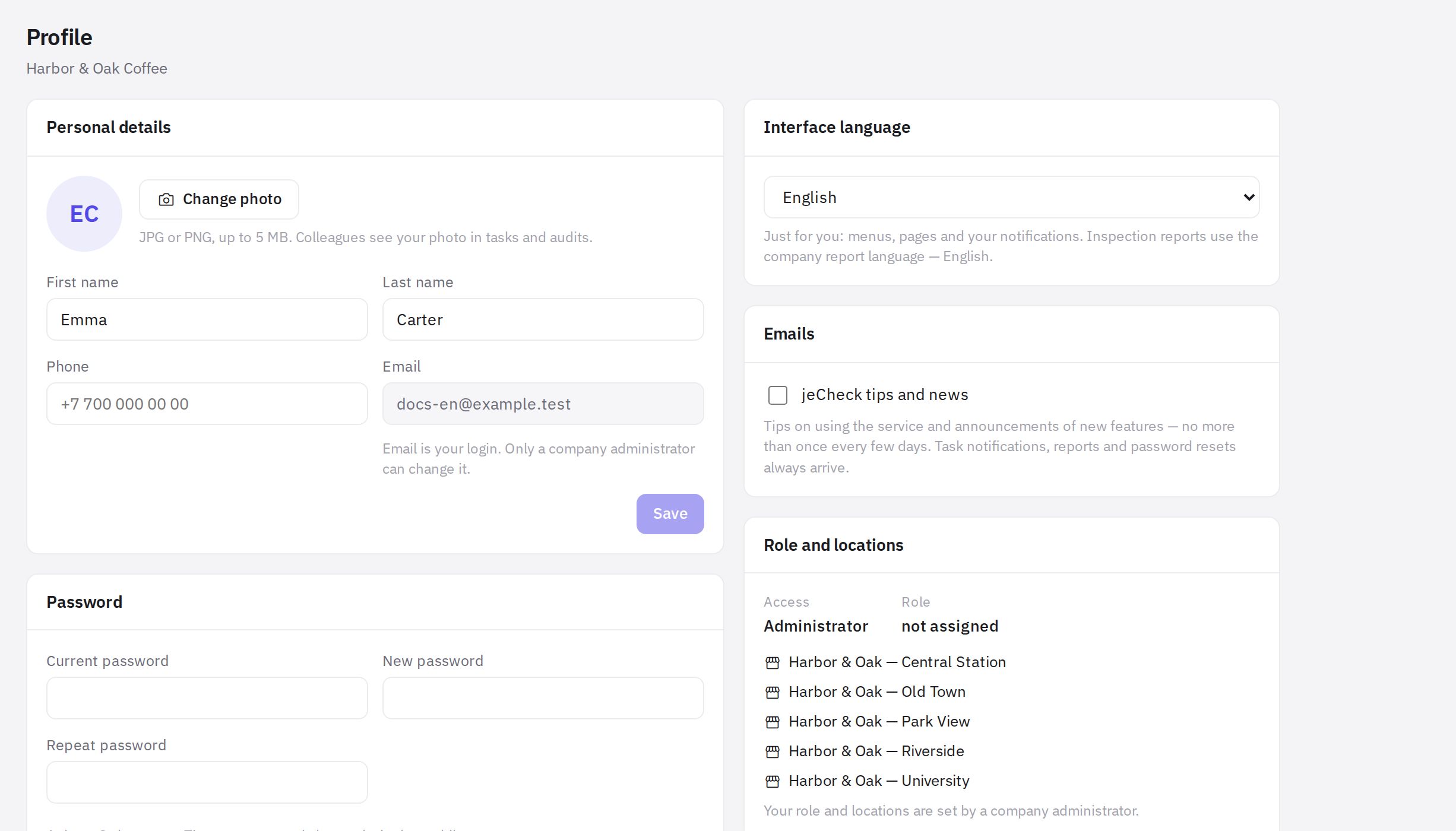
You can't change your email in the profile — it's your login. A company administrator or an employee with permissions for employee sign-in and contacts can change it in your employee card (Staff → Employees).
How to change your password
- Enter your current password in the Current password field.
- Choose a new one. At least 8 characters. Repeat it in the Repeat password field.
- Click “Change password”.
The new password also works in the jeCheck mobile app. After a password change, the app on all your devices will ask you to sign in again — with the new password.
Don't remember your current password? Log out and use the Forgot password? link on the sign-in page — see How to register your company and sign in to jeCheck. Or ask your administrator to reset your password — the new one will be emailed to you.
Interface language
In the Interface language card, choose a language (Russian, English, Kazakh, Uzbek, Georgian, Armenian, Serbian or German) or the Company default option — then the interface uses the company's report language. Your choice applies only to you: the menu, pages and your notifications. After you choose, the page reloads in the new language.
The language chosen in the mobile app is also saved as your interface language, if it is one of the eight dashboard languages.
Audit reports still come out in the company's report language. More in Interface language and report language.
Notifications
In the Notifications card, choose what to be notified about In the app (push to your phone) and By email: You were assigned or removed from a task, Comments and files, Status or due date changed, Due today, overdue, escalation, Morning task summary, as well as AI Control morning briefing and Urgent items from the briefing (daytime). The setting is saved immediately. Everything that concerns you is still kept under the bell. More in Task notifications and How to set up the briefing and what the AI does on its own.
Routine alerts (email) — emails under the rules in Routines → Alerts: missed routines, problems, digests and reports, if you were added there. See Routine alerts.
Task emails are sent only to employees with web dashboard access — for “App only” employees the By email column is unavailable.
The same settings are available in the mobile app: Profile → Notifications. Changes made in the app apply on the website too, and vice versa. See Push notifications in the jeCheck app.
Telegram for the AI dispatcher
The Telegram card lets you receive questions from the AI dispatcher: when your answer is needed on tasks, audits or HACCP, it writes to you in Telegram, and you can answer with one button. You can also report a breakdown there — the dispatcher will file a request.
- Connect. Click Connect Telegram — the jeCheck bot opens; press "Start" in it. The card then shows Active and your Telegram name.
- Disconnect. Click Unlink or send the /stop command to the bot. Without Telegram, the dispatcher's messages arrive as push notifications in the app.
Any employee can connect Telegram — no permission is needed. More: AI dispatcher: getting work done through Telegram.
jeCheck emails
In the Emails card, the jeCheck tips and news checkbox turns tips on using the service and announcements of new features on or off. Reports and password recovery emails always arrive, and task emails are configured in the Task notifications card.
Role and locations
The Role and locations card shows:
- Access — administrator or employee;
- Role — your position (or “not assigned”);
- the list of locations you're linked to, marked “manager” where you are a manager.
You can't change these yourself: your position and locations are changed by an administrator or an employee with the “Editing employees” permission, and the administrator mark only by an administrator. See Roles and permissions — administrator, positions, managers. Your permissions in sections are defined by roles — see Roles and permissions.
Frequently asked questions
How do I change my sign-in email?
The email is your login. Ask your company administrator: they open your card in Staff → Employees, enter the new address in the Email field and save. Your password stays the same, and an email about the login change is sent to the new address. If you are an administrator yourself, open your own card there. More in How to add an employee and send an invitation.
I changed my password on the website — do I need to change it in the app?
No, the password is shared. The app will ask you to sign in again — enter the new password.
Thank you! This helps us improve the help center.