
Company settings
Your company details are on the Management → Settings page (the Settings item in the menu under your name at the bottom left leads there too). At the top you see the company name, your current plan and the number of locations and employees. Below are four tabs: Company, Plan & billing, Invoices and Notifications.
The page is open to the administrator and to employees with the “Company settings” or “Plan, payment and invoices” permission; other employees don't see it. The Company and Notifications tabs can be changed by the administrator or an employee with the “Company settings” permission — without it they are view-only. The Plan & billing and Invoices tabs are shown only to those who have the “Plan, payment and invoices” permission. Permissions are given in Roles and permissions.
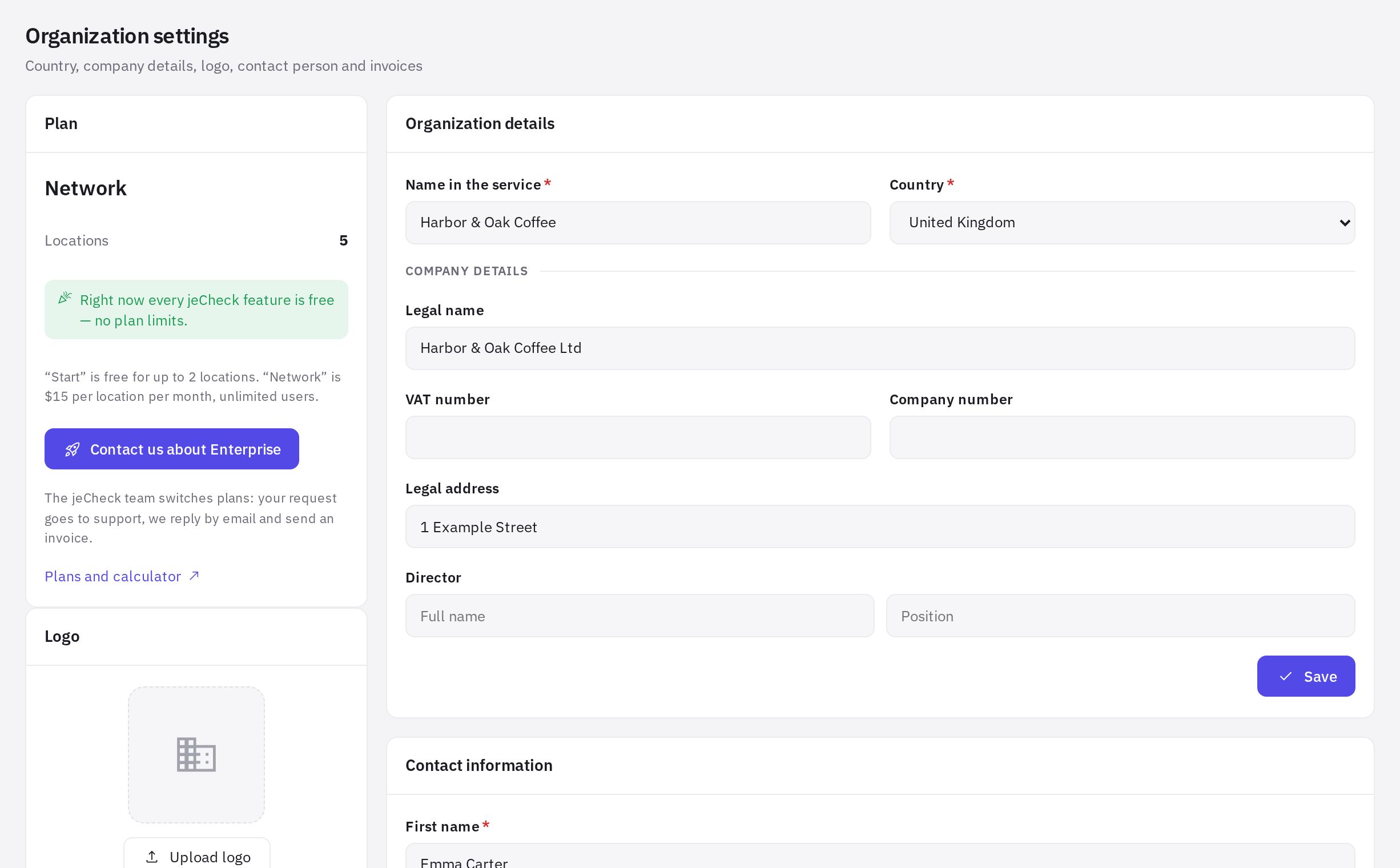
The “Company” tab
Company profile:
- Name in the service — this is what your company is called in jeCheck, in the app and in emails.
- Country — it determines the invoice currency (tenge for Kazakhstan, US dollars for all other countries) and the default HACCP rules.
- Click Save.
You don't need to fill in legal entity details: the plan is paid by bank card, and the invoice shows only the payer's name and email.
Logo. Click Upload logo and choose a PNG or JPG up to 5 MB — it will be shown instead of the jeCheck logo. A custom logo is part of the Enterprise plan: on other plans, when plan limits apply, the button is locked and the text below it says “Your own logo is part of the Enterprise plan.”.
Report language. The language of PDF audit reports, report emails, AI analysis and the text of tasks created from audits. Each employee chooses their own menu language in their profile — see Interface language and report language.
The “Plan & billing” tab
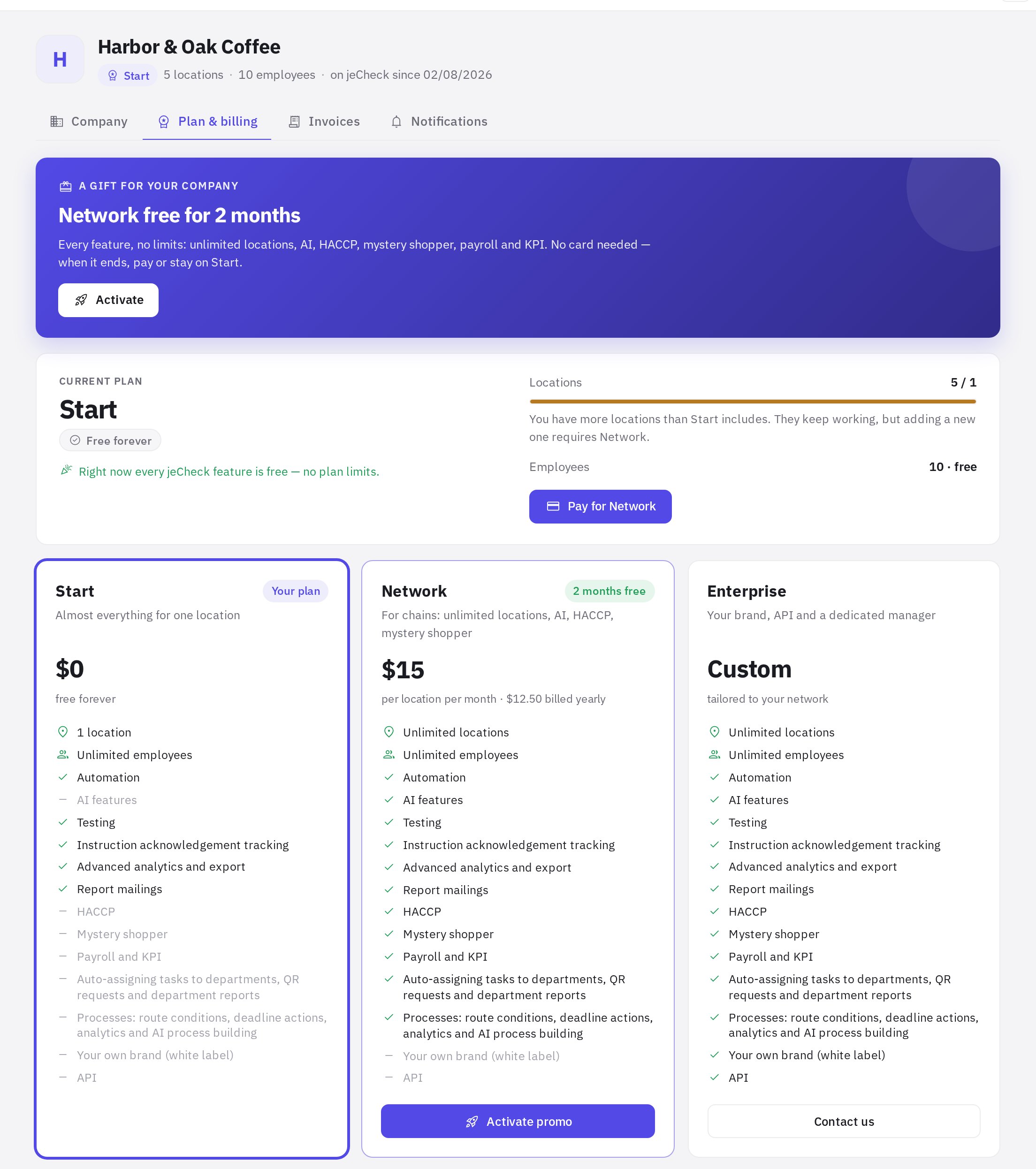
- Promo card. If your company hasn't used the promo yet, at the top there is a Network free for 2 months card with an Activate button. More in Plans and billing.
- Current plan — the name, status (“Free forever”, “Trial until …”, “Paid until …”), how many locations you have and how many are allowed, and the number of employees. The Pay for Network (or Renew Network) button opens the invoice form.
- Plan comparison — Start, Network and Enterprise: price and what's included. Your plan is marked “Your plan”. For Enterprise there is a Contact us button: the request goes to support.
- Payment method — bank card and the payer details: Payer name, Email for receipts and Phone (optional). Click Save.
The “Invoices” tab
A list of invoices: number and date, the period paid for, Locations, Amount and status — Awaiting payment or Paid. The arrow button opens the invoice to print or save as PDF; the cross cancels an unpaid invoice. The New invoice button starts a new payment. Old invoices (before 2026) are marked “archive”.
The “Notifications” tab
- Morning reminders and summary — at what hour (from 06:00 to 12:00, in the company's local time) assignees get the “Task due today” and “Task overdue” push notifications, and employees get the morning email summary. The default is 09:00.
- Notify the location manager about overdue tasks — after how many overdue days the location manager (or administrators, if there is none) gets an escalation. The default is after 2 days; Don't notify turns escalation off.
Changes are saved immediately. More in Task notifications.
Frequently asked questions
Where do I change the company name?
Company tab → Name in the service field → Save.
Why can't I change the settings?
They are changed by the administrator or an employee with the “Company settings” permission (plan, payment and invoices — with the “Plan, payment and invoices” permission). Ask the administrator to make the change or to give you the permission — see Roles and permissions.
Where did the company details go?
You no longer need to fill them in: payment is made by bank card, without a contract. The invoice shows the payer's name and email from the Plan & billing tab.
Can I pay for a plan right in the settings?
Yes, the invoice is created on the Plan & billing tab with the Pay for Network button. Until online payment in the account is available, we'll send a card payment link to the payer's email. More in Plans and billing.
Thank you! This helps us improve the help center.