
Roles and permissions — administrator, positions, managers
What an employee can do in jeCheck depends on the administrator mark, their position, which locations they manage, and their roles in Roles and permissions. Below is what each of these settings gives and where it is set.
Administrator and employee
A new employee is created as a regular user. To make them an administrator:
- Open the employee's access settings. Staff → Employees → employee → Access tab, or Management → Roles and permissions → Employees tab → employee.
- Turn on “Company administrator” in the Sign-in and administration block.
- Confirm. In the Make an administrator? dialog, click Assign.
To remove the mark, turn the same switch off and confirm in the Remove from administrators? dialog — the employee keeps only the permissions from their roles and their personal permissions.
- Administrator — can do everything: all sections, settings and all company locations. Administrator permissions are not configurable and can't be restricted. An administrator can always sign in to the web dashboard.
- User — a regular employee. What they see and can do is defined by their roles and personal permissions in Management → Roles and permissions: by default — analytics, the audit log, the planner, tasks and HACCP of their own locations. If a section isn't available, it isn't shown in the menu, and opening it by link shows a message about insufficient permissions.
Only an administrator can make an employee an administrator or remove that mark. You can't remove it from yourself. Whoever registered the company becomes an administrator automatically and always stays one.
Make administrators only of the people who actually configure the whole company. Give everyone else — accountant, HR, technologist, managers — the roles they need: see Roles and permissions.
Positions
A position (role) is the employee's job: “Chef”, “Barista”, “Manager”. An employee has one position, shared across all locations.
Positions are used by:
- automation — in a checklist, a role is assigned to a section or question, and the scenario sends the violation task to the employee with that role at the audited location;
- testing — tests are assigned by position;
- instructions — instructions are addressed to positions.
How to create and edit positions
-
Open the list. Staff → Employees, Positions tab. The number of positions is shown next to the tab name.
-
Add a position. Type a name in the New position field and click Add.
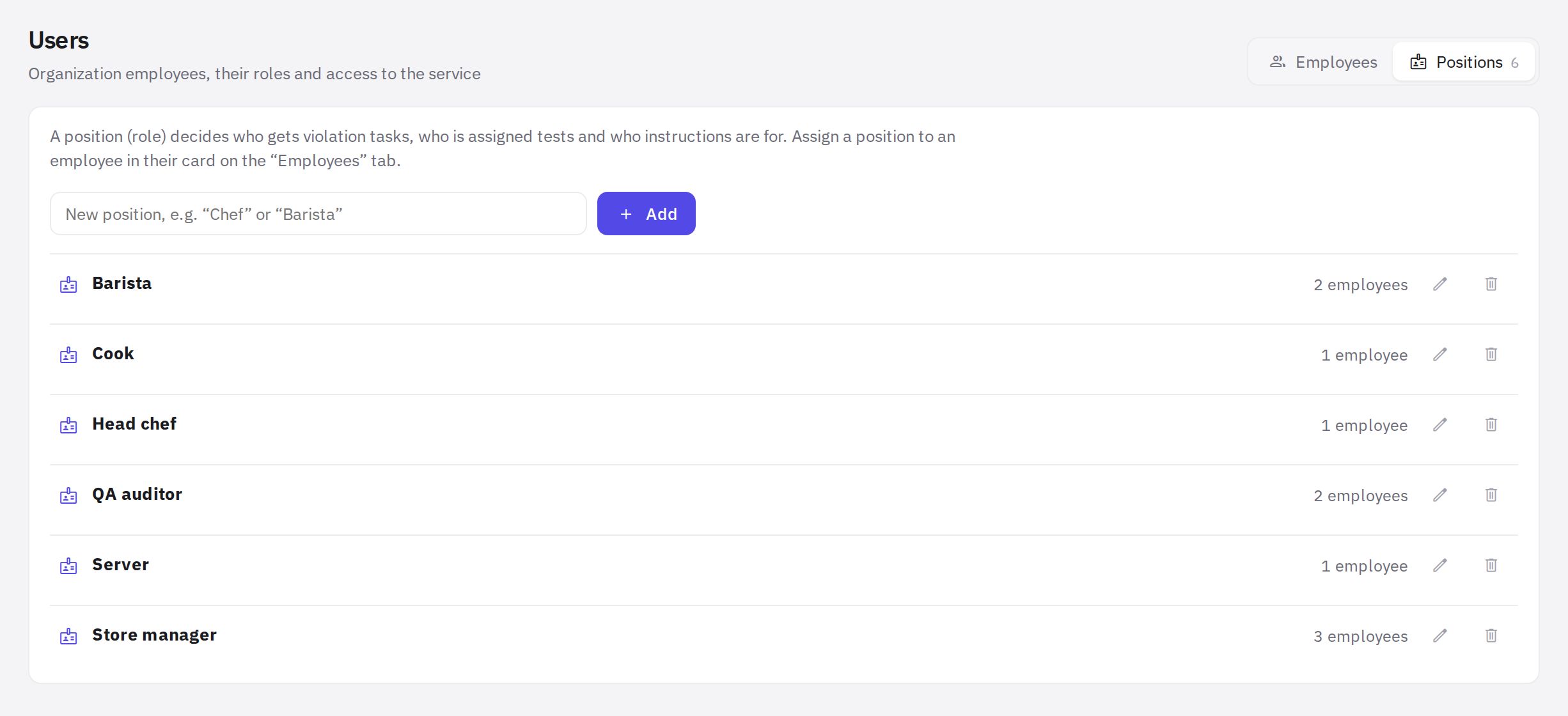
The Positions tab: add, rename and delete -
Rename or delete. Each position has Rename and Delete buttons. Next to the name you can see how many employees hold it.
You can assign a position to an employee in their card (the Position field) or on the Locations and teams tab (the Role column). You can also add a new role there, in the Roles block, but you can rename or delete it only on the Positions tab.
When you delete a position, employees who held it are left without one, and violation tasks for that role start going to location managers.
Location manager
Managers are assigned in Management → Locations and regions — separately for each location, and for a group of locations — region managers. Managers review task completion and receive overdue alerts and tasks for which no employee with the right position was found at the location. If a location has no manager of its own, the region manager steps in, and if there is none either, such tasks go to administrators.
Every manager automatically gets the system role “Location manager”: by default the shift schedule, attendance, timesheet, KPI, requests, location settings, work with HACCP deviations and task confirmation — at the locations they manage. The contents of this role can be changed in Roles and permissions.
How to assign managers — How to add locations and build teams. The Access tab of the employee card shows which locations and regions they manage and whether they can work at all locations; to change this, follow the Change in “Locations and regions” link.
All other permissions: roles
Everything else — who builds the schedule, sees payroll and rates, handles HR, creates tests, manages HACCP, exports reports — is set with roles and personal permissions in Management → Roles and permissions. Ready-made roles “Accountant”, “HR”, “HACCP technologist” and “Auditor” are there too. The former “Test editor” and “HACCP managers” marks have been replaced by the “Creating and editing tests” permission and the “HACCP technologist” role; those who had them received the matching permissions automatically. Details — Roles and permissions.
The same settings for one employee are in their card on the Access tab (visible to those with the “Assigning roles and permissions to employees”, “Access log” or “Employee sign-in” permission; with “Employee sign-in” alone, the tab shows only the Sign-in and administration block).
How employees see their role
An employee's Profile has a Role and locations card: access type (administrator or employee), position and the locations where they work, marked “manager” where applicable. The employee can't change them.
Frequently asked questions
Can an employee have two positions?
No, an employee has one position. If someone combines duties, create a position that reflects this or choose the main one.
Can I close the web dashboard for an administrator?
No. Administrators and the company creator can always sign in to the web dashboard. See Web dashboard access and “App only” mode.
Thank you! This helps us improve the help center.