
How to register your company and sign in to jeCheck
To get started, register your company in the jeCheck web dashboard. Whoever registers the company becomes its administrator and adds the employees afterwards. The Start plan is free, no card required.
How to register
- Open the registration page. Go to app.jecheck.io/register or click Sign up for free on the sign-in page.
- Fill in the "About you" block. Enter your Name and Family name.
- Fill in the "Organization" block. Enter the Name of the organization and select a Country. The country is required: it determines the invoice currency and the default report language.
- Fill in the "Account access" block. Enter your Email — it becomes your login — and choose a password of at least 8 characters. Enter it again in the Repeat password field.
- Accept the terms. Tick the box to accept the Privacy Policy and click Register.
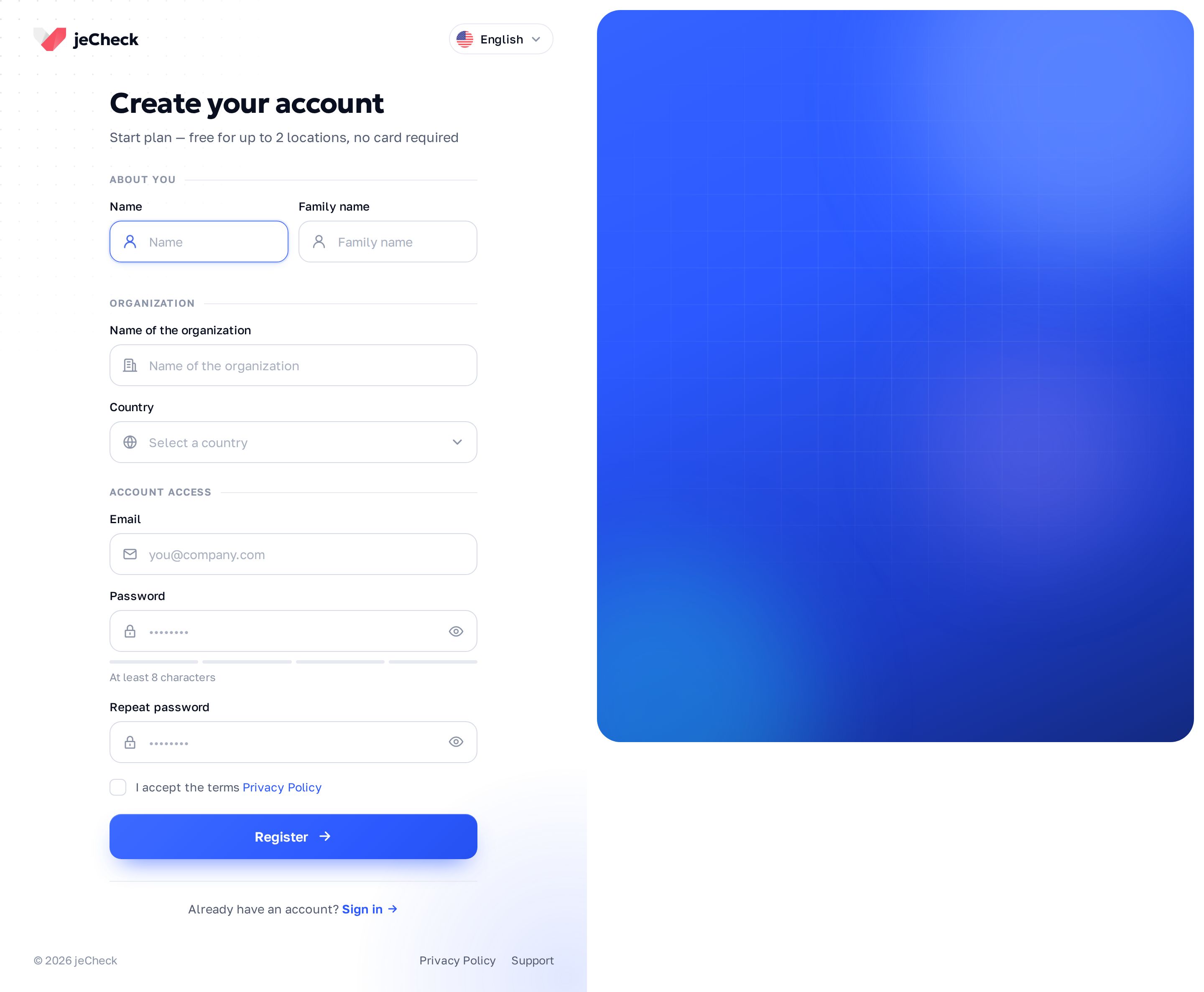
If Russian is spoken in your country's region (for example, Kazakhstan, Uzbekistan, Kyrgyzstan), the company's report language is set to Russian right away; for all other countries it is English. You can change it in the settings — see Interface language and report language.
Confirming your email
After you register, jeCheck sends an email to the address you entered. Until your email is confirmed, the web dashboard sections won't open — you'll see the Confirm your email page.
- Open the email. Follow the link inside it.
- If there's no email. Check your spam folder or click Resend email.
- If the address is wrong. Click Sign out and register again with the correct email.
What's in your account after registration
After you sign in, Home opens with the AI Control morning briefing — see Home: the AI Control morning briefing. To give you something to try, a new company already has:
- a location, Demo location — you are already assigned to it as a location employee, so it is visible in the mobile app straight away;
- a checklist, Restaurant Opening Checklist for Shift Managers — you are listed as its author, and it is available to all company employees.
The demo is created in the company language: if it is Russian, they are called Демо локация and Чек-лист готовности сервиса.
You can rename, edit or delete them. Next, move on to setup: Setting up jeCheck on your first day.
How to sign in
- Open the sign-in page. Go to app.jecheck.io/login.
- Enter your email and password. Tick Remember me if you're signing in from your own computer.
- Click "Sign in". The web dashboard opens.
The same email and password work in the jeCheck mobile app.
If you forgot your password
- Click "Forgot password?" on the sign-in page.
- Enter the email you registered with and click Send reset link.
- Follow the link in the email and set a new password. The link is valid for 60 minutes.
If an employee can't sign in, an administrator can reset their password — see How to add an employee and send an invitation.
Frequently asked questions
Why do I see "Web dashboard access has been closed by your company administrator" when I sign in?
Your company administrator has switched you to "App only" mode. Work in the jeCheck mobile app or ask your administrator to restore access — see Web dashboard access and “App only” mode.
Can I register a second company with the same email?
No. Your email is your login, and it can belong to only one account. Use a different address for a second company.
Do employees need to register too?
No. Employees are added by an administrator or an employee with the “Adding employees” permission under Staff → Employees — they receive an email with their login and password.
Thank you! This helps us improve the help center.