
Planned audit statuses: reschedule, reassign, complete
A planned audit's status changes on its own: jeCheck compares the plan with submitted audits every time you open the Planner. In the audit card you can reschedule, reassign, cancel or mark it as completed.
What statuses there are
- Planned — the date is in the future, or it's today but the audit time hasn't come yet.
- In progress — it's today, the audit time has come, but there's no matching submitted audit yet.
- Completed — a matching audit was submitted within the planned date's window, or the audit was marked as completed manually.
- Overdue — the date has passed with no audit, but the window is still open: an audit carried out now will count.
- Missed — the window has closed and there's still no audit. Set automatically and lowers the location's coverage.
Dates and times use the time zone of the company's country.
When an audit counts as completed
A planned audit becomes Completed if all of these match:
- the same checklist;
- the same location;
- the audit was submitted within the planned date's window — on the day itself or within the plan's tolerance (± N days, set in the wizard on the Schedule step).
It doesn't matter who carried out the audit. One submitted audit counts toward only one planned audit — the closest by date; if two are equally close, the one assigned to that auditor.
The window is shown in the audit card in the Counting window row (if tolerance is greater than zero), and a completed audit has a Completion row: the date of the counted audit or "Marked manually".
Common reasons a completed audit didn't count: it was carried out outside the window, a different location or a similar checklist was chosen, the audit was started but not submitted, or it has already been counted toward a neighboring planned date.
The Analytics → Plan completion report counts planned audits by the same rules: for the same period, its numbers of completed, overdue and missed audits match the Planner. A manual "completed" mark is counted in both places. See Plan completion and task completion.
Audit card
Click an audit in any calendar view — the card opens on the right: status, checklist and number of items, date, time and duration, location, auditor, schedule, counting window and Series history (up to four past audits in this series). If the auditor is busy with another audit at that time, a Schedule conflict warning appears at the top.
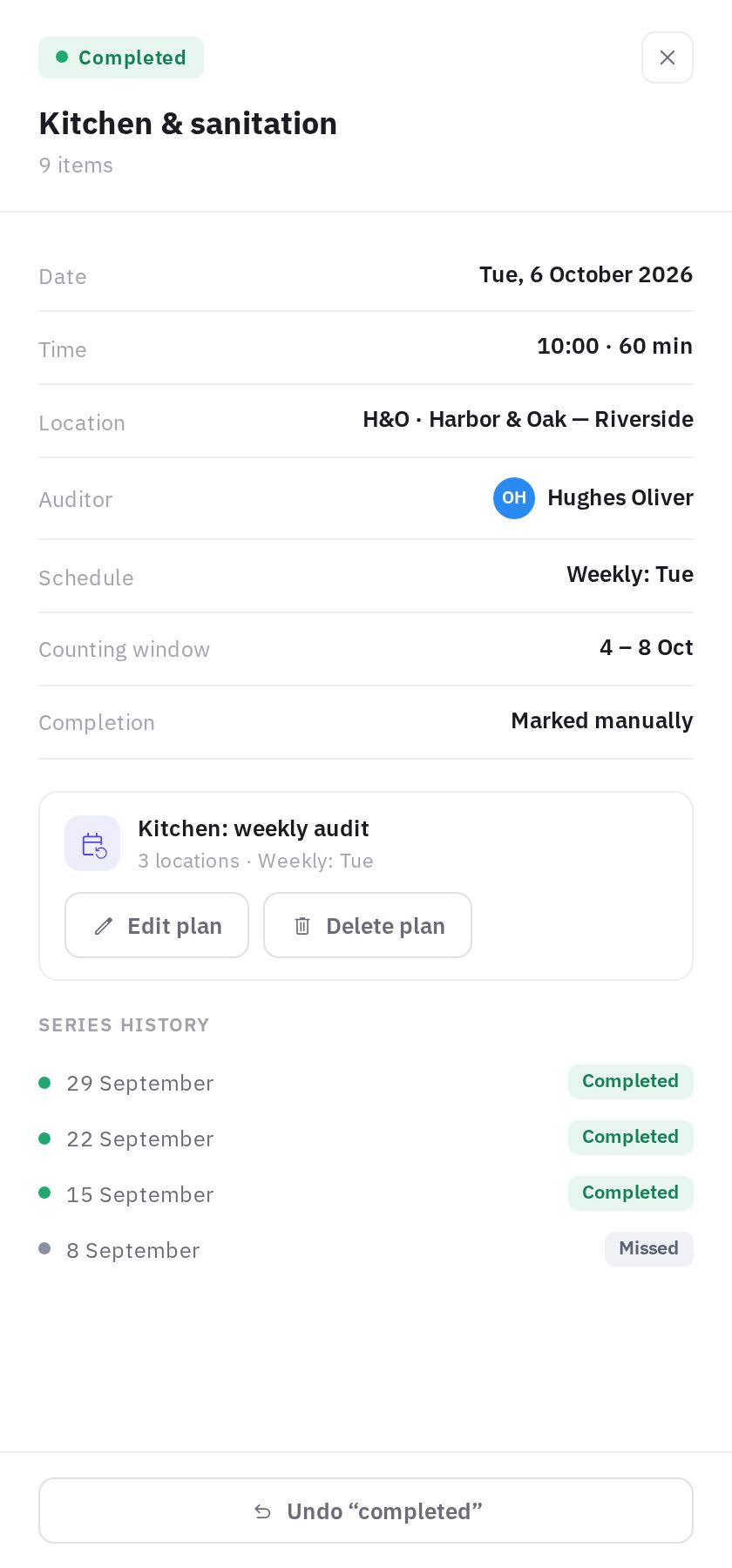
Administrators and employees with the “Audit planning” permission at the audit's location see a plan block in the card with Edit plan and Delete plan buttons — see How to schedule audits. If the audit's plan has been deleted, the card notes that the audit remains in history.
How to reschedule an audit
- Open the card. Click the audit in the calendar.
- Click "Reschedule". Date and time fields appear.
- Set the new date and time. Click Save.
Only this audit is moved; the other dates in the series don't change. An audit moved to today or a future date becomes Planned again (if moved to an earlier time today — In progress) and appears in the auditor's app on that day. Reminders are sent again for the new date. Administrators can reschedule.
How to reassign the auditor
- Open the card and click Reassign.
- Select an employee from the list and click Save. The list shows only employees who can use this audit's checklist.
Only this audit's auditor changes. The new auditor will see it in the app on the planned day and get reminders if they are turned on in the plan. Administrators and employees with the “Audit planning” permission at the audit's location can reassign.
How to mark an audit as completed and undo it
If the audit was definitely carried out but didn't count automatically, click Mark as completed in the card — the audit becomes Completed. This can be done by an administrator, an employee with the “Audit planning” permission at the audit's location, or the auditor the audit is assigned to.
Marked it by mistake? Click Undo “completed”: the status will again be based on submitted audits. An audit counted from a submitted audit can't be undone — it shows a Completed by an audit button instead.
The manual mark is also counted in Analytics → Plan completion. Use it only for audits that were actually carried out — otherwise the plan completion rate will be inflated.
How to cancel a single planned audit
In the card, click Cancel this audit and confirm. The audit is removed from the plan; the other dates in the series don't change. Administrators and employees with the “Audit planning” permission at the audit's location can cancel; a completed audit can't be cancelled.
If you edit the plan later, its future audits are recreated on schedule — the cancelled date will come back. Cancel it again.
Frequently asked questions
An audit is overdue — what should I do?
While the window is open, the audit can still be carried out and will count. Need a different date — reschedule the audit. The audit was carried out but didn't count — click Mark as completed. The audit is no longer needed — Cancel this audit. If you do nothing, the status becomes Missed once the window closes.
What's the difference between "Overdue" and "Missed"?
Overdue — the date has passed, but the tolerance window is still open and there's still time to carry out the audit. Missed — the window has closed. With a tolerance of 0, an audit becomes Missed the day after the planned date.
Why is the status "In progress" when the auditor hasn't arrived yet?
"In progress" only means that the planned audit time has come and no audit has been submitted yet. It doesn't mean the auditor has started the audit.
Can I reschedule all audits in a series at once?
Yes — change the plan's schedule: Edit plan → Schedule step. Future audits will be recreated according to the new rule.
Why can't I reschedule or cancel an audit?
Administrators and employees with the “Audit planning” permission can reschedule, reassign and cancel audits — only at the locations where that permission applies (see Roles and permissions). An auditor can only mark their own audit as completed and undo that mark.
Thank you! This helps us improve the help center.