
How to add locations and build teams
A location is a place you audit: a restaurant, store, club or warehouse. Locations and their teams are set up in Management → Locations — this menu item opens the Locations and teams tab in the Automation section. The section is open to the administrator and employees with the “Locations and regions” permission; changing location staff and managers requires the “Location staff and managers” permission. See Roles and permissions.
How to add a location
-
Open the tab. In the menu, go to Management → Locations.
-
Click “Add location”. The New location form appears.
-
Fill in the fields. The name is required (at least 2 characters), for example “10 Abay Ave”. The address and Location email for reports are optional. Reports go to this address only for checklists that have Send the report to the location email turned on in their settings.

The New location form -
Click “Add”. The location appears in the list.
The number of locations depends on your plan. How many locations you have and how many are allowed is shown on the Plan card in Management → Settings. If a plan limit applies and has been reached, you'll see a message about upgrading to the Network plan when you add a location. See Plans and billing.
How to edit or delete a location
- Edit. Click the pencil icon (Edit) next to the location name, change the name, address or email, and click Save.
- Delete. Click the trash icon (Delete location) and confirm. The location disappears from lists, audits and analytics, but the history of audits carried out there is kept.
How to build a location team
Each location card has an employee table with the Employee, Role and Manager columns.
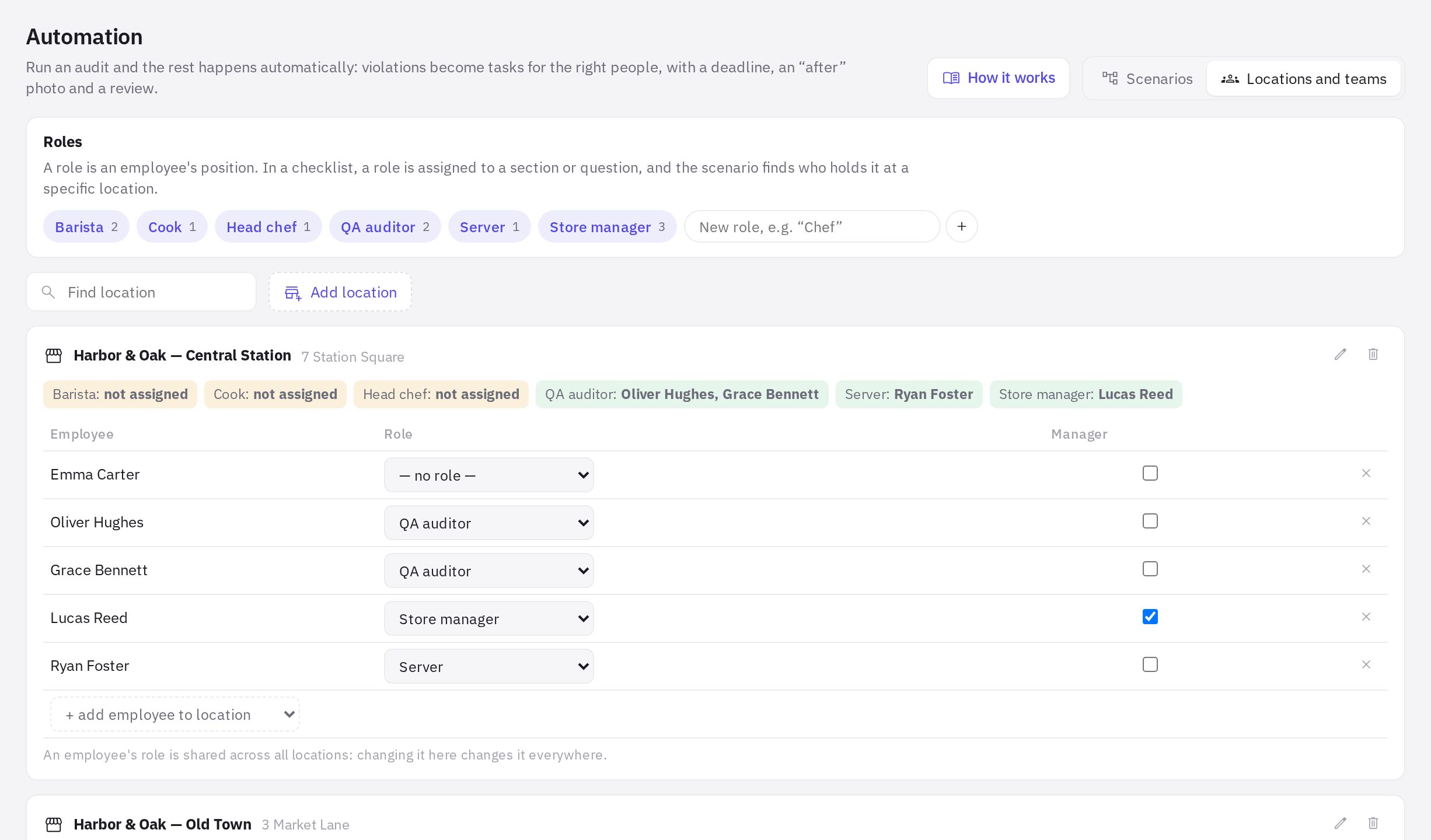
- Add employees. In the last row of the table, open the + add employee to location list and pick a person. The list shows all active users in the company, with their position next to the name.
- Assign a role. In the Role column, choose the employee's position.
- Mark the manager. Tick the box in the Manager column. A location can have several managers.
- Remove anyone who doesn't belong. The Remove from location cross unlinks the employee from the location but doesn't delete them from the company.
Changes are saved immediately; there is no separate button.
An employee's role is shared across all locations: if you change it in one location's card, it changes everywhere, including the Users section.
Hints in the location card
- Role coverage. Above the table, all company positions are listed along with who holds them at this location. If nobody holds a position, it says “not assigned”.
- No manager. If a location has no manager, you'll see the warning “no manager — unassigned tasks will go to administrators”. The number of such locations is shown on the Locations and teams tab.
- Search. The Find location field filters the list by name.
Why link employees to locations
- A user who isn't an administrator sees, by default, only their own locations in analytics.
- Managers get the system role “Location manager” — the schedule, timesheet, requests and other permissions at the locations they manage.
- Automation scenarios look for the assignee of a violation task among the staff of the audited location: first an employee with the required role, then the manager.
More about scenarios — Automation.
Frequently asked questions
Do I pay for locations?
On the Start plan you can run one location for free; on the Network plan you pay for each location. If the Plan card in settings says all features are currently free, the limit doesn't apply. More in Plans and billing.
What happens to the audits of a deleted location?
The history of completed audits is kept, but the location itself disappears from lists, new audits and analytics.
Where do I set who works at a location — in the employee card or here?
Location staff and managers are set up only on the Locations and teams tab. In the employee card under Staff → Employees you set the position; the administrator mark and web access are on the card's Access tab.
Thank you! This helps us improve the help center.