
Mystery shopper in jeCheck
The Mystery shopper section shows you a location the way a regular customer sees it. You create a visit, send the shopper a link, the shopper fills in the form on their phone, and you review the result. An accepted visit becomes a regular audit — with a report, mailings, tasks and analytics.
How the process works
- You create a visit. Pick the checklist that becomes the shopper's form, the locations, the visit window, the cover story and the requirements (geotag, timing, receipt and so on).
- The shopper gets a link. You can email the link to a shopper from your list, paste it into a messenger or show a QR code. The shopper doesn't need an app or an account — everything opens in the phone's browser.
- The shopper does the visit. They tap “I'm here”, record the timing, answer the questions, photograph the receipt and write their overall impression.
- The system checks the form. Automatic checks raise fraud flags, and AI (if your plan includes it) prepares a review of the form.
- You decide. Accept the form, return it to the shopper for revision, or reject it. Once accepted, an audit is created.
Where to find the section and who can use it
The section is under Work → Mystery shopper in the menu. Administrators and employees with the section's permissions can work with it: “Mystery shopper questionnaires” — view visits and forms; “Managing visits and shoppers” — create visits, manage the shopper list and make decisions on forms; “Shopper payouts and their contacts” — see reimbursements and shoppers' email and phone (every view is recorded in the access log). Permissions are set up in Roles and permissions. Mystery shoppers never sign in to the account — they work only through their link.
The module is included in the Network and Enterprise plans; it isn't part of the free Start plan. If the Plan card in Management → Settings says all features are currently free, the section is open on any plan. More in Plans and billing.
No shoppers of your own? In Kazakhstan you can order visits from jeCheck: Work → Managed mystery guest in the menu. jeCheck finds and vets the shoppers, and you pay only for the visits — the Network plan isn't required. More in How to order managed mystery shopping.
What's on the section's main page
- Key figures: average shopper score over 90 days, how many forms are awaiting review (and how many of them are suspected fraud), visits in progress, visits accepted over 30 days and the amount to reimburse.
- Review queue: when there are forms in review, a Start review button appears above the list.
- Visits tab: all visits with the filters All, In progress, In review, Accepted, Closed, search by location, shopper and checklist, and a wave selector. Visits ordered from jeCheck are marked with a jeCheck badge: their shopper is shown as “jeCheck shopper”, and jeCheck reviews the form, so they aren't included in the In review filter or the forms counter.
- Location ranking tab: average score across accepted visits, the trend, and a list of locations a shopper has never visited. The Visit button next to a location opens the wizard for that location straight away.
- Shoppers tab: your pool of mystery shoppers with the number of accepted visits, visits in progress and revisions. The “quality” figure is the share of accepted forms among accepted and rejected ones.
The number of forms awaiting review is also shown next to the Mystery shopper menu item.
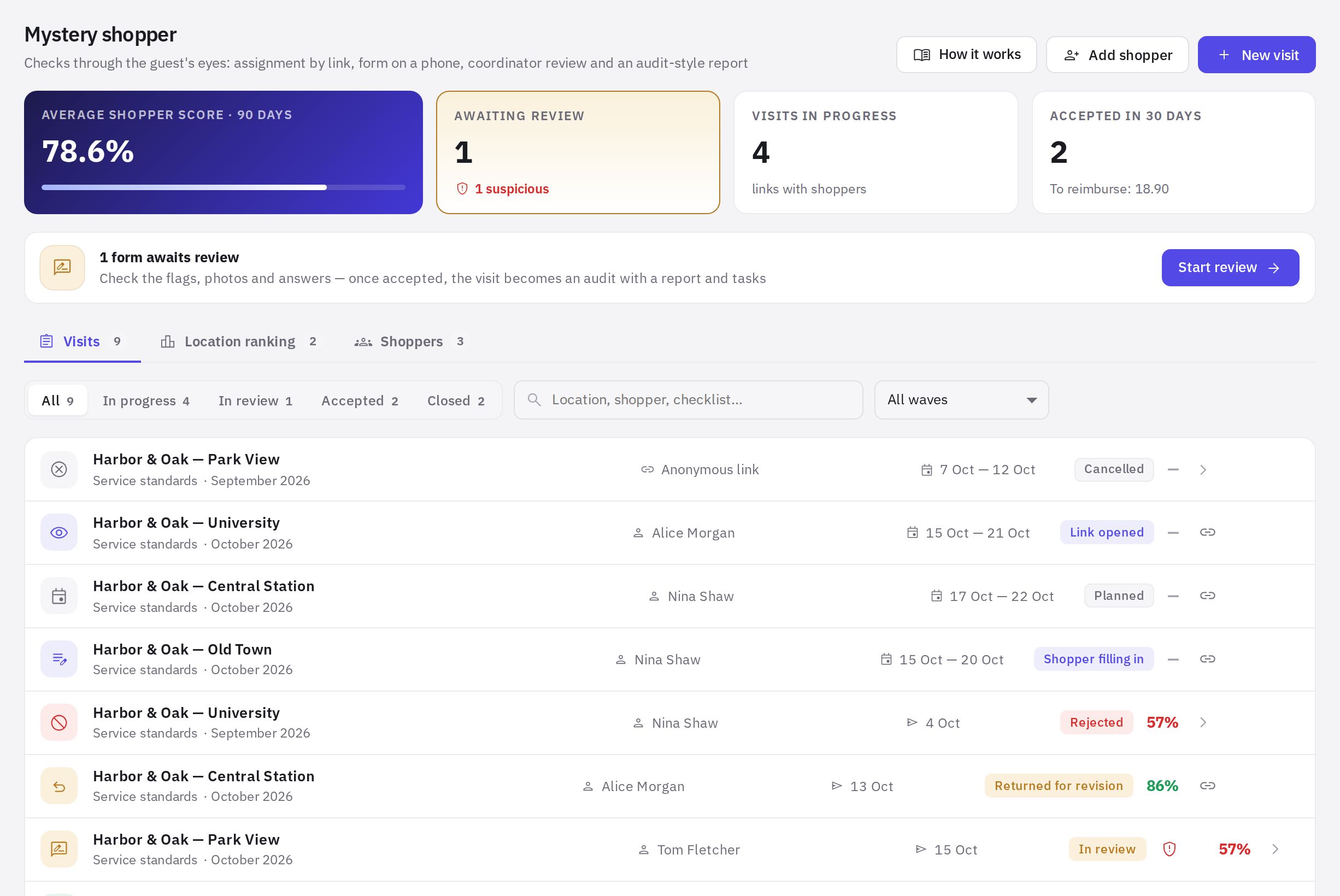
Visit statuses
| Status | What it means |
|---|---|
| Planned | the visit is created, the shopper hasn't opened the link yet |
| Link opened | the shopper has opened the assignment |
| Shopper filling in | the shopper has started the visit |
| In review | the form is submitted and awaits your decision |
| Returned for revision | you sent the form back to the shopper with a comment |
| Accepted | the visit has become an audit |
| Rejected | the form won't be included in audits or analytics |
| Cancelled | you cancelled the visit, the link no longer works |
| Expired | the visit window has passed and the form wasn't submitted |
Further reading
- How to run your first visit
- What the mystery shopper sees
- Fraud flags and AI review
- How to review and accept a form
- How to order managed mystery shopping
The section page has a How it works button — a short animated walkthrough.
Frequently asked questions
Does the shopper need an app or an account?
No. The shopper opens the link in their phone's browser; no app or sign-up is needed.
Can I use my own checklist as the form?
Yes. Any company checklist that has questions can become the shopper's form. If there are no checklists with questions, the New visit button is unavailable — first create a checklist in the Checklists section.
Where do I find visit results later?
An accepted visit becomes an audit: it appears in the audit log and in analytics, with “Mystery shopper” shown as the auditor. See the Analytics section for details.
Thank you! This helps us improve the help center.