
Answer types in checklist questions
Every checklist question has an answer type: from a simple "Yes / No" to a number with a norm, a rating scale or custom options with scores. jeCheck turns any answer into a "norm", "violation" or "not applicable" outcome — so the audit score, the report, analytics and violation tasks work the same way for all types.
Where to choose the answer type
Open a checklist in Work → Checklists, click a question and pick a card in the Answer type block. Below it you'll see the Answer settings of the selected type and, for types that affect the score, Weight in points. Everything is saved automatically. How the builder works is described in How to create a checklist.
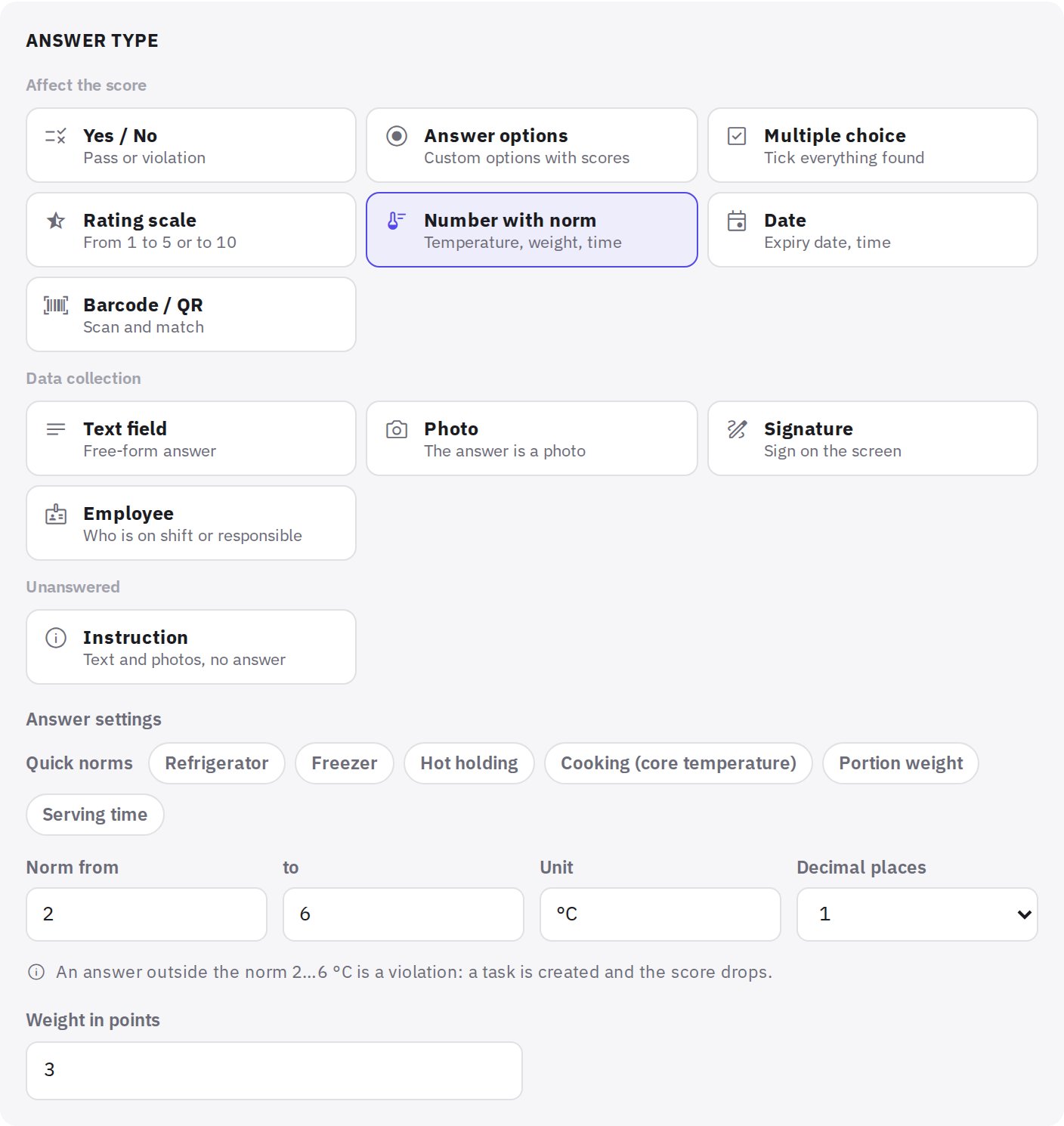
Types that affect the score
- Yes / No — norm or violation, as before. If skipping is allowed, there's also "Skip".
- Answer options — your own list to pick one answer from. Each option has a colour, an outcome (norm, violation or not applicable) and a share of the weight: for example, "Clean" — 100%, "Needs cleaning" — 50%, "Dirty" — a violation. There are ready-made sets: Good / Remarks / Poor, Compliant / Partly / No, Clean / Dirty, Stock levels, Yes / No / N/A.
- Multiple choice — tick everything found, for example a list of typical problems at the bar. If at least one violation option is ticked, the item is violated; otherwise the lowest share among the ticked options counts.
- Rating scale — from 0 or 1 up to 3–10, with labels for the ends ("Poor" — "Excellent") and a Norm from threshold. A rating below the threshold is a violation. The score is the share of the scale: 4 of 5 = 75% of the weight.
- Number with norm — the auditor enters a number: temperature, portion weight, serving time. Set Norm from, to (one bound is enough), Unit and Decimal places. There are quick norms for food service: refrigerator +2…+6 °C, freezer no warmer than −18 °C, hot holding from +63 °C, cooking from +75 °C in the core. A value outside the norm is a violation. Without a norm the number is just recorded.
- Date — a date, date and time, or time. The Not earlier than the audit date (expiry) rule makes an expired date a violation, Not later than the audit date — a date in the future. Without a rule the date is just recorded.
- Barcode / QR — the auditor scans a code. If you fill in Expected codes, any other code is a violation; without the list the code is just recorded.
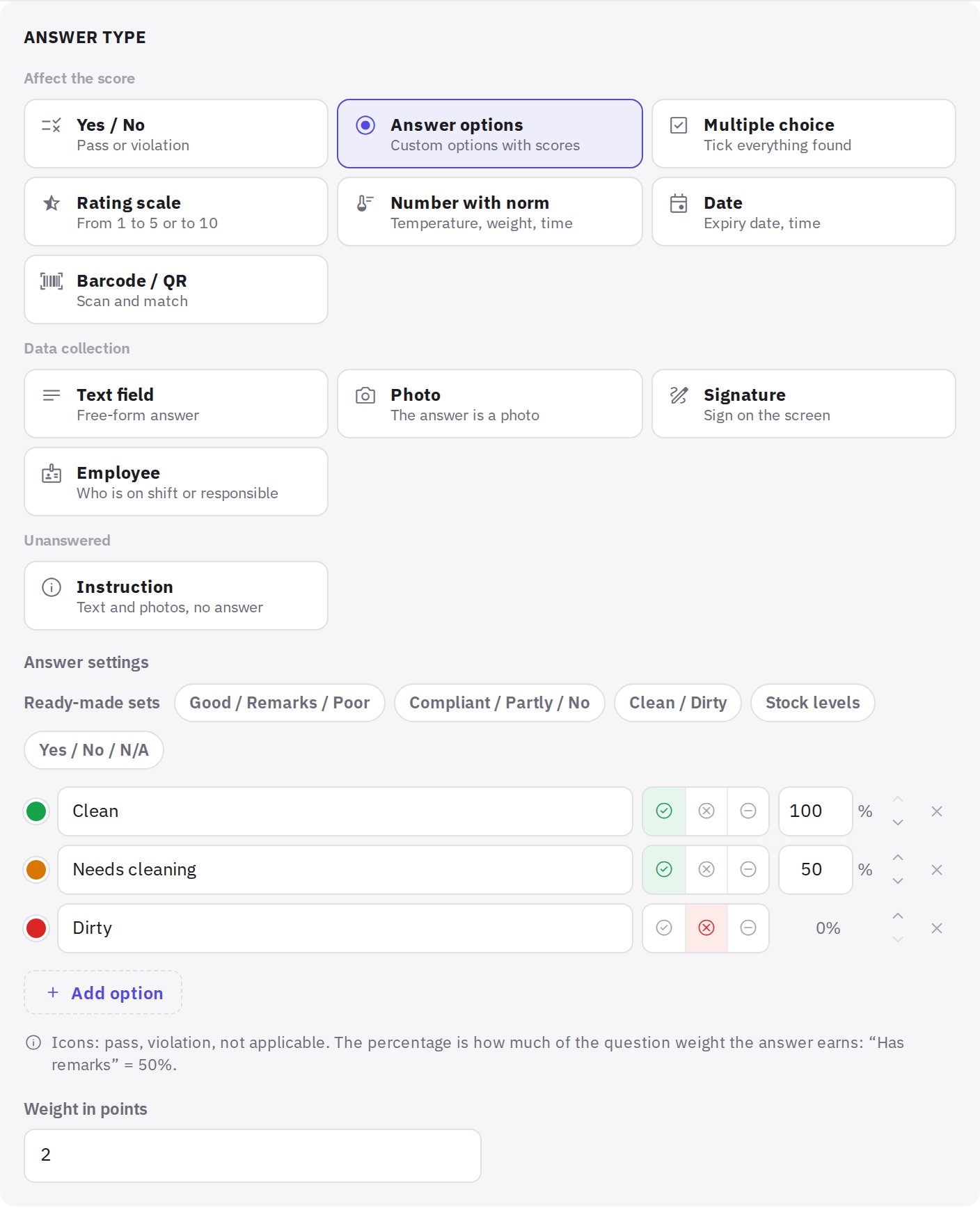
Data collection types and instructions
These types don't affect the score and don't create tasks, but they go into the report:
- Text field — a free-form answer.
- Photo — the answer is photos; set Minimum photos. The item can't be completed without them.
- Signature — the person being audited or the manager signs on the screen.
- Employee — choose a person from the location's staff or the whole company: who was on shift or who is responsible for the area.
- Instruction — the question description text and photos with no answer: for example, how to measure the temperature correctly before a block of fridge questions.
Zeroing the score, display condition and reference photo
The question's Logic and importance block has three settings:
- Zeroes the audit score — a violation in this item gives the whole audit 0%, however well the rest went. Use it for items that mean the audit can't be considered passed: expired products, a dangerous temperature, an employee without a health certificate. Available only for types that affect the score.
- Show on condition — the item appears only if a question above was answered in a certain way. Choose the question in If in question and select the answers: Norm, Violation, Skip or specific options. For example, "Corrective action taken" appears only if the fridge temperature is outside the norm. A hidden item isn't saved and doesn't count towards the score.
- Reference photo: how it should look — up to five photos the auditor sees next to the question.
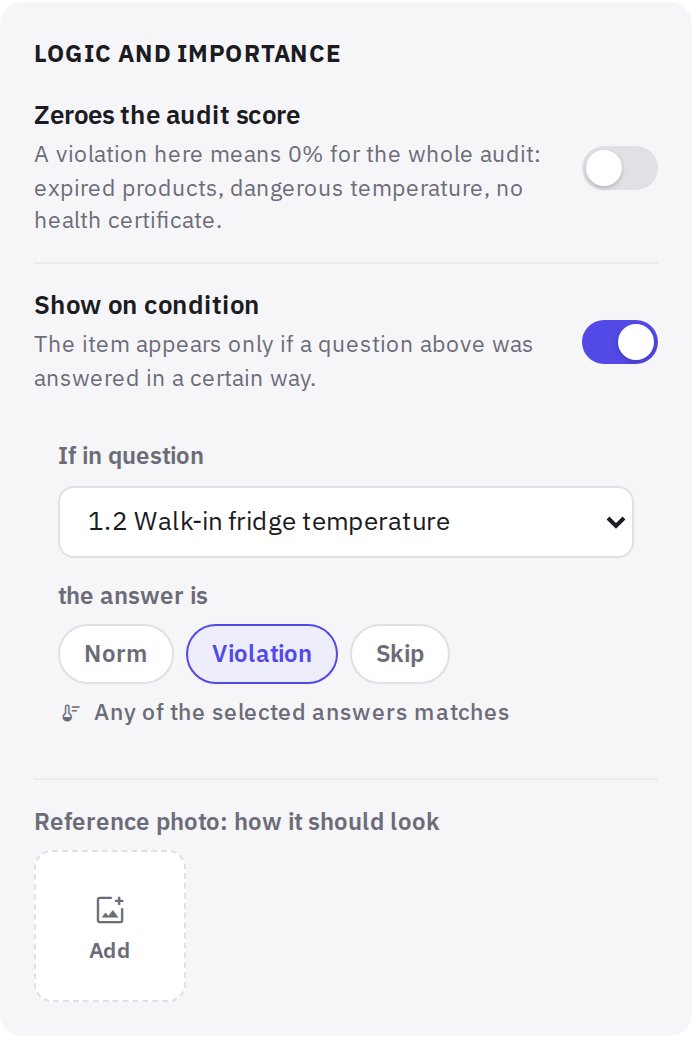
In the question list such items have badges: the answer type, zeroing the score and the number of the question the display depends on.
What the auditor and the report show
The Preview button in the builder shows the checklist through the auditor's eyes: options, the scale, the number norm, the date rule and marks for zeroing and display conditions.
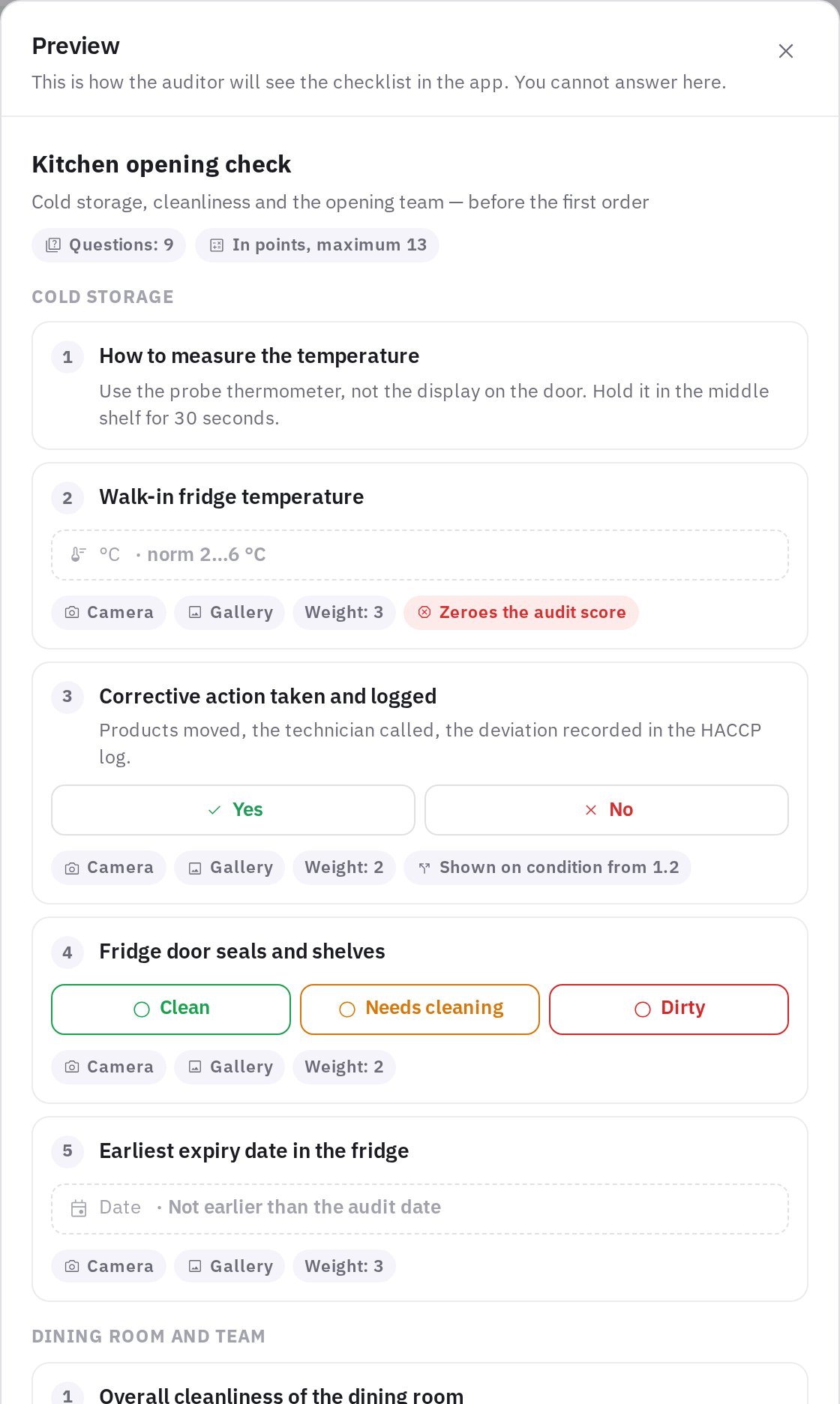
The outcome of each answer is calculated by the server from the question settings, not by the auditor's device. The report shows the answer text — "7.3 °C", "Needs cleaning", "4 / 5" — and violations go to the violation list, tasks and analytics just like "No" answers. How the partial score and zeroing affect the result is explained in How the audit score is calculated.
The new answer types also work in the mystery shopper form: options, multiple choice, scale, number, date, photo and instruction. Signature, barcode and employee questions are not shown to the shopper.
Checklists with new answer types or display conditions are completed in the updated jeCheck mobile app. In an older version such a checklist is visible but unavailable, with the hint "Update the jeCheck app to complete this checklist". Checklists with only "Yes / No" and text questions work in any version.
FAQ
What happens to answers if I change the question type?
Past audits don't change: answers and scores stay as they were. The new type applies to the next audits. When you change the type, the new type's settings are set to defaults, while the display condition and reference photos stay.
How do I make "Yes / No" with a "Not applicable" option?
Choose Answer options and the Yes / No / N/A set, or keep Yes / No and turn on Allow skipping — a skip doesn't count towards the score either.
Can a number outside the norm create a task?
Yes. A number outside the norm is a violation, so the automation scenario or the question's Auto task with the Violation condition creates a task, just as for a "No" answer.
Why can't a display condition refer to a question below?
The auditor goes through the checklist from top to bottom, so an item can depend only on an answer that has already been given. Only a scored question can be the source: "Yes / No", options, scale, number, date or barcode.
Will AI review suggest new answer types?
Yes. AI review of a checklist can suggest a number with norm for temperatures and portion weights, a date with an expiry rule, custom answer options or a rating scale — you see the change in the "Before and after" comparison before applying it.
Thank you! This helps us improve the help center.