
How to set up report mailing lists
A mailing list decides who gets an email with a link to the report after each audit. The email includes the location, checklist, date, score and a link to the audit report. Mailing lists are set up in Management → Mailing lists; the section is available to administrators and employees with the “Report mailings” permission.
What you need
- administrator rights or the “Report mailings” permission — see Roles and permissions;
- employees with email addresses in Management → Users;
- at least one checklist.
Step by step
-
Create a mailing list. In Management → Mailing lists, click Create mailing list, enter a name (at least 5 characters) and click Create.
-
The settings dialog opens. It appears right after creation. Later you can open it by clicking the name or via Actions → Configure.
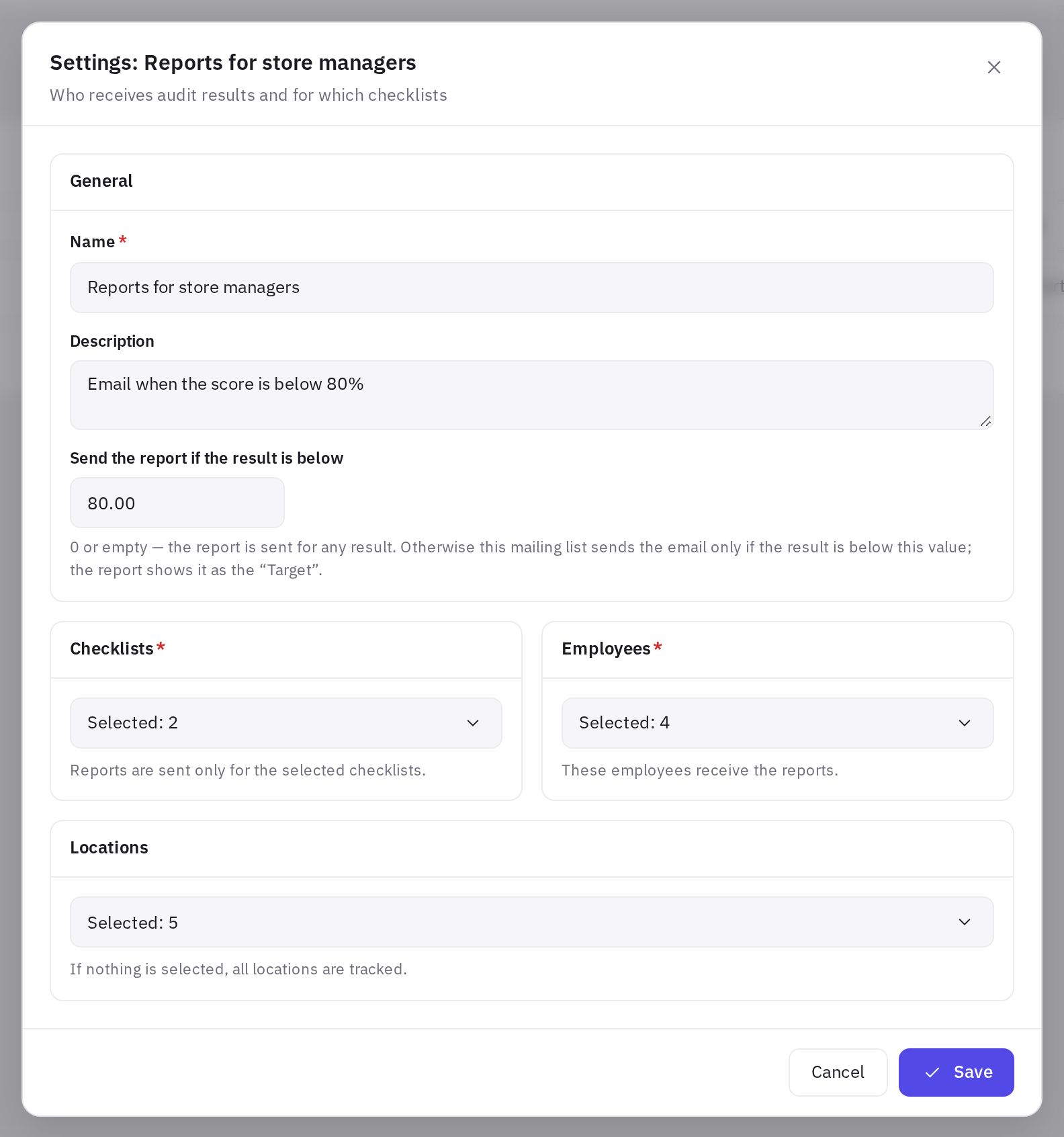
Mailing list settings window -
Select checklists. In the Checklists block, tick the checklists to send reports for. At least one is required.
-
Select employees. In the Employees block, tick the recipients. At least one is required.
-
Select locations. In the Locations block, tick the locations. If nothing is selected, the mailing list covers all locations.
-
Set a threshold (optional). In the Send the report if the result is below field, enter a percentage if the list should only get audits below that score. 0 or empty means emails for any score.
-
Save. Click Save. Emails will start going out from the next audits.
Who gets the email
After each audit, the email goes to:
- the auditor who carried out the audit — always, no setup needed;
- the employees of every mailing list for this checklist whose Locations block includes the audited location or has nothing selected (all locations). Mailing lists limited to other locations don't get the email;
- if a mailing list has a Send the report if the result is below threshold, its employees get the email only when the score is below the threshold;
- the location email — if Send the report to the location email is turned on in the checklist settings and the location has a "Location email for reports". Mailing list thresholds don't affect this email.
If the same address is on several mailing lists (or belongs to the auditor), it receives the email only once.
Different managers need different locations — create a mailing list for each group of locations. For a list covering all locations (for example, for the operations director), don't select any locations.
Emails are sent in the company's report language.
The "Send the report if the result is below" field
The field works as a mailing list filter: if it's set to a value from 1 to 100, the employees on this list get the email only when the audit score is strictly below that value. For example, with 80 the email goes out for an audit scoring 79.5%, but not for one scoring 80% or 95%. 0 or empty means emails for any score. The threshold applies only to its own mailing list: the auditor and the location email always get the report.
The audit report shows the same value as the Target: "Target met" or "Passed, below target". If the score is below 70%, the report, like the audit log, shows "Audit failed". Learn more in How the audit score is calculated.
Editing and deleting
- To change the recipients, checklists or locations, open the mailing list and click Save.
- To delete a mailing list, choose Actions → Delete and confirm. The auditor will keep receiving reports on their own audits.
Frequently asked questions
Do I need to add the auditor to the mailing list?
No. The auditor gets the report on their own audit automatically.
An employee isn't receiving emails. What should I check?
Check that the employee's email address is correct, that they are selected in the Employees block, that the mailing list includes the right checklist, and that the audited location is covered by the list. If the list has a Send the report if the result is below threshold, no emails are sent for audits scoring at or above it. Ask them to check their spam folder.
Can I send reports only for poor audits?
Yes. Enter the threshold you need in Send the report if the result is below, for example 70: the list's employees will get emails only for audits below 70%. All audits are still visible in the Audit log.
Are mailing lists included in the free plan?
Report mailing lists are available on any plan, including the free Start plan.
Thank you! This helps us improve the help center.