
How to create a checklist
You build a checklist in the builder — it opens inside the web dashboard, with the usual menu on the left, and looks like a document: the name and description at the top, sections with questions below. Changes are saved automatically — there is no separate "Save" button for questions.
What you need
- administrator rights or the “Creating and editing checklists” permission — without it the checklist opens read-only, see Roles and permissions;
- a list of audit items grouped into sections.
Create a checklist
-
Open the section. In the Work → Audit checklists menu, click Create checklist.
-
Enter a name and choose a folder. The name must be at least 3 characters, for example "Daily sanitation audit"; you can change it later. The Folder field appears if the company has folders; if you opened a folder in the list, it is already selected.
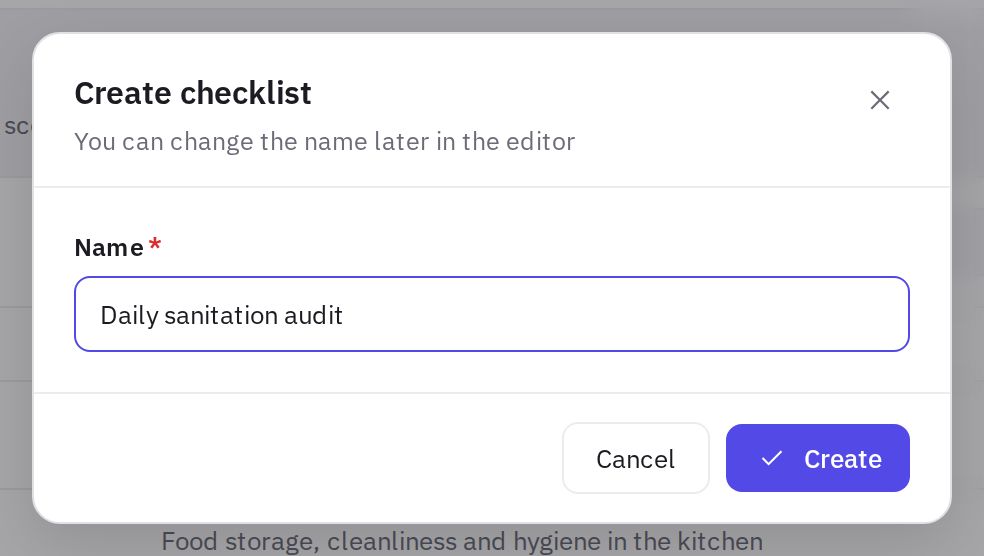
The create checklist window -
Click "Create". The Checklist builder opens right away.
Next to it there's a Create with AI button: describe the checklist (type of venue, areas, focus points) in your own words — the AI assistant prepares a draft, and you review it and click Create. Learn more: How to create with the AI assistant.
How the builder is laid out
At the top is the builder bar:
- the Back to checklists arrow — returns to Work → Audit checklists;
- who can use the checklist: All company employees or Selected only (N) — click it to change;
- the Saved automatically mark — your changes are already saved;
- the Preview, AI review, Access and Settings buttons.
Below is the checklist itself:
- Name — edited right in the heading (the "Checklist name" field).
- Chips under the name — the folder, who can use the checklist, the violation tasks scenario, the scoring method (In percent or In points), the availability time if set, and Location, Signature, AI plan if they are on.
- Description — the "Description for the auditor: what and when to check" field.
- Summary — how many sections and questions the checklist has and the maximum points.
- Sections — cards with questions.
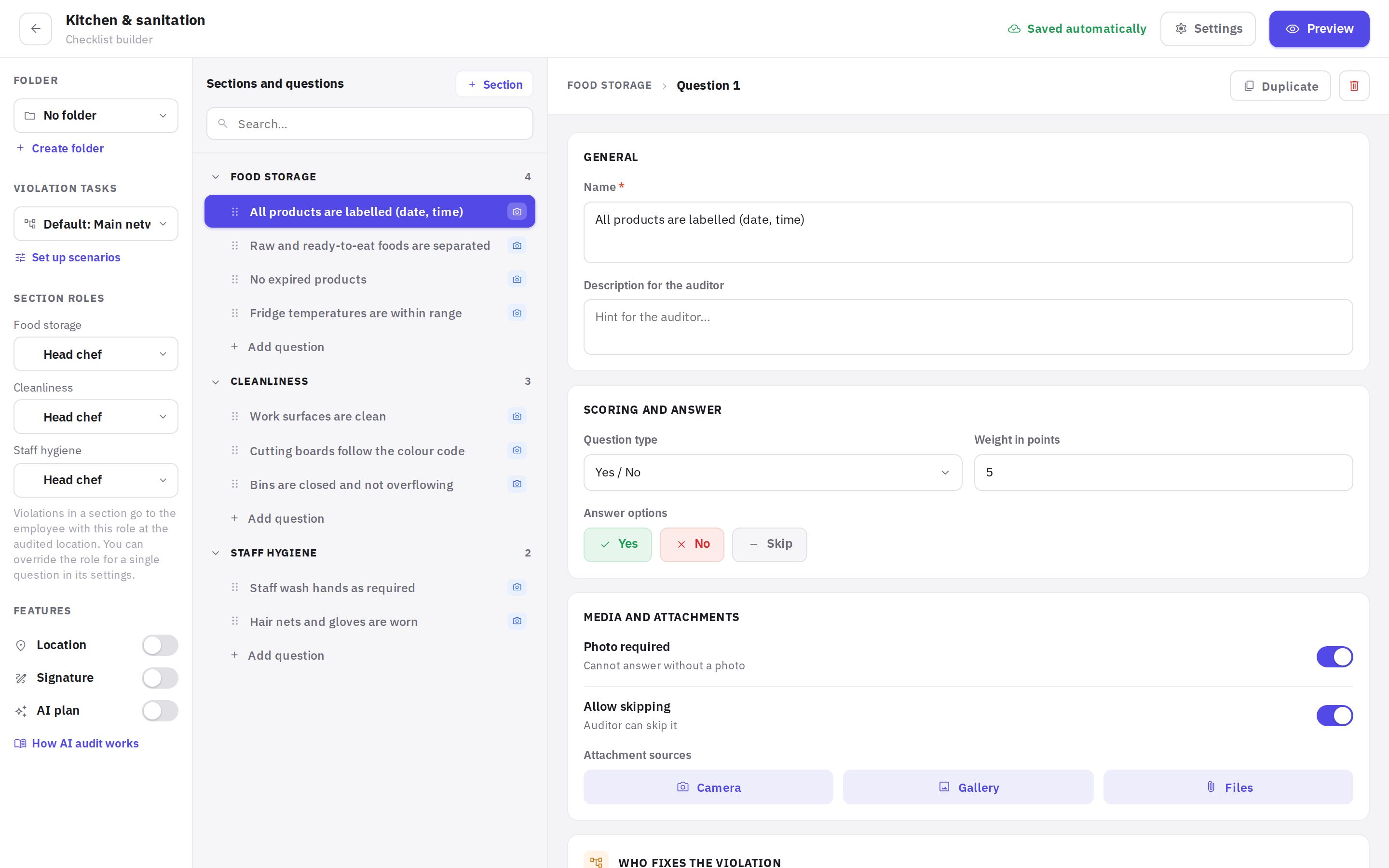
Add sections and questions
- Create a section. At the end of the checklist, click Add section, enter a name (at least 2 characters), for example "Kitchen", and click Create.
- Add a question. At the bottom of the section card, click Add question — a "New question" appears and its settings expand right away.
- Change the order. Drag a question by the handle to the left of its number to the right place in the section or into another section.
- Rename a section. Click the section name in its card, edit the text and press Enter — the name is saved.
- Delete a section. Click ⋯ in the section card and choose Delete section. Deleting a section also deletes all its questions. The same menu has Add question.
Next to the section name is the selector for who fixes violations in this section's questions: Location manager (default), a department, a position or a specific employee. They get the violation task at the audited location; if a department is selected, the task goes to the queue of the department that serves this location (departments are set up in Management → Departments). Learn more in Automation.
Configure a question
In a section card, a question is a row with a number (for example, 1.2), its name and badges: answer type (if not "Yes / No"), photo required, skipping allowed, weight (×N), zeroes the score, display condition (with the number of the question it depends on), own role. Click a question — its settings expand right in the row:
- General: Name — the wording of the item that the auditor sees; Description for the auditor — a hint on what to check and how.
- Answer type: the Yes / No, Answer options, Multiple choice, Rating scale, Number with norm, Date, Barcode / QR cards (affect the score), Text field, Photo, Signature, Employee (data collection) and Instruction (no answer). Below are the Answer settings of the selected type and Weight in points — a whole number from 1, used only if the checklist's calculation method is In points. All types are described in Answer types.
- Logic and importance: Zeroes the audit score — a violation in the item gives the whole audit 0%; Show on condition — the item appears only after a certain answer to a question above; Reference photo: how it should look — up to five photos next to the question.
- Media and attachments: Photo required — the question can't be answered without a photo; Allow skipping — the auditor can skip the question, and a skipped question isn't included in the score; Attachment sources — Camera, Gallery, Files.
- Who fixes the violation — for the section and for this question: Location manager, a department, a position or an employee. For a question the default is Same as section; choose something else if this particular item is fixed by someone else — for example, “Hall lights are on” goes to maintenance. Both the automation scenario (Responsible from checklist) and the Auto task use this field.
- Auto task — if the checklist has no automation scenario: which answers create a task and the due time in hours. The task goes to whoever is set in Who fixes the violation. Learn more in Automation.
Under the settings are the Duplicate (a copy of the question in the same section), Delete and Collapse buttons.
Checklist settings
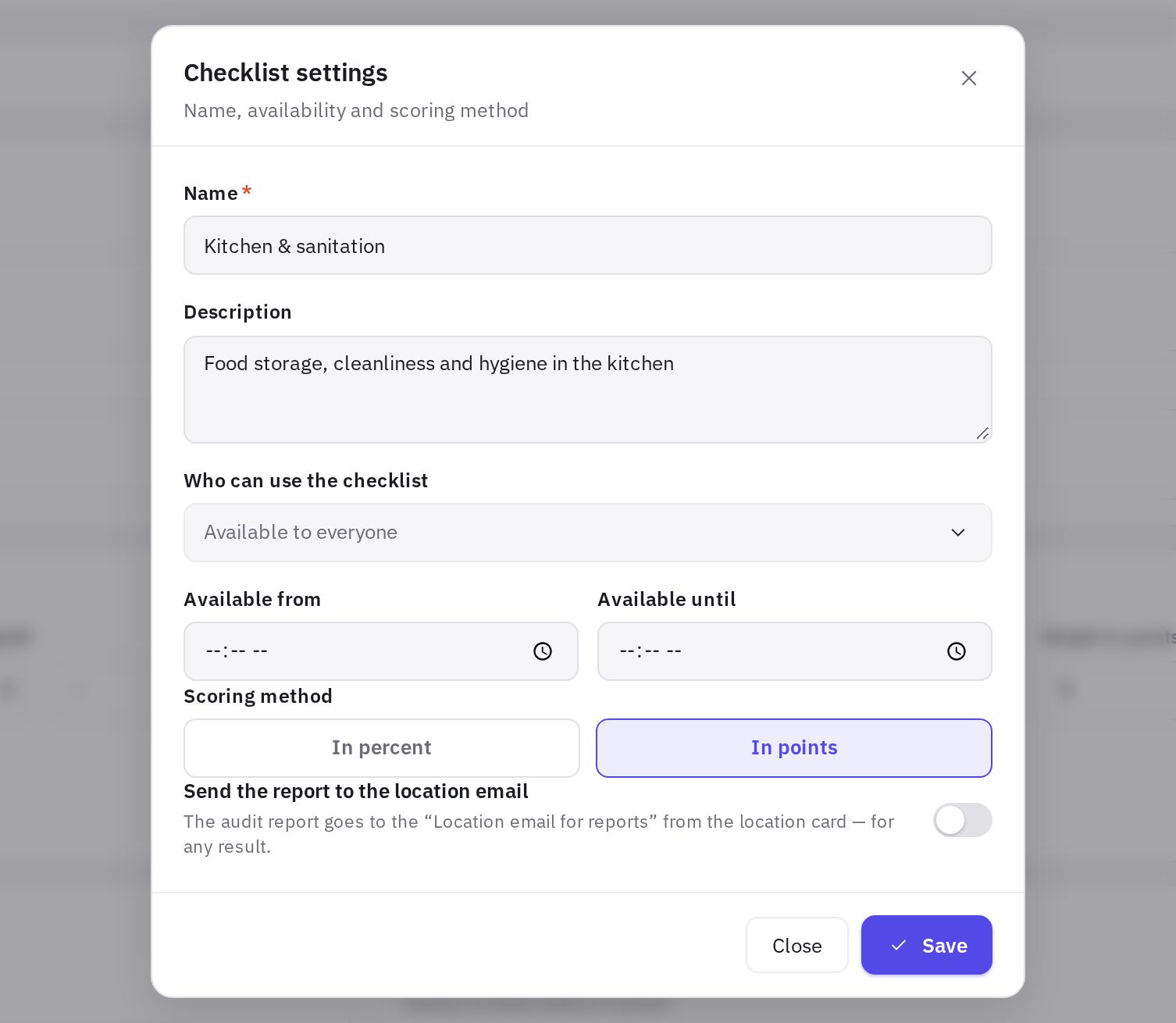
Click Settings in the top bar — the Checklist settings side panel opens. Changes in it are saved right away; there is no "Save" button.
- Folder — which folder the checklist goes into; the Create folder link creates a new one. Folders are also shown in the mobile app.
- Violation tasks — the automation scenario for this checklist; the Set up scenarios link leads to Automation.
- Scoring method — In percent or In points. New checklists use In points by default. How both methods work is explained in How the audit score is calculated.
- Available from and Available until — the time of day when the checklist can be completed.
- Features — toggles for Location (the phone's coordinates are attached to the audit), Signature (the auditor signs at the end of the check) and AI plan (AI review in the report, the How AI audit works link, see Audit report).
- Send the report to the location email — after every audit the report goes to the "Location email for reports" from the location card (see Locations), whatever the score. The toggle is off for new checklists.
The checklist name and description aren't changed in settings — you edit them right in the document.
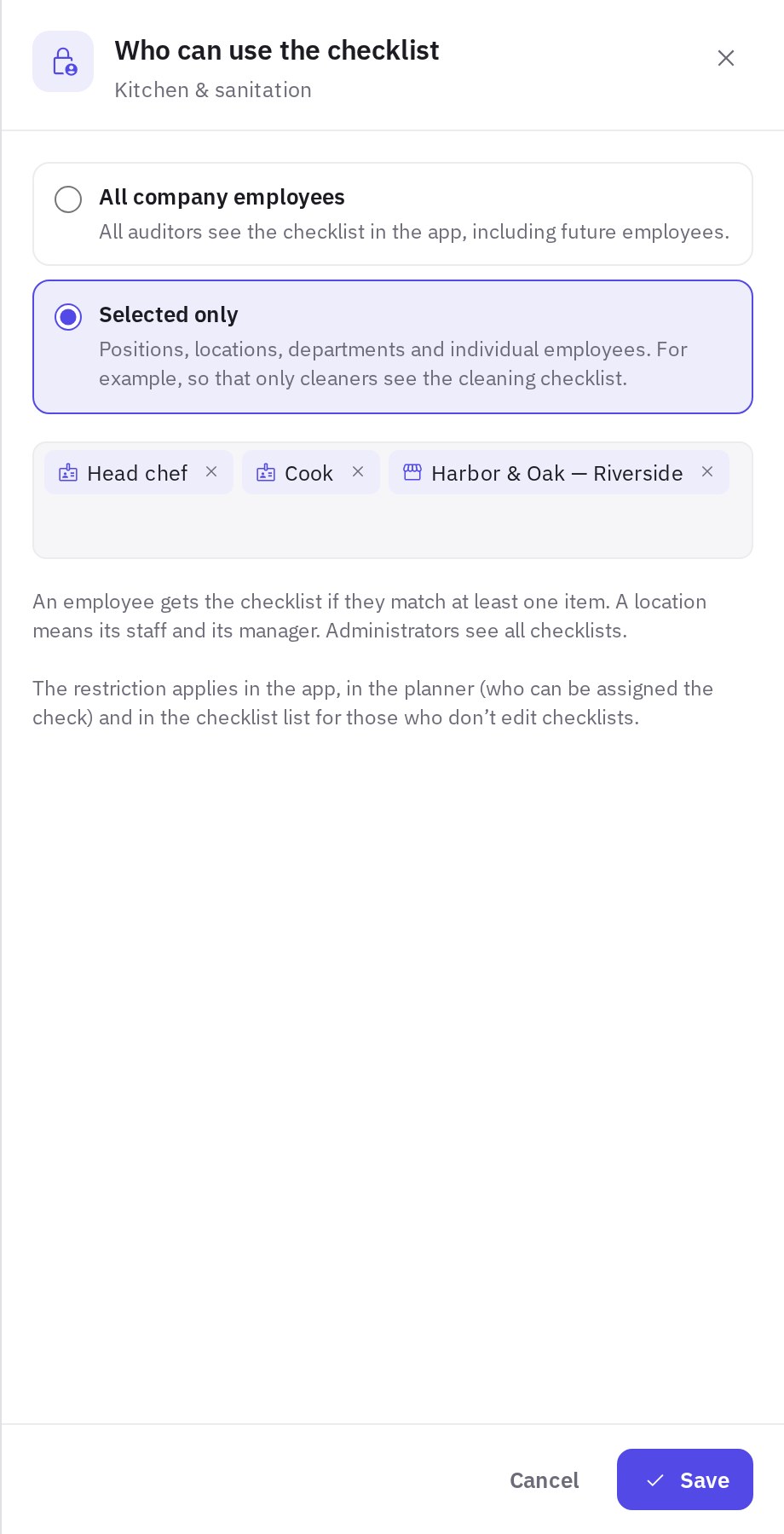
Who can use the checklist
By default a checklist is available to all company employees. Restrict it if not everyone needs the check: for example, the cleaning checklist only for cleaners, and the kitchen checklist only for the cooks of one location.
- Open access. Click Access in the builder's top bar (or the access chip next to the arrow) — the Who can use the checklist panel opens.
- Choose an option. All company employees — everyone sees the checklist, including future employees. Selected only — only those you specify.
- Add who can use it. In a single search field, pick positions, locations, departments and individual employees — in any combination.
- Click "Save". The top bar shows Selected only (N).
How the restriction works:
- an employee gets the checklist if they match at least one item;
- a location means its employees (with it as their main or extra location, and those who can work at all locations) and the location manager;
- administrators see all checklists.
Where the restriction applies:
- in the mobile app — an employee sees and can start only the checklists available to them; folders with no available checklists are hidden;
- in the Planner — when creating a plan or reassigning an audit, only employees who can use the checklist are offered, see How to schedule audits;
- in the Work → Audit checklists list — employees with the “Checklists in the web dashboard” permission but without “Creating and editing checklists” see only the checklists available to them. Administrators and those who edit checklists see all of them, and the Restricted access switch shows the restricted checklists.
Previously, access could only be given to individual employees. Those lists have been kept — they show up as selected employees.
Preview
The Preview button in the builder's top bar shows the checklist the way the auditor will see it: sections and questions in builder order, answer options (Yes, No, Skip — if skipping is allowed — or a text field), hints, Photo required marks, attachment sources and, for the In points method, the question weight and maximum points. You can't answer in the preview — it's view-only.
The question order you set by dragging in the builder is the same as in the mobile app.
AI review of a checklist
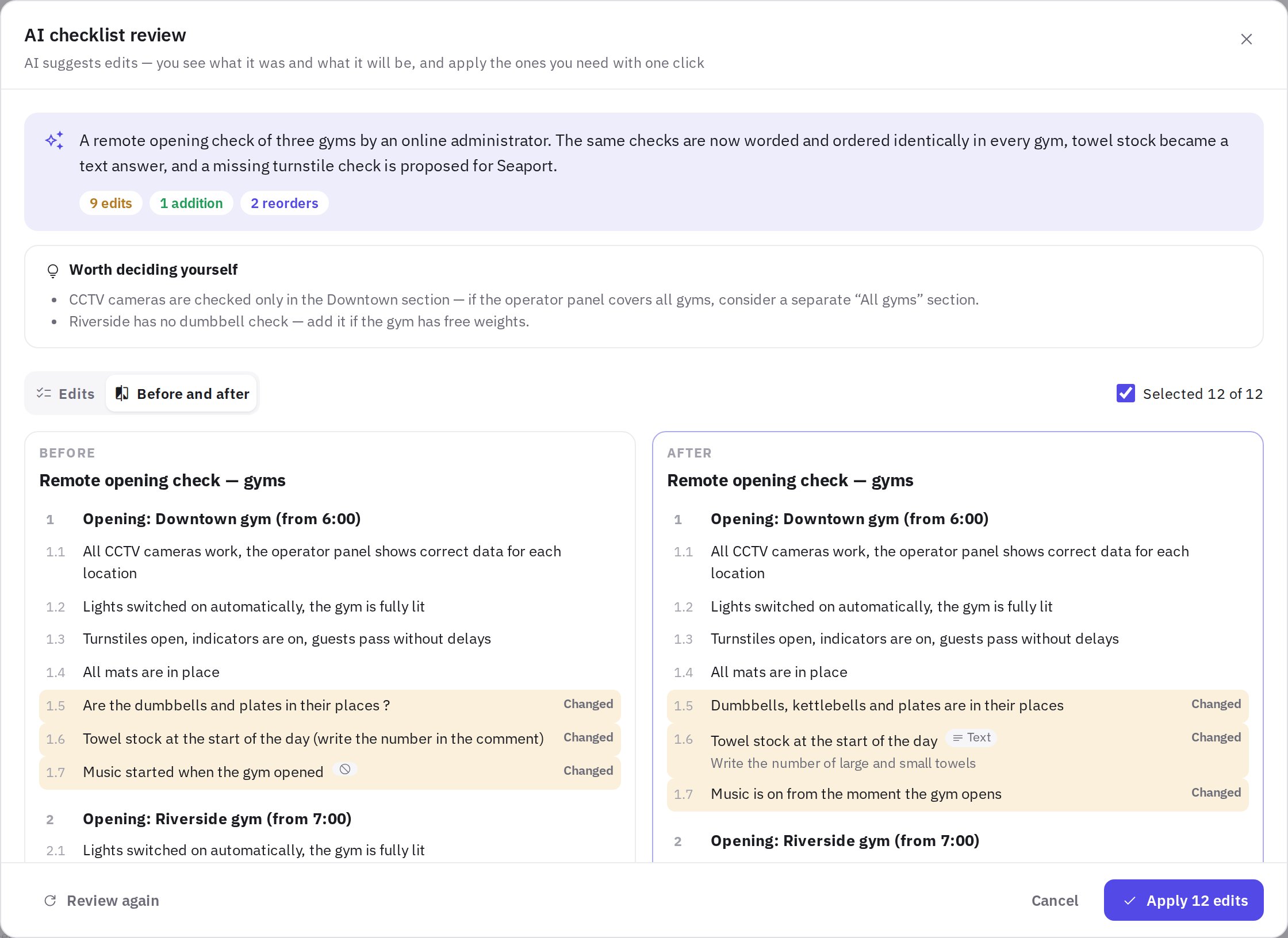
A checklist that was built over a long time by different people usually drifts: the same items are worded differently, sections follow a different order, an item is missing here and there, and some questions end with "?" so that "Yes" no longer means "all good". AI review reads the whole checklist and suggests edits — and you decide which ones to accept.
- Open the review. In the builder's top bar, click AI review.
- Tell it what to take into account (optional). In the What to take into account field, write what the AI can't know — for example: "the Downtown gym has administrators and no turnstiles".
- Click "Review checklist". The review takes up to a minute. The checklist itself doesn't change meanwhile.
- Look through the edits. At the top is a short AI summary and a Worth deciding yourself block with observations the AI didn't turn into edits. Below are two tabs:
- Edits — each edit on its own card: what changes (struck through — as it was, in bold — as it will be) and why;
- Before and after — the checklist before and after side by side: new items are highlighted in green, changed ones in yellow, removed ones in red, moved ones in blue.
- Untick what you don't need. Clear the checkbox on any edit you disagree with — Before and after is recalculated right away. If you untick a new section, the new questions in it are unticked too.
- Click "Apply N edits". N is the number of selected edits; they are all saved in one operation. If nothing fits, click Cancel or Review again with a different instruction.
What the AI checks:
- typos, unclear and double-barreled wording (two facts in one question);
- that "Yes" always means compliance and "No" a violation: questions like "Are all the mats in place?" become statements like "All mats are in place";
- identical sections — for example, one per location: consistent wording and question order, and which items are missing (the AI marks such additions as requiring your confirmation);
- the answer type: items where a number has to be recorded ("towel stock") work better as a Text field;
- skipping, required photo and auditor hints — the same for identical items;
- answer statistics for 90 days: which questions are almost always skipped;
- the checklist's name and description.
Good to know:
- The AI doesn't change what items mean and doesn't invent new checks of its own.
- Sections aren't reordered: a new section is added at the end of the checklist.
- The AI doesn't touch roles, auto tasks or question attachment sources.
- Completed audits and analytics don't change: edited questions remain the same questions, and deleted ones disappear only from new audits.
- If someone changed the checklist after the AI review, the edits can't be applied — run the review again.
- AI review is available on plans with AI features to users with the "Creating and editing checklists" permission. Each employee can run up to 20 reviews a day.
Copy, delete and restore
In the Work → Audit checklists list, every checklist has a … menu: Edit, Move to folder, Duplicate (a copy with all sections and questions, in the same folder), Turn into routine (a new routine from the questions, see How to create a routine) and Delete. Deleted checklists stay in Deleted in the left panel for 90 days — you can Restore them from there. To delete or restore several checklists at once, see Folders and the checklist list.
Frequently asked questions
Can I make a question with a scale or answer options?
Yes. Choose the Rating scale or Answer options answer type — each option has its own outcome (norm, violation, not applicable) and share of the weight. There are also number with norm, date, barcode and other types — see Answer types.
Why didn't changing the weight affect the score?
Most likely the checklist's scoring method is In percent — with it, all items weigh the same. Click Settings in the builder and choose In points.
How do I keep things organized when there are many checklists?
Sort checklists into folders right in the Work → Audit checklists list: drag them onto folders in the left panel or move several at once. The list also has search by name, description, author and folder, and the In use / No audits switches. Details — in Folders and the checklist list.
Can I undo the AI's edits?
There's no separate undo button — that's why, before applying, the AI shows what was there and what will be, and you can untick any edit. You can fix a renamed question by hand in the builder and add a deleted one again.
How do I make a checklist for one position only?
Open the checklist, click Access, choose Selected only, find the position (for example, "Cleaner") and click Save. Only employees with that position and administrators will see the checklist in the app.
Thank you! This helps us improve the help center.