
Cash storages, rules and cash flow
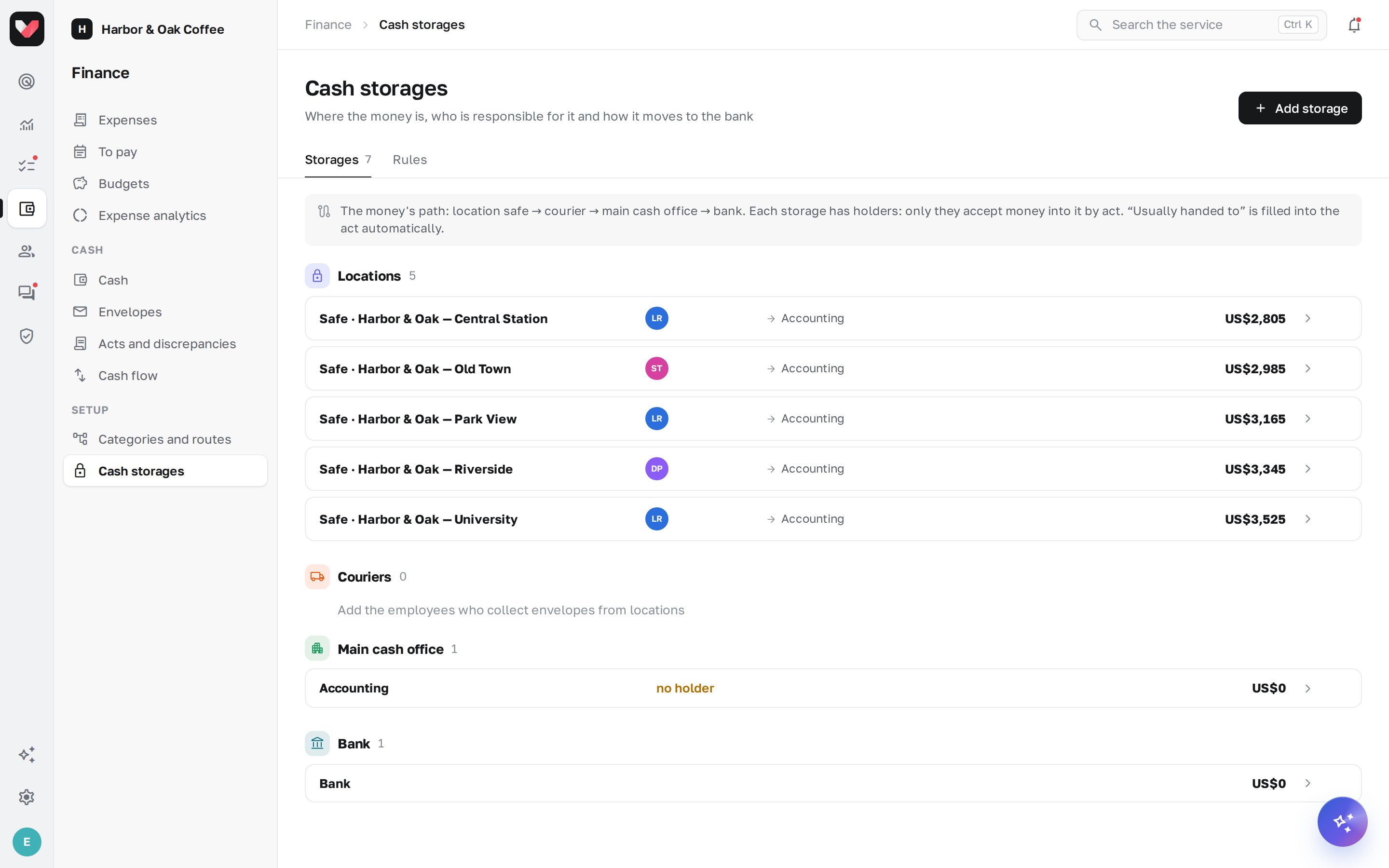
A storage is a place where cash is kept: a location safe, a courier's bag, the main cash office (accounting) or the bank. Each storage has holders — only they accept money into it by act and pass it on. Storages and rules are set up by an employee with the Cash: settings permission in Settings → Cash storages.
What is created automatically
The first time the section is opened, jeCheck creates:
- a safe for each location — its holders are the location's managers; new locations get a safe automatically;
- Accounting — the main cash office;
- Bank — it only receives money and has no holders.
All that's left is to add couriers and check the holders.
Storages
The Storages tab groups them along the money's path: Locations, Couriers, Main cash office, Bank. Each row shows the holders (or "no holder"), where money is usually handed to, the limit, collection days and the balance.
- Add a storage. Add storage → in What it is, choose Courier, Main cash office, Location safe or Bank.
- Fill in the details. Name (for example, "Courier Ivan" or "Accounting cash desk"); for a courier — Courier employee; for a cash desk at a location — Location (if the cash desk is at a location).
- Assign holders. Holders — who accepts money into the storage and passes it on. Anyone with the Cash: location till permission can hand envelopes into a location safe, but money is accepted by act only by the holders.
- Set a limit. Limit — if the storage holds more, a "time to collect" signal appears on the overview and in the morning digest. For example, a limit on a coffee shop safe so that weekend takings don't pile up until Wednesday.
- Specify where money is usually handed to, and the collection days. Usually handed to is filled into the act automatically. Collection days — on these mornings, holders and the person who collects get a reminder.
- Save.
To remove a storage, open it and click Remove. If it already has operations, it is turned off and its history is kept. To turn it back on — the Storage is active switch.
Rules
The Rules tab applies to the whole company:
| Rule | What it does |
|---|---|
| Seal number required | an envelope can't be handed in without a seal or safe bag; one seal — one envelope in circulation |
| Till amount required | the cashier enters the cash per the Z-report — any difference from the envelope immediately becomes a shift discrepancy |
| Envelope photo required | a photo of the sealed envelope on hand-in |
| Blind acceptance | the recipient doesn't see the declared amounts until they've counted and confirmed |
| Signatures on acts | the person handing over and the person accepting sign on the screen; signatures go into the act PDF |
Below are Envelope is "sitting too long" after, days (a signal on the overview and in the morning digest), Discrepancy tolerance (a difference up to this amount isn't counted as a discrepancy), Envelope number prefix, Act number prefix, Currency (can be changed before the first operations) and Notes and coins for counting by denomination. Click Save.
Deposit or pay out cash
For small operations outside envelopes — change from the bank, buying supplies for the salon — open the storage and click Deposit cash or Pay out cash. The same buttons are on the Cash flow page when one storage is selected.
- Enter the Amount and, required, Where the money comes from or For what.
- For a payout you can choose an Expense category — then it shows up in category analytics.
- Click Record.
You can pay out no more than what's in the storage outside envelopes: open an envelope first. A mistaken cash-in or payout is cancelled by an employee with the Cash: settings permission — with the Cancel a mistaken operation button in the log row on the Cash flow page. A payout for an expense can't be cancelled this way — for that, cancel the payment in the expense itself.
Paying an expense from the till
Larger spending is better put through Expenses with approval. When the treasurer marks payment of an approved expense with the "Cash" method, the payment window has a Pay from the till field: choose a storage, and the amount is deducted from it and recorded in the cash flow with a link to the expense and category. Not from the till — mark only simply marks the payment. If the expense payment is cancelled, the till movement is deleted too. Learn more in Paying expenses.
Cash flow
The Finance → Cash flow page shows cash in, cash out and balances for a period. It requires the Cash: reports permission (a holder sees their own storage without it).
- Storages — one or several; the period — with the Today, 7 days, This month, Last month buttons or from … to dates.
- Tiles Opening, Received, Paid out, Closing.
- By day and By type — how the balance changed and what made up the cash in and cash out: envelopes, acceptance and handover by act, cash in, expenses, shortages and surpluses.
- An operations log with a running balance: When, Operation, Amount, Balance.
- Excel — export for the selected period.
Transfers between the selected storages count as internal and don't inflate cash in and cash out: if you select all the chain's safes, moving an envelope from one location's safe to another's won't show up in "Received" and "Paid out".
Frequently asked questions
A courier has left the company — what happens to their storage?
Hand over the balance by act to another courier or to the main cash office, then open the storage and click Remove: it is turned off, and its history is kept.
Can the till be kept in another currency?
There is one currency per company, set in Rules → Currency. It can be changed before the first operations.
Thank you! This helps us improve the help center.