
Paying expenses and the payment calendar
Approved expenses go to Finance → To pay. An employee with the Expenses: payment permission can work with payments.
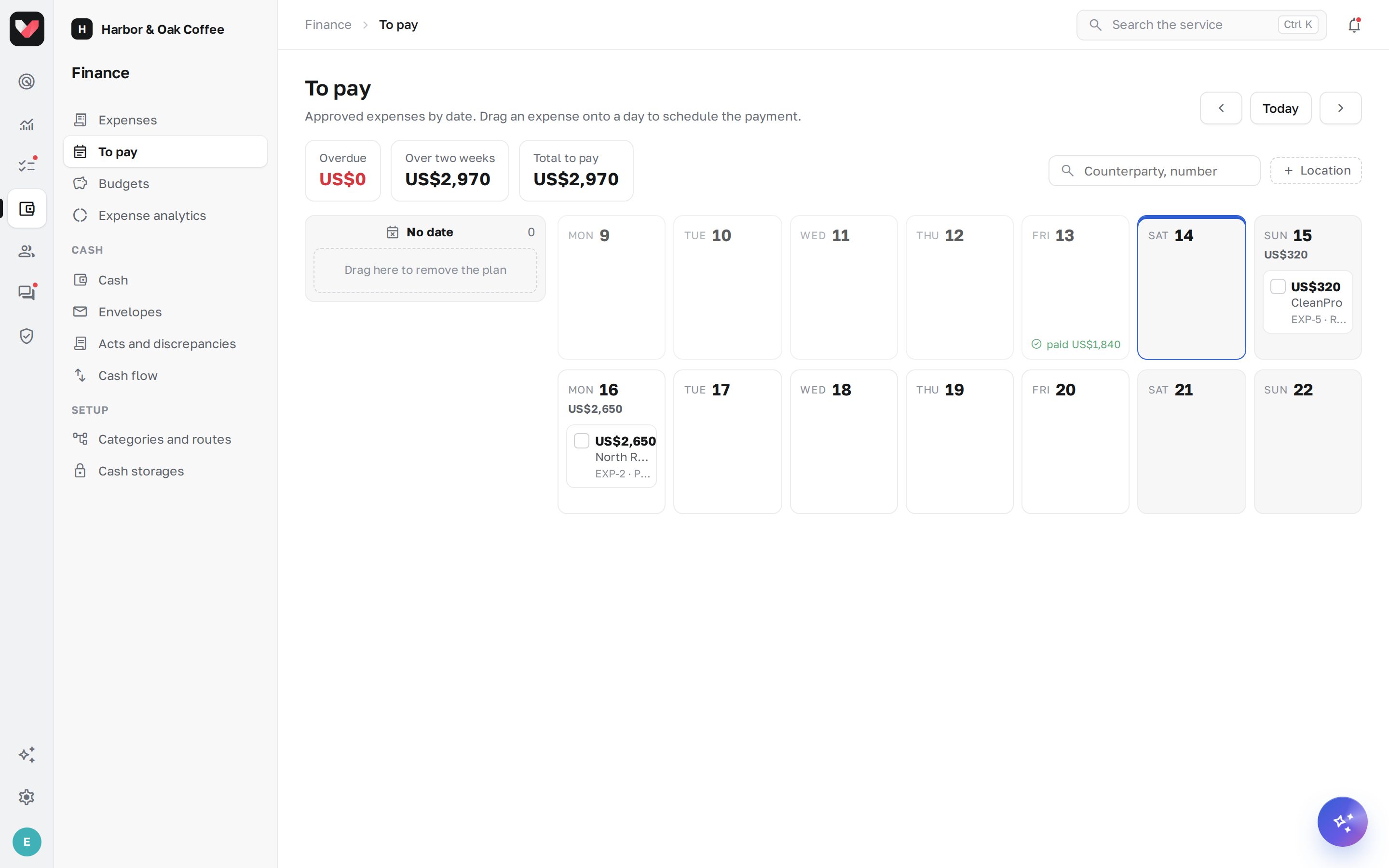
Payment calendar
- Overdue — the payment deadline has passed;
- two weeks by day — how much is planned and how much has already been paid on each day;
- No date — approved but not yet scheduled.
To schedule a payment, drag the expense onto a day. Drag it to No date to remove the plan. At the top — Total to pay and Paid today.
In the Expenses → To pay list you can select several expenses and click Schedule or mark them all as paid at once.
Marking a payment
- Open the expense and click Pay — or Pay partially if you're not paying the full amount.
- Enter the Payment date and, optionally, the Payment order number and the payment order file.
- Save. The author gets a "paid" notification. With a partial payment, the expense stays "Partially paid" until the full amount is paid.
A payment recorded by mistake can be cancelled in the Payments block of the card.
The counterparty's bank details — BIN/TIN, bank, BIC, IBAN — are in the expense card, with a copy button.
If cash accounting is turned on in the company, the expense card has Pay from the till — the payment is deducted from the cash storage (see Cash and collection). Not from the till — mark only simply marks the payment.
Morning digest
Every morning at 08:00 company time, holders of the Expenses: payment permission get a push notification and an email: how many expenses are due today and how many are overdue.
Frequently asked questions
Will jeCheck send the payment to the bank itself?
No. There are no bank integrations: the payment is made in the bank as usual and marked in jeCheck.
How do I see how much was paid this month?
The Paid this month tile on the Expenses page and Expense analytics.
Thank you! This helps us improve the help center.