
Expenses: payment approval and payments
The Finance → Expenses section replaces invoices in messengers and "who approved this?". An employee creates an expense — category, amount, counterparty, invoice. The expense follows the approval route of its category on its own: for example, up to 100,000 — the manager, above that — also the CFO. An approved expense lands in the treasurer's payment calendar, and payment is marked manually — in full or in parts.
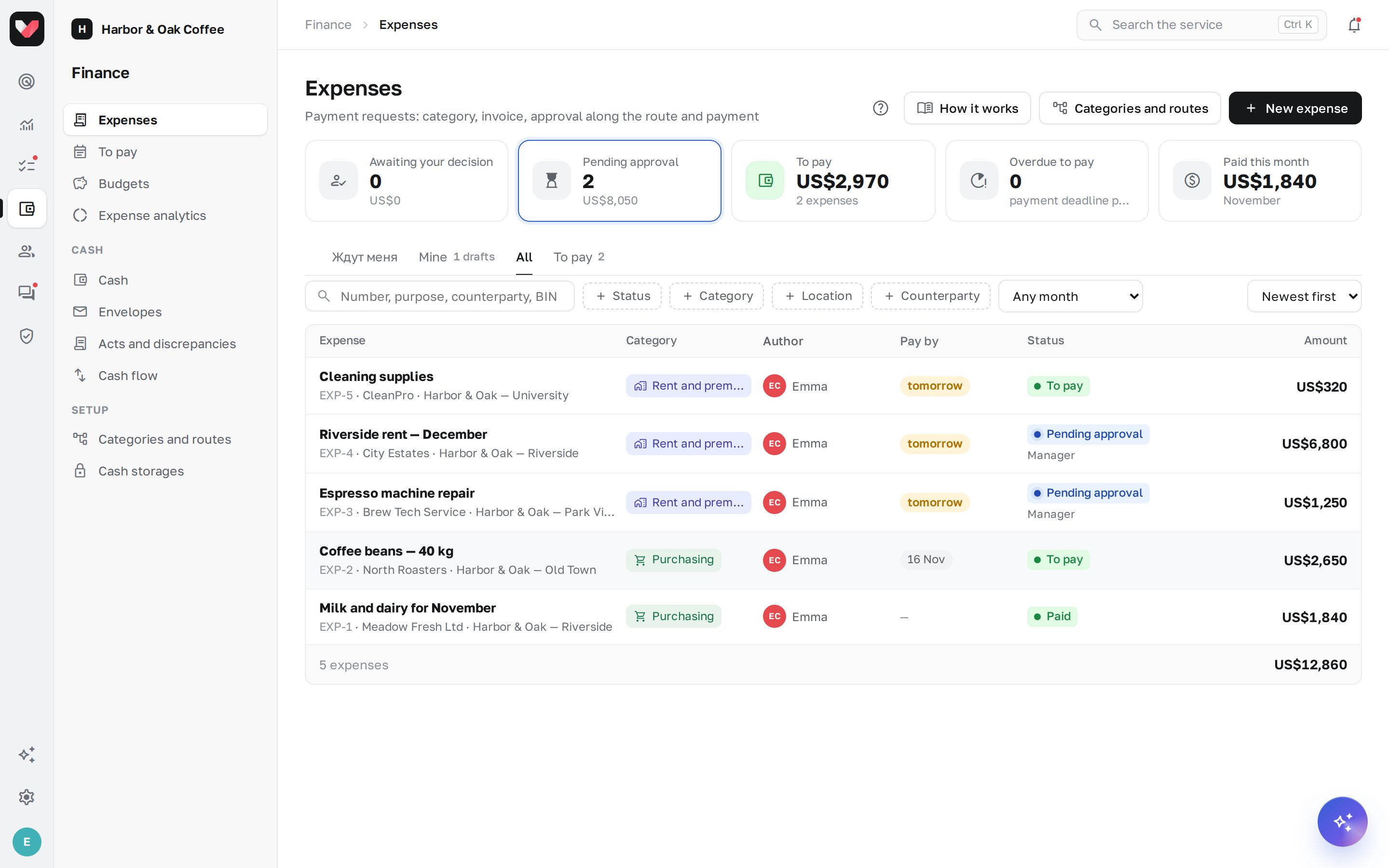
Menu items
The Finance section in the left bar:
- Expenses — the list: tabs Waiting for me, Mine, All, To pay; the New expense button. See How to submit an expense.
- To pay — the payment calendar. See Payments.
- Budgets — monthly plan by category and actuals. See Budgets and analytics.
- Expense analytics — where the money goes and how fast approvals happen.
- Categories and routes — categories, approval routes, counterparties, recurring payments, general settings. See Settings.
The first time you open the section, a short introduction is shown. You can open it again with the ? button in the header.
How it works
- An employee creates an expense and attaches the invoice — AI fills in the counterparty, amount and VAT. On the right you can see whether the expense fits the category budget and who will approve it.
- The expense follows the route. Each step gets a notification and decides: Approve, Return for revision with a comment, or Reject. See Approval.
- Checks flag risks: a repeated invoice, the same amount recently, a split payment, a first payment to a new counterparty, a budget overspend. The AI controller compares the expense with the company's policy and gives a recommendation — but never approves anything itself.
- The approved expense goes to the treasurer in To pay. The treasurer plans the date by dragging the expense onto a calendar day and marks the payment. The author gets a "paid" notification.
- Management sees the big picture in budgets and analytics: plan vs actual by category, the largest counterparties, who is holding up approvals.
Expense statuses
| Status | What it means |
|---|---|
| Draft | the expense is saved but not submitted |
| Pending approval | following the route |
| Returned for revision | an approver returned it to the author with a comment |
| Approved | waiting for payment |
| Payment scheduled | the treasurer picked a date |
| Partially paid / Paid | payments have been recorded |
| Rejected / Cancelled | an approver rejected it or the author withdrew it |
Export to Excel
Every screen in the section has an Excel button. The file contains what you see on screen, with all rows and a total line:
| Screen | What the file contains |
|---|---|
| Expenses | the list with the current tab and filters: number, dates, category with its parent, location, counterparty and tax ID, author, status and step, amounts (VAT, paid, left to pay), due dates, invoice |
| To pay | the "To pay" sheet — what to pay in the two weeks shown, overdue and undated items, with counterparty bank details; the "Paid" sheet — the register of payments on those dates with payment order numbers |
| Budgets | plan, actual and paid for every category and month of the selected year, year totals and execution percentage — for the company or the selected location |
| Expense analytics | "Summary", "By category", "Locations", "Counterparties", "Trend" and "Approval" sheets for the selected period |
| Categories and routes → Counterparties | the directory with bank details and the total expenses for each counterparty |
Every export is recorded in the access log.
Who can do what
Permissions are set in Roles and permissions, group "Expenses and payments":
| Permission | What it gives | By default |
|---|---|---|
| Expenses: submit | create expenses for your locations and send them for approval | the "Location manager" role — at their locations |
| Expenses: all expenses of locations | see colleagues' expenses at the selected locations | administrator only |
| Expenses: payment | payment calendar, "paid" mark, bank details, morning digest | administrator only |
| Expenses: budgets | plan by category and overspend control | administrator only |
| Expenses: analytics | expense structure, trends, approval speed | administrator only |
| Expenses: settings | categories, routes, counterparties, policy for AI; intervening in approvals | administrator only |
Authors always see their own expenses, and approvers see expenses where they take part in a step.
Plan
The section is included in the Network plan and above. AI invoice recognition and the AI controller work when the "AI" feature is on.
Frequently asked questions
Is money debited from the bank account automatically?
No. jeCheck doesn't connect to the bank: the treasurer pays as usual and marks the payment in the expense, optionally with the payment order number.
Can I approve an expense from my phone?
Yes. Approvers get a push notification and an email; the approval request is also visible among tasks in the mobile app.
Where do I start?
Categories and three routes are created the first time the section is opened. Check them in Categories and routes, assign permissions and submit the first expense — see Settings.
Thank you! This helps us improve the help center.