
How to build a HACCP plan in 12 steps
In jeCheck, a HACCP plan is built in a wizard following the 12 steps of the Codex Alimentarius. On the left is the list of steps with completion marks, on the right the content of the current step. Changes are saved immediately, and approval creates a locked version of the plan for inspections.
Who works with the plan
Administrators and employees with the “HACCP plan” permission can create, edit and approve the plan (it is part of the ready-made “HACCP technologist” role and is granted in Roles and permissions). Without this permission, the HACCP plan menu item isn't shown.
Step by step: create a plan
- Create the plan. Open HACCP → HACCP plan and click New plan (or Create plan if there are no plans yet).
- Choose a starting point. Enter a Name and in the Start from field choose Typical food service diagram or Blank plan. Tick the locations the plan covers (none means all).
- Work through the steps. Move between steps on the left or with the buttons at the bottom. Each step has a What is left in this step block.
- Approve. Click Approve plan, add a comment to the version and confirm.
What you fill in at each step
| Step | What you enter |
|---|---|
| 1. HACCP team and scope | team members (employees and external experts, job title, competence, responsibilities), team leader, scope, prerequisite programmes |
| 2. Product description | products or product groups: composition, characteristics, processing, packaging, storage, shelf life, distribution, allergens, labelling |
| 3. Intended use | how the product is used and the consumer groups, including vulnerable ones |
| 4. Flow diagram | process steps and the links between them, step inputs, outsourcing, rework |
| 5. On-site confirmation | the date of the check and who did it, which discrepancies were corrected — the Confirm flow diagram button |
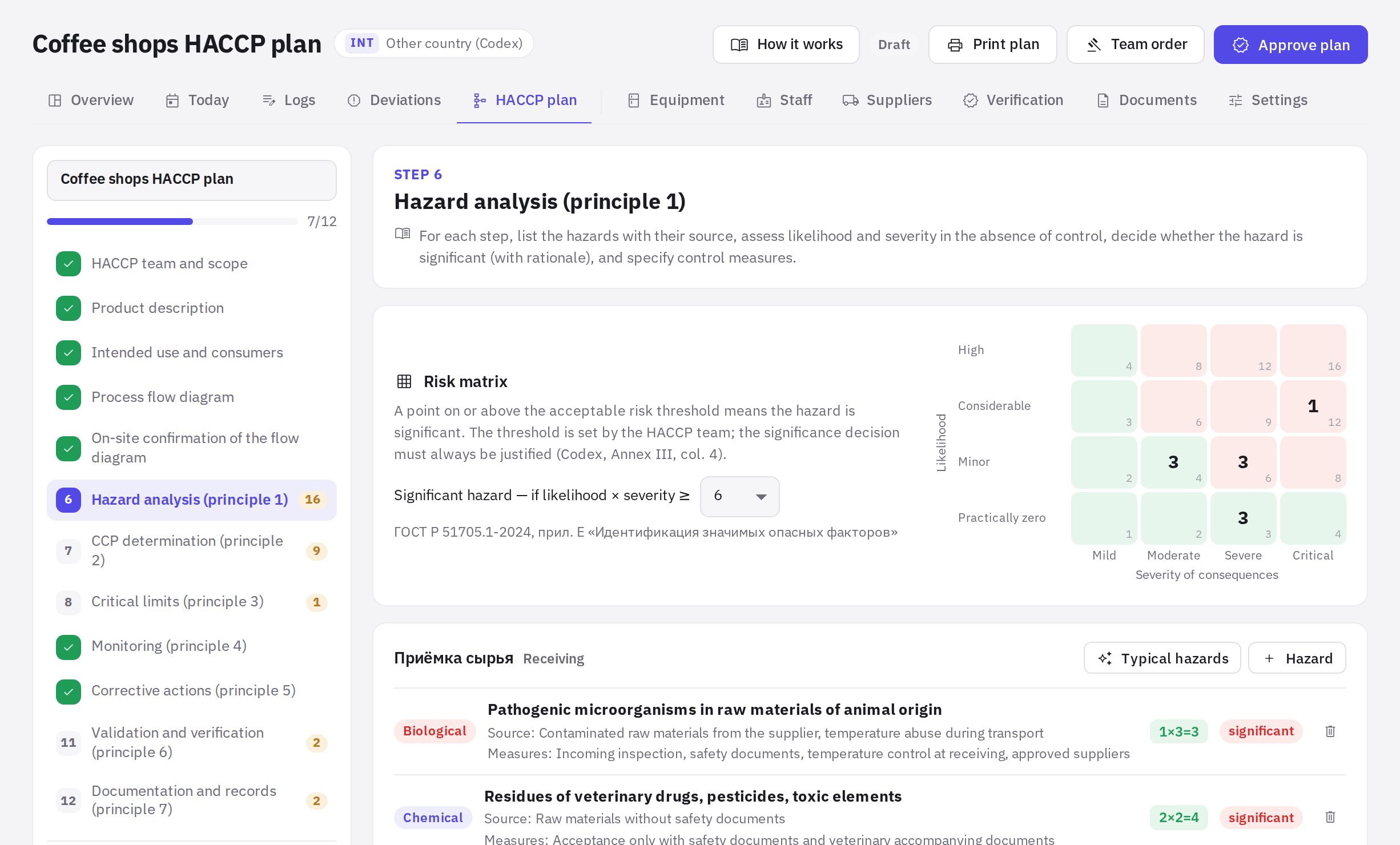
| 6. Hazard analysis | hazards by step: type, source, likelihood and severity, significance with rationale, control measures |
| 7. CCP determination | a decision tree for each significant hazard |
| 8–11. Limits, monitoring, corrective actions, verification | for each CCP: critical limits and rationale, monitoring (what, how, when, who), monitoring log, corrective actions, verification and validation |
| 12. Documentation and records | a list of documents and records with retention periods |
Hazard analysis and decision tree
At step 6, each process step has a Typical hazards button — it adds suitable hazards from the library for that type of step. Each hazard must be assessed on the risk matrix (likelihood × severity) with a rationale for whether it's significant. If a step has no hazards, tick No hazards — the step will count as analysed.
At step 7, the decision tree asks up to four “Yes / No” questions for each significant hazard. The outcome is a CCP, an operational prerequisite programme (OPRP), control by prerequisite programmes (PRPs), a CCP at a later step, or the need to modify the process. For CCPs and OPRPs there are Create CCP and Create OPRP buttons; a hazard controlled by a measure with criteria and monitoring but which isn't a CCP can be manually set with Assign to OPRP. Codes are assigned in order: CCP-1, OPRP-1.
Link to logs
For each CCP you can create a Monitoring log: the log fields are created from the critical limits, and you choose the schedule yourself. You can also pick an existing log. Exceeding a limit in such a log is always a critical deviation. Learn more in Logs and measurements.
Approval, versions and review
- The plan can't be approved while there are incomplete items: the approval window lists them with step numbers, and clicking an item takes you to that step.
- Approval creates a version (v1, v2…). Older versions can be opened for printing from the Versions list.
- If the plan is changed after approval, a warning appears: the approved version remains in force until you approve a new one (Approve new version).
- The review interval is set in the module settings (HACCP plan review, months, 12 by default) — the approval window shows how many months until the next review. When the interval runs out, a reminder appears in the plan and on the overview.
- Print plan and Team order open the print forms.
- An approved plan can be moved to Archive; a draft with no versions can be deleted (Delete draft).
Under Codex, verification is done by someone other than the person doing the monitoring. Assign different people, and keep the schedule of activities in HACCP directories → Verification.
Frequently asked questions
Can I have a separate plan for some of the locations?
Yes. Tick the locations you need when creating the plan. If you don't tick any, the plan covers all HACCP locations.
Why does the approve button show a list instead of a confirmation?
The plan still has incomplete items: for example, a step with no hazards and no “No hazards” mark, a hazard without an assessment, or a CCP without limits. Work through the list and approve again.
What if no CCPs were identified?
If all significant hazards are controlled by prerequisite programmes, that's an acceptable result. Review it periodically. You can also add a CCP manually with the Add CCP manually button.
Thank you! This helps us improve the help center.