
How to keep HACCP logs and record measurements
A HACCP log is a form with fields (temperature, humidity, yes/no, choice of options, text, photo and more), a schedule and responsible roles. Employees record measurements on the Today page; the system checks the values against the limits and opens a deviation when a limit is exceeded.
The Today page
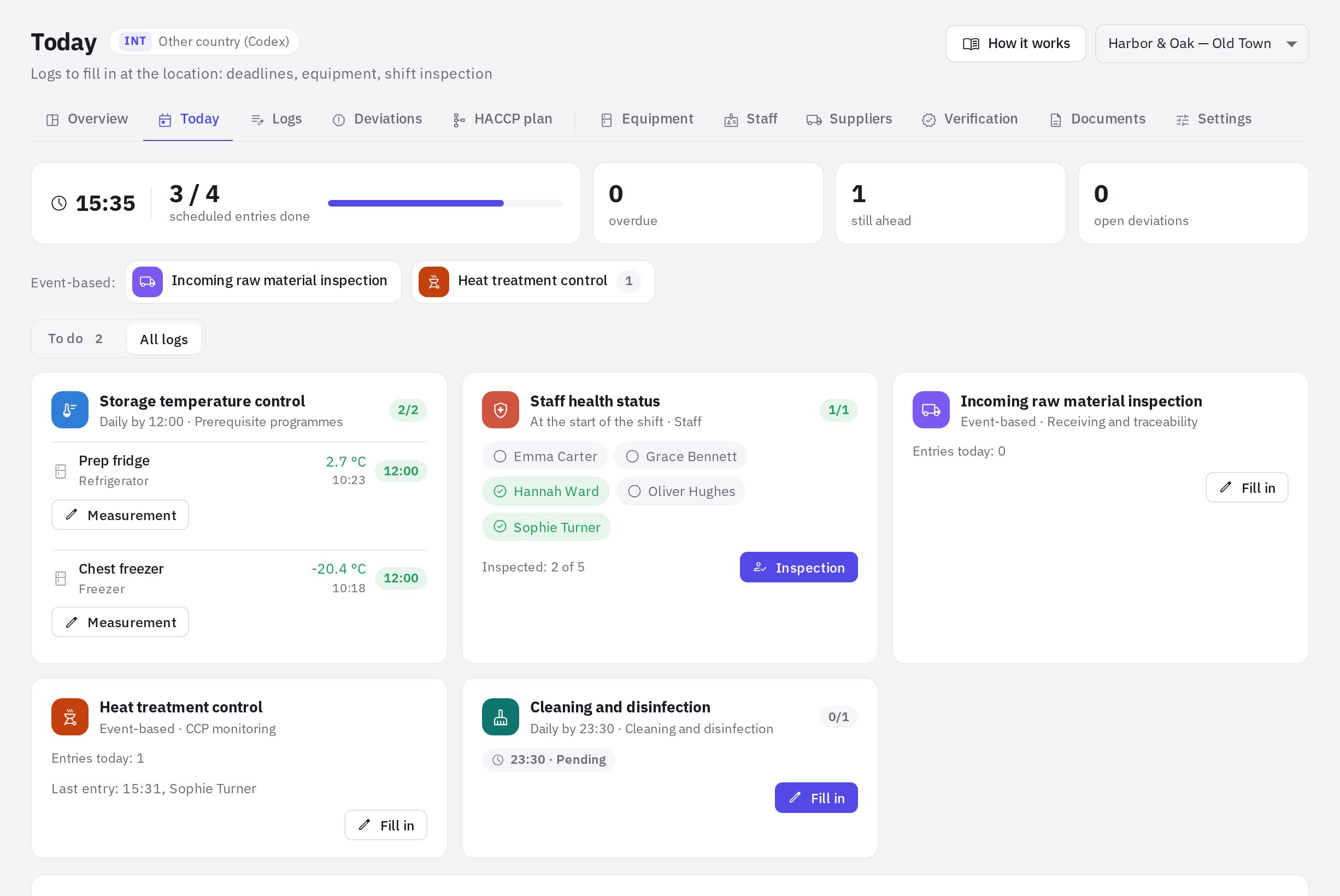
HACCP → Today shows the logs that need to be filled in at the location right now. If you have several locations, choose one at the top. The page refreshes itself every minute.
- At the top: how many scheduled entries are done, overdue and upcoming, and how many deviations are open.
- The Deviations: corrective actions required block lists the location's open deviations with Repeat measurement and Resolve buttons.
- Event-based: — buttons for logs without a schedule (goods receipt, production, frying oil change).
- The To do / All logs switch.
- The Not allowed to work block — a reminder from the country profile of who must not be allowed to work (for example, without a mandatory medical check or with signs of illness).
In an equipment log, each item has its own row with a Measurement button. In a staff log you can see who has already been checked, and there's an Inspection button. A location log has a Fill in button.
Step by step: record a measurement
-
Open the form. On the Today page, click Measurement, Inspection or Fill in next to the log.
-
Choose the object. For an equipment log — a fridge or room; for a hygiene log — an employee.
-
Fill in the fields. A numeric field shows the norm, and you can change the value with the “−” and “+” buttons. Next to it you immediately see OK, Close to the limit or Out of limit.
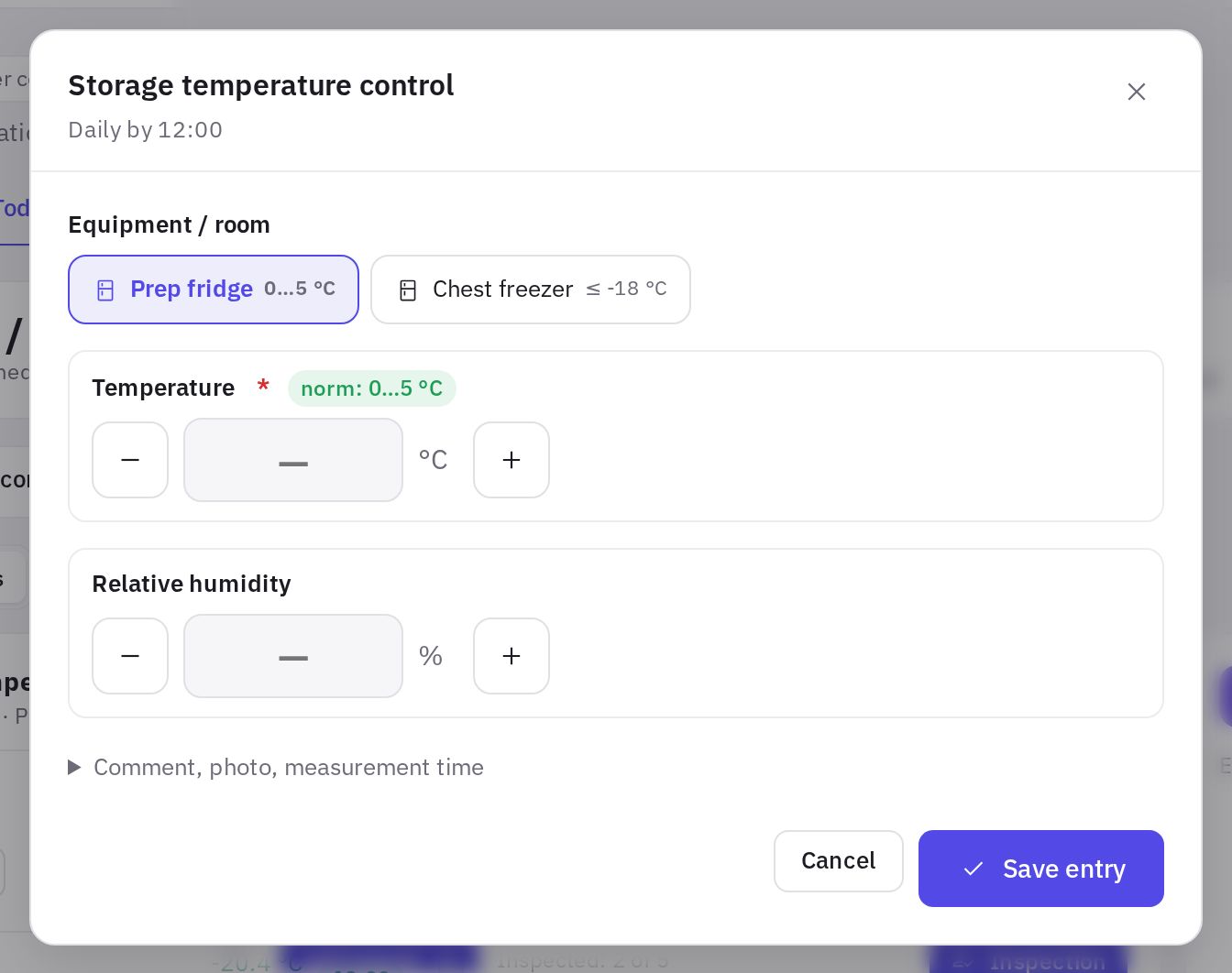
The measurement form: equipment, a field with its norm and the save button -
Add details if needed. In the Comment, photo, measurement time block you can leave a comment and a photo.
-
Save. Click Save entry. If the value is out of limit, a deviation opens after saving — see Deviations and corrective actions.
The entry time is the time it's saved. If the measurement was taken earlier, tick Measured earlier — specify the time and enter the time. If the difference exceeds the tolerance in the settings, you must give a reason and the entry is marked “entered late”.
Schedule and missed entries
Each log has its own schedule: At the start of the shift, At set times, Once a day, Once a week, Once a month or Event-based. Based on the schedule, jeCheck lays out entry deadlines in advance, reminds the responsible people before a deadline, and marks an entry as missed if it isn't made by the end of the grace period after the deadline. Grace periods and reminders are set in HACCP directories → Settings. Event-based logs never have missed entries.
On the location's non-working days, scheduled entries aren't required. An employee with the “Handling deviations” permission at the location can mark an individual entry as “not required today” with a reason — for example, a cleaning day or equipment that's switched off.
Log setup
Logs are set up in the Logs section by administrators and employees with the “HACCP settings, logs and sites” permission.
- Add log — from templates based on the country's regulations, or Create blank with your own name.
- The settings button opens Log setup: name, description and instructions, section, what is recorded (By location, For each piece of equipment, For each shift employee), fields, schedule, locations, the job titles that fill in the log, and the link to a control point in the HACCP plan.
- A numeric field has a Critical limit (exceeding it creates a deviation) and a Target range (a “close to the limit” warning). A “Yes / No” field defines which answer is the norm; a choice field defines which options are unacceptable.
- Photo required when closing a deviation — when on, a deviation in this log can't be closed without an “after” photo. It's off for new logs.
- A toggle turns the log on and off; there's also Copy and delete. When a log is deleted, its entries are kept for inspections.
Equipment limits from the Equipment directory take priority over field limits: each fridge can have its own range.
Deviations in a log linked to a critical control point (CCP) of the plan are always critical.
Entries, corrections and printing
Open a log to see all entries with filters by location, equipment, period and status (Deviations, Close to the limit, Entered late, Voided), value charts and a summary.
- An entry can be corrected (Correct) by its author or by an employee with the “Handling deviations” permission at that location (by default, the location manager) — only with a reason. The previous values stay in the correction history.
- An employee with the “Handling deviations” permission at the location can Annul an entry, also with a reason. Entries can't be deleted — an annulled entry stays in the log, struck through.
- Log form — the print form for the selected month and location.
Frequently asked questions
Why don't I see the “Measurement” button?
The log is filled in by employees with the “Filling in HACCP logs” permission at the location (by default, all employees of their own locations), and if job titles are set in the log settings — only employees with those job titles. If your job title isn't there, ask an administrator or an employee with the “HACCP settings, logs and sites” permission to add it in the log settings.
Can I backdate an entry?
You can specify an earlier measurement time, but the entry will be marked “entered late”, and if the difference is large you'll need to give a reason.
Why does an equipment log have no rows?
The location has no equipment of the required type. Add it in HACCP directories → Equipment.
Thank you! This helps us improve the help center.