
Expense approval: decisions, revisions and the route
When an expense reaches your step, you get a push notification and an email "Expense needs your approval", and the expense appears in the Waiting for me tab of the Finance → Expenses list. The counter in the menu shows how many decisions are waiting for you.
How to make a decision
- Open the expense from Waiting for me or from the notification.
- Check the card: amount, category, counterparty, Documents (the invoice opens in a preview), the category budget, check warnings and the AI recommendation.
- Click:
- Approve — the expense moves to the next step, and after the last one — to payment;
- Return for revision — with a mandatory comment; the author fixes it and resends it to the same step;
- Reject — the expense is closed, and the author gets a notification with the reason.
In the list, expenses without warnings have a quick Approve button — no need to open the card.
Passing the decision to a colleague
If you're on vacation or the question isn't for you, use More → Pass on in the card: choose a colleague, they get a notification and decide instead of you.
The expense's path
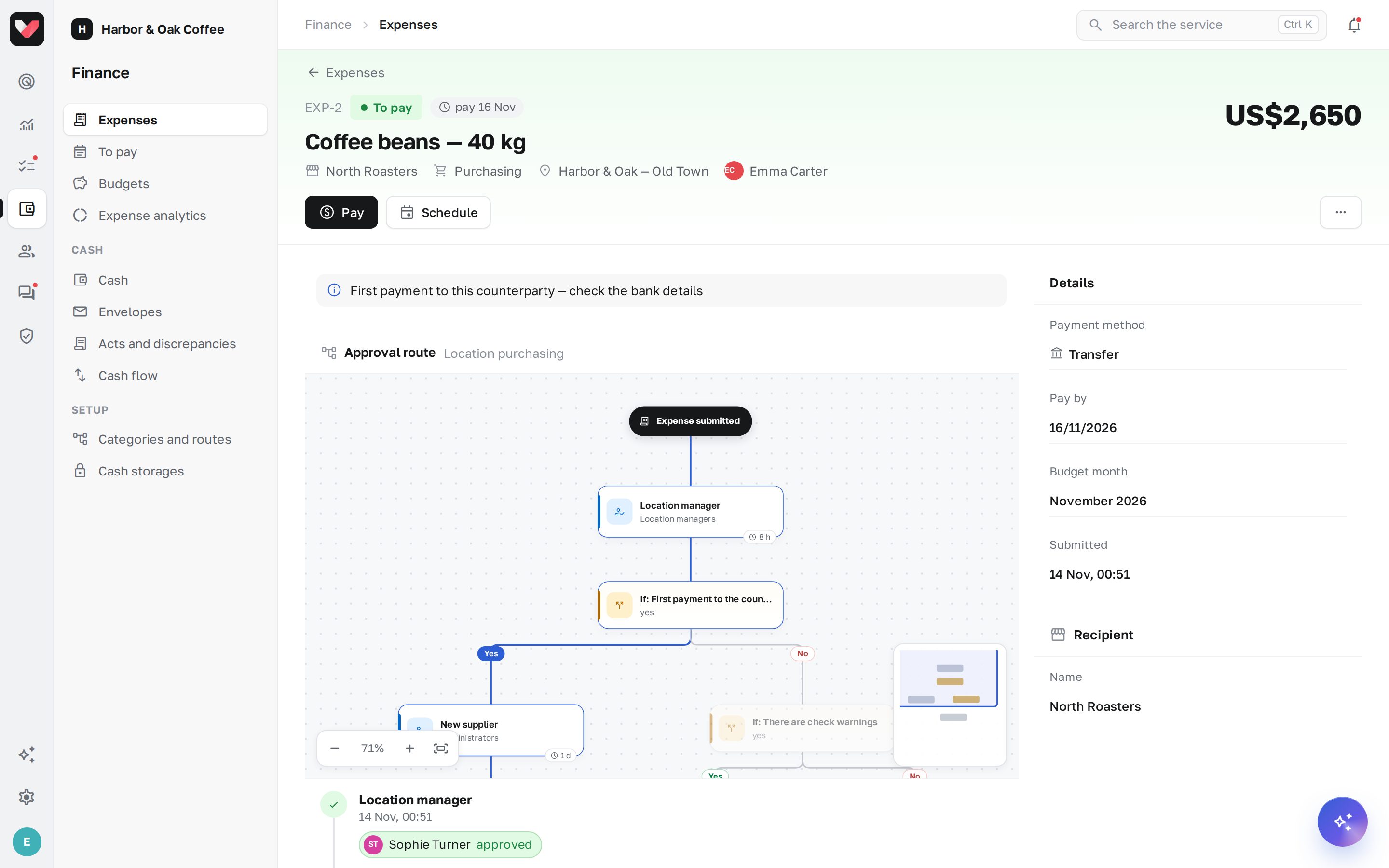
The Approval route block in the card shows a diagram: which steps have been completed and by whom, where the expense is now and which branches were taken by conditions (for example, "Amount over 100,000 — yes"). Below is a feed of steps with decisions and comments, and further down — the History of all changes to the expense.
"Any" and "all" steps
A step can require a decision from any of the approvers (the first to respond decides for everyone) or from all of them (the expense waits for each one). This is set in the route — see Settings.
Deadlines and reminders
If a step has a deadline, the approver gets reminders, and if it's overdue, a notification goes higher up the chain, if the route is set up that way.
Intervening in an approval
An employee with the Expenses: settings permission can skip a step, reassign the approver or cancel the expense — for example, if the approver has left the company.
Frequently asked questions
Where do I approve from my phone?
In the jeCheck mobile app, the approval request is shown among tasks, and the notification leads straight to it.
Can I change the amount when approving?
No. Return the expense for revision with a comment — the author will fix the amount and resend it.
Why was the expense approved automatically?
The route may contain an "approve automatically" condition — for example, for small amounts within the budget. You can see this on the path diagram.
Thank you! This helps us improve the help center.