
Expense settings: categories, routes, counterparties
Finance → Categories and routes is where you define what kinds of expenses there are, who approves them and whom you pay. Requires the Expenses: settings permission (the Counterparties and Recurring payments tabs are visible without it too).
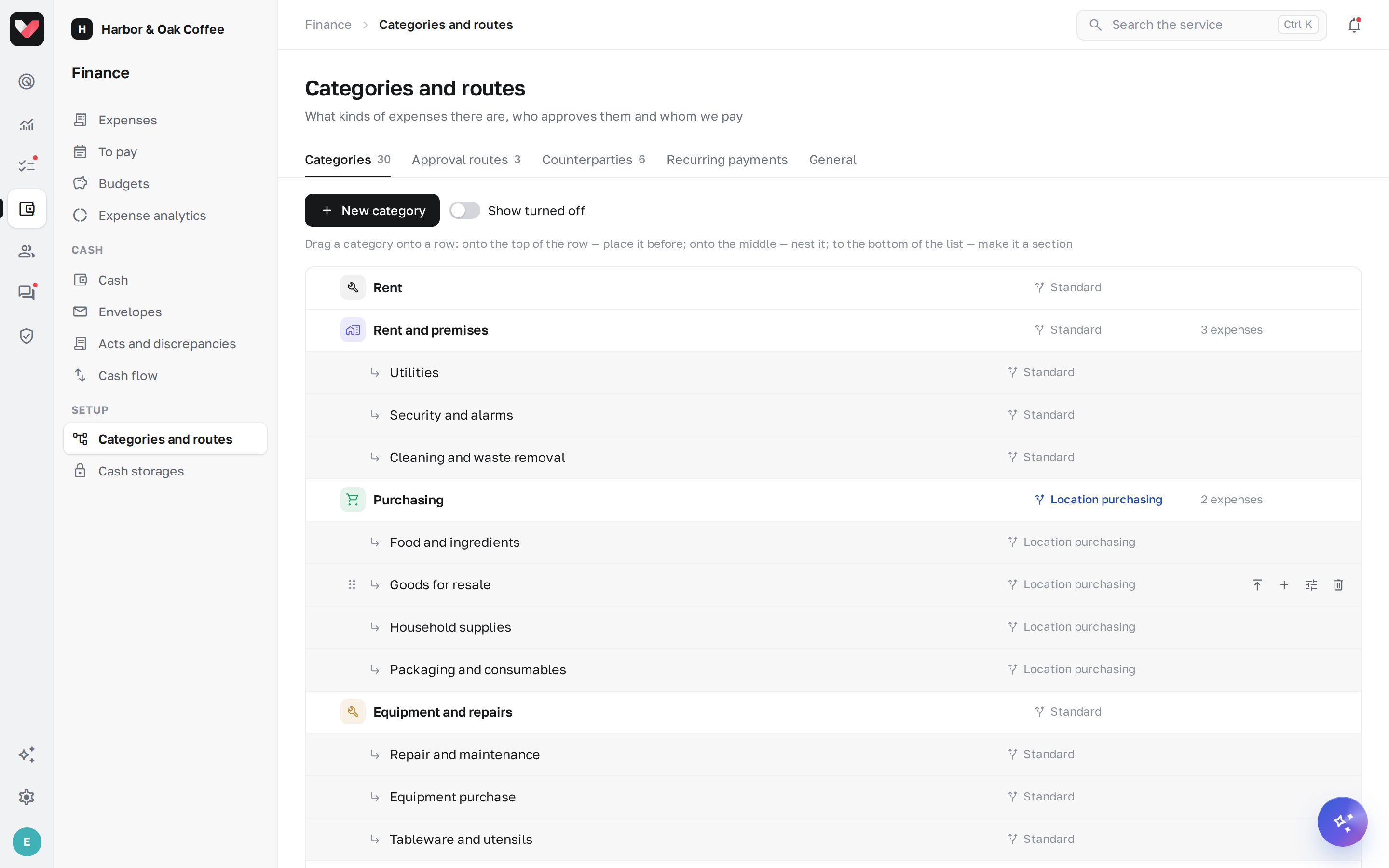
The first time the section is opened, jeCheck creates about 35 categories for food service and retail and three routes: Standard (default), Location purchasing and Fast. You can change them.
Categories
A tree of categories: "Purchasing → Dairy", "Rent", "Repairs". Each category has:
- Approval route — its own or the same as the parent category; if none is set anywhere — the default route;
- Invoice — Required, Not required or Same as parent;
- If the budget is exceeded — Warn, Forbid, Don't track or Same as parent;
- an icon, a color and an Accounting code.
A category that already has expenses or subcategories can't be deleted — it is turned off instead, and its history is kept.
Approval routes
A route is a diagram of steps. Open a route to get to the canvas editor:
- approval step — who decides: a specific employee, a position, the author's manager, the location manager, a department; any of them or all; deadline and reminders;
- condition — a "yes / no" branch on expense fields: amount, category, counterparty, payment method, urgency, whether there's an invoice, budget overspend, remaining budget, first payment to the counterparty, check warnings, as well as the author's location, position and department;
- at the end — Approved → to pay or Rejected.
Add blocks with the + button on a line or by dragging them from the palette; Ctrl + mouse wheel zooms. Test the path — enter an example (amount, category, location) and see the expense's path highlighted. Changes are saved as a route draft and take effect after Publish — new expenses follow the new version.
Route menu: Make default route, Make a copy, Delete (categories using it switch to the default route).
Counterparties
A directory: name, Organization or Individual, BIN/TIN, bank, BIC, IBAN, contacts, default category. Counterparties are also added automatically — when employees submit expenses or AI reads invoices.
Recurring payments
Rent, subscriptions, maintenance: an expense template, Day of month and How often. On the selected day, the expense is created automatically and sent for approval.
General
- expense number (for example, EXP-125) and Default currency;
- No submission without an invoice — the default for all categories;
- AI reads invoices — recognition of uploaded invoices;
- AI controller and the policy: describe the company's rules in plain text ("We buy food only from suppliers on the list"), and AI will check every expense against them and give a recommendation.
Frequently asked questions
How do I set up "up to 100,000 — the manager, above that — also the CFO"?
In the route, after the manager's step, add the condition "Amount over 100,000", and in the "yes" branch — the CFO's step. Check it with the Test the path button using amounts of 50,000 and 150,000.
Will route changes affect expenses already pending approval?
No. An expense follows the route version it was submitted with. The new version applies to new expenses.
Thank you! This helps us improve the help center.