
Expense budgets and analytics
Budgets
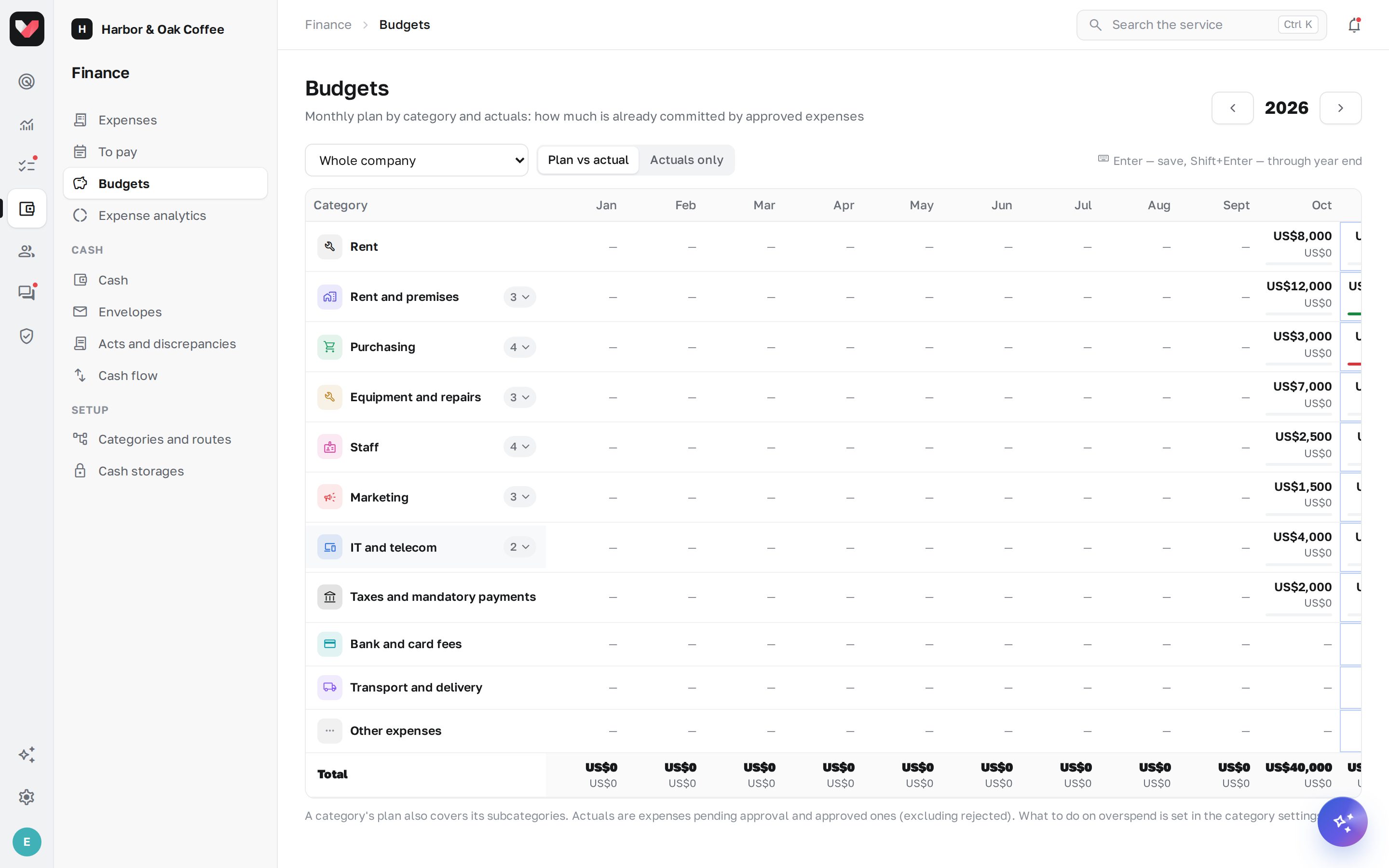
Finance → Budgets is a "category × month" table. Each cell shows the plan and, below it, the actual: how much is already committed by expenses pending approval and approved ones (excluding rejected and cancelled).
- At the top, choose the year and Whole company or a location.
- To set the plan, click a cell and enter the amount. Enter — save, Shift+Enter — the same value through the end of the year.
- The fill color shows how much of the plan has been used; red means overspend.
- Actuals only — hide categories without a plan.
A category's plan also covers its subcategories: the "Purchasing" plan includes "Purchasing → Dairy" expenses. For a location, the location's plan is used first; if there is none — the company plan.
What happens on overspend is set on the category in Categories and routes: Warn (the expense is submitted with a mark, and the route may add an approval), Forbid (it can't be submitted) or Don't track. See Settings.
Requires the Expenses: budgets permission.
Expense analytics
Finance → Expense analytics — for the selected period and locations:
- Expenses for the period, Paid, Awaiting decision now, Average approval time — from submission to "to pay";
- 12-month trend;
- By category and Locations — where the money goes;
- Budget execution — plan and actual;
- Largest counterparties;
- Slowest to decide — who is holding up approvals.
Requires the Expenses: analytics permission.
Frequently asked questions
Why are actuals higher than the sum of payments?
Budget actuals are expenses pending approval and approved ones, even if they haven't been paid yet: the money is already "committed".
Can I set a budget per department?
Budgets are set by category for the company and for locations.
Thank you! This helps us improve the help center.