
Instructions — your company knowledge base
The Instructions section is your chain's knowledge base: service standards, cleaning procedures, shift opening routines, equipment operation. An administrator writes an instruction with photos, videos and files, chooses who it's for and publishes it. Employees read it and confirm they've read it, and you see who has done so.
Where to find it
In the menu, open Work → Instructions. At the top of the page there's a search box, Search instructions and their text… — it searches the names, descriptions, tags and text of published instructions. The How it works button opens a visual guide to the section.
Who can do what
- Company administrators and employees with the “Managing the instruction library” permission create and edit instructions, folders and settings, view acknowledgement statistics and see all of the company's instructions.
- All other employees can only read published instructions addressed to them: by position, by location, or instructions for the whole company. They don't see drafts or the archive.
Administrators and employees with the “Managing the instruction library” permission can manage the instruction library — the permission is granted in Roles and permissions.
How the library is organized
The section works like a wiki. On the left is a tree of folders and instructions, on the right is whatever you opened. Click an instruction in the tree and it opens on the right while the tree stays in place, so it's easy to move between instructions. Click a folder and its contents appear on the right; the arrow next to a folder expands it right in the tree. Instructions without a folder are listed in the tree after the folders.
The Find in tree… field filters instructions by title. A dot next to an instruction means it's new for you or needs your acknowledgement. You can resize the tree by dragging its right edge, or hide it completely with Hide tree.
To see the whole library as a list, click Instructions at the top of the tree. Above the list are quick tabs:
- All — all active instructions;
- To acknowledge — instructions where you're expected to confirm “I've read it”;
- New for me — instructions you haven't opened yet or that changed significantly since you last viewed them;
- Drafts, Review due, Archive — these tabs are visible to administrators and employees with the “Managing the instruction library” permission.
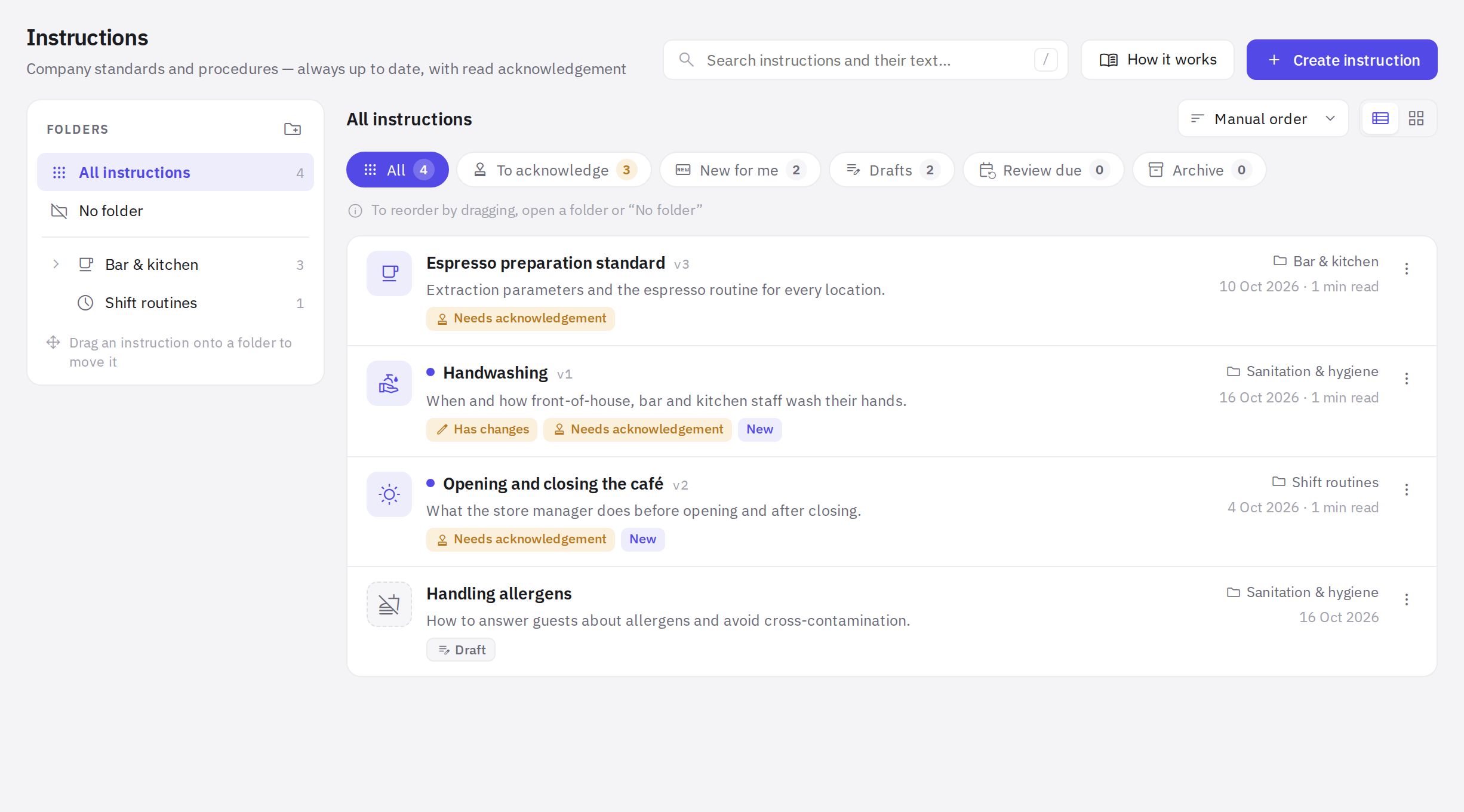
You can sort the list (Manual order, By title, By last update) and show it as a List or Grid. Instruction cards carry badges: New, Updated (a major version came out after you viewed it), Needs acknowledgement, Read, and for administrators also Draft, Has changes, Review due and Archive.
The life of an instruction
- Draft. You write the text in the editor and everything is saved automatically. Employees don't see the draft.
- Publishing. The Publish button turns the draft into version 1, 2, 3… Employees always see the latest published version.
- Acknowledgement. If acknowledgement is turned on, the employee clicks the button at the end of the instruction. After a major change, they need to confirm again.
- Review and archive. You can set a review cycle, and move an outdated instruction to the archive — employees will stop seeing it.
Details are in How to create an instruction, Folders and audience, Publishing and versions and Acknowledgement and statistics.
Web and mobile app
In the web dashboard, instructions are read and edited under Work → Instructions. The mobile app is for reading and the “I've read it” acknowledgement only — you can't create or edit instructions there. An employee without web dashboard access reads instructions only in the app.
Frequently asked questions
An employee can't see an instruction. Why?
Check three things: the instruction is published (not a draft), it isn't archived, and the employee is in its audience — by position or by location. The audience is set in the editor under Settings → Audience.
Can I start from something other than a blank page?
Yes. When you create an instruction, you can choose a template: “Standard operating procedure”, “Shift opening”, “Equipment sanitation” or “Equipment operation”. You can change all of the template's content afterwards.
Can I print an instruction or put a QR code next to equipment?
Yes. In reading mode there are Print and QR code & link → Print QR code buttons. The code opens the instruction in the web dashboard, so the employee needs to sign in and be in the instruction's audience.
Thank you! This helps us improve the help center.