
Audit planner: overview
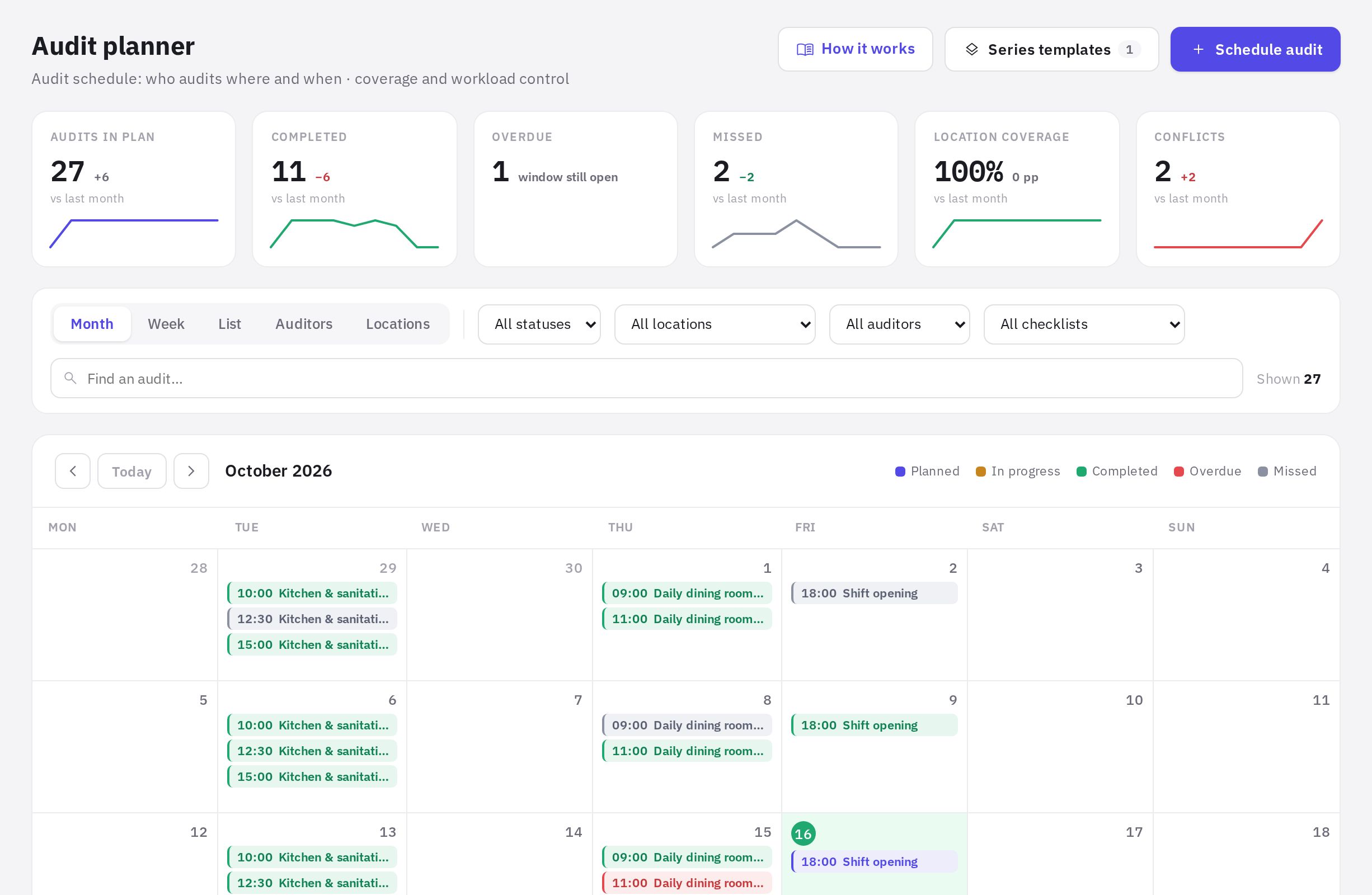
The Planner lays out recurring audits on a calendar: you set the checklist, locations, auditor and schedule once, and jeCheck creates an audit for each date, sends reminders and marks completed ones automatically. The section is in the Work → Planner menu.
How it works
- The administrator creates a plan. The Schedule audit button opens a six-step wizard — see How to schedule audits.
- The auditor sees audits in the app. The mobile app shows the audits assigned to them for today. If reminders are turned on in the plan, a push arrives a day and/or an hour before the audit. The auditor doesn't need access to the Planner.
- jeCheck matches the plan against what actually happened. If an audit on the same checklist at the same location is submitted within the planned date's window (on the day itself or within the plan's tolerance), the planned audit becomes Completed. If the date has passed with no audit — Overdue; once the window closes — Missed. Learn more in Planned audit statuses.
The How it works button in the section header opens a visual guide with examples.
Who can do what
- The company administrator and employees with the “Audit planning” permission create, edit and delete plans and series templates, and reschedule, reassign and cancel individual audits — at the locations where they have that permission.
- Other employees with web dashboard access see planned audits for their locations (the ones they are assigned to) and those assigned to them personally. They can mark their own audit as completed and undo that mark.
Browsing months and weeks
Above the calendar on the left are the ‹ and › arrows and the Today button:
- in the Month, List and Locations views, the arrows move between months;
- in the Week and Auditors views — between weeks;
- Today returns to the current month or week.
The metrics at the top of the page are recalculated for the selected month.
Metrics at the top of the page
The cards are based on the selected month's audits, with filters applied:
- Audits in plan — how many planned audits there are in the month;
- Completed, Overdue, Missed — the number of audits in each status;
- Location coverage — the share of locations with planned audits in the month;
- Conflicts — audits that overlap in time for the same auditor.
Next to the number is the change from the previous month (green means better, red means worse), and under it a mini chart by week for the previous and selected months. If there were no planned audits in the previous month, the change isn't shown. Overdue has no comparison: it's a temporary state while the audit window is open.
Calendar views
The switch above the calendar:
- Month — the selected month. A day cell shows up to three audits; the rest are behind the + N more link.
- Week — the selected week by hour, from 07:00 to 20:00.
- List — audits by day. In the current month — from today to the end of the month plus one week of the next; in any other month — the whole month. Each shows the location, auditor and a Series or One-off label.
- Auditors — each auditor's workload for the selected week and the number of conflicts.
- Locations — location coverage for the selected month: person in charge, audit frequency, last and next audit, status.
Clicking any audit opens its card: date, time, location, auditor, repeat rule, counting window and series history. What you can do in the card — see Planned audit statuses.
Location coverage
In the Locations view, coverage is the share of completed audits among a location's planned audits for the selected month whose date has already come:
- 90% and above — OK;
- 70% to 89% — Needs attention;
- below 70% — At risk;
- all of the month's audits are still ahead — Upcoming; no planned audits — No plan.
The person in charge is the first employee assigned to the location. "not scheduled" in the last and next audit columns means the location has no future planned audits in the loaded period.
Filters and search
Filters by status, location, auditor and checklist work in every view. The Find an audit… field searches by location name, checklist name and auditor name. On the right you can see how many audits are shown for the selected period; Reset clears all filters.
Schedule conflicts
A conflict is two audits for the same auditor on the same day that overlap in time, taking duration into account. Such audits are marked with a red dot, and the audit card shows a warning. Reschedule or reassign one of them.
Series templates
The Series templates button in the section header (visible to administrators and employees with the “Audit planning” permission) opens saved plan settings: checklist, locations, auditor, schedule, tolerance and notifications — without dates. Create plan opens the wizard already filled in with the template's settings. How to save a template is explained in How to schedule audits.
Frequently asked questions
How do I see next month's audits?
Click the › arrow above the calendar. In the Month, List and Locations views it moves forward a month; in the Week and Auditors views — a week.
Does the auditor need access to the Planner?
No. They see today's planned audits in the mobile app — see How to carry out an audit in the mobile app. Audit reminders arrive as push notifications if they are turned on in the plan.
Why can't I see the "Schedule audit" button?
Plans can be created and edited by administrators and employees with the “Audit planning” permission — at the locations where it applies. Other employees with the “Audit planner” permission see planned audits for their locations and those assigned to them. Permissions are granted in Roles and permissions.
Where can I see how well the plan is being followed over a long period?
In Analytics → Plan completion — for any period, broken down by location, auditor and checklist. See Plan completion and tasks.
Thank you! This helps us improve the help center.