
How to organize instructions into folders and choose the audience
Folders help employees find what they need quickly, and the audience decides who sees an instruction at all. Both settings are changed by administrators and employees with the “Managing the instruction library” permission.
Folders and subfolders
- Create a folder. In the tree on the left, click the New folder icon (or Create folder if there are no folders yet). Enter a Folder name and choose an Icon.
- Add a subfolder. Open the folder and click Subfolder above the list, or hover over the folder in the tree and choose New subfolder in the ⋯ menu. Nesting is unlimited.
- Move instructions. Drag an instruction onto a folder in the tree — from the tree itself or from the list on the right — or choose Move to folder in the instruction's menu. You can also change an instruction's folder in the editor: Settings → Folder.
- Set the order. Drag instructions and folders right in the tree on the left — a line shows where they will go. You can also reorder instructions in a folder's list on the right.
The folder menu also has Rename, Move and Delete. The + button next to a folder in the tree creates an instruction right in that folder.
Deleting a folder doesn't delete the instructions and subfolders in it — they move one level up.
Who sees an instruction: the audience
The audience is set in the editor under Settings → Audience. There are two options:
- Whole company — all employees see the instruction, including people added later;
- Selected positions and locations — choose the Positions and/or Locations you need.
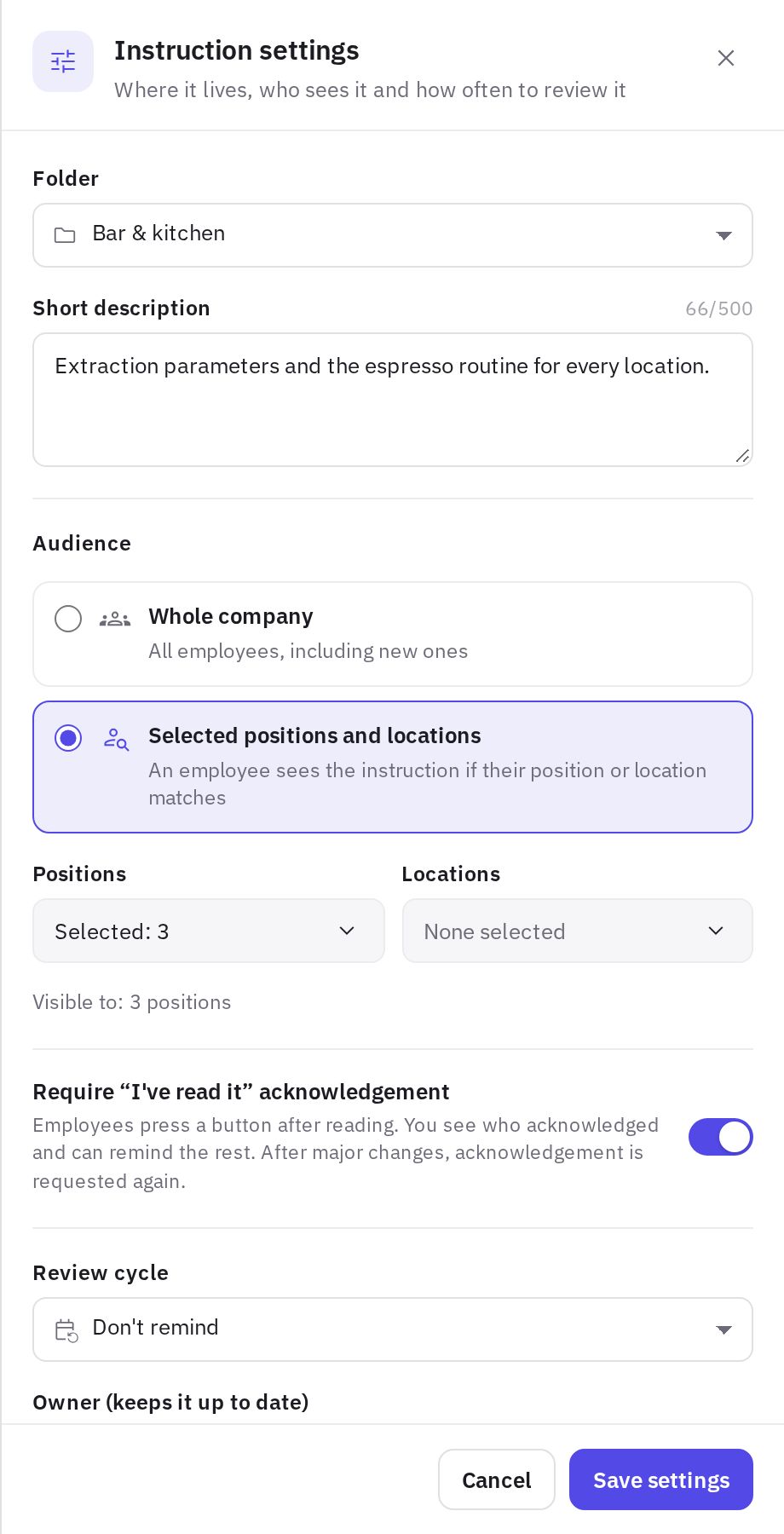
An employee sees the instruction if they match at least one criterion: their position or one of their locations. For example, if you select the “Cook” position and the “Mega Mall” location, every cook in the chain and every employee at “Mega Mall” will see it.
Company administrators and employees with the “Managing the instruction library” permission see all instructions regardless of the audience.
For an instruction to reach the right people, employees need a position and locations in their profile. You set this under Management → Users — see Team.
Other instruction settings
The same Instruction settings panel has:
- Short description — up to 500 characters, shown in the list and under the name;
- Require “I've read it” acknowledgement — see Acknowledgement and statistics;
- Review cycle — Every month, Every 3 months, Every 6 months, Every year or Don't remind;
- Owner (keeps it up to date) — the person who makes sure the instruction doesn't go out of date; they get the review reminder;
- Tags — up to 20 tags, used by search. Add a tag with Enter or a comma.
Click Save settings. Settings apply immediately — you don't need to publish the instruction again.
How the review cycle works
The countdown starts from the publication date. When the due date arrives, the instruction gets a Review due badge and appears on the Review due tab, which administrators and employees with the “Managing the instruction library” permission see. Each new publication restarts the countdown.
On the due date, the owner gets a push and an email “Time to review an instruction” with a link to it. If no owner is assigned, the instruction's author gets the reminder. The reminder is sent once per due date; after a new publication or a change of the cycle, it is sent again when the new due date arrives.
If the instruction is still up to date, open it and in the Time to review an instruction banner click Up to date, extend — the next due date is counted from today and employee acknowledgements are kept. If it needs changes, click Make changes and publish a new version — that restarts the countdown too.
The Don't remind option turns off both the review cycle and the reminders.
Frequently asked questions
I changed the audience — do I need to publish again?
No. The audience applies as soon as you click Save settings. Keep in mind that employees who are no longer in the audience will stop seeing the instruction.
Will a new employee see instructions published before they joined?
Yes, if they match the audience. They won't get the publication push — it's sent only at the moment of publishing — but the instruction will be in their list with a New badge.
Can I pick specific employees?
No. The audience is set only by positions and locations, or as the whole company.
Thank you! This helps us improve the help center.