
How to publish an instruction and work with versions
Each time you publish an instruction, a new version is created: 1, 2, 3… A published version can't be changed — you can only release the next one. That way you always have a history of what changed, when and by whom.
Step by step: publishing
-
Open the instruction in the editor. The Publish button is active when there are unpublished changes.
-
Click “Publish”. A window opens with the number of the upcoming version.
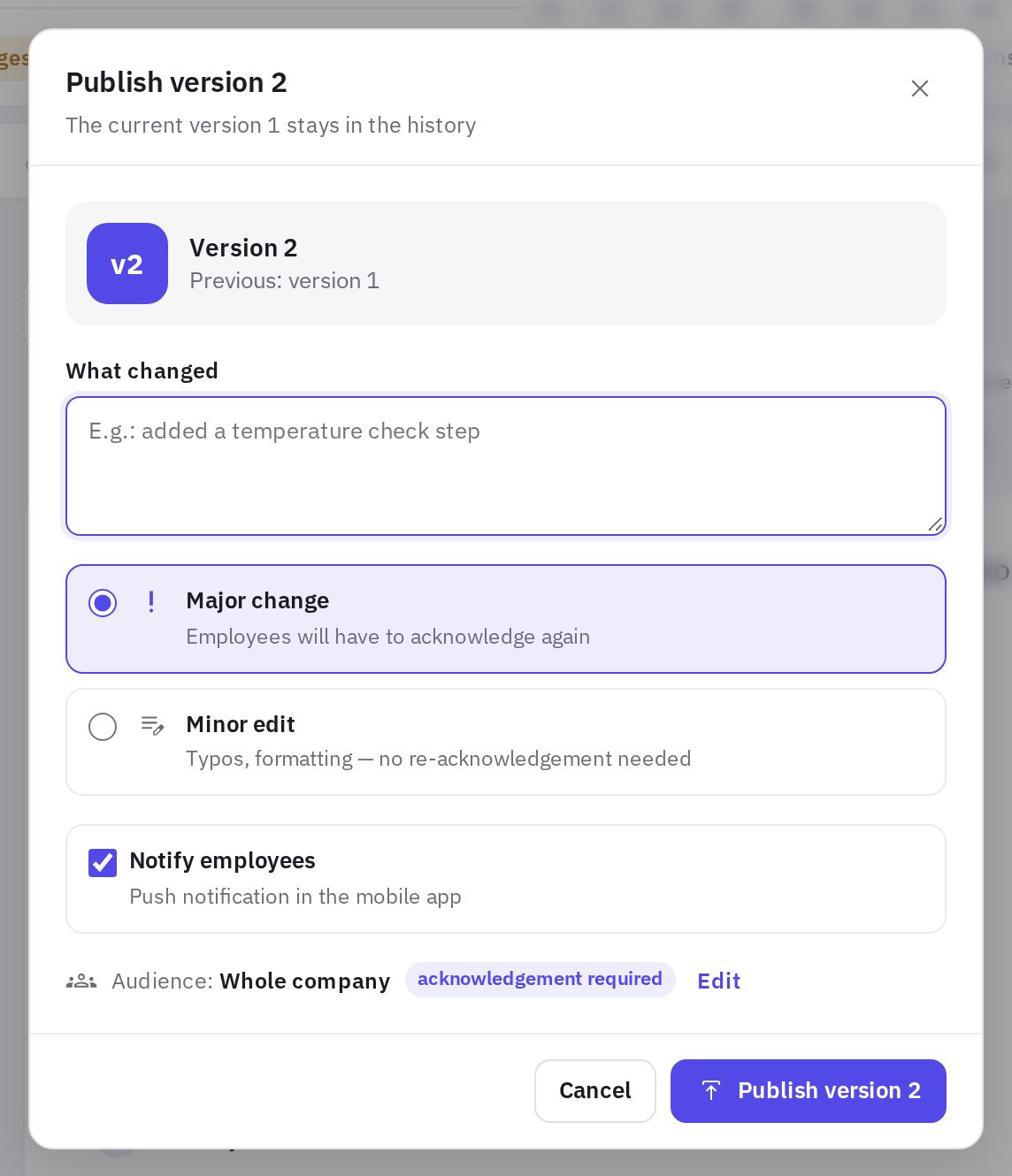
The window for publishing a new version -
Describe what changed. The What changed field is optional for the first publication and required from the second version on. Employees see this text at the top of the instruction and in the push notification.
-
Choose the change type (from the second version on): Major change or Minor edit.
-
Decide whether to notify employees. The Notify employees checkbox sends a push to the mobile app and a notification in the web dashboard to everyone in the audience. It's on for the first publication and for a major change, and off for a minor edit; check or uncheck it manually if needed.
-
Check the audience. The bottom of the window shows who the instruction is for; the Edit link opens the settings.
-
Confirm publishing. Afterwards, the instruction opens in reading mode.
You can't publish an instruction without a name, an empty one, or while files are uploading — the window tells you what to fix.
Major change or minor edit
- Major change — the order of actions, norms or requirements have changed. If the instruction requires the “I've read it” acknowledgement, employees will have to confirm again: old acknowledgements don't count for the new version. Employees who opened the previous version see an Updated badge in the list and in the instruction itself.
- Minor edit — typos, formatting. Acknowledgements are kept.
The first publication always counts as major.
The Notify employees checkbox switches along with the change type: choose Minor edit and it's unchecked, Major change and it's checked. If you toggle the checkbox manually, the window stops changing it.
A draft on top of the published version
After publishing, you can keep editing: employees see the latest published version while your changes accumulate in a draft. The editor status shows Has unpublished changes, and the list shows a Has changes badge.
To drop your edits, choose More → Discard draft — the draft reverts to the latest published version.
History, comparison and restoring
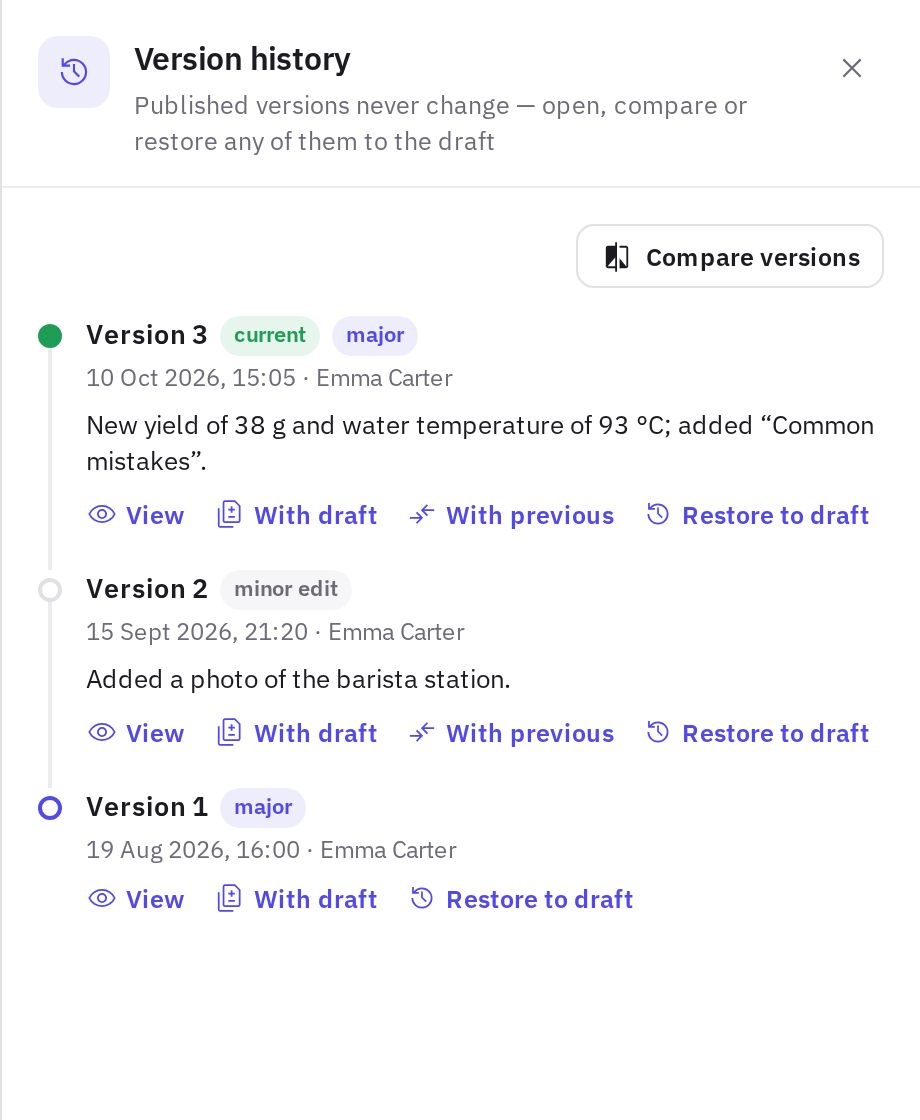
The Versions button in the editor opens the history: number, date, author and type (major or minor edit). For each version you can use:
- View — see how the instruction looked;
- With draft and With previous — comparison: additions and deletions are highlighted; you can turn on Changes only;
- Restore to draft — the old version's content replaces the current draft. The published version stays the same until you publish again — then a new version is created.
Employees in reading mode can also pick an older version from the Version list. Viewing an old version doesn't count as reading the current one.
Archive and deletion
- Archive (in the editor's More menu or the instruction's menu in the list) — employees stop seeing the instruction; history and statistics are kept. To bring it back, use Restore from archive.
- Delete — the instruction is deleted together with all versions and acknowledgement statistics, and can't be restored.
Frequently asked questions
Will employees notice that the instruction was updated?
If you leave Notify employees checked, they get an “Instruction updated” notification with the text from the What changed field. The same text is shown at the top of the instruction. After a major change, people who already read the instruction see an Updated badge in the list and next to the version number. The badge disappears once the employee opens the new version. A minor edit doesn't add the badge. If acknowledgement is required and the change is major, the instruction reappears on the employees' To acknowledge tab.
I made a mistake when publishing. How do I roll back?
Open Versions, click Restore to draft on the version you need, and publish. This creates a new version with the earlier content.
Can I fix a typo without resetting acknowledgements?
Yes: choose Minor edit when publishing — acknowledgements are kept, and the Notify employees checkbox unchecks itself.
Thank you! This helps us improve the help center.