
How to create an instruction in the editor
Instructions are written in a block editor: text, headings, numbered steps, photos, warnings, tables, videos and files. The draft is saved automatically and employees can't see it until you publish it.
What you need
- company administrator rights or the “Managing the instruction library” permission;
- the text of your standard or procedure, plus photos if you need them.
Step by step
-
Open the section. In the menu, go to Work → Instructions and click Create instruction. To get ready-made text right away, click Create with AI — the assistant writes an instruction with steps and warnings, and it's created as a draft (see How to create with the AI assistant).
-
Fill in the “New instruction” window. Enter a Name (you can do it later) and a Folder. Under Start with, choose Blank instruction or one of the templates: “Standard operating procedure”, “Shift opening”, “Equipment sanitation”, “Equipment operation”.
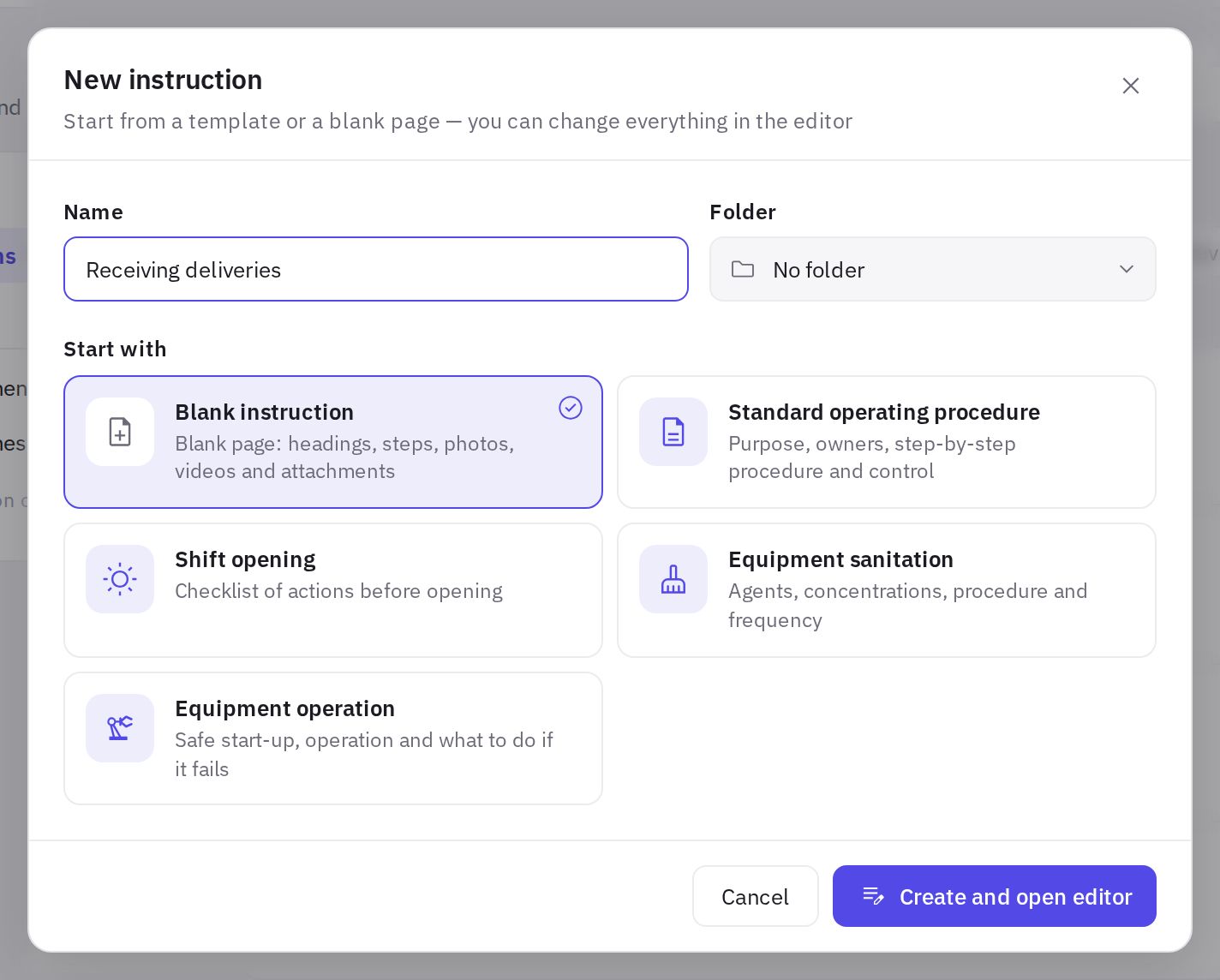
The “New instruction” window: name, folder and template -
Click “Create and open editor”. The editor opens with your draft.
-
Write the text. To insert a block, type / at the start of an empty line — a searchable block menu opens. The main blocks are also on the formatting toolbar above the text.
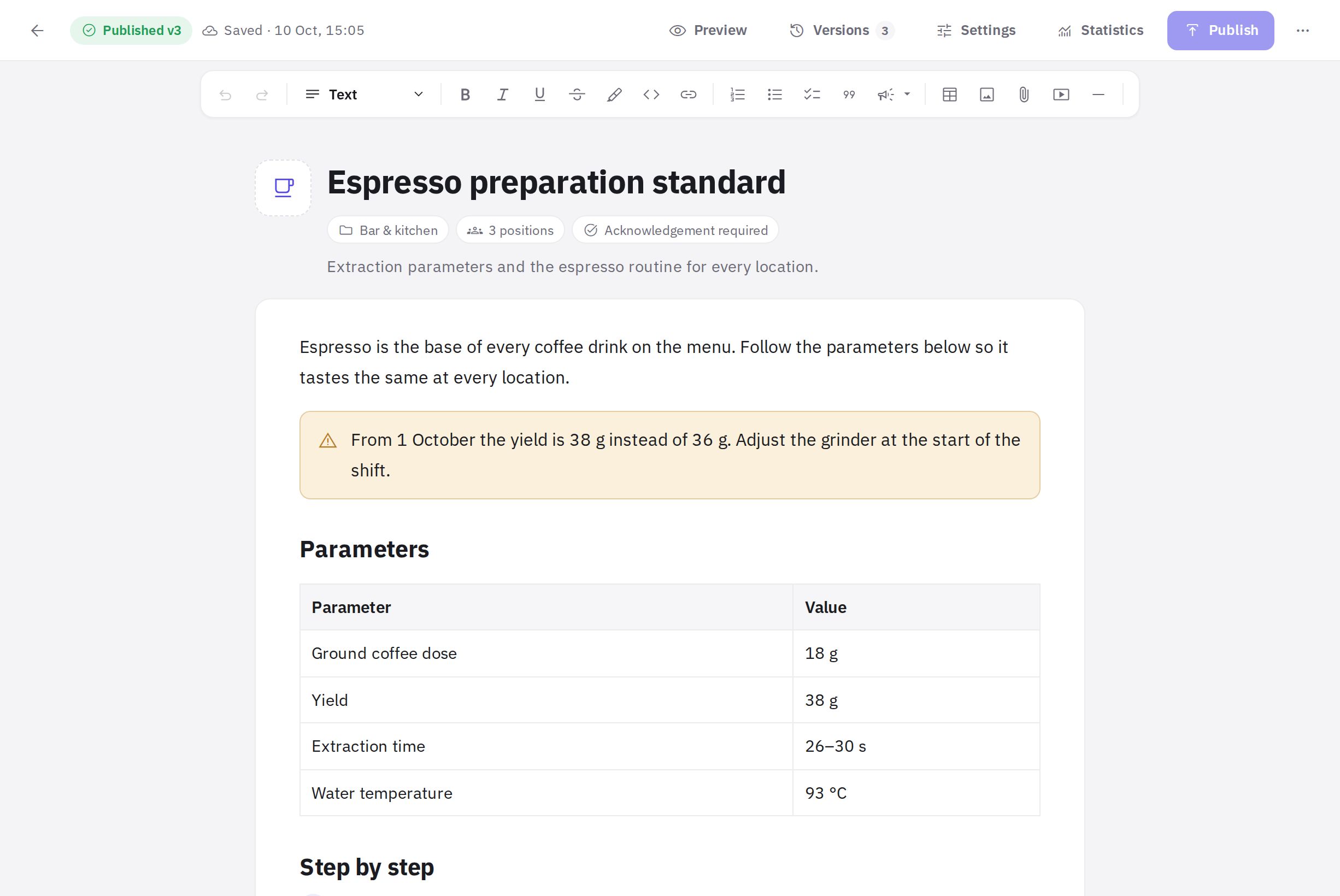
The instruction editor: block toolbar, text with a callout and a table -
Check what employees will see. The Preview button shows the instruction in reading mode. To go back to editing, click Edit.
-
Publish. When the text is ready, click Publish — see Publishing and versions.
Blocks available in the editor
In the “/” menu, blocks are grouped:
- Text — a regular paragraph, Heading 1, Heading 2, Heading 3. Headings appear in the instruction's table of contents in reading mode.
- Lists — Numbered steps, Bulleted list, Checklist (items with checkboxes).
- Blocks — callout blocks Info, Tip, Warning, Danger, plus Quote, Table (3 × 3 with a header row), Code and Divider.
- Media — Photo, File, YouTube video.
Select text and a toolbar appears: bold, italic, underline, strikethrough, highlight, link. A link can point to a website (Web address) or to another instruction in your company (Another instruction).
Use the Danger block for risks to people and equipment, and Warning for things that must not be missed. Don't overload an instruction with callouts: one or two per section read better.
Photos, files and videos
- Photos can be added with the Photo block, pasted from the clipboard or dragged into the text. JPEG, PNG, WebP and GIF are supported, up to 15 MB per file. You can choose a photo size (Small, Medium, Full width) and add a caption and description. In reading mode, photos open full screen.
- Files are attached with the File block: PDF, Word, Excel, PowerPoint, TXT, CSV, ZIP, MP4, MOV — up to 50 MB.
- YouTube videos are inserted by link, and employees watch them right inside the instruction.
You can't publish an instruction while files are still uploading. Wait for the upload to finish.
Draft autosave
Next to the status in the top bar you'll see the save state: Saving…, Saved · time, or Not saved with a Retry button. To save immediately, press Ctrl+S (⌘+S on a Mac). For the full list of shortcuts, open the More menu (the “…” button) → Keyboard shortcuts.
The bottom of the editor shows the word count, character count and estimated reading time.
Frequently asked questions
Can employees see what I'm writing right now?
No. Everything you change in the editor stays a draft until you click Publish. This includes the name: employees see a new name only after publishing.
Can I copy an instruction for another location?
Yes: in the editor, use More → Duplicate, or in the instruction list, open the action menu → Duplicate.
A photo from my phone won't upload. What should I do?
Check the format and size: JPEG, PNG, WebP and GIF up to 15 MB are accepted. Save photos in other formats as JPEG first.
Thank you! This helps us improve the help center.